What Happens If a Nvme Ssd Disconnects
An NVMe SSD disconnect is a sudden, complete loss of communication between your drive and the motherboard. This causes the drive to vanish from your system, triggering immediate system freezes, blue screens, or boot failures, and risks severe data corruption. The primary culprits are often faulty hardware connections, outdated drivers, aggressive power-saving settings, or overheating. Immediate action involves checking physical connections, updating drivers/firmware, and disabling problematic power settings. Long-term prevention hinges on ensuring robust cooling, a stable power supply, and regular system health monitoring to avoid the disruptive and potentially costly consequences of an unexpected disconnection.
Key Takeaways
- Sudden System Failure: A disconnect causes an immediate system freeze, crash (BSOD), or boot failure as the operating system loses its primary storage device.
- Primary Causes Are Software & Power: The most common fixes involve updating NVMe drivers/chipset drivers and disabling aggressive Windows power-saving features like Link State Power Management (LSPM).
- Hardware Faults Are Serious: A physically loose or faulty M.2 slot, a defective SSD, or a weak motherboard standoff can cause intermittent disconnects that require physical inspection and part replacement.
- Overheating Is A Major Trigger: NVMe SSDs, especially high-performance models, generate significant heat. Sustained thermal throttling or heat-induced errors can lead to disconnects under load.
- Data Corruption Is The Biggest Risk: Any disconnect during a read/write operation can corrupt the specific file being accessed and potentially damage filesystem structures, making data recovery difficult.
- Troubleshooting Is A Process Of Elimination: Start with the simplest, software-based fixes (drivers, power settings) before moving to hardware checks (reseating, testing in another slot/system).
- Prevention Beats Cure: Use monitoring software, ensure adequate case airflow, avoid cheap/unstable power supplies, and always maintain current, verified backups of critical data.
[FEATURED_IMAGE_PLACEHOLDER]
📑 Table of Contents
- Understanding the NVMe SSD Disconnect: More Than Just a Glitch
- Symptoms and Immediate Effects: Recognizing the Disconnect Event
- The Root Causes: Why Does an NVMe SSD Disconnect?
- Step-by-Step Troubleshooting Guide: From Simple to Complex
- Prevention and Long-Term Care: Keeping Your NVMe SSD Connected
- When to Consider Replacement: Hardware Has Failed
Understanding the NVMe SSD Disconnect: More Than Just a Glitch
Imagine you’re in the middle of a critical work project, a intense gaming session, or transferring a large batch of precious family photos. Suddenly, your computer screen freezes. The mouse doesn’t move. The keyboard is dead. After a forced restart, your system either takes forever to boot, shows a “Boot Device Not Found” error, or worst of all, your NVMe SSD has simply vanished from the BIOS and your operating system. This isn’t a minor hiccup; this is an NVMe SSD disconnect—a complete and often violent severance of the data highway between your blazing-fast storage and your computer’s brain. It’s a problem that strikes fear into the hearts of users because its symptoms mimic failing hardware, yet its root causes can be deceptively simple or frustratingly complex. This guide will dissect exactly what happens when an NVMe SSD disconnects, walk you through a systematic diagnosis from the comfort of your desk, and arm you with the knowledge to prevent it from ever happening again.
The modern NVMe (Non-Volatile Memory Express) SSD is a marvel of engineering, offering speeds that dwarf its SATA predecessors by using the PCIe bus directly. But this high-performance design also introduces new points of failure. Unlike a SATA drive with a sturdy, locked-in data/power cable, an M.2 NVMe SSD relies on a delicate, friction-based connection to a small socket on the motherboard. It draws all its power through this same slender slot. This design is elegant for节省 space but makes the drive susceptible to issues that a traditional 2.5″ SATA SSD simply wouldn’t face. When a disconnect occurs, the consequences ripple through your entire computing experience, from immediate system instability to long-term data integrity concerns. Understanding the “what” and “why” is the first step toward a solution.
Symptoms and Immediate Effects: Recognizing the Disconnect Event
An NVMe SSD disconnect doesn’t typically whisper its arrival; it announces itself with a crash, a freeze, or a complete system failure. Recognizing these symptoms is crucial for diagnosing the problem correctly and avoiding misattribution to other failing components like RAM or the power supply.

Visual guide about What Happens If a Nvme Ssd Disconnects
Image source: techinspection.net
The Obvious: System Crashes and Freezes
The most common and jarring symptom is a total system lock-up. This isn’t an application crash; it’s a full system freeze where the display locks on the last frame, audio may loop in a stutter, and no input—keyboard, mouse, or even the reset button—elicits a response. This happens because the operating system’s kernel is actively trying to read from or write to the now-inaccessible NVMe SSD (for example, to write to a log file or swap memory). When the drive vanishes mid-operation, the entire system grinds to a halt, often resulting in a Blue Screen of Death (BSOD) with error codes like CRITICAL_PROCESS_DIED, UNEXPECTED_STORE_EXCEPTION, or KERNEL_MODE_EXCEPTION_NOT_HANDLED. After a hard restart, the system may fail to boot, presenting errors like “No Bootable Device” or “Boot Device Not Found” because the firmware can no longer detect the SSD.
The Subtle: Intermittent Disappearance and Performance Drops
Not all disconnects are catastrophic. Some are intermittent, especially under heavy load. You might be gaming or rendering a video when the game crashes to desktop or the rendering software fails with an I/O error. In the system logs (Event Viewer in Windows), you’ll see warnings or errors from the disk or the kernel stating that a device has been removed or that a read/write operation failed. Sometimes, the drive will simply disappear from “This PC” in File Explorer while the rest of the system remains seemingly operational. This is a classic sign of a connection or thermal issue that causes the SSD to drop out temporarily before the system or the drive’s internal controller can re-establish the link. Performance can also degrade dramatically right before a disconnect, as the drive spends more time trying to recover from errors than actually transferring data.
The Aftermath: Data Corruption and File System Errors
The silent danger of an NVMe SSD disconnect is data corruption. If the disconnection occurs during a write operation—saving a document, installing a program, updating the operating system—the file being written is almost certainly corrupted. Worse, if the write was to a critical system file or a key filesystem metadata structure (like the Master File Table in NTFS), the entire volume can become corrupted and unbootable. Upon a successful reboot, you might encounter CHKDSK prompts, errors about missing or invalid files, or applications that fail to launch due to damaged libraries. Recovering from this state often requires booting from recovery media and running deep filesystem repair tools, and even then, some data loss is frequently permanent.
The Root Causes: Why Does an NVMe SSD Disconnect?
Diagnosing the cause requires a methodical approach, as the symptoms are often identical regardless of the underlying problem. The causes generally fall into four broad categories: hardware/connection issues, software/driver problems, power management conflicts, and thermal throttling. Let’s explore each in detail.

Visual guide about What Happens If a Nvme Ssd Disconnects
Image source: techinspection.net
Hardware and Connection Faults
The physical layer is the most fundamental. The M.2 slot on your motherboard and the gold contacts on your SSD must maintain a perfect, stable connection.
- Loose or Improperly Seated Drive: This is the first thing to check. An M.2 SSD that isn’t fully screwed down to the motherboard standoff can shift slightly due to thermal expansion, case vibration, or even gravity over time, breaking the electrical connection. The screw is not just for mounting; it applies constant pressure to keep the contacts engaged.
- Faulty M.2 Slot or Motherboard: The PCIe lanes that connect to the M.2 slot can be damaged by ESD, a faulty component, or a manufacturing defect. Sometimes, using a different M.2 slot (if your board has multiple) can isolate the problem. Also, a poorly soldered standoff or a bent pin in the slot itself can cause an intermittent open circuit.
- Defective SSD: The SSD itself can have a faulty controller, bad NAND flash memory, or a manufacturing defect in its M.2 edge connector. These failures often manifest under thermal or electrical stress.
- Incompatible or Poor-Quality Adapter: If you’re using an M.2 to PCIe adapter card, a cheap or poorly made adapter can have its own voltage regulation or signal integrity issues, causing disconnects.
Software, Drivers, and Firmware Conflicts
The software that manages the communication between the OS and the SSD is a common source of instability.
- Outdated or Corrupt NVMe Drivers: While Windows has generic NVMe drivers, manufacturer-specific drivers (like those from Samsung, WD, or Crucial) are often better optimized. An outdated, corrupt, or Windows-update-broken driver can cause communication timeouts that lead to a disconnect.
- Motherboard Chipset Drivers: The chipset drivers from your motherboard manufacturer (Intel, AMD, or ASUS/Gigabyte/MSI) manage the PCIe bus and storage controllers. Outdated chipset drivers are a notorious cause of NVMe instability.
- SSD Firmware Bugs: The firmware is the SSD’s internal operating system. A buggy firmware update can introduce regressions that cause the drive to drop the connection under specific workloads. Conversely, not updating from a known buggy version leaves the problem unfixed.
- Operating System Conflicts: Major Windows updates (e.g., feature updates) can sometimes break existing storage driver configurations, requiring a fresh driver install or a firmware update from the SSD vendor.
Power Management and Aggressive Sleep States
To save energy, Windows and the hardware implement deep sleep states for PCIe devices. For a high-performance NVMe SSD, these states can be too aggressive.
- Link State Power Management (LSPM): This Windows power policy (found in Advanced Power Settings) allows the PCIe link to enter low-power states (L1, L2, L3). Some NVMe SSDs and motherboard combinations do not handle the transition back to full power (L0) gracefully, causing the drive to fail to wake up, appearing as a disconnect.
- AHCI Link Power Management: While more relevant to SATA, similar power-down policies for the storage controller can affect NVMe drives on some platforms.
- Fast Startup (Hybrid Boot): This Windows feature, designed to speed up boot times by saving the kernel state to disk, can sometimes cause issues with NVMe initialization on reboot, making the drive undiscoverable.
Thermal Throttling and Overheating
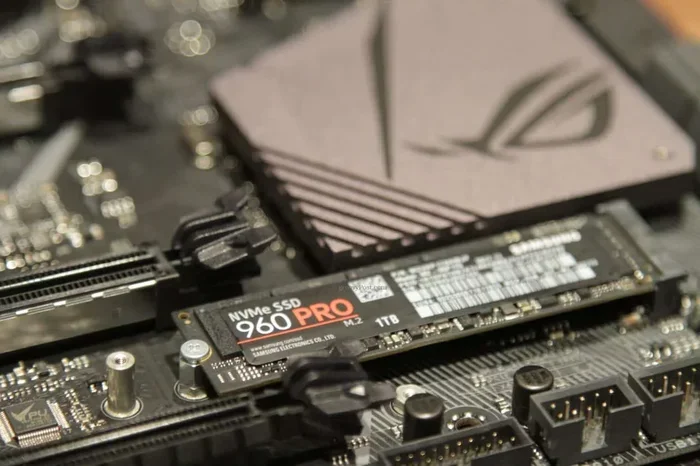
Performance NVMe SSDs are power-hungry and generate considerable heat, often more than the motherboard’s passive heatsink (if present) can dissipate, especially in cases with poor airflow.
- Sustained Thermal Throttling: When the SSD’s controller temperature exceeds a threshold (typically 70-80°C), it deliberately slows down to reduce heat output. In extreme cases or with poor thermal design, the heat can cause electrical instability in the NAND or controller, leading to communication errors and disconnects.
- Heatsink Contact Issues: Many motherboards include an M.2 heatsink that must be properly installed with a thermal pad between the SSD and the heatsink. If this pad is missing, misaligned, or of poor quality, heat transfer is inefficient, allowing the SSD to overheat.
- Case Airflow Starvation: An NVMe SSD mounted on the back of a motherboard, sandwiched between the board and the case side panel with no direct airflow, will cook. Heat rises and gets trapped, creating a hot spot that can trigger thermal shutdowns or errors.
Step-by-Step Troubleshooting Guide: From Simple to Complex
Follow this structured diagnostic process. Always start with the simplest, least invasive steps and work your way up. Back up any accessible data before beginning hardware troubleshooting.

Visual guide about What Happens If a Nvme Ssd Disconnects
Image source: aomeitech.com
Phase 1: Immediate Software and Configuration Checks
These steps take minutes and resolve a huge percentage of disconnect issues.
- Update NVMe and Chipset Drivers: Go directly to your SSD manufacturer’s website (Samsung, WD, etc.) and download the latest NVMe driver for your specific model. Also, go to your motherboard manufacturer’s support page and download the latest chipset drivers for your specific motherboard and OS. Perform a clean install, not an upgrade.
- Disable Link State Power Management (LSPM): Go to Control Panel > Power Options > Edit Plan Settings > Change Advanced Power Settings. Expand PCI Express > Link State Power Management and set it to Off for both “On battery” and “Plugged in” (if applicable). Apply and reboot.
- Disable Fast Startup: In Control Panel > Power Options > Choose what the power buttons do, click “Change settings that are currently unavailable,” and uncheck “Turn on fast startup.” This forces a full, clean boot.
- Check for Firmware Updates: Use the SSD manufacturer’s diagnostic tool (e.g., Samsung Magician, WD Dashboard, Crucial Storage Executive) to check for and install the latest firmware. Ensure your power supply is stable and the system is not prone to outages during this process.
- Run System File Checker: Open Command Prompt as Administrator and run
sfc /scannowto repair any corrupted system files that might be interfering with storage drivers.
Phase 2: Hardware Inspection and Reseating
If software fixes fail, it’s time to open the case.
- Power Down and Unplug: Completely shut down, unplug the PC from the wall, and press the power button for 10 seconds to discharge residual power.
- Reseat the NVMe SSD: Carefully remove the screw holding the SSD, gently pull the drive out of the M.2 slot, and re-insert it firmly at a ~30-degree angle until it clicks into place. Ensure it is perfectly parallel to the motherboard before pressing it down and securing it with the screw. Do not overtighten the screw; snug is sufficient.
- Inspect the Slot and Connector: Use a flashlight to look into the M.2 slot. Ensure there is no dust, debris, or bent pins. Gently clean the contacts on the SSD with a pencil eraser if they look tarnished (be very gentle).
- Check the Heatsink: If your motherboard has an M.2 heatsink, remove it. Check that the thermal pad is present, undamaged, and making full contact with both the SSD and the heatsink. Replace the pad with a high-quality aftermarket one (like those from Thermal Grizzly) if it’s dried out or insufficient.
- Test in an Alternate Slot: If your motherboard has a second M.2 slot, move the SSD to that slot. This determines if the problem is the SSD or the first M.2 slot/channel.
Phase 3: Advanced Diagnostics and Isolation
When the problem persists, you need to isolate the variable.
- Test the SSD in Another System: This is the definitive test. Install the suspect NVMe SSD in a known-good, different computer. If the disconnects follow the drive, the SSD is faulty. If the drive works perfectly in the new system, the problem lies with your original motherboard’s slot, power delivery to that slot, or its BIOS settings.
- Test a Different SSD in Your Original Slot: Borrow a known-good NVMe SSD and install it in your original problematic M.2 slot. If the new drive also disconnects, you have a motherboard issue (faulty slot, BIOS bug, power delivery problem).
- Update Your BIOS/UEFI: An outdated motherboard BIOS can have major bugs in PCIe/NVMe compatibility. Go to your motherboard manufacturer’s website, download the latest BIOS, and update it carefully following their instructions. This carries a small risk of bricking the board if interrupted.
- Monitor Temperatures: Use tools like HWInfo64, CrystalDiskInfo, or the SSD’s own software to monitor the drive’s temperature during a stress test (like running a game or a disk benchmark). If temperatures consistently exceed 80°C before a disconnect occurs, overheating is your culprit. You need better cooling: a better case fan setup, a dedicated M.2 heatsink with a heatpipe, or even an external PCIe card with its own fan.
Prevention and Long-Term Care: Keeping Your NVMe SSD Connected
Once you’ve solved the immediate problem, implementing these practices will ensure long-term stability and protect your data.
Proactive Monitoring and Maintenance
Don’t wait for a crash to act. Use your SSD manufacturer’s software dashboard to set up email or desktop alerts for drive health (SMART attributes like “Critical Warning,” “Media and Data Integrity Errors,” “Temperature”). Schedule a weekly quick check. Keep your chipset and storage drivers updated, but avoid updating firmware unless it addresses a specific bug you’re experiencing or is a critical security fix. Sometimes, “if it ain’t broke, don’t fix it” applies to firmware.
Optimizing Your System’s Environment
Your PC’s physical environment matters.
- Airflow is King: Ensure your case has a clear intake/exhaust path. Install and configure case fans to create positive or neutral pressure. Direct a fan to blow air across the M.2 area if possible. Many modern cases have dedicated M.2 fan mounts or airflow channels.
- Use Quality Components: A cheap, underpowered, or failing power supply (PSU) can cause voltage droops on the 12V/5V rails that feed the motherboard and, by extension, the SSD. Invest in a reputable, sufficiently wattage PSU from a known brand (Seasonic, Corsair, be quiet!, etc.).
- Secure Mounting: Always use the included screw to secure your M.2 SSD. If the screw is missing, order a replacement (#0 or #1 Phillips, typically M2x3 or M2x4). A loose drive is a disconnected drive waiting to happen.
Smart Power and BIOS Settings
For stability, favor performance over marginal power savings.
- Set Windows Power Plan to “High Performance”: This minimizes aggressive power state transitions.
- Disable LSPM Permanently: As mentioned, this is the single most effective software fix for many disconnect issues. The power savings are negligible on a desktop system.
- Check BIOS Settings: Enter your motherboard BIOS/UEFI. Look for settings related to “PCIe/PCI Power Management,” “Above 4G Decoding,” “Re-Size BAR Support” (sometimes called Smart Access Memory), and the specific M.2 slot configuration (PCIe Gen3/Gen4). Try setting the PCIe slot for the M.2 drive to “Gen3” instead of “Auto” or “Gen4” to see if stability improves, as Gen4 can be more sensitive to signal integrity.
When to Consider Replacement: Hardware Has Failed
After exhaustive troubleshooting—tested in another system, tried different cables/adapters (for PCIe cards), updated all firmware/drivers/BIOS, confirmed temperatures are normal—the conclusion is inevitable: the hardware is faulty.
- The SSD Itself: If the drive fails in multiple systems, it’s dead. Contact the manufacturer for an RMA under warranty. Have your proof of purchase ready. Before sending it, if possible, use a USB-to-NVMe enclosure on another computer to attempt a last-ditch data recovery. Be prepared for the drive to be completely unreadable.
- The Motherboard M.2 Slot: If a different, known-good SSD fails in the same slot, the motherboard is at fault. If you have another M.2 slot, use it. Otherwise, you can consider using a PCIe adapter card to route the SSD to a different PCIe slot, bypassing the faulty M.2 circuitry. For a new motherboard, this is a warranty claim.
- Power Supply Issues: If voltage monitoring tools show instability or if other components (GPU, other drives) are also showing errors, the PSU may be failing to provide clean, stable power to the PCIe slots. Replace the PSU.
The Golden Rule of Storage: Backups. No troubleshooting, prevention, or replacement strategy is complete without a robust 3-2-1 backup rule: 3 copies of your data, on 2 different types of media, with 1 copy stored offsite (e.g., cloud or external drive at a friend’s house). An NVMe SSD disconnect is not a question of if, but when. Your backup is the only thing that guarantees peace of mind when that moment comes.
Frequently Asked Questions
Can an NVMe SSD disconnect cause permanent data loss?
Yes, absolutely. If the disconnect occurs during a write operation, the file being saved will be corrupted. More critically, writes to the filesystem’s metadata can corrupt the entire partition, making large amounts of data inaccessible without professional recovery efforts, which are often expensive and not guaranteed.
Is a single NVMe SSD disconnect a sign that my drive is about to die?
Not necessarily. A single event, especially after a driver update or power setting change, is often fixable with software or connection fixes. However, repeated, intermittent disconnects are a strong indicator of impending hardware failure (either the SSD or the motherboard slot) and should be treated as a critical warning sign.
Should I disable all power-saving features for my NVMe SSD?
For maximum stability, yes. Disabling Link State Power Management (LSPM) in Windows power settings is highly recommended. The minimal power savings are not worth the risk of a disconnect. You can also set your Windows power plan to “High Performance,” which minimizes other aggressive power states that can affect storage controllers.
My NVMe SSD disconnects only during gaming or heavy tasks. Why?
This strongly points to a thermal issue. Gaming and rendering put the SSD under sustained read/write load, generating maximum heat. If the drive’s temperature exceeds its safe operating threshold (often 80°C+), it may throttle, error out, or disconnect to protect itself. Improve case airflow and ensure the M.2 heatsink is properly installed with good thermal contact.
Can a Windows update cause my NVMe SSD to start disconnecting?
Yes. Major Windows feature updates can sometimes reset drivers, introduce new power management policies, or have compatibility issues with specific SSD firmware or motherboard chipset drivers. After a major update, it’s good practice to manually reinstall the latest NVMe and chipset drivers from the manufacturers’ websites.
How can I check if my NVMe SSD’s health is declining before it disconnects?
Use your SSD manufacturer’s official software (e.g., Samsung Magician, WD Dashboard, Crucial Storage Executive). These tools read the drive’s SMART data. Key attributes to watch are “Critical Warning,” “Media and Data Integrity Errors,” “Available Spare,” and “Temperature.” A rising “Critical Warning” or dropping “Available Spare” (below 10%) indicates the drive is wearing out and may fail soon. Consistently high temperatures (>80°C) under load indicate a cooling problem that could lead to disconnects.



2 Comments