Does Formatting a Usb Erase All Data
Formatting a USB drive does not always erase all data permanently. A quick format removes file references but leaves data recoverable, while a full format overwrites sectors and makes recovery much harder. Understanding the type of format you choose is the key to protecting or deleting your files.
You plugged in your USB drive, clicked format, and now your mind is racing. Did you just lose everything? The answer is not as simple as yes or no. Does formatting a USB erase all data? It depends on the type of format you chose and a few other factors. This guide breaks it all down in plain language so you never have to worry about losing your files again.
USB drives are everywhere. They carry school assignments, work documents, family photos, and important backups. When something goes wrong with a drive, formatting often seems like the fix. But what happens to the data inside? That is exactly what we are going to explore today. By the end, you will know how formatting works, when data survives, and how to keep your files safe.
Key Takeaways
- A quick format only removes file pointers: Your data stays on the drive until overwritten.
- A full format overwrites data: This makes recovery extremely difficult or impossible.
- Data recovery tools can often restore formatted files: Software like Recuva or EaseUS can retrieve lost data.
- Always back up before formatting: A simple backup saves you from permanent loss.
- Different file systems serve different needs: FAT32, NTFS, and exFAT each have unique use cases.
- Encryption adds an extra layer of security: It ensures deleted data cannot be accessed even if recovered.
📑 Table of Contents
- What Happens When You Format a USB Drive
- Does Formatting a USB Erase All Data?
- When Formatting Does Delete Everything
- How to Format a USB Drive Safely
- Choosing the Right File System for Your USB
- How to Recover Data After Formatting a USB
- Tips to Protect Your Data on USB Drives
- Common Mistakes People Make When Formatting USB Drives
- Expert Insights on USB Data Security
- Final Thoughts
What Happens When You Format a USB Drive
Formatting a USB drive is like tidying up a messy room. You are not throwing everything away. You are just reorganizing how things are stored. The drive still holds the same information until new data replaces it.
Quick Format vs Full Format
There are two main types of format: quick and full. A quick format deletes the file system table. This table tells your computer where each file is stored. Without it, the computer thinks the drive is empty. But the actual data is still there, hiding in the background.
A full format goes much deeper. It scans every sector on the drive for errors. It also overwrites data in many cases. This makes recovering files much harder. On modern Windows systems, a full format on an NTFS drive writes zeros over each sector. On older systems or other file systems, the behavior can differ.
How Formatting Works on Flash Storage
USB drives use flash memory. Unlike a hard disk drive, there are no spinning parts. Data is stored in memory cells. When you format a USB, the controller marks certain cells as available. The old data remains until new data fills those cells. This is why data recovery after formatting is often possible with the right tools.
Think of it like a whiteboard. Formatting erases the labels and categories you wrote on the board. But the marker marks underneath are still there until someone wipes them clean. A quick format just removes the labels. A full format scrubs the entire board.
Does Formatting a USB Erase All Data?
The short answer is: it depends. A quick format does not erase all data. Your files are still on the drive. A full format comes closer to erasing everything, but even then, advanced tools might still retrieve fragments. Let us look at each scenario in detail.
The Short Answer
If you perform a quick format, your data is still there. The computer just cannot see it anymore. It is like hiding a book inside a drawer. The book is still in the drawer, but you need to know where to look to find it.
If you perform a full format, the data becomes much harder to recover. The drive overwrites old data with new information. In most cases, this means your files are gone for good. However, forensic tools used by professionals can sometimes piece together fragments.
Why Data Can Still Be Recovered After Formatting
When you delete a file or format a drive, the operating system does not immediately destroy the data. It simply marks that space as available for new data. Until something new writes over those cells, the old data remains intact. This is why data recovery software works so well after a format.
Programs like Recuva, EaseUS Data Recovery, and Disk Drill scan the drive for leftover data signatures. They can often rebuild files that the system thinks are gone. This is especially true after a quick format. The faster you stop using the drive after formatting, the better your chances of recovery.
When Formatting Does Delete Everything
There are situations where formatting truly does erase all data. Understanding these helps you know what to expect and how to protect yourself.
Full Format on Modern Windows Systems
On Windows 10 and 11, a full format on an NTFS drive writes zeros to every sector. This process is called zero-filling. It effectively destroys all existing data. Recovery after a zero-fill format is nearly impossible without professional forensic equipment.
If you are concerned about privacy, a full format is much safer than a quick format. However, even a full format is not as secure as dedicated data wiping tools. Those tools overwrite data multiple times to meet security standards like DoD 5220.22-M.
Formatting With Encryption Enabled
If your USB drive was encrypted before formatting, the format process destroys the encryption key. Without the key, the remaining data on the drive becomes unreadable garbage. This is one of the most secure ways to erase data from a removable storage device.
Tools like BitLocker To Go and VeraCrypt allow you to encrypt USB drives. When you format an encrypted drive, the encryption key is discarded. The data is still physically present, but it is scrambled beyond recovery. This is an excellent method for disposing of old USB drives securely.
Secure Erase and Data Wiping Tools
For the highest level of data destruction, use a secure erase tool. These programs overwrite every sector multiple times. Some use random patterns, while others use government-standard methods.
A data wipe is different from a standard format. It is designed specifically to make data unrecoverable. If you are selling or donating a USB drive, a data wipe gives you peace of mind. Your personal files, photos, and documents will be truly gone.
How to Format a USB Drive Safely
Formatting a USB drive is simple, but doing it the right way matters. Follow these steps to avoid accidentally losing data you want to keep.
Step-by-Step Guide for Windows
Formatting on Windows takes just a few clicks. Here is how to do it safely:
- Plug your USB drive into your computer.
- Open File Explorer and locate the drive.
- Right-click the drive and select Format.
- Choose your file system: FAT32, NTFS, or exFAT.
- Decide between a quick format or full format.
- Click Start and wait for the process to finish.
Always back up your files first. Even if you plan to do a quick format, having a backup means you never lose anything. Copy your important files to your computer or an external drive before you begin.
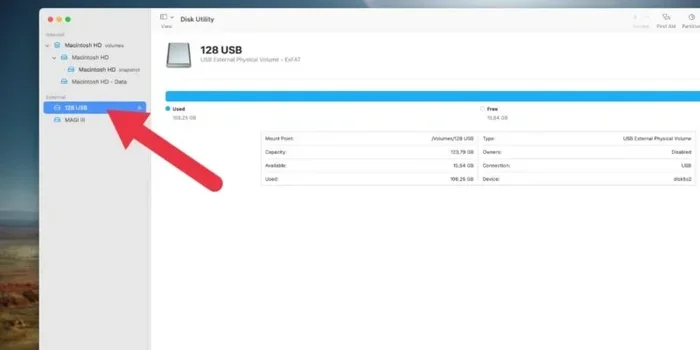
Step-by-Step Guide for Mac
Mac users can format USB drives using Disk Utility:
- Connect your USB drive to your Mac.
- Open Disk Utility from Applications > Utilities.
- Select your USB drive from the sidebar.
- Click Erase at the top of the window.
- Choose a format: MS-DOS (FAT), ExFAT, or APFS.
- Click Erase and confirm your choice.
Macs also offer a security option during formatting. You can choose how many passes to use for overwriting data. More passes mean better security but take longer. For most users, a single pass is sufficient.
Choosing the Right File System for Your USB
When you format a USB drive, you must pick a file system. The file system determines how your data is organized and what devices can read it. Choosing the wrong one can cause problems down the road.
FAT32
FAT32 is the most compatible file system. It works on Windows, Mac, Linux, and even some TVs and car stereos. The downside is a 4 GB file size limit. You cannot store a single file larger than 4 GB on a FAT32 drive.
NTFS
NTFS is the default file system for Windows. It supports large files and includes advanced features like file permissions and encryption. However, Mac computers can only read NTFS drives. They cannot write to them without third-party software.
exFAT
exFAT is the best of both worlds. It works on Windows and Mac without any limitations. It also supports very large files. If you need a USB drive that works across multiple devices, exFAT is usually the best choice.
Choosing the right file system matters for performance and compatibility. If you are storing large video files, NTFS or exFAT is better than FAT32. If you need cross-platform support, exFAT wins every time.
How to Recover Data After Formatting a USB
Accidentally formatted your USB drive and lost important files? Do not panic. Data recovery is often possible, especially after a quick format.
Using Data Recovery Software
The first step is to stop using the USB drive immediately. Every new file you save could overwrite the data you want to recover. Once you stop using the drive, install recovery software on your computer.
Popular options include:
- Recuva: Free and easy to use. Great for beginners.
- EaseUS Data Recovery Wizard: Powerful and supports many file types.
- Disk Drill: Offers a free version with decent recovery capabilities.
- PhotoRec: Open source and excellent for recovering photos and documents.
These tools scan the formatted drive for leftover data. They can often rebuild your files even after a format. The sooner you run the software, the better your results will be.
When Recovery Is Not Possible
There are times when recovery is not possible. If you performed a full format and then saved new files to the drive, the old data is likely gone. Similarly, if the USB drive is physically damaged, software recovery tools may not work.
In cases of severe physical damage, professional data recovery services may be your only option. These services open the drive in clean room environments and extract data directly from the memory chips. However, this process is expensive and not always successful.
If you regularly store important data on USB drives, consider investing in a reliable external backup solution. A Sandisk Extreme Portable SSD connected through a USB enclosure or adapter offers much faster speeds and better durability than a standard flash drive. Storing backups on an external NVMe SSD ensures your files are safe even if your primary USB drive fails or gets formatted accidentally.
Tips to Protect Your Data on USB Drives
Prevention is always better than cure. Here are some practical tips to keep your USB data safe and avoid accidental formatting disasters.
Backup Best Practices
- Follow the 3-2-1 rule: Keep three copies of your data, on two different types of media, with one copy stored offsite.
- Use cloud storage: Services like Google Drive or Dropbox add an extra layer of protection.
- Label your drives: Know what is on each drive before you plug it in.
- Write-protect your drives: Use the physical write-protect switch if your USB has one.
Preventing Accidental Formatting
- Eject drives properly: Always use the Safely Remove Hardware option before pulling out a USB.
- Check twice before formatting: Make sure you selected the correct drive letter.
- Use read-only mode: Some drives allow you to switch to read-only to prevent accidental changes.
- Keep drives organized: Use folders and labels so you always know what is where.
When to Replace an Old USB Drive
USB drives have a limited lifespan. Flash memory cells can only be written to a certain number of times. If your drive is slow, corrupted, or showing errors, it may be time for a replacement. When you do replace it, make sure to securely erase all data first. A full format or data wipe ensures no one can access your old files.
For users who need reliable, high-speed storage, an M.2 NVMe SSD in a USB enclosure is an excellent upgrade. These drives offer speeds up to 1000 MB/s, far faster than traditional USB flash drives. They are also more durable and resistant to physical shock.
Common Mistakes People Make When Formatting USB Drives
Mistakes happen, but knowing the common ones helps you avoid them. Here are the errors people make most often.
- Formatting the wrong drive: Always double-check the drive letter before clicking Format.
- Skipping the backup step: Even if you think you do not need a backup, make one anyway.
- Choosing the wrong file system: FAT32 will not work for files over 4 GB. NTFS does not work on Macs without extra software.
- Using the drive immediately after formatting: Wait a moment to make sure the format completed properly.
- Assuming a quick format is permanent: It is not. Data can be recovered easily after a quick format.
These mistakes are easy to avoid with a little care. The biggest takeaway is simple: always back up before you format. It takes a few minutes and saves you hours of stress.
Expert Insights on USB Data Security
Cybersecurity experts recommend treating USB drives like any other storage device. They are convenient, but they are also easy to lose or steal. If your USB contains sensitive information, encryption is a must.
Microsoft recommends using BitLocker for Windows users. Apple offers FileVault for Mac users. Both tools encrypt your entire drive. If someone finds your lost USB, they cannot access your files without the password or recovery key.
For businesses, USB drive policies are essential. Employees should never store confidential data on personal USB drives without encryption. A data breach through a lost USB drive can have serious consequences. Organizations should provide encrypted drives and train employees on proper data handling.
When it comes time to dispose of old USB drives, do not just throw them in the trash. A proper data wipe or physical destruction ensures your data is gone for good. Some companies shred old drives. Others use degaussing equipment to magnetically erase the storage media.
Final Thoughts
So, does formatting a USB erase all data? The truth is nuanced. A quick format leaves your data recoverable. A full format makes recovery much harder. Encryption and secure wiping tools provide the most complete erasure. The key is understanding what each method does and choosing the right one for your needs.
Whether you are cleaning up an old drive, preparing a USB for a new use, or recovering from an accidental format, knowing how formatting works puts you in control. Always back up your files first, choose the right format type, and use data recovery tools if something goes wrong.
Your USB drive holds valuable data. Treat it with care, back it up regularly, and you will never have to worry about losing the files that matter most.
Frequently Asked Questions
Can I recover data after formatting a USB drive?
Yes, in most cases you can recover data after a quick format. Data recovery software like Recuva or EaseUS can scan the drive and retrieve lost files. The key is to stop using the drive immediately after formatting to prevent new data from overwriting the old files.
Is a quick format safe for my data?
A quick format is not safe if you want to permanently delete data. It only removes the file system table, leaving the actual data intact and recoverable. If your goal is to erase data permanently, you need a full format or a dedicated data wiping tool.
How long does a full format take on a USB drive?
A full format takes longer than a quick format because it scans every sector and overwrites data. For a typical 64 GB USB drive, a full format may take 10 to 30 minutes depending on the drive speed and the file system used.
What is the difference between formatting and deleting files?
Deleting files removes individual file references but leaves the data on the drive. Formatting removes the entire file system structure, making all files on the drive appear gone. Both can be reversed with recovery software unless a full format or secure wipe is performed.
Can formatting a USB damage the drive?
Formatting itself does not damage a USB drive. It is a normal and safe process. However, if the drive is already failing or has physical damage, the format process may reveal or worsen existing issues. Always check your drive health before formatting.
Should I encrypt my USB drive for extra security?
Yes, encryption adds a strong layer of security to your USB drive. Even if someone formats the drive, the encryption key destruction makes the remaining data unreadable. Tools like BitLocker To Go and VeraCrypt make encryption easy and effective for both personal and business use.