Is Hdmi to Usb C Possible
Yes, HDMI to USB C is possible with the right adapter or cable. USB C supports HDMI Alt Mode, which lets you send video and audio from a USB C port to an HDMI display. This guide covers everything you need to know about making the connection work.
Have you ever looked at your laptop or phone with a USB C port and wondered if you could plug in an HDMI cable directly? Maybe you want to connect your device to a TV or monitor but are not sure if it works. The short answer is yes, Is HDMI to USB C Possible. But the full story is a bit more detailed than just plugging one cable into another.
In this guide, we will walk you through everything you need to know. We will cover how HDMI over USB C works, what equipment you need, and the common issues you might run into. Whether you are setting up a home office or connecting a gaming setup, this article has you covered.
USB C has become the go-to port for many modern devices. It handles charging, data transfer, and even video output. But not every USB C port is created equal. Some support USB C display output, and some do not. Let us break it all down so you know exactly what to expect.
Key Takeaways
- HDMI to USB C is possible using Alt Mode or adapters
- You need a compatible device and the right cable or adapter
- USB C to HDMI adapters are affordable and widely available
- Not all USB C ports support video output
- USB C can handle audio and data simultaneously
📑 Table of Contents
What Is HDMI to USB C?
When people ask is HDMI to USB C possible, they usually want to know if they can connect a device with a USB C port to a screen with an HDMI input. The answer is yes, but you typically need an adapter or a special cable. USB C to HDMI technology has made this connection simple and affordable.
Understanding USB C and HDMI
USB Type C is a connector shape, not a technology. It can carry many types of signals, including power, data, and video. HDMI is a dedicated audio and video standard. When you combine the two using HDMI Alt Mode, you can send high-quality video and sound through a single USB C cable.
Think of it this way. Your USB C port is like a Swiss Army knife. It can do many things. HDMI Alt Mode is one of those tools. It lets your USB C port act like an HDMI output when you use the right adapter or cable.
Why People Ask This Question
Many modern laptops, tablets, and phones now use USB C as their main port. But most TVs and monitors still use HDMI inputs. This gap creates confusion. People want to know if they can bridge the two without buying extra gear.
The good news is that HDMI to USB C adapters are cheap and easy to find. You do not need an expensive USB C docking station to get the job done. A simple USB C to HDMI adapter will work in most cases.
How Does HDMI over USB C Work?
The technology behind HDMI over USB C is called HDMI Alt Mode. It was developed to allow USB C ports to carry HDMI signals without needing extra hardware inside the device. Here is how it works in simple terms.
HDMI Alt Mode Explained
HDMI Alt Mode is a built-in feature in the USB C specification. When a device supports it, the USB C port can directly output HDMI video and audio. You just plug in a USB C to HDMI cable or adapter, and the connection works.
Not every USB C device supports HDMI Alt Mode. Some devices only use USB C for charging and data. You need to check your device specs to confirm it has this feature. Look for terms like USB C display output or HDMI Alt Mode support in the product manual.
The Role of the USB C Cable
The cable or adapter you use matters a lot. A basic USB C to HDMI cable will work for most setups. But if you want to connect multiple devices, a USB C docking station might be a better choice. These docks often include HDMI outputs, USB ports, and power delivery all in one box.
For example, many people use their USB C port to connect to external storage like M2 NVMe SSD in USB enclosures while also outputting video to a monitor. The versatility of USB C connectivity is one of its biggest advantages.
What You Need for HDMI to USB C Connection
Getting HDMI to USB C working is straightforward. You just need the right gear. Here is a quick checklist of what you will need.
Compatible Devices
First, make sure your device supports USB C video output. Most modern laptops, tablets, and smartphones do. Here are some common devices that work with HDMI over USB C:
- MacBooks with USB C ports
- Windows laptops with USB C display output
- Android phones with USB C Alt Mode
- Nintendo Switch (uses USB C to HDMI for docked mode)
- Chromebooks with USB C video output
If you are not sure whether your device supports USB C display output, check the manufacturer’s website or the product manual. Look for HDMI Alt Mode or DisplayPort over USB C in the specs.
Choosing the Right Adapter
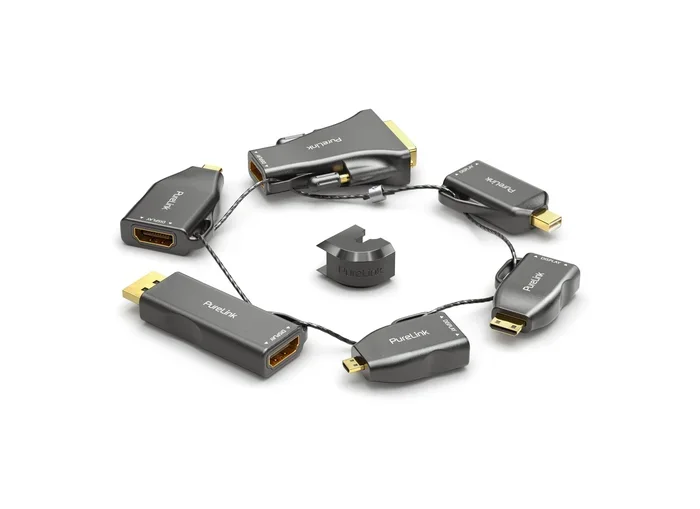
Not all USB C to HDMI adapters are the same. Here are the main types you will come across:
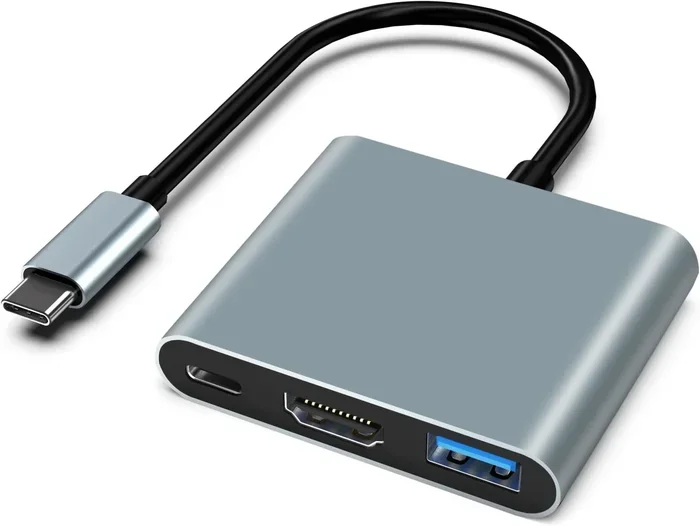
- USB C to HDMI adapter — Simple plug-and-play adapter for connecting to one display
- USB C to HDMI cable — A cable with USB C on one end and HDMI on the other
- USB C docking station — A hub with multiple ports including HDMI output
- USB C hub with Ethernet — Adds internet connectivity along with HDMI output
For most people, a simple USB C to HDMI adapter is all you need. They cost between $10 and $30 and work with almost any USB C device that supports video output.
Quick Tips for Buying the Right Adapter
- Check if your device supports HDMI Alt Mode before buying
- Choose an adapter that supports 4K resolution if you need high-quality video
- Look for adapters with USB C Power Delivery if you want to charge while using
- Read reviews to avoid cheap adapters that overheat or fail
- Consider a USB C docking station if you need multiple connections
When you are shopping for USB C accessories, remember that quality matters. Just like you would not buy the cheapest best USB Type C headphones without checking reviews, you should do the same for USB C adapters. A reliable adapter ensures stable video and audio output.
Common Uses for HDMI to USB C
HDMI to USB C connections are incredibly versatile. People use them in many different situations. Here are some of the most common uses.
Connecting Laptops to Monitors
This is the most popular use case. Many professionals use a USB C to HDMI adapter to connect their laptop to an external monitor at work or home. It gives you a larger screen for productivity without needing a special graphics card.
The beauty of HDMI over USB C is that it often carries power too. You can charge your laptop and connect to a monitor using a single USB C cable with Power Delivery. This cuts down on cable clutter and makes your workspace cleaner.
Using USB C for Gaming
Gamers love USB C connectivity because it supports high bandwidth. You can connect your laptop or phone to a TV using a USB C to HDMI cable and play games on a big screen. Some USB C devices even support 120Hz refresh rates over HDMI Alt Mode.
If you use external storage for game files, a NVMe SSD to USB adapter works great alongside your HDMI setup. You can store games on a fast external drive and still output video through USB C.
USB C for Audio and Video Together
USB C is not just for video. It also handles audio. When you use a USB C to HDMI adapter, you get both sound and picture through a single connection. This is perfect for presentations, movie nights, or setting up a home theater.
Some people also use USB C for audio devices like headphones and speakers. The USB C port can handle audio output just like it handles video. This makes USB C multimedia a powerful all-in-one solution.
Troubleshooting HDMI to USB C Issues
Even when you have the right gear, things do not always work perfectly the first time. Here are the most common problems and how to fix them.
No Signal Problems
If your screen shows no signal after connecting a USB C to HDMI cable, try these steps:
- Make sure your USB C device supports HDMI Alt Mode
- Check that the adapter or cable is firmly plugged in
- Try a different HDMI port on your display
- Restart your device and reconnect
- Update your device drivers or firmware
Sometimes the issue is as simple as a loose connection. Unplug the USB C cable and plug it back in firmly. If that does not work, try a different USB C to HDMI adapter.
Audio and Video Sync Issues
If your video plays but there is no sound, or the audio is out of sync, here is what to try:
- Check your display settings to make sure audio is set to output through HDMI
- Make sure your USB C adapter supports audio pass-through
- Update the audio drivers on your device
- Try a different USB C to HDMI cable
Most modern USB C to HDMI adapters support both audio and video. But cheaper adapters sometimes skip audio support. Always check the product description before buying.
Final Thoughts
Is HDMI to USB C possible? Absolutely. With the right USB C to HDMI adapter or cable, you can connect almost any USB C device to an HDMI display. The key is making sure your device supports HDMI Alt Mode and using a quality adapter.
USB C has revolutionized how we connect devices. From charging to data transfer to video output, one port can do it all. Whether you are connecting a laptop to a monitor, streaming games to a TV, or setting up a home theater, HDMI over USB C makes it easy.
Remember to check your device compatibility before buying an adapter. A quick look at the specs will save you time and money. And if you run into issues, most problems are easy to fix with a simple restart or cable swap.
The world of USB C connectivity keeps growing. Devices are getting smarter and more versatile every year. HDMI to USB C is just one example of how this tiny port has changed the way we work and play.
Frequently Asked Questions
Can any USB C port output HDMI?
No, not every USB C port supports video output. You need to check if your device has HDMI Alt Mode support. Look for this feature in the device specifications or user manual before buying an adapter.
Do I need a special cable or just an adapter?
You can use either a USB C to HDMI cable or a USB C to HDMI adapter. Both work the same way. The adapter is more flexible because you can use different cables with it.
Can I connect a USB C device to multiple HDMI displays?
Yes, if you use a USB C docking station with multiple HDMI outputs. Some docks support dual or even triple display setups. Make sure your device supports multi-display output before buying.
Does HDMI over USB C support 4K resolution?
Yes, most USB C to HDMI adapters support 4K resolution at 30Hz or 60Hz. Check the adapter specifications to confirm the maximum resolution and refresh rate it supports.
Can I charge my device while using HDMI over USB C?
Yes, if your adapter supports USB C Power Delivery. Many modern adapters allow you to charge your device and output video at the same time through a single USB C connection.
Is HDMI to USB C the same as USB C to DisplayPort?
No, they are different standards. HDMI and DisplayPort use different signaling protocols. However, many USB C devices support both HDMI Alt Mode and DisplayPort Alt Mode, giving you flexibility in how you connect.