Why Is Windows 11 Bootable Usb Not Recognized
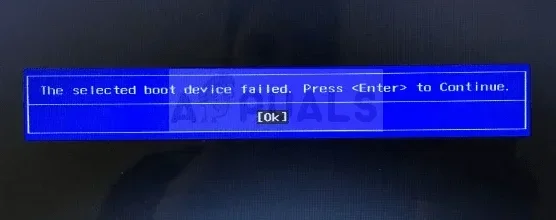
A Windows 11 bootable USB not being recognized is a common frustration that stops your installation dead in its tracks. The problem usually stems from BIOS settings, incorrect USB formatting, or a faulty drive. This guide walks you through every major cause and fix so you can get back to installing Windows 11 without a headache.
You sit down ready to install Windows 11 from your carefully crafted bootable USB. You restart your PC, mash the boot menu key, and… nothing. The USB drive simply does not show up. It is one of the most annoying things that can happen when you are trying to get a fresh operating system onto your computer.
The good news is that this problem is almost always fixable. Whether it is a simple setting in your BIOS or a deeper hardware issue, there are clear steps you can take to solve it. In this guide, we will walk through every major reason your Windows 11 bootable USB not recognized issue happens and exactly how to fix each one.
We will cover everything from BIOS configuration and USB formatting to tool selection and hardware checks. By the end, you will know exactly what went wrong and how to get your installation back on track. No guesswork. No dead ends. Just clear, practical solutions that actually work.
Key Takeaways
- USB Formatting Matters: Your bootable USB must be formatted correctly, usually as FAT32, for the system to detect it during boot.
- BIOS Settings Are Key: Incorrect boot order or disabled legacy USB support is the top reason your drive goes unnoticed.
- Hardware Issues Exist: A damaged USB port or a worn-out flash drive can mimic software problems entirely.
- Tool Choice Makes a Difference: Using the right creation tool like the Media Creation Tool reduces recognition errors significantly.
- Simple Fixes Work Most of the Time: Restarting, replugging, and updating drivers solve the majority of USB detection problems.
- Secure Boot Can Block USB: Misconfigured secure boot settings may prevent your PC from reading a bootable USB at all.
📑 Table of Contents
- Why Your Windows 11 Bootable USB Is Not Being Detected
- USB Formatting Issues That Block Recognition
- Hardware Problems That Mimic Software Issues
- Driver and Software Fixes for USB Detection
- Step-by-Step Fix: Recreate Your Bootable USB
- When to Seek Professional Help
- Preventing USB Recognition Problems in the Future
- Final Thoughts on Fixing Windows 11 Bootable USB Issues
Why Your Windows 11 Bootable USB Is Not Being Detected
Before we jump into fixes, let us understand why this happens in the first place. When your PC does not recognize a bootable USB, it means the system cannot find a bootable device during the startup process. Several things can cause this gap between your USB drive and your computer’s awareness of it.
The most common culprits include incorrect BIOS boot order, wrong USB file system formatting, outdated drivers, or even a physically damaged USB port. Sometimes the USB creation tool itself did not work properly. Each of these causes has a clear solution, which we will cover below.
1. BIOS Boot Order Is Wrong
Your computer has a built-in boot sequence that tells it which devices to check first when starting up. If your USB drive is not listed early enough in that sequence, the PC will skip right past it and boot into your existing operating system instead.
To fix this, you need to enter your BIOS or UEFI settings. Restart your PC and press the correct key during startup. This is usually F2, F12, Del, or Esc depending on your motherboard brand. Once inside, look for the Boot tab and move your USB device to the top of the priority list. Save your changes and exit.
2. Legacy USB Support Is Disabled
Modern PCs use UEFI firmware, but many still have a legacy USB support option buried in the settings. If this is turned off, your system may refuse to recognize USB devices during the boot process. This is a very common reason for a Windows 11 bootable USB not recognized situation.
In your BIOS, look for options labeled Legacy USB Support, USB Legacy Boot, or CSM (Compatibility Support Module). Make sure these are enabled. This allows older USB devices and bootable drives to communicate with your system during startup.
3. Secure Boot Is Interfering
Secure Boot is a security feature in UEFI that ensures only trusted software can boot. While it is great for security, it can sometimes block a bootable USB Windows 11 that was not created with proper signing. This is especially true if you are using a third-party tool to create your installation media.
Try disabling Secure Boot temporarily in your BIOS settings. Look for the Secure Boot option under the Security or Boot tab and set it to Disabled. Remember to re-enable it after your installation is complete for better system security.
USB Formatting Issues That Block Recognition
One of the leading reasons your USB drive goes undetected is incorrect formatting. Windows 11 installation media has specific requirements for how the drive should be prepared. If those requirements are not met, your PC simply will not see the USB as a bootable device.
FAT32 vs NTFS: Which Format Works Best
For a bootable USB, FAT32 is the most universally recognized file system. Most PCs, even older ones, can read FAT32 without any special drivers. NTFS is more modern and supports larger files, but some systems struggle to boot from NTFS-formatted drives.
If your USB is formatted as NTFS, reformat it to FAT32 before recreating your bootable media. Keep in mind that FAT32 has a 4 GB file size limit. Since the Windows 11 ISO file is larger than 4 GB, you may need to split the install.wim file or use a tool that handles this automatically.
Using the Right Creation Tool
Not all USB creation tools are equal. The official Microsoft Media Creation Tool is the safest and most reliable option for creating a Windows 11 bootable USB. It handles formatting, file copying, and boot configuration all in one step.
Third-party tools like Rufus or BalenaEtcher also work well but require correct settings. In Rufus, make sure you select GPT partition scheme for UEFI systems and MBR for legacy BIOS systems. Choosing the wrong scheme is a quick way to end up with a drive your PC cannot boot from.
Hardware Problems That Mimic Software Issues
Sometimes the problem is not software at all. A faulty USB cable, a worn-out flash drive, or a damaged port can all prevent your system from detecting the drive. These hardware issues feel like software problems, which makes them tricky to diagnose.
Try a Different USB Port
Not all USB ports are created equal. USB 3.0 ports (blue inside) and USB 2.0 ports (black inside) can behave differently during boot. If you are using a USB 3.0 port and your drive is not showing up, try switching to a USB 2.0 port. Some older systems have trouble booting from USB 3.0 ports.
Also, avoid using USB hubs or extension cables. Plug the drive directly into the motherboard’s rear USB ports for the best connection. Front panel ports on desktop cases can sometimes be unreliable during the boot process.
Is Your Flash Drive Damaged?
A flash drive that has been used heavily or stored improperly can develop bad sectors. These bad sectors can prevent the drive from being read correctly during boot. If you suspect your drive is failing, try a different USB flash drive entirely.
Use a brand-new or recently tested drive. Avoid using drives that have been lying around for years. A reliable 16 GB or 32 GB USB drive will give you the best results for creating Windows 11 installation media.
Driver and Software Fixes for USB Detection
Your computer’s ability to recognize USB devices depends heavily on its drivers. Outdated or corrupted USB drivers can silently prevent your system from detecting a bootable drive. Here are the software-based fixes that can resolve these issues.
Update USB Drivers Through Device Manager
Even if you cannot boot from your USB, you can still access Device Manager from within your current operating system. Right-click the Start button and select Device Manager. Expand the Universal Serial Bus controllers section.
Look for any devices with a yellow warning triangle. Right-click on each USB controller and select Update Driver. Choose Search automatically for drivers. This will pull the latest drivers from Windows Update and often fixes detection problems.
Disable Fast Startup in Windows
Windows Fast Startup is a feature that hibernates your system instead of fully shutting it down. While it speeds up boot times, it can interfere with USB device detection during the next startup. This is a surprisingly common cause of a bootable USB not recognized issue.
To disable it, go to Control Panel, then Power Options, then Choose what the power buttons do. Click Change settings that are currently unavailable and uncheck Turn on fast startup. Save your changes and restart your PC.
Check Disk Management for Hidden Drives
Sometimes your USB drive is actually connected but hidden from the File Explorer. Open Disk Management by right-clicking the Start button and selecting Disk Management. Look for your USB drive in the list at the bottom of the window.
If you see it but it has no drive letter, right-click on the partition and assign a letter. If the drive shows up as unallocated, you may need to format it. If it does not appear at all, the drive or port may have a hardware problem.
Step-by-Step Fix: Recreate Your Bootable USB
When nothing else works, starting fresh with a new bootable USB is often the fastest solution. Here is a clear process to follow.
- Download the Windows 11 ISO: Go to the official Microsoft website and download the Windows 11 ISO file directly.
- Get a fresh USB drive: Use a new or fully formatted 16 GB or larger USB flash drive.
- Use the Media Creation Tool: Run the official tool from Microsoft and select Create installation media for another PC.
- Choose your USB drive: Select your USB drive when prompted and wait for the tool to finish.
- Restart and enter BIOS: Reboot your PC, enter BIOS, and set USB as the first boot device.
- Test the drive: If the USB boots correctly, you should see the Windows Setup screen immediately.
This process eliminates almost all software-related causes. If the drive still does not get recognized after following these steps, the issue is likely hardware-related.
When to Seek Professional Help
Most USB recognition issues are solvable at home with the steps above. However, there are situations where professional help makes sense. If you have tried multiple USB drives, multiple ports, and different BIOS settings without success, your motherboard’s USB controller may have a hardware fault.
Similarly, if you are working on a laptop with soldered components and limited BIOS access, some fixes may not be available. In these cases, a technician can test the USB controller and replace components if needed. Do not hesitate to reach out if you have exhausted all the troubleshooting steps.
Preventing USB Recognition Problems in the Future
Once you get your bootable USB working, you want to avoid running into the same problem again. A few simple habits can save you a lot of trouble down the road.
- Always use the official Microsoft Media Creation Tool when possible.
- Format your USB drive as FAT32 before creating bootable media.
- Keep your BIOS firmware updated to the latest version.
- Store your USB flash drives properly to avoid physical damage.
- Plug drives directly into motherboard ports, not through hubs.
- Disable Fast Startup if you regularly use bootable USB drives.
Following these simple practices means you will spend less time troubleshooting and more time actually getting things done. A little prevention goes a long way when it comes to USB boot drives.
Final Thoughts on Fixing Windows 11 Bootable USB Issues
Dealing with a Windows 11 bootable USB not recognized problem can feel overwhelming, especially when you are eager to get your installation underway. But as we have covered, the causes are well understood and the fixes are straightforward. Start with the simplest solutions like checking your BIOS boot order and USB port, then work your way through formatting, drivers, and hardware checks.
Most of the time, this is a quick fix that takes just a few minutes. You will be back to installing Windows 11 in no time. The key is to stay patient and work through each possible cause one at a time. Do not skip steps or assume the worst too quickly.
Remember that your USB flash drive is only one piece of the puzzle. The interaction between your BIOS settings, your USB formatting, and your creation tool all play a role. Get each of these elements right and your bootable USB will work exactly as it should.
Now that you have the knowledge to tackle this problem, you are better equipped than most users who encounter the same issue. Go ahead, recreate that bootable USB, and get your Windows 11 installation moving forward with confidence.
Frequently Asked Questions
Why does my USB drive show up in Windows but not in BIOS?
This usually means the USB is not formatted as a bootable drive or the BIOS boot order does not include USB devices. Enter your BIOS settings and make sure Legacy USB Support is enabled and your USB drive is listed in the boot priority. Also check that Secure Boot is not blocking the drive from being detected during startup.
Can a damaged USB port cause a bootable USB to not be recognized?
Yes, absolutely. A damaged or loose USB port can prevent your PC from detecting any USB device, including a bootable drive. Try plugging your USB into a different port, preferably a rear motherboard port on a desktop. If the drive works in another port, the original port may need repair.
What file system should my bootable USB be formatted as for Windows 11?
FAT32 is the most compatible file system for bootable USB drives. It is recognized by virtually all BIOS and UEFI systems. If your USB is formatted as NTFS or exFAT, reformat it to FAT32 before recreating your Windows 11 bootable media. This alone can solve many recognition problems.
Is the Microsoft Media Creation Tool better than third-party tools for creating bootable USBs?
The Microsoft Media Creation Tool is the safest and most reliable option because it is officially supported and handles all the correct settings automatically. Third-party tools like Rufus work well too but require you to choose the right partition scheme and file system. Using the wrong settings can lead to your USB not being recognized during boot.
How do I know if my USB flash drive is too old to create a Windows 11 bootable drive?
Older USB drives may have compatibility issues with modern UEFI systems or may not support the file sizes needed for Windows 11. If your drive is more than five years old or has been used heavily, try a newer drive. A fresh 16 GB or 32 GB USB drive from a reputable brand will give you the best results.
Should I disable Secure Boot when trying to boot from a USB?
Yes, temporarily disabling Secure Boot can help if your bootable USB is not being recognized. Secure Boot sometimes blocks unsigned or improperly signed bootloaders. Go to your BIOS, find the Secure Boot option under the Security tab, set it to Disabled, save, and restart. Re-enable it after your installation is complete.
=== CONCLUSION ===
A Windows 11 bootable USB not recognized error is frustrating but almost always fixable. The most common causes are BIOS settings, USB formatting, and hardware issues. By working through the steps in this guide, you can identify the root cause and get your installation drive working again. Start with the simplest fixes, move to software solutions, and only consider hardware replacements as a last resort. With the right approach, you will be installing Windows 11 in no time.