Why Do I Need a Hdmi Cable for My Tv
An HDMI cable is essential for connecting your TV to modern devices like streaming boxes, gaming consoles, and Blu-ray players. It delivers stunning high-definition video and multi-channel audio through a single cable, simplifying your setup. Without HDMI, you miss out on the best picture and sound quality your TV can offer.
Let us be honest. If you have a modern TV sitting in your living room, you probably already use an HDMI cable. But do you truly understand why it matters? Many people plug in a cable without thinking twice. Yet the right HDMI connection can completely transform how you watch movies, play games, and enjoy your favorite shows.
HDMI stands for High-Definition Multimedia Interface. It is the standard way to connect devices to your television. Whether you are streaming content from a streaming stick, hooking up a gaming console, or playing a Blu-ray disc, HDMI handles both video and audio in one simple cable. That alone makes it indispensable.
In this guide, we will walk you through exactly why you need an HDMI cable for your TV. We will cover picture quality, audio benefits, device compatibility, and how to pick the right cable. By the end, you will know why this humble cable is the backbone of any home entertainment setup.
Key Takeaways
- HDMI carries both video and audio: One cable handles everything, reducing clutter and simplifying connections.
- You get superior picture quality: HDMI supports 4K, HDR, and high resolutions that older cables cannot match.
- Almost all modern devices use HDMI: Streaming sticks, gaming consoles, and Blu-ray players rely on HDMI ports.
- HDMI ARC simplifies audio setups: You can send TV audio to soundbars and receivers without extra cables.
- Choosing the right HDMI version matters: Different versions support different features like 4K at 120Hz or eARC.
- Setting up HDMI is plug-and-play: No special drivers or software needed for most connections.
📑 Table of Contents
What Is HDMI and Why Does It Matter for Your TV
HDMI is a digital connection standard that has been around since the early 2000s. It replaced older cables like composite, component, and S-Video. Those older cables required multiple connections and delivered much lower quality. HDMI changed the game by combining video and audio into one streamlined cable.
Today, nearly every TV, projector, and monitor comes with at least one HDMI port. Your cable box, PlayStation, Xbox, Apple TV, and even some laptops use HDMI. Without it, you would need several different cables to get picture and sound from a single device. That is messy and inconvenient.
The importance of HDMI goes beyond convenience. It supports the highest resolutions and refresh rates available today. From 1080p Full HD to 4K Ultra HD and even 8K, HDMI cables carry these signals with ease. Older cables simply cannot compete with this level of performance.
How HDMI Has Evolved Over the Years
HDMI has gone through several versions. Each version brought better features and higher bandwidth. Here is a quick look at the major versions:
- HDMI 1.0 (2003): The original standard. Supported up to 1080p at 60Hz.
- HDMI 1.4 (2009): Added 4K support at 30Hz and introduced the ARC feature.
- HDMI 2.0 (2013): Boosted 4K support to 60Hz and expanded color depth.
- HDMI 2.1 (2017): Supports 4K at 120Hz, 8K at 60Hz, and features like eARC and VRR.
When shopping for a cable, check which version it supports. A newer HDMI 2.1 cable works with older ports, but you will only get the full benefits if both your TV and source device support the same version.
How HDMI Cables Improve Your Viewing Experience
Why does an HDMI cable make such a big difference? The answer lies in what it can do that other cables cannot. Let us break this down into two key areas: picture quality and audio performance.
Crystal-Clear Picture Quality
One of the biggest reasons you need an HDMI cable is the visual quality. HDMI transmits a digital signal that carries far more data than older analog cables. This means sharper images, richer colors, and smoother motion.
If you watch 4K content on a streaming service like Netflix or Disney+, you need HDMI to see it at its best. Standard definition cables simply cannot carry that much data. You would see a blurry or pixelated picture instead of the crisp detail you paid for.
HDMI also supports High Dynamic Range (HDR). HDR expands the range of brightness and color in your picture. Dark scenes look deeper. Bright scenes look more vivid. Colors pop in ways that standard video cannot match. Without HDMI, you lose access to HDR entirely.
Here is a quick comparison of what different cable types can deliver:
- Composite cable: Standard definition only. 480i resolution. No color depth.
- Component cable: Up to 1080p. No HDR. Separate audio cables needed.
- HDMI 1.4: 4K at 30Hz. Basic HDR support.
- HDMI 2.0: 4K at 60Hz. Full HDR. Wider color gamut.
- HDMI 2.1: 4K at 120Hz or 8K at 60Hz. Dynamic HDR. Enhanced audio.
As you can see, HDMI is in a league of its own. If you want the best picture your TV can display, HDMI is non-negotiable.
Superior Audio Performance
HDMI does not just carry video. It also carries high-quality audio. This is a huge advantage over older cables that required separate audio connections. With HDMI, you get surround sound, Dolby Atmos, and DTS audio all through one cable.
If you have a soundbar or home theater system, HDMI ARC (Audio Return Channel) lets your TV send audio to your audio device without needing a second cable. This keeps things clean and simple. You can also use eARC (Enhanced Audio Return Channel) with HDMI 2.1 for uncompressed audio formats.
Now, some people prefer to connect external speakers separately. If that sounds like you, you might want to check our guide on do I need an amplifier for my speakers. It covers when you need extra audio power and when your TV or source device is enough.
For setups that involve vintage audio equipment like turntables, proper speaker connections are key. You can learn more in our article on do you need speakers with a turntable to make sure your audio chain is complete.
Common Devices That Need HDMI Cables
You might be surprised by how many devices rely on HDMI. Here is a look at the most common ones you will find in a typical home setup.
Streaming Devices
Devices like Roku, Amazon Fire Stick, Chromecast, and Apple TV all use HDMI. These are the easiest way to add smart features to any TV. They give you access to Netflix, YouTube, Hulu, and thousands of other apps. Without HDMI, none of these devices would work with your television.
Gaming Consoles
If you own a PlayStation 5, Xbox Series X, or Nintendo Switch, you need HDMI. These consoles deliver stunning graphics that only HDMI can fully reproduce. The PS5 and Xbox Series X even use HDMI 2.1 to support 4K at 120Hz and features like Variable Refresh Rate (VRR). This means smoother gameplay and more responsive visuals.
For gamers, the right HDMI cable is not optional. It is essential for getting the full performance your console is capable of. A cheap or outdated cable can bottleneck your experience and leave you with lower quality than what your game offers.
Blu-ray Players and Home Theater Receivers
Physical media still has its fans. A 4K Blu-ray player delivers the highest quality picture from discs. And to get the best sound from movies, you need a home theater receiver. Both devices connect to your TV through HDMI. The receiver can also use HDMI to pass audio to a soundbar or speaker setup.
If you are building a full audio setup and wondering about amplifier needs for speakers, our article on do you need an amp for speakers explains when extra amplification is necessary and when it is not.
How to Choose the Right HDMI Cable for Your TV
Not all HDMI cables are the same. The market is flooded with options, and the price differences can be confusing. Here is how to pick the right one for your needs.
Check the HDMI Version
Start by knowing what your TV and source devices support. If your TV has an HDMI 2.1 port, buy an HDMI 2.1 cable to unlock features like 4K at 120Hz and eARC. If your TV only has HDMI 2.0, an HDMI 2.0 cable is perfectly fine. You do not need to spend extra on a cable that supports features your TV cannot use.
Consider the Cable Length
Measure the distance between your devices before buying. HDMI cables work well up to about 15 feet without any signal loss. If you need a longer cable, look for one with built-in signal boosting or consider using an HDMI extender. Beyond 50 feet, you may experience signal degradation.
Look for Premium Certification
The HDMI Licensing Authority offers a Premium High Speed HDMI Cable certification. Cables with this label have been tested to handle 4K at 60Hz and HDR reliably. Avoid cheap no-name cables that make bold claims but lack certification. A certified cable ensures consistent performance and durability.
Choose the Right Connector Type
Standard HDMI connectors come in three sizes:
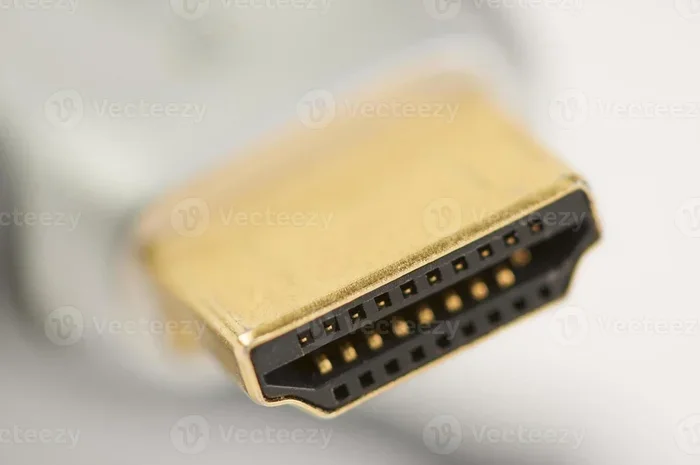
- Type A (Standard): The most common size. Used in TVs, monitors, and most devices.
- Type C (Mini): Found on some tablets and cameras.
- Type D (Micro): Used on some smartphones and compact cameras.
For most TV setups, you only need standard Type A cables. Make sure the connectors match the ports on your devices.
Setting Up Your HDMI Connection
Setting up an HDMI connection is incredibly simple. Here is a step-by-step guide to get you started.
- Identify the HDMI ports on your TV: Look at the back or side of your television. You will usually see two to four HDMI ports. Each one is labeled HDMI 1, HDMI 2, and so on.
- Connect the cable to your source device: Plug one end of the HDMI cable into the output port on your streaming device, console, or Blu-ray player.
- Connect the other end to your TV: Plug the other end into an available HDMI port on your TV. Note which port you used.
- Switch your TV to the correct input: Use your TV remote to select the HDMI input that matches the port you plugged into. For example, if you used HDMI 2, select HDMI 2 on your TV.
- Test the connection: You should see a picture and hear sound immediately. HDMI is truly plug-and-play.
If you do not get a signal, try a different HDMI port or a different cable. Sometimes the cable is simply not seated properly. A quick reseat often solves the problem.
Quick Tips for the Best HDMI Setup
- Use the shortest cable length that fits your setup. Shorter cables mean less chance of signal loss.
- Do not run HDMI cables alongside power cables. This can cause interference.
- If you use an HDMI splitter or switch, make sure it supports the resolution and features you need.
- Label your HDMI ports on the TV so you always know which device is connected where.
- Firmly push the connector in until it clicks. A loose connection causes flickering or no signal.
Common HDMI Problems and How to Fix Them
HDMI is reliable, but problems can still happen. Here are the most common issues and their solutions.
No Signal or Blank Screen
This is the most common HDMI problem. First, check that both ends of the cable are firmly connected. Then try a different port on your TV. If that does not work, swap the cable. A faulty cable is often the culprit.
Flickering or Intermittent Picture
A loose connection usually causes flickering. Reseat the cable at both ends. If the problem persists, the cable may be damaged. Replace it with a new certified cable.
No Sound
If you have picture but no sound, check your TV audio settings. Make sure the audio output is set to HDMI. On some TVs, you need to select the correct audio format in the settings menu. If you are using a soundbar, ensure the HDMI ARC setting is enabled on your TV.
Poor Picture Quality
If your picture looks blurry or has artifacts, you may be using an outdated or low-quality cable. Upgrade to a certified HDMI cable that matches the resolution of your content. Also check that your source device is outputting at the correct resolution.
HDMI Ports Not Recognizing Devices
Sometimes a TV will not recognize a device plugged into a specific port. Try unplugging everything, waiting 30 seconds, and plugging it back in. If one port consistently fails, it may be a hardware issue that requires TV service.
Final Thoughts
The HDMI cable is one of the most important accessories in your home entertainment setup. It delivers the best picture and sound quality with a single simple connection. Whether you are watching a movie on Netflix, playing the latest video game, or enjoying a Blu-ray disc, HDMI makes it all possible.
Choosing the right cable and using it correctly ensures you get the full experience your TV and devices are designed to provide. Take a moment to check your current setup. Are you using the right HDMI version? Is your cable long enough? Is it certified for the resolution you need?
A small investment in a quality HDMI cable pays off every time you turn on your TV. Do not settle for less when your entertainment deserves the best.
Frequently Asked Questions
Can I use any HDMI cable for 4K TV?
Not all HDMI cables support 4K. You need at least an HDMI 2.0 cable for 4K at 60Hz. For 4K at 120Hz or HDR features, you need an HDMI 2.1 cable. Look for cables labeled as “High Speed” or “Premium High Speed” to ensure they can handle 4K content reliably.
Does HDMI cable length affect picture quality?
For most home setups under 15 feet, cable length does not affect picture quality. Beyond that, signal degradation can occur. If you need a longer run, look for cables with built-in signal boosters or use an HDMI extender to maintain a clean digital signal.
Do I need a special HDMI cable for gaming?
For the best gaming experience on consoles like the PS5 and Xbox Series X, an HDMI 2.1 cable is recommended. It supports 4K at 120Hz, VRR, and other gaming features. However, if your TV or console only supports HDMI 2.0, a standard HDMI 2.0 cable will work perfectly fine for most games.
What is the difference between HDMI ARC and eARC?
HDMI ARC (Audio Return Channel) sends audio from your TV to a soundbar or receiver. eARC (Enhanced Audio Return Channel) is an upgraded version that supports uncompressed audio formats like Dolby Atmos. eARC is available on HDMI 2.1 ports and provides a much richer audio experience compared to standard ARC.
Can I plug an HDMI cable into the wrong port?
Yes, but it will not cause any damage. If you plug your device into the wrong HDMI port, simply switch your TV to the correct input using the remote. Some TVs label ports by the connected device, so matching the port to your device makes setup easier.
How do I know if my HDMI cable is faulty?
Common signs of a faulty HDMI cable include no signal, flickering picture, intermittent sound, or poor image quality. Try swapping the cable with a known working one. If the problem disappears, your old cable was the issue and needs replacement.