Why Are There No Hdmi to Displayport Cables
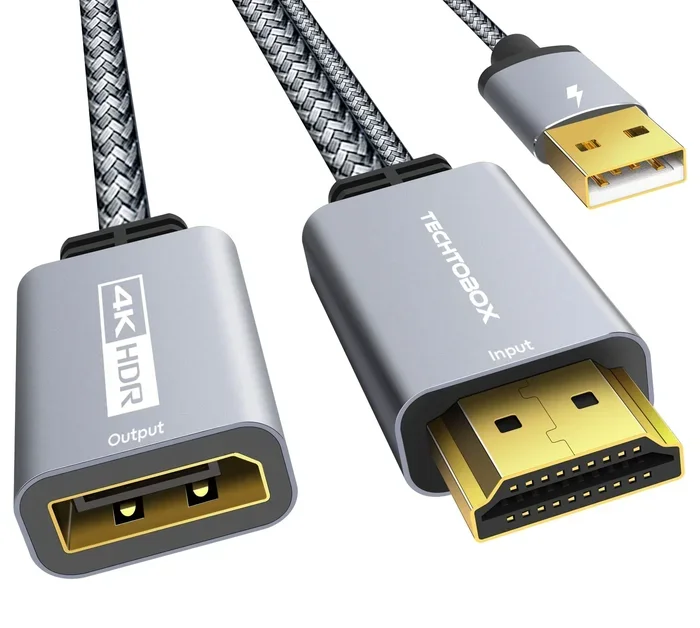
HDMI to DisplayPort cables don’t exist because the two standards use completely different signaling protocols, voltage levels, and data structures. You cannot simply wire them together like a traditional cable. Instead, you need an active adapter or converter that translates signals between the two formats. Understanding this difference saves you money, time, and frustration when setting up your display.
You have probably searched for an HDMI to DisplayPort cable at some point. Maybe you just bought a new monitor. Maybe your GPU only outputs HDMI but your display needs DisplayPort. Whatever the reason, you likely hit a wall. There is no simple cable that plugs directly into both ends.
This confuses a lot of people. After all, USB cables are universal, right? Why can’t we just make one cable that works for both? The answer lies deep in how these two technologies were designed. They speak different languages. They operate on different electrical standards. And they were built for different purposes from the start.
In this article, we will break down exactly why HDMI to DisplayPort cables do not exist. We will look at the technical reasons, explore what you can use instead, and help you pick the right adapter for your setup. Whether you are a gamer, a creative professional, or just someone trying to connect a new screen, this guide has you covered.
Key Takeaways
- Different protocols: HDMI and DisplayPort use entirely different signaling methods, making a simple cable impossible.
- Active adapters are required: You need a powered converter to bridge the gap between these two standards.
- Passive cables only work in one direction: Some passive adapters convert DisplayPort to HDMI, but not the other way around.
- Bandwidth matters: Choosing the right adapter depends on your resolution and refresh rate needs.
- GPU output compatibility: Your graphics card’s capabilities affect which adapter or converter you should use.
- Audio handling differs: HDMI carries audio differently than DisplayPort, which impacts your adapter choice.
📑 Table of Contents
Understanding HDMI and DisplayPort
Before we dive into why a simple cable cannot bridge these two standards, let us understand what each one is and how they work.
What Is HDMI?
HDMI stands for High-Definition Multimedia Interface. It was introduced in 2003 and quickly became the standard for consumer electronics. You will find HDMI ports on TVs, Blu-ray players, gaming consoles, and streaming devices. HDMI carries both video and audio through a single cable. It uses a specific signaling protocol called TMDS (Transition Minimized Differential Signaling).
HDMI is designed for plug-and-play simplicity. You plug it in, and it works. Most people never think twice about it. But that simplicity comes with a fixed architecture that does not easily translate to other standards.
What Is DisplayPort?
DisplayPort was developed by VESA (Video Electronics Standards Association) and released in 2006. It was created primarily for PC monitors and professional displays. DisplayPort uses a different signaling method called packet-based transmission. This is similar to how USB and Ethernet send data.
DisplayPort offers several advantages for PC users. It supports higher bandwidth versions, daisy-chaining multiple monitors, and adaptive sync technologies like FreeSync and G-Sync. It also carries audio, but the way it handles audio is different from HDMI.
Key Differences at a Glance
- HDMI uses TMDS signaling. DisplayPort uses packet-based data transmission.
- HDMI was built for consumer devices. DisplayPort was built for PC and professional displays.
- HDMI has a locking mechanism in some versions. DisplayPort has a physical latch on the connector.
- HDMI supports Consumer Electronics Control (CEC). DisplayPort does not use CEC.
The Technical Differences That Prevent a Simple Cable
Now we get to the heart of the matter. Why can’t manufacturers just make one cable that works both ways? The answer is technical, and it comes down to four main factors.
Different Signaling Protocols
HDMI and DisplayPort do not speak the same electrical language. HDMI sends data using continuous TMDS signals. DisplayPort sends data in discrete packets. A cable cannot translate between these two methods. It is like trying to plug a USB drive into an Ethernet port. The physical connector might look similar, but the data inside is completely different.
To convert between these protocols, you need a chip. That chip requires power. That is why a simple cable cannot do the job. You need an active adapter with a processor inside it.
Voltage and Power Requirements
HDMI and DisplayPort also operate at different voltage levels and use different pin configurations. HDMI uses 5V on certain pins for hot-plug detection and data encoding. DisplayPort uses 3.3V for its primary signaling. These voltage differences mean the two standards cannot share the same wiring without risk of damage or signal failure.
Different Data Structures
HDMI bundles video, audio, and control signals in a specific frame structure. DisplayPort uses a micro-packet architecture that separates these elements differently. The timing, encoding, and framing are not compatible. An active chip inside an adapter reassembles the data from one format into the other format on the fly.
Bandwidth and Version Compatibility
Both standards have evolved over the years. HDMI has versions from 1.0 through 2.1. DisplayPort has versions from 1.0 through 2.1. Each version supports different maximum resolutions and refresh rates. An adapter must match or exceed the bandwidth requirements of both the source and the display. This adds another layer of complexity that a simple cable cannot handle.
Active vs Passive Adapters
When you need to connect an HDMI source to a DisplayPort monitor (or vice versa), you have two options: active adapters and passive adapters. Understanding the difference is critical.
What Is an Active Adapter?
An active adapter contains a conversion chip that actually translates the signal from one protocol to another. It requires external power, usually through a USB port or a power adapter. Active adapters can convert in both directions, from HDMI to DisplayPort and from DisplayPort to HDMI.
Active adapters are more expensive, typically ranging from $20 to $100 or more. But they are the only reliable way to convert between HDMI and DisplayPort. If you need a DisplayPort to HDMI connection from a PC to a TV, an active adapter is your best bet.
What Is a Passive Adapter?
A passive adapter does not contain a conversion chip. It simply reroutes the pins. Passive adapters only work in one direction, and usually from DisplayPort to HDMI. This works because some graphics cards and laptops output a signal called DisplayPort Dual-Mode (DP++), which can detect an HDMI adapter and switch to TMDS signaling automatically.
Passive adapters are cheap, often under $10. But they only work when the source device supports DP++ or Dual-Mode. If your GPU does not support this feature, a passive adapter will not work at all.
Which One Do You Need?
Here is a simple way to think about it. If you are connecting a device with an HDMI output to a DisplayPort monitor, you almost certainly need an active adapter. If you are connecting a DisplayPort output to an HDMI monitor and your GPU supports DP++, a passive adapter might work.
How to Choose the Right Adapter for Your Needs
Not all adapters are created equal. Choosing the wrong one can lead to no signal, low resolution, or audio problems. Here is what you should look for.
Check Your Source Device
First, identify what your source device outputs. Is it a gaming console with HDMI out? A PC with a DisplayPort or HDMI graphics card? A laptop with a USB-C port that supports DisplayPort Alt Mode? Your source determines what kind of adapter you need.
If your GPU only has HDMI outputs, you will need an active HDMI to DisplayPort adapter to connect a DisplayPort monitor. This is one of the most common setups people run into. Make sure your adapter supports the resolution and refresh rate you need.
Consider Resolution and Refresh Rate
Not all adapters support 4K at 144Hz. Some only handle 1080p or 4K at 60Hz. Check the specifications carefully. Look for adapters that support the HDMI 2.0 or DisplayPort 1.4 standards if you want high-resolution, high-refresh-rate output.
- 1080p at 60Hz: Most adapters handle this easily.
- 4K at 60Hz: You need an adapter that supports HDMI 2.0 or DisplayPort 1.4.
- 4K at 120Hz or 144Hz: You need HDMI 2.1 or DisplayPort 2.0 compatible adapters.
Audio Considerations
HDMI carries audio in a specific format called the Audio Return Channel (ARC). DisplayPort carries audio differently. When you use an adapter, audio may or may not pass through depending on the adapter quality. If you need audio over your display connection, make sure the adapter explicitly supports audio passthrough.
Some monitors with built-in speakers work great with DisplayPort connections. If you are curious whether monitor speakers are good for listening to music, the answer depends on the monitor’s audio hardware. But that is a separate topic from video signal conversion.
Brand and Quality Matters
Cheap adapters from unknown brands often fail or cause issues. Stick with reputable brands like StarTech, Cable Matters, or UGREEN. A reliable adapter saves you from headaches down the road. If you have ever dealt with GPU spike issues from poor connectivity, you know how frustrating a bad adapter can be.
Common Mistakes When Connecting HDMI and DisplayPort
People make several common mistakes when trying to bridge these two standards. Avoiding these pitfalls will save you time and money.
Buying a Passive Adapter for HDMI-to-DisplayPort
This is the most common mistake. Many people buy a cheap passive adapter expecting it to convert HDMI to DisplayPort. It will not work. Passive adapters only work from DisplayPort to HDMI (and only with DP++ capable sources). Always check the direction of conversion before you buy.
Ignoring Bandwidth Requirements
An adapter that only supports HDMI 1.4 will limit you to 4K at 30Hz, which feels laggy. Make sure your adapter matches the bandwidth of your source and display. If you have a modern GPU and a 4K 144Hz monitor, you need an adapter that supports those specs.
Forgetting About Power
Active adapters need power. Some draw power from the USB port on your monitor or PC. Others need a separate power adapter. If you plug in an active adapter and get no signal, check if it needs external power. This is a surprisingly common oversight.
Not Checking for Firmware Updates
Some active adapters have firmware that can be updated. If your adapter works intermittently, check the manufacturer’s website for firmware updates. This is especially common with adapters that support HDMI 2.1 or DisplayPort 2.0 features.
Expert Tips for Better Display Connectivity
Here are some practical tips from display technology experts to help you get the best results from your setup.
Use DisplayPort When Possible for PC Monitors
If your GPU has DisplayPort outputs, use them for your PC monitors. DisplayPort offers better bandwidth, better support for adaptive sync, and daisy-chaining capabilities. Reserve HDMI for consumer devices like consoles and streaming boxes.
Keep Adapter Firmware Updated
Check for firmware updates for your active adapter regularly. Manufacturers often release updates that improve compatibility with newer HDMI and DisplayPort versions.
Test Your Setup Before Mounting
Always test your adapter and monitor setup before you mount your display on the wall or permanently install it. This saves you from the frustration of troubleshooting a mounted display. If you experience audio issues or no signal, you want to be able to easily disconnect and reseat your connections.
Understand Your GPU’s Output Options
If you are experiencing display issues, it may be related to your GPU’s output capabilities. Some GPUs have limited DisplayPort support or specific requirements for active adapters. Understanding your GPU’s output options helps you choose the right adapter and avoid compatibility issues.
Conclusion
The reason HDMI to DisplayPort cables do not exist comes down to fundamental technical differences between the two standards. They use different signaling protocols, different voltage levels, and different data structures. A simple cable cannot translate between them. You need an active adapter with a conversion chip to bridge the gap.
By understanding these differences, you can make informed decisions about your display setup. Choose the right adapter for your needs, check your source device compatibility, and always verify resolution and refresh rate support. With the right adapter in hand, connecting an HDMI source to a DisplayPort monitor (or the reverse) is straightforward and reliable.
Take the time to research your specific setup. Your display experience will be much better for it. A little knowledge goes a long way when it comes to display connectivity.
Frequently Asked Questions
Can I use an HDMI to DisplayPort cable directly?
No, a direct cable cannot work because HDMI and DisplayPort use completely different signaling protocols. You need an active adapter with a conversion chip to translate the signal between the two standards. Any cable that claims to be a direct HDMI to DisplayPort cable without any power source is misleading.
Why does a passive DisplayPort to HDMI adapter work but not the other way around?
Passive adapters work from DisplayPort to HDMI because many modern GPUs support DisplayPort Dual-Mode (DP++). This feature lets the GPU detect an HDMI adapter and switch its output to TMDS signaling. HDMI sources do not have this capability, so a passive adapter cannot convert HDMI to DisplayPort.
Do active HDMI to DisplayPort adapters support audio?
Most quality active adapters do support audio passthrough. However, you should check the adapter specifications before purchasing. Some budget adapters may not carry audio, which can be a problem if you rely on your monitor’s built-in speakers for sound output.
What resolution can I get with an HDMI to DisplayPort active adapter?
This depends on the adapter’s specifications. Most active adapters support 4K at 60Hz. Higher-end adapters can handle 4K at 120Hz or even 8K. Always check the adapter’s bandwidth rating and make sure it matches or exceeds the requirements of both your source device and your display.
Are expensive adapters worth it?
Generally yes. More expensive adapters tend to have better conversion chips, more reliable firmware, and support for higher resolutions and refresh rates. A cheap adapter may work for basic 1080p use but could cause issues with 4K or high-refresh-rate displays. Investing in a quality adapter from a reputable brand saves frustration in the long run.
Can I chain multiple adapters together?
You can, but it is not recommended. Each adapter introduces a potential point of failure and may reduce signal quality. If you need to convert between multiple standards, use a single high-quality adapter that handles your specific conversion needs. Chaining adapters increases the risk of no signal, audio sync issues, or resolution limitations.