Does Hdmi to Displayport Work for Dual Monitors
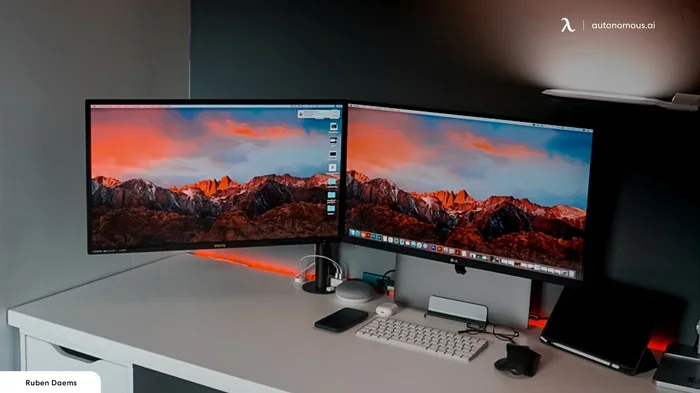
Yes, HDMI to DisplayPort can work for dual monitors, but you need the right adapter and setup. Many users run into confusion because HDMI and DisplayPort use different signaling methods. This guide breaks down exactly how the connection works, what adapters you need, and how to avoid common setup mistakes.
Setting up a dual monitor workspace can feel overwhelming. You have cables, adapters, ports, and compatibility questions swirling in your head. One of the most common questions people ask is whether HDMI to DisplayPort works for dual monitors. The short answer is yes, but there are important details you need to know before you buy any adapter or cable.
Whether you are a remote worker, a gamer, or a creative professional, connecting two monitors can boost your productivity dramatically. But the wrong adapter can lead to frustration, blank screens, and wasted money. This guide walks you through everything you need to know about using HDMI to DisplayPort for dual monitor setups.
Key Takeaways
- Active adapters are required: You cannot use a passive adapter to convert HDMI to DisplayPort for dual monitors.
- Check your GPU outputs: Make sure your graphics card supports multiple display outputs before buying adapters.
- Resolution and refresh rate matter: Not all adapters support the same resolution or refresh rate for dual setups.
- Docking stations simplify things: A good docking station can make dual monitor connections much easier.
- Audio may not transmit: HDMI carries audio, but DisplayPort may need separate audio configuration.
- Match your monitor inputs: Always verify whether your monitors accept HDMI or DisplayPort inputs before purchasing cables.
📑 Table of Contents
- Understanding HDMI and DisplayPort Basics
- Does HDMI to DisplayPort Work for Dual Monitors?
- Setting Up Dual Monitors with HDMI to DisplayPort
- Common Issues and How to Fix Them
- Best Adapters and Accessories for Dual Monitor Setups
- Expert Tips for a Smooth Dual Monitor Experience
- Frequently Asked Questions
- Conclusion
Understanding HDMI and DisplayPort Basics
Before you dive into dual monitor setups, it helps to understand the two connection types. HDMI (High-Definition Multimedia Interface) and DisplayPort are both digital video standards, but they work differently under the hood.
What Is HDMI?
HDMI is the most common connection type found on TVs, monitors, and laptops. It carries both video and audio through a single cable. Most people have at least one HDMI cable lying around their house. It is widely supported across devices from budget monitors to high-end displays.
HDMI comes in several versions. HDMI 1.4 supports 4K at 30Hz, while HDMI 2.0 handles 4K at 60Hz. The newer HDMI 2.1 supports even higher resolutions and refresh rates. When you are shopping for dual monitor setups, knowing which HDMI version your devices support makes a big difference.
What Is DisplayPort?
DisplayPort is a digital display interface developed by VESA. It is commonly found on computer monitors and graphics cards. DisplayPort is known for its high bandwidth, which makes it ideal for high-resolution displays and multi-monitor configurations.
DisplayPort 1.2 supports 4K at 60Hz, and DisplayPort 1.4 pushes further with support for higher color depths and HDR content. Many professional monitors and ultrawide displays prefer DisplayPort connections because of their robust signal quality and support for daisy-chaining multiple displays.
Why Do People Mix HDMI and DisplayPort?
The reason is simple: different devices have different ports. Your laptop might have an HDMI output, but your new monitor only accepts DisplayPort input. Or your desktop GPU has multiple DisplayPort outputs, but you want to connect a monitor that only has HDMI. This mismatch drives people to search for adapters and converters.
Does HDMI to DisplayPort Work for Dual Monitors?
This is the core question, and the answer is more nuanced than a simple yes or no. The short answer is yes, but you need an active adapter to make it work. Let us break this down in detail.
How HDMI to DisplayPort Conversion Works
HDMI and DisplayPort use different signaling protocols. HDMI uses TMDS (Transition Minimized Differential Signaling), while DisplayPort uses a packet-based protocol. This means you cannot simply plug an HDMI cable into a DisplayPort monitor and expect it to work.
An active adapter converts the HDMI signal into a DisplayPort-compatible signal. It contains a chip that handles the conversion process. Without this chip, the connection simply will not work. This is the most important thing to remember when shopping for adapters.
Passive adapters only change the physical shape of the connector. They do not convert the signal. For HDMI to DisplayPort conversion, you always need an active adapter or active cable.
What You Need for a Dual Monitor Setup
To set up dual monitors using HDMI to DisplayPort, you need a few things. First, your computer or laptop must have at least two video outputs. These can be a mix of HDMI and DisplayPort ports. Second, you need the right cables and adapters for each monitor.
For example, if your GPU has two DisplayPort outputs and one HDMI output, you can connect one monitor directly via DisplayPort and use an active HDMI to DisplayPort adapter for the second monitor. Alternatively, if both monitors only accept HDMI, you would use DisplayPort to HDMI active adapters instead.
It is also worth noting that some HDMI splitters can help in specific scenarios, but they are not the same as adapters for dual monitor setups.
Active vs Passive Adapters
This is where many people get confused. An active adapter has built-in electronics that convert the signal. A passive adapter just reshapes the connector without changing the signal.
For HDMI to DisplayPort conversion, you must use an active adapter. There is no workaround for this. Passive adapters only work when the source and display use the same protocol. If you buy the wrong type, you will get no signal on your monitor.
Here are some quick tips to avoid this mistake:
- Always check the product description for the word “active.”
- Look for adapters that explicitly state they support HDMI to DisplayPort conversion.
- Avoid cheap unbranded adapters. They often use passive chips that do not work for signal conversion.
- Read user reviews before purchasing to confirm real-world compatibility.
Setting Up Dual Monitors with HDMI to DisplayPort
Now that you understand the basics, let us walk through the actual setup process. This section covers the step-by-step process for connecting two monitors using HDMI and DisplayPort connections.
Step 1: Check Your Graphics Card Outputs
Before buying anything, look at the back of your computer or laptop. Identify all available video outputs. Count how many HDMI and DisplayPort connections you have.
If your GPU has at least two outputs, you are in good shape. Most modern graphics cards from NVIDIA and AMD offer multiple display outputs. Even budget GPUs typically support dual monitors. If your laptop only has one output, you may need a docking station or USB-C adapter to add a second connection.
Step 2: Choose the Right Cables and Adapters
Once you know your outputs, plan your connections. If Monitor A has DisplayPort input and Monitor B has HDMI input, you will need:
- A DisplayPort cable for Monitor A (direct connection)
- An active HDMI to DisplayPort adapter for Monitor B
- A DisplayPort cable to connect the adapter to Monitor B
If both monitors have the same input, you can use the same cable for both. The key is matching the right adapter to the right direction of conversion.
Step 3: Connect and Configure
After connecting everything, turn on your monitors and computer. Go to your operating system display settings. In Windows, right-click the desktop and select Display Settings. On macOS, go to System Settings and click Displays.
You should see both monitors detected. If one monitor is not showing up, try the following:
- Unplug and replug the adapter
- Check that the adapter is receiving power (some active adapters need USB power)
- Update your graphics card drivers
- Try a different port on your GPU
Step 4: Adjust Display Settings
Once both monitors are detected, you can arrange them to match your physical setup. Drag the monitor icons in your display settings to match how they sit on your desk. You can also choose whether to extend or duplicate your display.
For productivity, extending the display is usually the best choice. This gives you more screen real estate across both monitors. For presentations or gaming, duplicating the display may be more appropriate.
Common Issues and How to Fix Them
Even with the right equipment, dual monitor setups can throw curveballs. Here are the most common problems and their solutions.
No Signal on One Monitor
This is the most frequent issue. It usually happens because the adapter is not properly seated or the wrong type of adapter was used. Double-check that you have an active adapter, not a passive one. Also, make sure the adapter is connected firmly to both the computer and the monitor.
Low Resolution or Refresh Rate
If your monitor looks blurry or feels sluggish, the adapter may not support the resolution or refresh rate you need. Cheap adapters often limit output to 1080p at 60Hz or lower. For 4K or high refresh rate displays, invest in a quality adapter that explicitly supports your desired specs.
Audio Not Working
HDMI carries audio, but DisplayPort does not always pass audio through adapters. If you are using an HDMI to DisplayPort adapter and your monitor has built-in speakers, check your audio output settings in your operating system. You may need to select the correct audio device manually.
Flickering or Intermittent Display
Flickering usually indicates a loose connection or a faulty cable. Try tightening the connections or replacing the cable. It can also happen if the adapter is not receiving enough power. Some active adapters require a USB cable for power. Make sure you are using it if needed.
Best Adapters and Accessories for Dual Monitor Setups
Not all adapters are created equal. The quality of your adapter directly impacts your display experience. Here are some things to look for when shopping.
What to Look for in an Adapter
- Active conversion: Must support HDMI to DisplayPort signal conversion.
- Resolution support: Should handle at least 4K at 60Hz for modern displays.
- Refresh rate compatibility: Look for 144Hz or higher if you are a gamer.
- Build quality: Metal housing and gold-plated connectors last longer.
- Brand reputation: Stick with well-known brands like Cable Matters, Uni, or Sabrent.
Docking Stations as an Alternative
If you find yourself juggling multiple adapters, a docking station might be a better solution. A docking station provides multiple video outputs in one device. You can connect both monitors directly without managing several adapters. Many docking stations also add USB ports, Ethernet, and audio jacks, making them a hub for your entire workspace.
For those looking for the best overall dual monitor experience, checking out a guide on the best monitors for dual monitors can help you choose displays that complement your adapter setup.
Expert Tips for a Smooth Dual Monitor Experience
After helping many people set up dual monitors, here are some expert tips that save time and prevent headaches.
- Use the same monitor model for both screens. Matching monitors reduce color and brightness differences between displays.
- Label your cables. With multiple cables running around your desk, labels help you troubleshoot faster.
- Keep adapters powered. Always use the USB power cable that comes with active adapters for stable performance.
- Update drivers regularly. Graphics card driver updates often improve multi-monitor compatibility.
- Test one monitor at a time. If something goes wrong, connect one monitor first. Then add the second. This isolates the problem.
- Consider USB-C connections. Many modern laptops use USB-C for video output. A USB-C to DisplayPort adapter is often simpler than HDMI to DisplayPort conversion.
Frequently Asked Questions
Can I use a passive HDMI to DisplayPort adapter for dual monitors?
No, passive adapters do not convert the signal between HDMI and DisplayPort. You need an active adapter with a built-in conversion chip. Passive adapters only change the physical connector shape and work only when both devices use the same protocol.
Will an HDMI to DisplayPort adapter affect my refresh rate?
It depends on the adapter quality. Cheap adapters may limit your refresh rate to 60Hz or lower. High-quality active adapters support 144Hz and even 240Hz at 1080p. Always check the adapter specifications before purchasing to ensure it meets your refresh rate needs.
Can I connect two different types of monitors with different ports?
Yes, you can mix HDMI and DisplayPort monitors. Use direct cables for monitors that match your GPU outputs and active adapters for monitors that do not. This gives you flexibility to use whatever monitors you already own.
Do I need special drivers for HDMI to DisplayPort adapters?
Most active adapters work plug-and-play without special drivers. However, keeping your graphics card drivers up to date ensures the best compatibility. Some adapters may require driver installation if they include additional features like USB passthrough or audio extraction.
Can I use an HDMI splitter instead of an adapter for dual monitors?
An HDMI splitter duplicates the same image on both screens. It does not convert HDMI to DisplayPort. For extending your desktop across two different monitors, you need active adapters and separate connections from your GPU, not a splitter.
What is the best way to set up dual monitors at home for work?
The easiest setup is to use a computer with multiple video outputs and connect each monitor directly. If your computer lacks enough outputs, a docking station or USB-C hub with video outputs is the best alternative. For more tips on choosing the right monitors, check out our guide on the best monitors for work from home.
Conclusion
So does HDMI to DisplayPort work for dual monitors? Absolutely. With the right active adapter, compatible cables, and a graphics card with enough outputs, you can connect two monitors regardless of their input types. The key is understanding the difference between active and passive adapters and choosing quality equipment that supports your desired resolution and refresh rate.
Dual monitor setups transform how you work, game, and create. Once you get both screens running, you will wonder how you ever managed with just one. Take your time setting things up, follow the steps in this guide, and you will have a smooth dual monitor experience in no time.
Remember to check your connections, keep your drivers updated, and invest in adapters that match your display needs. Whether you are connecting a budget office setup or a high-end creative workstation, HDMI to DisplayPort compatibility gives you the flexibility to mix and match monitors however you like.