Is There a Way to Make Hdmi Wireless
Yes, there is absolutely a way to make HDMI wireless. You can ditch the cable and stream HD video and audio from your device to your TV or monitor using a wireless HDMI adapter or an HDMI over WiFi solution. These devices send high-quality signals through the air, giving you freedom and flexibility. In this guide, we break down every option so you can pick the right one for your needs.
Have you ever looked at that thick HDMI cable running across your living room and thought, “There has to be a better way”? You are not alone. More and more people want to know if there is a way to make HDMI wireless. The good news is that the answer is a firm yes. Wireless HDMI technology has come a long way, and today you can stream crisp, high-definition video and crystal-clear audio from your laptop, phone, or computer straight to your TV or monitor without a single wire.
Whether you want a cleaner desk setup, the freedom to move around your room, or a simple way to share your screen during a presentation, going wireless with your HDMI connection is easier than you think. In this article, we will walk you through everything you need to know. We will cover how wireless HDMI works, the different types of solutions available, how to set one up, and which products are worth your money. By the end, you will have a clear picture of what is possible and how to get started.
Many people also ask about setting up other wireless peripherals alongside their new wireless HDMI setup. For example, once you go wireless with your display, you might also want to add a wireless mouse to a laptop for a completely cord-free workspace. We will touch on that as we go along.
Key Takeaways
- Wireless HDMI is real: You can transmit HD video and audio without a physical cable using adapters or WiFi-based solutions.
- Multiple options exist: From dedicated wireless HDMI kits to streaming devices, there is a solution for every budget and use case.
- Latency matters: Some wireless HDMI solutions have slight delays, so choose based on whether you are gaming, streaming, or presenting.
- Setup is simple: Most wireless HDMI kits plug in and go, requiring minimal technical know-how.
- Range varies: Wireless HDMI transmitters can reach anywhere from 10 feet to over 100 feet depending on the product and environment.
- Consider your needs: The best wireless HDMI solution depends on your resolution needs, distance, and whether you need zero lag.
📑 Table of Contents
What Is Wireless HDMI and How Does It Work?
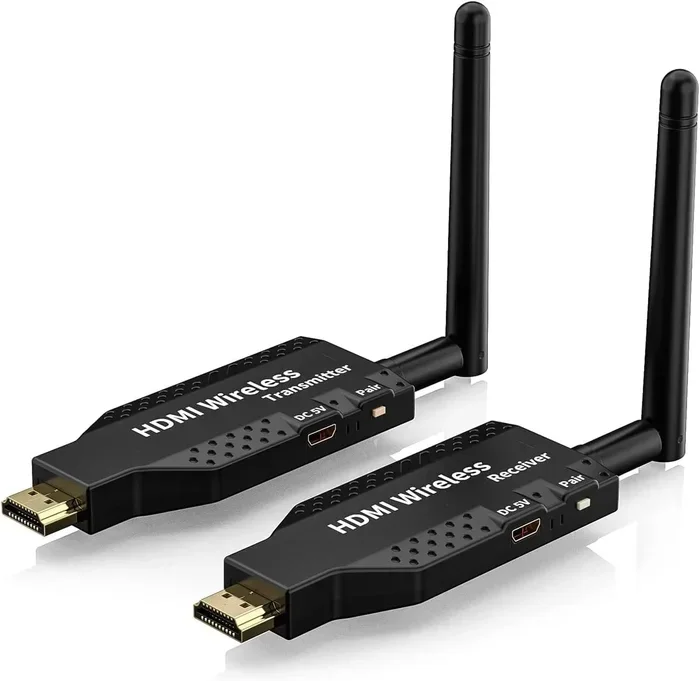
Wireless HDMI is a technology that lets you send high-definition video and audio from a source device to a display device without using a physical HDMI cable. Instead of a wire, the signal travels through the air using radio frequency or WiFi technology. A transmitter sends the signal from your source device, and a receiver picks it up on your TV or monitor.
The basic setup usually involves two small boxes. You plug the transmitter into the HDMI port on your laptop, Blu-ray player, or gaming console. Then you plug the receiver into the HDMI port on your TV. Once both devices are powered on, the signal flows wirelessly. Most modern wireless HDMI systems support full HD or even 4K resolution, so you do not have to sacrifice picture quality.
Some wireless HDMI solutions use dedicated radio frequency bands, while others rely on your home WiFi network. The dedicated RF options tend to offer lower latency and more reliable connections. WiFi-based options are more convenient because you do not need extra hardware beyond what you already own, but they can suffer from interference and slight delays.
How Wireless HDMI Compares to Traditional Cables
A standard HDMI cable gives you a direct, wired connection. This means zero latency and a rock-solid signal. Wireless HDMI comes very close, but it is not always perfect. The signal can be affected by walls, distance, and other electronic devices. That said, for most everyday uses like watching movies, giving presentations, or streaming content, the difference is barely noticeable.
If you want to learn more about connecting wireless devices to your laptop setup, check out our guide on how to connect a wireless mouse to a laptop. It pairs well with a wireless HDMI setup for a fully cord-free experience.
Why Would You Want to Make HDMI Wireless?
There are many great reasons to go wireless with your HDMI connection. Let us look at the biggest ones.
1. A Cleaner, Tidy Setup
Cables can make any space look messy. Running an HDMI cable across your living room floor or behind your desk is not only ugly but also a tripping hazard. Going wireless removes all of that clutter. Your space looks cleaner and more organized.
2. Freedom to Move Around
With a wireless HDMI connection, you are not stuck sitting right next to your TV or monitor. You can place your laptop anywhere in the room and still mirror your screen. This is especially helpful during presentations or movie nights where you want to control the content from a distance.
3. Easy Screen Sharing
If you frequently share your screen with others, a wireless HDMI setup saves you time. You do not need to unplug and replug cables every time someone else wants to present. Just connect to the wireless transmitter and you are good to go.
4. Fewer Devices, Less Clutter
Going wireless also means fewer adapters, splitters, and cable management accessories. You keep your setup simple and streamlined. This is especially true if you also add a wireless mouse to your laptop and remove other wired peripherals from the equation.
Types of Wireless HDMI Solutions Available
Not all wireless HDMI solutions are the same. There are several different types, and each has its own strengths. Let us break them down so you can find the one that fits your needs.
Wireless HDMI Adapters and Kits
These are the most common way to make HDMI wireless. A wireless HDMI kit usually comes with a transmitter and a receiver. You connect the transmitter to your source device and the receiver to your display. Brands like IOGEAR, Avanquest, and Actiontec make popular wireless HDMI kits that support Full HD or 4K resolution.
These kits use dedicated radio frequency signals, which means they do not rely on your WiFi network. This gives them a more stable connection and lower latency. Most kits have a range of about 30 to 50 feet, which is plenty for a typical living room or office.
Here are some things to look for in a wireless HDMI adapter:
- Resolution support: Make sure the kit supports at least 1080p, or 4K if you need it.
- Range: Check how far the signal can travel without dropping.
- Latency: If you are gaming, look for kits with low latency.
- Audio support: Most kits pass through both video and audio, but always double-check.
- Ease of setup: Look for plug-and-play kits that do not require software installation.
HDMI over WiFi Solutions
HDMI over WiFi uses your existing wireless network to stream video and audio. Instead of a dedicated transmitter and receiver, these solutions use software or a small dongle that connects to your WiFi. Popular options include Chromecast, Roku, and Amazon Fire TV Stick. You can also use apps like AirPlay or Miracast if your devices support them.
The big advantage of HDMI over WiFi is that you probably already own the equipment. You do not need to buy a special kit. The downside is that WiFi can be slower and less reliable than a dedicated RF signal. If your WiFi network is congested or far from the receiver, you might experience lag or lower image quality.
If you are using a laptop for your wireless HDMI setup, you might also want to connect a wireless mouse to your laptop for a seamless, cord-free control experience while streaming or presenting.
Streaming Devices as HDMI Alternatives
Streaming devices like Apple TV, Google Chromecast, and Roku are not technically wireless HDMI adapters, but they serve a similar purpose. They connect to your TV via HDMI and let you stream content wirelessly from your phone, tablet, or computer. These devices are great for casual use, but they are not ideal if you need to mirror your entire screen with zero delay.
Streaming devices work best for watching online content. If you need to display presentations, gaming content, or anything that requires real-time responsiveness, a dedicated wireless HDMI kit is a better choice.
How to Set Up a Wireless HDMI Connection
Setting up a wireless HDMI connection is surprisingly easy. Most kits follow the same basic process. Here is a step-by-step guide to help you get started.
Step 1: Unbox and Identify the Parts
Take the transmitter and receiver out of the box. Each device will have an HDMI port for connecting to your source and display. Some kits also come with USB cables for power.
Step 2: Connect the Transmitter
Plug the HDMI cable from your source device (like a laptop or Blu-ray player) into the transmitter. Then connect the transmitter to a power source using the USB cable or power adapter that came in the box.
Step 3: Connect the Receiver
Plug an HDMI cable from the receiver into your TV or monitor. Connect the receiver to power as well. Make sure your TV is set to the correct HDMI input channel.
Step 4: Power On and Pair
Turn on all your devices. Most wireless HDMI kits will automatically pair the transmitter and receiver. Some kits may require you to press a sync button on one or both devices. Check the instruction manual for your specific model.
Step 5: Test the Connection
Play a video or open a picture on your source device. You should see it appear on your TV or monitor wirelessly. If the image does not appear, check your connections and make sure both devices are on the same power source.
Common Setup Mistakes to Avoid
Here are a few mistakes that can cause problems with your wireless HDMI setup:
- Placing the transmitter too far from the receiver: Stay within the recommended range for the best signal.
- Using low-quality HDMI cables: Cheap cables can degrade the signal, even in a wireless setup.
- Ignoring WiFi interference: If you are using a WiFi-based solution, keep the devices away from other wireless electronics.
- Not updating firmware: Some wireless HDMI kits have firmware updates that improve performance. Check the manufacturer’s website.
Quick tip: If you want to keep your entire setup wireless, consider hooking up a wireless mouse to your laptop as well. This way, you can control your wireless display without reaching for a cable.
Wireless HDMI vs. Traditional HDMI Cables
It is helpful to compare wireless HDMI directly with traditional cables so you can make an informed decision. Here is a quick comparison.
| Feature | Wireless HDMI | Traditional HDMI Cable |
|---|---|---|
| Signal Quality | Very good (4K on premium kits) | Excellent (no compression or loss) |
| Latency | Low to moderate | Near zero |
| Convenience | Very high (no cables) | Low (requires physical connection) |
| Range | 30 to 100 feet | Limited by cable length |
| Cost | Moderate to high | Low |
| Setup Difficulty | Easy | Very easy |
| Reliability | Good (can be affected by interference) | Excellent (consistent signal) |
As you can see, both options have their place. If you need the absolute best picture quality and zero lag, a traditional HDMI cable is hard to beat. But if you value convenience, flexibility, and a clean setup, wireless HDMI is a fantastic choice.
Best Wireless HDMI Products to Consider
There are many wireless HDMI products on the market, and picking the right one can feel overwhelming. Here are a few trusted options to consider.
IOGEAR Wireless HDMI Kit: This is one of the most popular wireless HDMI kits available. It supports Full HD and has a range of up to 50 feet. It is easy to set up and works well for presentations and home entertainment.
Avanquest Wireless HDMI Transmitter: A solid budget option that delivers decent quality for the price. It is great for casual users who do not need 4K resolution.
Actiontec Wireless HDMI Kit: This kit supports higher resolutions and longer ranges. It is a good choice if you need to send a signal across a large room or office.
Google Chromecast: If you do not need a full wireless HDMI replacement and just want to stream content, Chromecast is an affordable and reliable option. It plugs directly into your TV’s HDMI port and connects to your WiFi network.
When choosing a product, think about what you will use it for. If you are gaming or doing video editing, prioritize low latency and high resolution. If you just want to watch movies or give presentations, a basic kit will do the job just fine.
Final Thoughts on Making HDMI Wireless
So, is there a way to make HDMI wireless? Absolutely. The technology is mature, the products are widely available, and the setup is straightforward. Whether you choose a dedicated wireless HDMI kit or an HDMI over WiFi solution, you can enjoy a cleaner, more flexible setup without sacrificing too much in terms of quality or performance.
Think about what you need most. Do you want a tidy desk? The freedom to move around? Easy screen sharing? Once you know your priorities, picking the right wireless HDMI solution becomes much easier. Start with a reliable kit, follow the setup steps carefully, and enjoy the freedom of going wireless.
Going wireless does not stop at your HDMI connection. Once you have your display set up without cables, you might also want to connect a wireless mouse to your laptop to complete the cord-free experience. A clean workspace feels great, and it is easier to keep tidy when you have fewer wires to manage.
Give wireless HDMI a try. You might be surprised at how much of a difference it makes in your daily routine. Once you experience the freedom of a wireless connection, going back to cables will feel like a step backward.
Frequently Asked Questions
Can I make HDMI wireless without buying extra equipment?
Yes, you can use HDMI over WiFi solutions like Chromecast, AirPlay, or Miracast if your devices support them. These use your existing WiFi network and do not require a dedicated transmitter and receiver. However, the quality and reliability may not match a dedicated wireless HDMI kit.
Is wireless HDMI good for gaming?
It depends on the product. Some wireless HDMI kits have very low latency and work well for gaming. Others may have a slight delay that makes fast-paced games harder to play. Look for kits that specifically advertise low latency if gaming is your main use.
How far can a wireless HDMI signal travel?
Most wireless HDMI kits have a range of 30 to 50 feet indoors. Some premium kits can reach up to 100 feet or more. Walls and other obstacles can reduce the range, so keep your transmitter and receiver in line of sight when possible.
Does wireless HDMI support 4K resolution?
Yes, many wireless HDMI kits now support 4K resolution. However, 4K kits tend to be more expensive and may have slightly higher latency. If you need 4K, make sure to check the product specifications before buying.
Can I use wireless HDMI with any TV or monitor?
As long as your TV or monitor has an HDMI port, you can use a wireless HDMI kit. The receiver plugs into the HDMI port just like a regular cable. Most modern TVs and monitors have HDMI ports, so compatibility is rarely an issue.
What is the difference between wireless HDMI and screen mirroring?
Wireless HDMI sends a direct, dedicated signal from a transmitter to a receiver. Screen mirroring uses your WiFi network to duplicate your screen. Wireless HDMI usually offers better quality and lower latency, while screen mirroring is more convenient because it uses your existing network.