How to Fix Middle Mouse Button
A broken middle mouse button can slow down your workflow and make scrolling frustrating. This guide walks you through easy fixes for software issues, driver problems, and hardware defects. You will learn how to troubleshoot the middle mouse button using Windows settings, Device Manager, and simple cleaning tricks. Most solutions take under five minutes and require no special tools.
Dealing with a middle mouse button that refuses to work is incredibly annoying. You are scrolling through a webpage, trying to open a link in a new tab, or using the middle click for a specific task, and nothing happens. The good news is that this problem is very common and usually easy to fix. In this guide, we will show you exactly how to fix middle mouse button issues on both laptops and desktop computers. We cover software fixes, driver solutions, cleaning tips, and hardware checks.
Whether you use a wireless mouse, a wired mouse, or a laptop touchpad, these steps will help you get your middle click working again. We keep everything simple and practical. No tech degree required. Just follow along and your mouse will be back to normal in no time.
Key Takeaways
- Clean the scroll wheel first: Dirt and dust are the most common causes of middle mouse button failure.
- Update or reinstall your mouse driver: Outdated drivers frequently cause the middle mouse button to stop working.
- Check Windows mouse settings: Incorrect button mapping can disable middle click functions.
- Use Device Manager to troubleshoot: It helps identify hidden driver or hardware conflicts.
- Try third-party mouse software: Tools like Logitech G Hub or Razer Synapse offer advanced button customization.
- Hardware failure may need replacement: If software fixes do not work, the mouse itself may be damaged.
📑 Table of Contents
- Why the Middle Mouse Button Matters
- Quick Fixes You Can Try Right Now
- How to Fix Middle Mouse Button With Windows Settings
- Update or Reinstall Mouse Drivers
- Clean Your Mouse to Fix Middle Click Issues
- Advanced Troubleshooting for Middle Mouse Button Problems
- When the Middle Mouse Button Needs Hardware Repair
- Prevent Middle Mouse Button Problems in the Future
- Related Tips for Better Mouse Performance
- Conclusion
Why the Middle Mouse Button Matters
The middle mouse button, usually the scroll wheel, does more than just scroll. It is a powerful shortcut tool. Middle clicking a link opens it in a new tab. Middle clicking in a web browser activates the auto-scroll feature. Many productivity users rely on middle click for fast window management. When this button stops working, your daily workflow takes a big hit. It is one of those things you do not think about until it breaks.
The middle mouse button can fail for many reasons. Software glitches are the most common culprit. Sometimes a driver update breaks the button mapping. Dirt and dust can physically block the button mechanism. In rare cases, the mouse hardware simply wears out. Understanding the cause helps you pick the right fix. Below, we break down every solution step by step.
Quick Fixes You Can Try Right Now
Before diving into advanced troubleshooting, try these quick solutions. They take less than two minutes and solve the problem for many users.
Restart Your Computer
A simple restart can fix temporary software glitches. Sometimes Windows just needs a fresh start to recognize the mouse correctly. Save your work and reboot. Check if the middle mouse button works after the restart.
Check the Physical Scroll Wheel
The scroll wheel can get stuck if dirt or debris builds up around it. Take a close look at the wheel. Try spinning it gently with your finger. If it feels stiff or crunchy, it needs cleaning. Do not press too hard. You do not want to damage the mechanism further.
Try a Different USB Port
If you are using a wired mouse, plug it into a different USB port. A faulty port can cause intermittent button issues. If you use a USB hub, try connecting the mouse directly to the computer. This simple swap often resolves the problem.
How to Fix Middle Mouse Button With Windows Settings
Windows has built-in tools that let you customize mouse behavior. Sometimes the middle mouse button gets disabled by accident or through a software change. Checking these settings is a great first step.
Check Mouse Properties in Windows
Open the Control Panel and click on Mouse. This opens the Mouse Properties window. Look at the Buttons tab. Here you can check if the middle button is assigned correctly. You can also click the “Test” button to see if Windows detects the middle click. If the test does not register a middle click, the issue is likely with the driver or hardware.
Adjust Button Mapping
Some mice come with software that lets you remap buttons. Logitech options, Razer Synapse, and SteelSeries GG all offer button customization. If you recently changed your button settings, the middle click may have been reassigned. Open your mouse software and reset the button mapping to default. This simple step often brings the middle mouse button back to life.
Check Your Web Browser Settings
Some browser extensions can interfere with middle click behavior. Try disabling your extensions temporarily. Open your browser in incognito mode and test the middle click. If it works in incognito, an extension is the problem. Go through your extensions one by one to find the culprit.
Update or Reinstall Mouse Drivers
Drivers are the software that lets Windows talk to your mouse. Outdated or corrupted drivers are a leading cause of middle mouse button problems. Updating or reinstalling them often fixes the issue completely.
Update the Mouse Driver Through Device Manager
Right-click the Start button and select Device Manager. Expand the “Mice and other pointing devices” section. Right-click your mouse and choose Update driver. Select “Search automatically for drivers.” Windows will look for the latest driver online. Install any updates it finds and restart your computer.
After the restart, test the middle mouse button. If it still does not work, move on to the next step.
Uninstall and Reinstall the Mouse Driver
In Device Manager, right-click your mouse and select Uninstall device. Check the box that says “Delete the driver software for this device.” Click Uninstall. Restart your computer. Windows will automatically reinstall the mouse driver during boot. This fresh installation often resolves stubborn driver issues.
Download Drivers From the Manufacturer Website
Windows sometimes installs a generic driver that does not support all mouse features. Visit the website of your mouse manufacturer. Download the latest driver for your specific model. Install it and restart your computer. This gives you the most complete feature support and the best compatibility.
Clean Your Mouse to Fix Middle Click Issues
Dirt, dust, and grime build up inside your mouse over time. This debris can physically block the middle mouse button from registering clicks. Regular cleaning prevents many common mouse problems.
How to Clean the Scroll Wheel
First, turn off your mouse or unplug it from the computer. Use a can of compressed air to blow dust out from around the scroll wheel. Hold the can upright and use short bursts. Next, use a cotton swab dipped in rubbing alcohol to clean around the wheel. Gently rotate the wheel while cleaning. The alcohol dissolves grime and evaporates quickly. Let the mouse dry completely before plugging it back in.
Deep Clean for Stuck Buttons
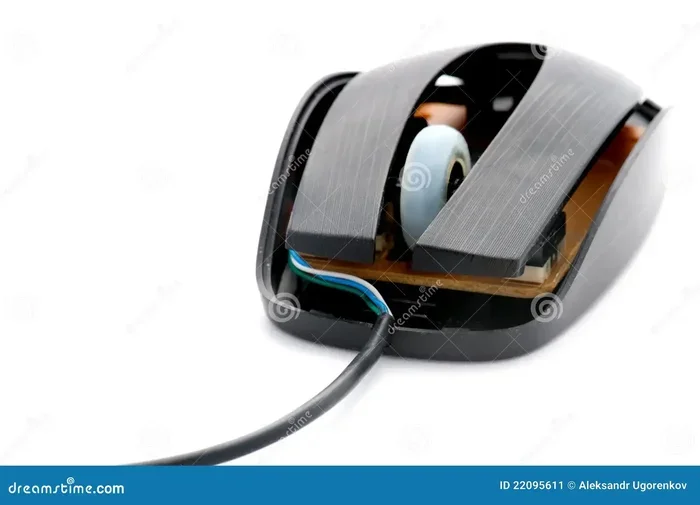
If the middle button still feels sticky after a surface clean, you may need a deeper clean. Remove the screws on the bottom of the mouse. Carefully open the casing. Use a cotton swab and rubbing alcohol to clean the button mechanism directly. Be gentle. Do not disconnect any cables inside the mouse. Reassemble carefully and test the button before closing the casing fully.
How Often Should You Clean Your Mouse?
As a rule, clean your mouse every two to four weeks. If you eat near your computer or have pets, clean it more often. A quick wipe-down with a microfiber cloth should be part of your regular routine. This keeps all buttons, including the middle mouse button, working smoothly.
Advanced Troubleshooting for Middle Mouse Button Problems
If the basic fixes do not work, it is time to dig deeper. These advanced steps address more complex software and configuration issues.
Check the Windows Registry for Mouse Settings
The Windows Registry stores detailed configuration settings for your hardware. Sometimes a registry value gets changed and disables the middle mouse button. Press Win + R, type regedit, and press Enter. Navigate to HKEY_CURRENT_USER\Software\Microsoft\Windows\CurrentVersion\Explorer\Advanced. Look for a value called MouseHoverTime or MiddleMouseButtonAction. If you are not comfortable editing the registry, skip this step and seek professional help. A wrong registry edit can cause bigger problems.
Run the Windows Hardware Troubleshooter
Windows has a built-in troubleshooter for hardware issues. Go to Settings > Update & Security > Troubleshoot > Additional troubleshooters. Click on “Hardware and Devices” and run the troubleshooter. It will scan for issues and attempt to fix them automatically. This tool can detect driver conflicts and configuration errors that you might miss.
Test Your Mouse on Another Computer
Plug your mouse into a different computer. If the middle mouse button works on the other computer, the problem is with your Windows setup, not the hardware. If it does not work anywhere, the mouse likely has a hardware defect. This simple test helps you narrow down the cause quickly.
Check for Windows Updates
Sometimes a Windows update fixes mouse bugs. Go to Settings > Update & Security > Windows Update. Click Check for updates. Install any pending updates and restart. Microsoft regularly releases patches that address peripheral device issues.
When the Middle Mouse Button Needs Hardware Repair
Software fixes solve most middle mouse button problems. But sometimes the issue is physical damage to the mouse itself. Knowing when to repair or replace saves you time and frustration.
Signs of Hardware Failure
Look for these warning signs. The middle button clicks but does nothing. The scroll wheel spins freely without any resistance. The mouse makes unusual clicking sounds. The button physically sticks and does not spring back. These are strong indicators of internal hardware damage.
Can You Repair a Broken Mouse?
For budget mice, replacement is usually the better option. Repairing a cheap mouse costs more in time and parts. For premium mice, you can sometimes replace the switch. Search online for a replacement switch that matches your mouse model. Soldering skills are required for this repair. If you are not comfortable with electronics, buy a new mouse instead.
How to Choose a Reliable Replacement Mouse
When shopping for a new mouse, look for these features. Choose a mouse with a mechanical scroll wheel for durability. Check reviews for button longevity ratings. Consider a mouse with adjustable DPI for better control. Popular brands like Logitech, Razer, and Microsoft offer reliable options at various price points. Read reviews carefully and pick one that fits your needs and budget.
Prevent Middle Mouse Button Problems in the Future
Prevention is always better than cure. A few simple habits keep your middle mouse button working perfectly for years.
- Clean your mouse regularly: A quick wipe every week prevents dust buildup.
- Keep your drivers updated: Check for driver updates monthly through Device Manager.
- Avoid eating near your computer: Crumbs and spills are the enemy of mechanical buttons.
- Use a mouse pad: A good mouse pad reduces wear on the button mechanism.
- Handle your mouse gently: Do not press the scroll wheel too hard. It is not a joystick.
- Store your mouse properly: When not in use, keep it in a protective case or pouch.
Following these tips keeps your mouse in great shape. You will avoid most middle mouse button problems before they start. Your clicks will stay responsive and your scrolling will remain smooth.
Related Tips for Better Mouse Performance
Fixing the middle mouse button is just one part of keeping your mouse in top shape. If you also experience issues with your laptop touchpad, check out our guide on how to fix laptop mouse touchpad problems. For general mouse troubleshooting on your laptop, you might find our how to fix my laptop mouse article helpful as well. If your mouse stops working altogether, our how to make the mouse on a laptop work guide covers essential steps to get your pointer back on screen.
These related articles address common mouse problems that often overlap with middle button issues. Checking them gives you a complete picture of mouse maintenance and troubleshooting. A well-maintained mouse makes your entire computing experience better.
Conclusion
A non-working middle mouse button is a frustrating but solvable problem. Start with the quick fixes like cleaning and restarting. Move on to driver updates and Windows settings if those do not work. Advanced troubleshooting with Device Manager and registry checks handles stubborn cases. If the mouse has hardware damage, consider repair or replacement. Most of the time, a simple cleaning or driver update is all you need. Keep your mouse clean, keep your drivers updated, and your middle mouse button will keep working reliably for a long time. Now go ahead and try these fixes. Your scrolling and middle-clicking will thank you.
Frequently Asked Questions
Why is my middle mouse button not working on my laptop?
The most common reasons are dirt buildup, outdated drivers, or incorrect Windows settings. Start by cleaning the scroll wheel and checking your mouse driver through Device Manager. These two steps fix the problem for most users.
How do I test if my middle mouse button is working?
Open the Mouse Properties window in Windows and go to the Buttons tab. Click the “Test” button and press your middle mouse button. If the test registers the click, the button is working at the hardware level and the issue is software-related.
Can a dirty scroll wheel cause the middle mouse button to fail?
Yes, absolutely. Dust, dirt, and grime can physically block the middle button mechanism. Cleaning the scroll wheel with compressed air and rubbing alcohol often restores full function without any software changes.
Is it safe to edit the Windows Registry to fix mouse issues?
It can be safe if you follow trusted instructions carefully. However, incorrect registry edits can cause system problems. Always back up your registry before making changes. If you are unsure, stick to the safer troubleshooting methods first.
How much does it cost to replace a mouse with a broken middle button?
Budget mice start at around $10 to $20. Mid-range mice cost $30 to $60. Premium gaming or productivity mice range from $60 to $150. For most users, a mid-range mouse offers the best balance of price and durability.
What should I do if none of the software fixes work?
Test your mouse on another computer. If the middle button fails there too, the hardware is the problem. For expensive mice, you can try replacing the internal switch. Otherwise, replacing the mouse is the most practical solution.