How to Increase Fps
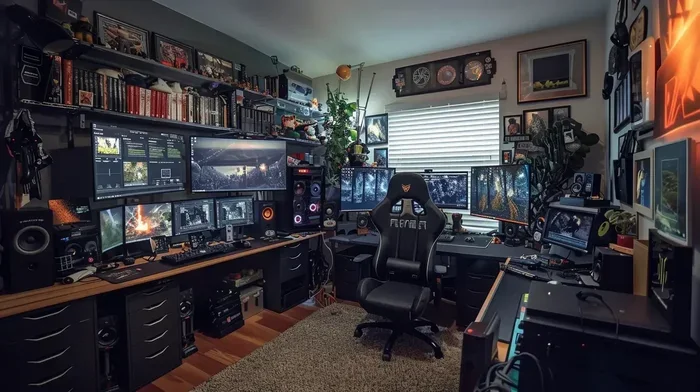
Discover practical ways to increase FPS and enjoy smoother, more responsive gaming. This guide covers everything from simple in-game settings to hardware upgrades that deliver real results. Whether you are a casual player or a competitive gamer, these tips will help you get more frames every second.
Nothing kills the fun of a great game faster than stuttering visuals and laggy movement. If your frame rate dips during intense moments, you are not alone. Many gamers face the same frustration every day. The good news is that how to increase FPS is something anyone can learn. You do not need to be a tech expert to get smoother gameplay. With a few simple changes, you can see a big difference right away.
Frame rate, measured in frames per second or FPS, determines how fluid your game looks and feels. Higher FPS means smoother motion, faster reactions, and a much better gaming experience. Whether you play competitive shooters or open-world adventures, boosting your FPS matters. This guide walks you through every proven method to get more frames on your screen.
We will cover easy software tweaks, driver updates, in-game adjustments, and even hardware upgrades. Each tip is practical and works for most systems. Let us dive in and help you get the most out of your setup.
Key Takeaways
- Lowering in-game settings like shadows and anti-aliasing can instantly boost your frame rate.
- Updating graphics drivers is one of the easiest and most effective ways to improve FPS.
- Upgrading your GPU or adding more RAM delivers the biggest long-term FPS gains.
- Overclocking your GPU and monitor can squeeze extra frames out of your system.
- Closing background apps frees up resources and helps your game run more smoothly.
- Checking your RAM compatibility before upgrading ensures you get the right hardware for better performance.
- Adjusting power settings on your PC prevents throttling and keeps your frame rate stable.
📑 Table of Contents
What Is FPS and Why Does It Matter
FPS stands for frames per second. It measures how many individual images your computer or console draws every second. A higher number means smoother motion on your screen. Most gamers aim for at least 60 FPS. Competitive players often push for 120 FPS or even 144 FPS.
When your FPS drops, animations look choppy. Inputs feel delayed. Your game feels unresponsive. This is especially bad in fast-paced games where every millisecond counts. Boosting your frame rate improves both visuals and responsiveness. You will notice smoother camera movement, better tracking, and fewer stutters.
Several factors affect your FPS. Your graphics card plays the biggest role. Your processor matters too. Even your RAM and storage speed contribute. That is why learning how to increase FPS requires a full approach. You need to look at software, settings, and hardware together.
Check Your Current FPS First
Before you make any changes, find out where you stand. Most games have a built-in FPS counter. You can also use tools like NVIDIA ShadowPlay or MSI Afterburner to monitor your frame rate in real time.
Knowing your baseline helps you measure progress. After you try each tip, check your FPS again. This way you know exactly what works for your system. Write down your numbers so you can compare them later.
Use Built-In FPS Counters
Many popular games let you display your FPS on screen. Look in the settings or options menu. Games like Fortnite, Valorant, and Call of Duty all include this feature. If your game does not have it, a free overlay tool will do the job.
Benchmark at Different Scenes
Your FPS can change depending on what is happening in the game. A quiet cutscene might run at 120 FPS. A busy battle scene might drop to 40 FPS. Test your frame rate in both calm and intense moments. This gives you a complete picture of your performance.
Optimize Your In-Game Settings
The fastest way to increase FPS is to adjust what is happening inside your game. Many players never touch their graphics settings. They just leave everything on high. But lowering a few options can make a huge difference.
You do not need to turn everything down. Just focus on the settings that affect performance the most. Here are the top options to change first.
Lower Shadow and Lighting Quality
Shadows and lighting effects are very demanding on your GPU. Turning these down often gives the biggest FPS boost. Set shadows to medium or low and see how it looks. In most games, the difference is barely noticeable during gameplay.
Reduce Anti-Aliasing
Anti-aliasing smooths out jagged edges. It looks nice, but it costs FPS. Try lowering it or turning it off completely. Modern games with good rendering often make jagged edges less obvious. You will gain frames without losing much visual quality.
Adjust Resolution and Render Scale
Running your game at a lower resolution is one of the most effective ways to boost FPS. You can also use a render scale below 100 percent. This makes the game engine render at a smaller size and then stretches it to fit your screen. The result is a solid FPS increase with minimal visual loss.
Turn Off Unnecessary Features
Features like motion blur, depth of field, and film grain look cinematic but hurt performance. Turn them off for a cleaner and faster experience. You will also reduce input lag, which makes your controls feel more responsive.
Update Your Graphics Drivers and Software
Outdated drivers are one of the most common reasons for low FPS. Graphics card manufacturers release regular updates that improve game performance and fix bugs. Keeping your drivers current is essential.
Use the Latest GPU Drivers
NVIDIA and AMD both offer free driver update tools. NVIDIA GeForce Experience and AMD Adrenalin make this process easy. They can even optimize your game settings automatically. Just open the app, check for updates, and install them.
Keep Your Game and Operating System Updated
Game developers release patches that improve performance. Always keep your games updated to the latest version. Your operating system also matters. Windows updates often include performance improvements and security fixes that help your games run better.
Disable Background Software
Apps running in the background eat up your system resources. Things like browsers, streaming tools, and cloud storage apps all take a toll. Close everything you do not need before you start gaming. This frees up memory and processing power for your game.
Upgrade Your Hardware for Better FPS
Software tweaks can only do so much. At some point, hardware upgrades become the best path forward. If you have an older system, a few strategic upgrades can transform your FPS.
Upgrade Your Graphics Card
Your GPU is the most important piece for gaming performance. A newer graphics card can double or even triple your FPS. Look for a card that fits your budget and your monitor’s resolution. Even a mid-range upgrade can make a massive difference.
Add More RAM
Not having enough RAM can seriously limit your frame rate. Many modern games need at least 16 GB of memory. If your system has 8 GB or less, an upgrade will help a lot. Before you buy new RAM, check what is compatible with your laptop or desktop. Use a tool like Crucial’s Scanner or your motherboard manual to find the right type and speed.
Adding RAM is one of the simplest upgrades you can do. It also helps with multitasking. You can have your game, Discord, and a browser open without losing performance.
Consider Overclocking Your RAM
If you already have enough RAM, overclocking it can push your FPS even higher. Faster memory speeds help your processor handle game data more quickly. But be careful. Overclocking requires stable settings and proper cooling. You can learn more about whether overclocking RAM increases FPS by checking detailed benchmarks for your specific setup.
Switch to an NVMe SSD
Your storage drive affects load times and how smoothly your game runs. An NVMe SSD is much faster than an old hard drive. It reduces stuttering and texture pop-in. If your game is installed on a mechanical drive, moving it to an SSD is a game-changer. You can set up a new NVMe SSD in minutes with the right guide.
Advanced Tips to Boost FPS
If you have already tried the basics, these advanced methods can help you squeeze out every last frame. These tips are for users who want maximum performance.
Overclock Your GPU
GPU overclocking pushes your graphics card beyond its factory settings. It increases clock speeds and can boost FPS by 10 to 20 percent. Tools like MSI Afterburner make this process straightforward. Start with small increases and test for stability. If your game crashes or shows visual glitches, dial it back.
Overclocking also generates more heat. Make sure your cooling system can handle the extra load. A well-ventilated case or an aftermarket GPU cooler helps a lot.
Adjust Windows Power Settings
Windows has power plans that affect your PC’s performance. The balanced plan saves energy but limits speed. Switching to the high-performance plan tells your system to use full power. This simple change can improve your FPS, especially on laptops.
You can also disable USB selective suspend and PCI Express link state power management. These settings prevent Windows from powering down components your game needs.
Enable Game Mode in Windows
Windows Game Mode prioritizes your game over background tasks. It allocates more resources to your game and blocks unnecessary notifications. Turn it on in your Windows settings. It is a quick and easy way to get a small but noticeable FPS boost.
Monitor Your GPU Temperature
When your GPU gets too hot, it slows down to protect itself. This is called thermal throttling. It causes sudden FPS drops and stuttering. Use a monitoring tool to keep an eye on temperatures. If your GPU runs hot, clean your fans or improve your airflow.
Cap Your Frame Rate Wisely
Capping your FPS might sound counterintuitive. But it actually helps in many situations. An uncapped frame rate can cause your GPU to work overtime. It also increases input lag and screen tearing. A moderate cap keeps your system stable and your gameplay smooth. Use V-Sync or a frame rate limiter to find the right balance.
Common Mistakes That Hurt Your FPS
Avoid these common pitfalls that hold back your frame rate. Many of these mistakes are easy to fix once you know about them.
- Running too many background apps. Every open program steals resources from your game.
- Ignoring driver updates. Old drivers miss performance optimizations for new games.
- Setting your game to the highest preset. Ultra settings look great but often hurt your FPS more than they help visually.
- Not monitoring temperatures. Overheating components throttle performance without warning.
- Using the wrong RAM type. Mixing RAM speeds or using incompatible modules can cause slowdowns instead of improvements.
Final Thoughts
Learning how to increase FPS does not require expensive gear or deep technical knowledge. You can start with simple settings changes and driver updates. Those steps alone can make a big difference. From there, hardware upgrades like more RAM or a better GPU take your performance to the next level.
Every system is different. What works best for one player might not help another. That is why it is important to test each change and track your results. Use an FPS counter, compare your numbers, and focus on the tweaks that give you the best return.
With the tips in this guide, you are well equipped to get smoother, faster, and more enjoyable gameplay. Start today and feel the difference in every session.
Frequently Asked Questions
Does overclocking RAM increase FPS?
Yes, overclocking your RAM can increase FPS in some games. Faster memory speeds help your processor handle game data more quickly. However, the improvement varies depending on your CPU, GPU, and the games you play. It is usually a modest boost but can make a difference in CPU-bound scenarios.
How much FPS can I gain by upgrading my GPU?
The FPS gain depends on your current card and the game you are playing. A mid-range upgrade can boost FPS by 30 to 60 percent. A high-end upgrade can double or triple your frame rate. Check benchmarks for your specific games before making a purchase.
What is the easiest way to increase FPS right now?
The easiest way is to update your graphics drivers. Drivers often include game-specific optimizations that improve performance. After that, lowering in-game settings like shadows and anti-aliasing gives an immediate boost. These two steps take just minutes and require no extra cost.
How do I know what RAM is compatible with my system?
You can check your motherboard manual or use a compatibility tool from manufacturers like Crucial or Kingston. Look for the right type (DDR4 or DDR5), speed, and maximum capacity your motherboard supports. Mixing RAM modules with different speeds can cause issues, so try to match them.
Can closing background apps really improve FPS?
Yes, closing background apps frees up CPU and RAM resources for your game. Apps like browsers, streaming software, and cloud sync tools use significant memory and processing power. Shutting them down before you game can lead to a noticeable FPS improvement, especially on systems with limited RAM.
Should I cap my FPS or let it run uncapped?
Capping your FPS is generally recommended for smoother gameplay. An uncapped frame rate can cause screen tearing, input lag, and unnecessary GPU strain. A moderate cap keeps your system stable and reduces power consumption. Use V-Sync or an in-game limiter to find the right cap for your monitor.