How to Get More Storage on Pc
How To Get More Storage On Pc is essential for keeping your computer fast and error-free. This guide covers internal drive upgrades, external storage devices, cloud options, and smart file cleanup techniques. You will learn practical steps to expand capacity and manage space efficiently.
How To Get More Storage On Pc is something every computer user needs to do eventually. Whether your hard drive is full of games, videos, or work files, running out of space slows everything down. This guide shows you simple and proven ways to add more storage to your PC. You will learn about internal drive upgrades, external devices, cloud options, and smart file management. By the end, you will know exactly how to free up space and keep your computer running fast.
Running out of space on your PC is frustrating. You might get error messages when saving files, or your computer might start to lag. The good news is that expanding your storage does not have to be expensive or complicated. There are several easy options you can try right away. This article walks you through every method step by step. We cover everything from swapping in a bigger hard drive to using cloud services. You do not need to be a tech expert to follow along. Let us get started.
Key Takeaways
- Check your storage first: Know how much space you have before buying anything new.
- Upgrade to an SSD: Replacing your drive with an SSD is the fastest and most effective way to add storage.
- Use external drives: External HDDs and SSDs give you quick and affordable extra space.
- Clean up regularly: Delete old files, uninstall unused programs, and use built-in cleanup tools.
- Try cloud storage: Keep files online to free up local space and stay organized.
- Combine upgrades: Pair storage upgrades with RAM improvements for the best overall performance.
- Stay proactive: Set a monthly routine to manage your storage and prevent future problems.
📑 Table of Contents
Why Your PC Needs More Storage
Every file you save takes up space on your computer. Photos, videos, documents, apps, and games all add up fast. Over time, your storage fills up and your PC starts to slow down. When your drive is nearly full, it has less room to work with. This affects how fast your computer can open files and run programs.
Most modern computers come with 256 GB or 512 GB of storage. That might sound like a lot. But if you store large files or install many programs, it goes quickly. PC storage upgrade can make a huge difference in how your machine performs. A fuller drive also makes it harder for your system to manage temporary files and updates.
Here are some signs you need more storage:
- You get warnings about low disk space
- Programs take longer to open
- Your computer freezes or crashes often
- You cannot save new files or downloads
- Windows updates fail to install
Fixing this early keeps your PC healthy. It also saves you from costly repairs later. A solid storage management plan helps you stay ahead of the problem. Good file management habits also play a big role in keeping your drive organized and fast.
How to Check Your Current Storage
Before you buy anything, find out how much space you have. Checking your current storage is quick and easy. You will need to look at your system settings. This first step helps you decide the best path forward for your storage expansion.
Using Windows Storage Settings
On Windows, go to Settings and click System. Then choose Storage. You will see a breakdown of what is using your space. This shows you which files and apps take up the most room. You can also turn on Storage Sense. This feature automatically frees up space by deleting temporary files and clearing your recycle bin. It is one of the easiest ways to start free up disk space without any extra software.
Checking Storage on a Mac
On a Mac, click the Apple menu and select About This Mac. Then go to the Storage tab. You will see a colorful chart showing how your space is used. macOS also offers built-in tools to optimize storage. These features help you manage disk space without installing extra software. They give you a clear picture of where your computer storage is going.
Upgrade Your Internal Drive
The best way to get more storage is to replace your current drive. This gives you a bigger and faster drive all at once. There are two main types of drives to consider for your storage devices needs.
SSD vs HDD: Which Is Better?
An SSD (Solid State Drive) uses flash memory. It has no moving parts. This makes it faster and more reliable. An HDD (Hard Disk Drive) uses spinning disks. It is slower but usually cheaper per gigabyte. For most users, an SSD upgrade is the better choice. SSDs load programs faster and boot your PC in seconds. They also make your whole system feel more responsive.
If you are a gamer or video editor, consider a NVMe SSD. These are the fastest drives available. They connect directly to your motherboard for maximum speed. An HDD upgrade is still a good budget option if you need lots of space for media files. Here is a quick comparison:
- SSD: Faster speeds, more durable, higher cost per GB
- HDD: Slower speeds, less durable, lower cost per GB
- NVMe SSD: Fastest option, ideal for gaming and video editing
Steps to Replace Your Internal Drive
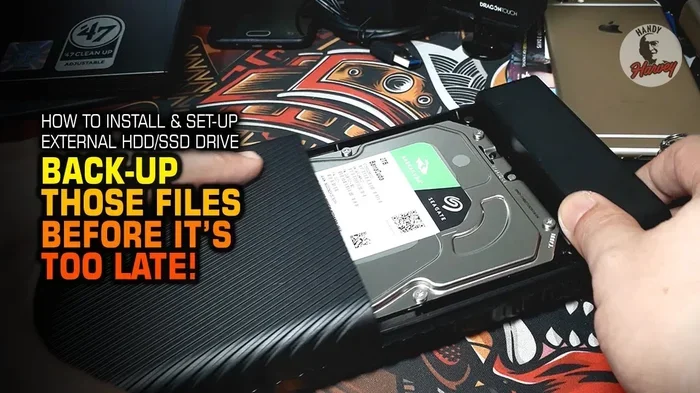
Replacing a drive is easier than it sounds. First, back up all your important files. You can use an external drive or cloud backup. Next, open your PC case and locate your current drive. Disconnect the cables and remove the old drive. Then install the new drive in the same slot. Reconnect the cables and close the case.
After installation, you need to clone your old drive or reinstall your operating system. This moves all your files and programs to the new drive. If you are not sure about the process, watch a few tutorial videos first. Many users also upgrade their RAM at the same time. Learning How To Get More Ram On My Laptop can help you boost overall performance alongside your storage upgrade. This combination gives your PC a real speed boost.
Use External Storage Devices
If you do not want to open your PC, external storage is a great option. External devices plug in through USB and give you instant extra space. They are portable and easy to use. External hard drive options have become very affordable in recent years.
External Hard Drives
External hard drives come in two types: HDD and SSD. Portable HDDs are affordable and offer lots of space. You can get 1 TB or more for a reasonable price. Portable SSDs are faster and more durable. They cost more but are worth it if you work with large files. These storage devices are perfect for storing media files, backups, and older documents you do not access often.
They free up space on your main drive without any complicated setup. Just plug them in and drag your files over. Many people keep one external drive for work files and another for personal media. This keeps everything organized and easy to find.
USB Flash Drives
USB flash drives are smaller and more portable. They work well for transferring files between computers. They are not ideal for long-term storage because they have less capacity. But for quick file moves, they are very handy. A 64 GB or 128 GB flash drive costs very little. They are a simple storage solution for everyday tasks.
Free Up Space with Smart Management
Sometimes you do not need to buy anything. You can free up a lot of space by cleaning up what you already have. Smart storage management saves you money and time. These methods work well alongside any hardware upgrade you choose.
Delete Unnecessary Files
Start by going through your files and deleting what you do not need. Old downloads, duplicate photos, and unused apps take up a lot of space. Empty your recycle bin after deleting files. This ensures the space is truly freed up on your hard drive space. Sort your files by size to find the biggest space hogs. You might be surprised by how large some folders are. Videos and game files are usually the biggest culprits.
Use Built-in Cleanup Tools
Windows has a built-in tool called Disk Cleanup. It removes temporary files, system cache, and old update files. To use it, search for Disk Cleanup in the Start menu. Select the drive you want to clean and let the tool do its work. You can also use the Storage Sense feature mentioned earlier. It automatically deletes files you do not need. On a Mac, use Optimize Storage to remove watched movies and old backups. These tools make free up disk space easy and automatic. They also handle delete temporary files without you lifting a finger.
Uninstall Unused Programs
Many of us install programs and never use them again. Go to your control panel or settings and uninstall apps you no longer need. This can free up several gigabytes of space. Some programs also leave behind leftover files. Use a cleanup tool to remove these remnants completely. This is one of the simplest ways to increase storage without spending a dime.
Cloud Storage: The Modern Solution
Cloud storage lets you keep files online instead of on your PC. This frees up local space while keeping your files safe and accessible. You can access your files from any device with an internet connection. It is one of the most flexible storage solutions available today.
Best Cloud Services
There are many cloud services to choose from. Google Drive offers 15 GB of free storage. OneDrive comes built into Windows and gives you 5 GB for free. Dropbox is another popular option with 2 GB of free space. For larger needs, you can pay for premium plans that offer 1 TB or more. Each service has its strengths, so compare them before deciding.
Cloud storage is great for documents, photos, and backups. It is not ideal for very large files like video projects that need fast access. But for everyday files, it works very well. Many users combine cloud storage with a local backup for extra safety.
How to Choose the Right Service
When picking a cloud service, think about your needs. Consider how much space you need and what devices you use. Look at pricing and security features. Some services offer end-to-end encryption for extra safety. Choose a service that fits your budget and workflow. Good cloud storage keeps your files safe and your PC fast.
Using cloud storage alongside a bigger internal drive gives you the best of both worlds. You keep important files close and back up the rest online. This is a smart approach to storage capacity management.
Expert Tips for Long-Term Storage Management
Getting more storage is only half the battle. Keeping it organized over time matters just as much. Here are some expert tips to help you stay on top of your computer storage for the long haul.
- Set a monthly cleanup routine. Spend 15 minutes each month deleting old files and unused apps.
- Move old files to external drives. Keep your main drive lean by offloading files you rarely use.
- Use cloud storage for backups. This protects your files if your PC ever fails.
- Monitor your storage usage. Check your storage settings regularly to catch problems early.
- Compress large files. Use file compression tools to shrink big files without losing data.
If you want your PC to run even faster after adding storage, you might also consider upgrading your memory. The process is straightforward, much like How To Install More Ram On My Laptop. Many users find that combining a storage upgrade with a memory boost gives the best results. For more ways to improve your system, check out How To Upgrade My Ram On My Laptop for additional tips on keeping your PC running at peak performance.
Another option is to use a USB-based solution for expanding capacity on the go. Some users explore options like How To Get Extra Ram On Laptop With Usb to complement their storage strategy and get the most out of their machine. Taking a proactive approach to storage saves you time and money. It keeps your PC running smoothly for years to come.
Key Takeaways
- Check your storage first: Know how much space you have before buying anything new.
- Upgrade to an SSD: Replacing your drive with an SSD is the fastest and most effective way to add storage.
- Use external drives: External HDDs and SSDs give you quick and affordable extra space.
- Clean up regularly: Delete old files, uninstall unused programs, and use built-in cleanup tools.
- Try cloud storage: Keep files online to free up local space and stay organized.
- Combine upgrades: Pair storage upgrades with RAM improvements for the best overall performance.
- Stay proactive: Set a monthly routine to manage your storage and prevent future problems.
Conclusion
How To Get More Storage On Pc does not have to be hard. You have many options, from simple cleanups to full drive replacements. Start by checking how much space you have and what is using it. Then pick the method that fits your budget and needs. Whether you choose an SSD upgrade, an external drive, or cloud storage, each option helps your PC run better.
Do not wait until your PC is completely full. Take action now and enjoy a faster, smoother computer. A little effort today saves you from big headaches tomorrow. Try these tips and feel the difference in your daily workflow. Your PC will thank you for it.
Frequently Asked Questions
How much storage do I actually need on my PC?
Most users need at least 256 GB for basic tasks. If you store photos, videos, or play games, aim for 512 GB or 1 TB. Check your current usage first to decide what size works best for you.
Is it better to upgrade to an SSD or buy an external drive?
An SSD upgrade is better for your main drive because it speeds up your whole PC. An external drive is great for extra storage without opening your computer. Many users benefit from doing both.
Can I add storage without opening my PC?
Yes. External hard drives and USB flash drives plug in through USB ports. Cloud storage is another option that requires no physical hardware. Both are simple and beginner-friendly.
How often should I clean up my storage?
Setting a monthly cleanup routine works well for most people. Delete old downloads, empty your recycle bin, and uninstall unused apps. This keeps your drive from filling up again.
Does cloud storage cost money?
Most cloud services offer free basic plans with limited space. You only pay when you need more storage. Premium plans are usually affordable and give you 1 TB or more.
Will adding more storage make my PC faster?
Yes, especially if your current drive is almost full. A fuller drive slows down your PC. Adding an SSD makes a noticeable difference in speed and responsiveness.