Pc Shuts Down While Gaming
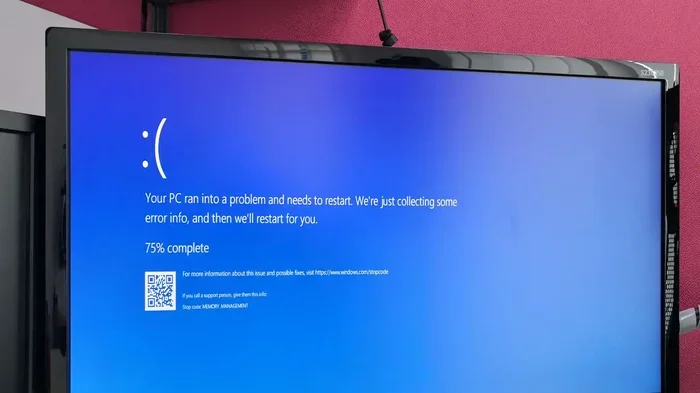
A pc shuts down while gaming for several key reasons, including overheating, power supply problems, outdated drivers, and malware. Understanding the root cause is the first step to a permanent fix. This guide walks you through every common culprit and gives you simple, actionable solutions you can try today.
Nothing kills the gaming vibe faster than your pc shuts down while gaming right in the middle of an intense match. You are climbing the leaderboard, your fingers are on fire, and then — nothing. Screen goes black. Fans stop. Total silence.
It is incredibly frustrating, but here is the good news. Most causes behind this problem are easy to identify and fix. Whether it is a simple dust cleanup or a driver update, you do not need to be a tech expert to solve it. This guide covers every reason your pc might be shutting down during gaming sessions and gives you step-by-step fixes that actually work.
If you have ever asked yourself, “Why does my computer turn off when I play games?” — you are in the right place. Let us dig into the causes and get your rig back in action.
Key Takeaways
- Overheating is the #1 cause: Dust buildup and poor airflow make your pc shut down during intense gaming sessions.
- Power supply issues are sneaky: An underpowered or failing PSU can trigger random shutdowns without warning.
- Outdated drivers crash your game: Old GPU and motherboard drivers often lead to sudden pc shutdowns while gaming.
- Malware can mimic hardware failure: Viruses and background processes can force your pc to shut down unexpectedly.
- Thermal paste matters: Dried-out thermal paste between your cpu and cooler causes dangerous temperature spikes.
- Power settings can help: Adjusting Windows power plans stops unnecessary shutdowns during gameplay.
📑 Table of Contents
Why Does My Pc Shut Down While Gaming?
Your pc shutting down during gaming is almost always a safety response. Modern computers are designed to protect themselves from damage. When something goes wrong internally, the system powers off to prevent permanent harm. But what triggers that protection? Let us break it down.
1. Overheating: The #1 Culprit
Heat is the enemy of every gaming pc. When your cpu temperature or gpu temperature climbs too high, your computer shuts down automatically. This is called thermal protection, and it is a good thing — it means your hardware is not frying.
But why does overheating happen in the first place? Here are the most common reasons:
- Dust buildup inside the case: Over time, dust clogs fans and blocks airflow. Your pc literally cannot breathe.
- Clogged or broken fans: If a fan stops spinning, heat builds up fast.
- Poor cable management: Messy cables block air channels inside your case.
- Bad thermal paste: The paste between your cpu and cooler dries out over time, reducing heat transfer.
- High ambient temperature: Gaming in a hot room makes cooling much harder.
The fix is usually straightforward. Open your case and use compressed air to blow out the dust. Check that all fans are spinning. If your pc is more than two years old, consider replacing the thermal paste on your cpu and gpu. A tube of thermal paste costs about five dollars and can drop your temperatures by 10 to 15 degrees.
If you want to boost your cooling setup even further, check out our guide on best accessories for gaming pc for cooling pads, case fans, and airflow solutions that make a real difference.
2. Power Supply Problems
Your power supply unit (PSU) is the heart of your gaming rig. It delivers electricity to every component. When it fails or cannot keep up, your pc shuts down while gaming — sometimes instantly.
Here is what to watch for:
- Undersized PSU: If your power supply does not have enough wattage for your gpu and cpu, it will crash under load.
- Aging PSU: Power supplies degrade over time. A unit that is five or more years old may not deliver stable power anymore.
- Loose power cables: A cable that is slightly unplugged can cause intermittent shutdowns.
- Voltage fluctuations: Unstable power from your wall outlet can also trigger shutdowns.
To check if your PSU is the problem, look at its wattage rating and compare it to your system’s total power draw. A good rule of thumb is to have at least 20 to 30 percent extra capacity. If your PSU is old or underperforming, replacing it is one of the best investments you can make.
3. Outdated or Corrupt Drivers
Your graphics card and motherboard rely on drivers to communicate with your operating system. When those drivers are outdated or corrupted, your pc crashes while gaming — and sometimes it just shuts down completely.
Common driver-related shutdown triggers include:
- Old gpu drivers: Nvidia and AMD release updates frequently. Running outdated drivers causes instability.
- Corrupt motherboard drivers: Chipset drivers keep everything in sync. When they break, chaos follows.
- Windows update conflicts: Sometimes a Windows update overwrites a driver and causes problems.
The fix is simple. Open your gpu manufacturer’s software (Nvidia GeForce Experience or AMD Adrenalin) and check for updates. For motherboard drivers, visit your motherboard manufacturer’s website and download the latest chipset and audio drivers. Doing this once a month keeps your system stable.
4. Malware and Viruses
This one surprises people. Malicious software running in the background can push your pc to its limits. Some malware uses your gpu and cpu for mining cryptocurrency, which generates massive heat and can cause your pc to shut down while gaming.
Malware can also corrupt system files, leading to unexpected shutdowns. If your pc is acting weird in general — slow startup, pop-ups, or unfamiliar programs — you might have an infection.
Running a full system scan with trusted antivirus software for gaming pc can catch and remove these threats. Keeping your antivirus up to date is just as important as keeping your drivers updated.
5. Windows Power Settings
Sometimes the problem is simpler than you think. Windows has power settings that control how your pc behaves under heavy load. If your power plan is set too aggressively, it might shut down your pc to protect the hardware.
Here is how to check and adjust your power settings:
- Go to Control Panel and select Power Options.
- Choose the High Performance plan (or Balanced).
- Click “Change plan settings” and then “Change advanced power settings.”
- Look for processor power management and set the minimum processor state to 100 percent.
- Check the thermal shutdown threshold and make sure it is set to a safe level.
These small tweaks can prevent unnecessary shutdowns and improve your gaming performance at the same time.
6. Hardware Conflicts and Overclocking
If you have recently added new hardware or overclocked your cpu or gpu, that could be causing the shutdowns. Overclocking pushes your components beyond their factory settings, which generates more heat and demands more power.
Similarly, incompatible hardware — like a new ram stick that does not match your motherboard’s specs — can cause random crashes and shutdowns. If you recently made any changes to your system, try reverting them and see if the problem stops.
How to Diagnose What Is Causing Your Pc to Shut Down
Figuring out the exact cause takes a bit of detective work. Here are the tools and methods that actually help.
Use Built-in Windows Tools
Windows has a built-in tool called the Event Viewer that logs every error and warning your pc generates. To access it:
- Press Windows Key + R, type “eventvwr.msc,” and hit Enter.
- Navigate to Windows Logs > System.
- Look for critical errors or warnings that appear right around the time your pc shuts down.
You will often find clues here — like a sudden temperature spike or a driver crash — that point directly to the cause.
Monitor Your Temperatures
Software like HWMonitor, MSI Afterburner, or Core Temp lets you watch your temperatures in real time while you game. If your cpu or gpu hits 90 degrees Celsius or higher before the shutdown, overheating is almost certainly the cause.
For a more permanent monitoring solution, set up your pc monitor for console gaming or a dedicated display to show live temps while you play. This way, you catch overheating before it triggers a shutdown.
Check Your Event Logs After Each Crash
Every time your pc shuts down, make a quick note of what you were doing, what game you were in, and how long you had been playing. This pattern helps you narrow down the cause. If it always happens in the same game, it might be a software issue. If it happens after 20 minutes of any game, it is likely hardware related — probably heat or power.
Quick Tips to Prevent Future Shutdowns
Prevention is always easier than troubleshooting. Here are simple habits that keep your gaming pc running strong:
- Clean your pc every three months: Use compressed air to remove dust from fans, vents, and filters.
- Keep your pc in a well-ventilated area: Do not push your tower against a wall or hide it in a closed cabinet.
- Update your drivers monthly: Set a calendar reminder to check for gpu and motherboard updates.
- Run antivirus scans weekly: A quick scan takes minutes and saves you from major problems.
- Do not overclock without proper cooling: If you overclock, invest in better cooling first.
- Replace thermal paste every two years: It is cheap insurance against overheating.
- Use a surge protector: Power spikes can damage your components and trigger shutdowns. A surge protector for pc gaming is a small investment that pays off big.
These habits take almost no time but add years to your pc’s lifespan and keep your gaming sessions interruption-free.
When to Seek Professional Help
Most shutdown issues are fixable at home. But sometimes, the problem runs deeper than basic troubleshooting can handle. You should consider professional help if:
- Your pc shuts down immediately after turning on, before any game even loads.
- You smell burning or notice physical damage to components.
- Your psu is making clicking or buzzing noises.
- Your gpu or cpu is visibly damaged or swollen.
- You have tried all the fixes above and the problem persists.
A qualified technician can run stress tests, check your motherboard for failing capacitors, and diagnose issues that are not visible to the naked eye. It is worth the cost if it saves you from replacing an entire system.
Final Thoughts
A pc shutting down while gaming is annoying, but it is almost never a death sentence for your computer. In most cases, the fix is free or costs just a few dollars — a can of compressed air, a driver update, or a fresh application of thermal paste. Start with the simplest solutions and work your way up. You will likely solve the problem within an hour.
Remember, your pc is designed to protect itself. The shutdown is not the problem — it is the symptom. Find the root cause, fix it, and get back to gaming with confidence.
For more tips on keeping your gaming setup in top shape, explore our guides on best gaming pc at best buy and best virus protection for gaming pc to make sure your system stays safe and powerful for years to come.
Frequently Asked Questions
Why does my pc shut down randomly while gaming?
Random shutdowns during gaming are most often caused by overheating, power supply issues, or outdated drivers. Your pc has built-in safety features that shut it down when temperatures get too high or when power delivery becomes unstable. Start by cleaning your fans and checking your gpu and cpu temperatures.
Can a bad power supply cause my pc to shut down while gaming?
Yes, absolutely. A failing or underpowered psu cannot deliver stable electricity to your components under heavy gaming load. This causes sudden shutdowns. If your psu is more than four years old or does not meet your system’s wattage requirements, replacing it may solve the problem entirely.
How do I know if my pc is overheating?
Download free temperature monitoring software like HWMonitor or MSI Afterburner. If your cpu temperature exceeds 85 to 90 degrees Celsius or your gpu exceeds 85 degrees while gaming, you are likely overheating. Other signs include loud fan noise, sluggish performance, and shutdowns after 15 to 20 minutes of play.
Is it safe to use my pc if it keeps shutting down while gaming?
It is not recommended. Repeated shutdowns mean your components are being pushed beyond safe limits. Continuing to use the pc without fixing the issue can cause permanent damage to your cpu, gpu, or motherboard. Always diagnose and fix the root cause before gaming again.
Can malware cause my pc to shut down during gaming?
Yes. Some malware uses your cpu and gpu for cryptocurrency mining, which generates extreme heat and can trigger shutdowns. Malware can also corrupt system files, leading to instability. Run a full scan with reliable antivirus software to rule out this possibility.
How often should I replace the thermal paste on my cpu?
Every two to three years is a good rule of thumb. If you notice your temperatures climbing higher than usual or your pc shutting down more frequently, it might be time to reapply thermal paste. The process is simple and only costs a few dollars for a tube of paste.
=== CONCLUSION ===
A pc shuts down while gaming for a reason, and that reason is almost always fixable. Whether it is dust clogging your fans, a tired power supply, outdated drivers, or hidden malware, you now have the tools to diagnose and solve the problem. Start with the easiest fixes — clean your case, update your drivers, check your temperatures — and work from there.
Your gaming pc deserves to run smoothly, and with these tips, it will. Keep your system maintained, stay on top of updates, and enjoy uninterrupted gaming sessions for years to come.