Which Hdmi Port Is Earc on Samsung Tv
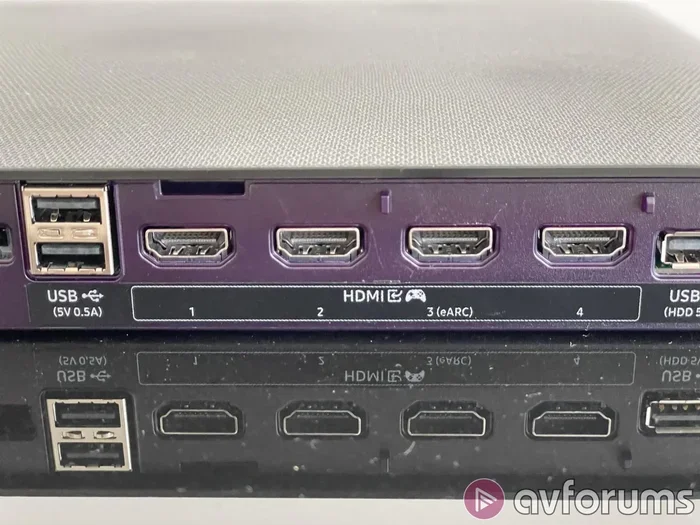
The eARC (Enhanced Audio Return Channel) feature on Samsung TVs delivers high-quality audio to your soundbar or home theater system. Most Samsung TVs place eARC on the HDMI 1 port, but this can vary by model. In this guide, we will show you exactly which HDMI port is eARC on Samsung TV and how to set it up for the best sound.
If you have a Samsung TV and want to connect a soundbar or home theater system, you need to know which HDMI port is eARC on Samsung TV. eARC stands for Enhanced Audio Return Channel. It is a feature that lets your TV send high-quality audio to external speakers. Without it, you may miss out on rich surround sound and advanced audio formats like Dolby Atmos.
Setting up eARC is not hard, but it does require the right HDMI port and a few correct settings. Many people plug in their soundbar and wonder why the audio quality is not great. Often, the answer is simple. They are using the wrong HDMI port. In this article, we will walk you through everything you need to know. We will cover which port to use, how to enable eARC, common problems, and tips for the best audio experience.
Whether you are watching movies, playing games, or listening to music, eARC makes a big difference. It sends uncompressed audio from your TV to your soundbar. This means you get the full, rich sound that movie directors and music producers intended. Let us dive in and find out exactly how to set it up on your Samsung TV.
Key Takeaways
- eARC is typically on HDMI 1: Most Samsung TVs place eARC on the first HDMI port for easy access.
- Check your model: Not all Samsung TVs have eARC, so verify your specific model’s specs first.
- Use an HDMI ARC-compatible cable: A high-speed HDMI cable is essential for eARC to work properly.
- Enable eARC in settings: You must turn on eARC in your TV’s audio settings menu.
- eARC supports Dolby Atmos: Unlike standard ARC, eARC can pass lossless audio formats like Dolby Atmos.
- Troubleshooting is simple: Most eARC issues can be fixed by checking cable connections and updating TV software.
📑 Table of Contents
What Is eARC and Why Does It Matter on Samsung TVs
Understanding Enhanced Audio Return Channel
eARC stands for Enhanced Audio Return Channel. It is an upgrade to the older ARC (Audio Return Channel) standard. Both of these features let your TV send audio back through an HDMI cable to a soundbar or AV receiver. But eARC is much better. It supports higher bandwidth, which means it can carry more audio data at once.
With standard ARC, you are limited to basic audio formats. You might get stereo sound or simple surround sound. But with eARC, you can enjoy Dolby Atmos, DTS:X, and other advanced formats. These formats create a more immersive listening experience. You feel like you are inside the movie or concert.
The treble and bass balance you get through eARC is far superior to what standard ARC offers. If you want to learn more about adjusting treble on your speakers, you can check out our guide on what treble is on speakers. But for now, just know that eARC gives you much better control over your audio quality.
Why eARC Beats Standard ARC
There are several key reasons why eARC is better than standard ARC:
- Higher bandwidth: eARC can carry uncompressed audio. Standard ARC cannot.
- Better audio formats: eARC supports Dolby Atmos and DTS:X. Standard ARC does not.
- Bidirectional communication: eARC lets your TV and soundbar talk to each other better.
- Fewer cables: You only need one HDMI cable for both video and high-quality audio.
- Lip sync correction: eARC helps keep audio and video in sync automatically.
These benefits make eARC a must-have feature for anyone who cares about sound quality. If you are building a home theater setup, eARC should be at the top of your list.
Which HDMI Port Is eARC on Samsung TV
The Default HDMI Port for eARC
On most Samsung TVs, the eARC feature is located on HDMI 1. This is usually the port on the back of the TV labeled HDMI 1 or ARC. Samsung places eARC on this port by default because it is the most commonly used port for audio devices like soundbars.
However, this is not true for every Samsung model. Some newer Samsung TVs may have eARC on a different HDMI port. And some older models may not have eARC at all. This is why it is so important to check your specific TV model.
Here are the general rules for Samsung TVs:
- Samsung TVs from 2017 and newer: Most have eARC on at least one HDMI port.
- Samsung TVs from 2019 and newer: Almost all models include eARC on HDMI 1.
- Samsung QLED and Neo QLED TVs: These almost always have eARC support.
- Samsung Crystal and older models: Some may only have standard ARC, not eARC.
If you are unsure about your specific model, check the user manual or visit Samsung’s website. Look for the term “eARC” in the specifications. The amount of processing power your TV has, similar to how what is good RAM on a laptop matters for performance, affects how well your TV handles eARC audio processing.
How to Check if Your HDMI Port Supports eARC
You can check if your Samsung TV supports eARC in a few simple ways:
- Check the TV manual: Look for “eARC” or “HDMI eARC” in the specifications section.
- Visit Samsung’s website: Enter your TV model number and look at the full specs.
- Check the TV settings: Go to Settings > Sound > Sound Output. If you see an eARC option, your TV supports it.
- Look at the HDMI port label: Some Samsung TVs label the eARC port with an “ARC” or “eARC” sticker.
If your TV does not support eARC, you can still use standard ARC. The sound quality will not be as good, but it will still work. You will just miss out on Dolby Atmos and other advanced formats.
How to Enable eARC on Your Samsung TV
Step-by-Step Setup Guide
Once you have found the right HDMI port, enabling eARC is straightforward. Follow these steps:
- Connect your soundbar or AV receiver: Plug one end of an HDMI cable into the eARC port on your Samsung TV. Plug the other end into the HDMI ARC port on your soundbar or receiver.
- Turn on your TV and soundbar: Make sure both devices are powered on.
- Go to Settings: On your Samsung TV remote, press the Home button. Navigate to Settings.
- Select Sound: Go to Sound > Sound Output.
- Choose your soundbar: Select your soundbar from the list of available devices.
- Enable eARC: Look for the eARC setting and turn it on. On some models, this may be called “Anynet+ HDMI-CEC.”
- Save and test: Play a movie or TV show and check if you are getting high-quality audio.
That is it. You should now be getting eARC audio through your Samsung TV. If the sound is not working, do not worry. We will cover troubleshooting in the next section.
Audio Settings You Need to Adjust
After enabling eARC, you may want to tweak a few audio settings for the best experience:
- Audio Output: Set this to “Audio System” instead of “TV Speakers.”
- Digital Audio Out: Set this to “Bitstream (Dolby)” for the best compatibility.
- Surround Sound: Enable this if your soundbar supports it.
- Lip Sync: Turn on auto lip sync adjustment to keep audio and video in sync.
These settings ensure your Samsung TV sends the best possible audio signal to your soundbar. Small adjustments can make a big difference in sound quality.
Common eARC Problems and How to Fix Them
No Sound Through eARC
If you have no sound after setting up eARC, try these fixes:
- Check the HDMI cable: Make sure it is fully inserted into both ports. A loose connection is the most common cause.
- Use the right cable: You need a high-speed HDMI cable that supports ARC. A standard cable may not work.
- Restart both devices: Turn off your TV and soundbar. Unplug them for 30 seconds. Plug them back in and turn them on.
- Check the eARC setting: Go to Settings > Sound > Sound Output and make sure eARC is turned on.
- Update your TV software: Go to Settings > Support > Software Update. Install any available updates.
Most of the time, one of these simple steps will fix the problem. If none of them work, try a different HDMI cable or a different HDMI port.
Audio and Video Are Out of Sync
Lip sync issues are common with eARC. Here is how to fix them:
- Enable Auto Lip Sync: Go to Settings > Sound > Expert Settings > Lip Sync. Turn on Auto Lip Sync.
- Check your soundbar settings: Many soundbars have their own lip sync adjustment.
- Reduce audio delay: Some soundbars let you adjust the audio delay manually.
The small driver unit inside a speaker, often called the bullet, plays a big role in how quickly audio is produced. If you want to learn more about what the bullet on mid-range speakers does, check out our article on what the bullet is on mid-range speakers. Understanding your speaker components can help you troubleshoot sync issues better.
eARC vs ARC: What Is the Difference
Key Differences You Should Know
It is easy to confuse eARC with standard ARC. Here is a quick comparison:
- Bandwidth: eARC has much higher bandwidth than ARC. This means it can carry more audio data.
- Audio formats: eARC supports Dolby Atmos, DTS:X, and other lossless formats. ARC only supports basic formats.
- Setup: eARC is easier to set up. It does not require CEC (Consumer Electronics Control) to be enabled on all devices.
- Compatibility: ARC works on older HDMI cables. eARC requires an HDMI cable that supports the ARC feature.
- Price: Both features are available on most modern Samsung TVs at no extra cost.
Which One Should You Use
If your Samsung TV and soundbar both support eARC, always use eARC. It gives you the best audio quality and the most features. If your soundbar only supports standard ARC, you can still use the ARC setting. You will just get basic audio quality.
The bottom line is simple. If you have the choice, choose eARC. It is the future of TV audio and makes a noticeable difference in every listening experience.
Tips for the Best eARC Audio Experience
Choose the Right HDMI Cable
Not all HDMI cables are the same. For eARC to work properly, you need a high-speed HDMI cable. Look for cables labeled “High Speed HDMI” or “Ultra High Speed HDMI.” These cables have the bandwidth needed to carry uncompressed audio formats.
A cheap or old HDMI cable can cause eARC to fail or work poorly. If you are having audio issues, try a new cable first. It is the easiest and cheapest fix.
Optimize Your Soundbar Settings
Your soundbar also has settings that affect eARC performance:
- Set the input to HDMI ARC: Make sure your soundbar is set to receive audio from the HDMI ARC input.
- Turn on eARC mode: Some soundbars have a dedicated eARC mode. Turn it on for the best results.
- Adjust EQ settings: Use your soundbar’s equalizer to fine-tune the treble and bass to your liking.
Taking a few extra minutes to adjust these settings can greatly improve your listening experience. You will notice clearer dialogue, deeper bass, and more detailed surround sound.
Keep Your TV Software Updated
Samsung regularly releases software updates for its TVs. These updates often include fixes for eARC issues and improvements to audio performance. Make it a habit to check for updates every few months.
To check for updates, go to Settings > Support > Software Update > Update Now. If an update is available, install it and restart your TV.
Conclusion
Knowing which HDMI port is eARC on Samsung TV is essential for anyone who wants great sound from their TV. In most cases, eARC is on HDMI 1. But always check your specific model to be sure. Once you find the right port, enabling eARC is quick and easy.
eARC gives you access to advanced audio formats like Dolby Atmos. It delivers richer, more immersive sound than standard ARC ever could. With the right HDMI cable and a few simple settings, you can transform your TV watching experience.
Take the time to set up eARC correctly. Adjust your audio settings, update your TV software, and use a high-quality HDMI cable. Your ears will thank you. Enjoy the best audio your Samsung TV has to offer.
Frequently Asked Questions
What does eARC stand for on Samsung TVs?
eARC stands for Enhanced Audio Return Channel. It is an improved version of the older ARC standard. eARC allows your Samsung TV to send high-quality, uncompressed audio to your soundbar or home theater system through a single HDMI cable.
Can I use any HDMI port for eARC on my Samsung TV?
No, not all HDMI ports support eARC. On most Samsung TVs, eARC is on HDMI 1. Some models may have it on a different port. Always check your TV’s manual or settings to confirm which port supports eARC before connecting your soundbar.
Do I need a special HDMI cable for eARC?
Yes, you need a high-speed HDMI cable that supports the ARC feature. A standard HDMI cable may not have enough bandwidth for eARC. Look for cables labeled “High Speed HDMI” or “Ultra High Speed HDMI” for the best results.
Why is my eARC not working on Samsung TV?
There are several common reasons eARC might not work. The HDMI cable may not be fully inserted, or it may not support ARC. The eARC setting may be turned off in your TV’s audio settings. Try restarting both your TV and soundbar, and make sure the eARC option is enabled in Settings > Sound > Sound Output.
Can I use eARC with any soundbar?
No, your soundbar must support eARC for it to work. Check your soundbar’s specifications for “eARC” or “HDMI eARC” support. If your soundbar only has standard ARC, you can still use it, but you will not get the full benefits of eARC like Dolby Atmos support.
Is eARC the same as Dolby Atmos?
No, eARC and Dolby Atmos are not the same thing. eARC is a connection standard that allows audio to travel from your TV to your soundbar. Dolby Atmos is an audio format that creates immersive 3D sound. eARC is the highway, and Dolby Atmos is the type of audio that can travel on it. You need eARC to get Dolby Atmos from your TV to your soundbar.