How to Optimize Your Gaming Laptop for Vr
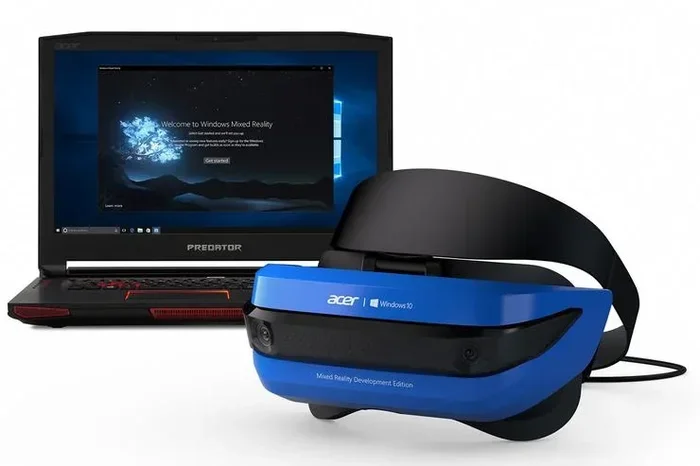
Optimizing your gaming laptop for VR means getting the right hardware, tweaking settings, and keeping your system cool. This guide covers everything from RAM and GPU upgrades to graphics settings and driver updates that make VR gaming smooth and immersive.
Virtual reality gaming is one of the most exciting ways to play today. But if your gaming laptop is not set up right, VR can feel laggy, blurry, or even make you feel sick. Learning how to optimize your gaming laptop for VR is the key to unlocking a smooth and immersive experience.
Whether you are using an Oculus headset, a HTC Vive, or any other PC VR device, your laptop needs to meet certain demands. The good news is that you do not need to be a tech expert to make it work well. With a few smart changes, you can turn a sluggish setup into a VR-ready machine that delivers great performance every time you put on your headset.
This guide walks you through every step in plain language. You will learn what hardware you need, which settings to change, and how to keep your laptop running cool during long VR sessions. By the end, you will know exactly what to do to get the best VR experience from your gaming laptop.
Key Takeaways
- Check your hardware first: Your laptop needs a strong GPU, enough RAM, and a capable processor to run VR smoothly.
- Update your drivers regularly: Keeping your GPU and headset drivers current is one of the easiest ways to boost VR performance.
- Cooling matters a lot: Overheating causes lag and frame drops, so proper thermal management is essential for VR gaming.
- Adjust in-game settings wisely: Lowering a few graphics options can dramatically improve your frame rate without ruining the experience.
- Consider hardware upgrades: Adding more RAM or improving your cooling setup can make a big difference in VR readiness.
📑 Table of Contents
- Why VR Optimization Matters for Your Gaming Laptop
- Check Your Hardware Requirements for VR
- Optimize Your Graphics Settings for VR
- Improve Cooling and Thermal Performance
- Update Drivers and Software for Better VR Performance
- Upgrade Your Hardware for a Better VR Experience
- Fine-Tune Windows Settings for VR Gaming
- Common Mistakes People Make When Setting Up VR
- Final Thoughts on Optimizing Your Laptop for VR
Why VR Optimization Matters for Your Gaming Laptop
Virtual reality places a much heavier load on your system than regular gaming. Your laptop has to render two separate images at the same time, one for each eye, while keeping the frame rate high and the latency low. If your laptop struggles with this, you will notice stuttering, blurry visuals, or even motion sickness.
Optimizing your setup means making sure every part of your laptop is working together efficiently. This includes your GPU, your processor, your memory, and even your cooling system. When all of these elements are tuned properly, your VR games run more smoothly and feel much more natural to play.
Many people skip this step and just plug in their headset without checking anything else. That is a big mistake. Taking the time to optimize your system before you dive into VR can save you from frustration and help you get the most out of every game you play.
Check Your Hardware Requirements for VR
Before you start tweaking settings, you need to know what your laptop can handle. Not every gaming laptop is ready for virtual reality, and that is okay. Understanding your hardware limits helps you focus on the changes that will actually make a difference.
Minimum vs Recommended Specs for VR Gaming
Most VR headsets list their minimum and recommended system requirements. As a general rule, you want at least a mid-range dedicated GPU, an Intel i5 or AMD Ryzen 5 processor, and 16GB of RAM or more. For the best experience, aim higher with a powerful graphics card and plenty of memory.
One of the most important components is your RAM. VR games use a lot of memory to load textures and environments quickly. If your laptop does not have enough RAM, you will experience stuttering and long load times. To learn more about what kind of RAM your laptop needs, check out our guide on how much RAM for gaming laptop.
Do You Have Enough RAM for VR?
Most VR headsets recommend at least 16GB of RAM. Some newer titles even perform better with 32GB. If your laptop has 8GB or less, you should seriously consider upgrading. Adding more memory is one of the simplest ways to improve your VR readiness.
If you are wondering how to add more memory to your system, our article on how to add RAM to my laptop has step-by-step instructions that are easy to follow. You do not need expensive tools or technical skills to get it done.
| Component | Minimum for VR | Recommended for VR |
|---|---|---|
| GPU | NVIDIA GTX 1060 / AMD RX 480 | NVIDIA RTX 3060 or higher |
| CPU | Intel i5-4590 / AMD Ryzen 5 1500X | Intel i7 / AMD Ryzen 7 |
| RAM | 8GB | 16GB to 32GB |
| Storage | SSD with 50GB free | SSD with 100GB+ free |
| USB Ports | 1x USB 3.0 | 2x USB 3.0 or USB-C |
Optimize Your Graphics Settings for VR
Getting the best visual experience in VR does not mean running every setting at maximum. In fact, pushing all your graphics options too high can tank your frame rate and make the experience uncomfortable. The goal is to find the sweet spot where visuals look great and performance stays smooth.
In-Game Settings That Make the Biggest Difference
Start by lowering settings that are the most demanding on your GPU. Shadows, anti-aliasing, and ambient occlusion are great places to begin. These settings look impressive but can pull your frame rate down fast in VR. You can always turn them back up if your laptop handles them well.
Here are some settings to adjust first:
- Render Resolution: Lowering this slightly can boost your frame rate without you noticing much difference in quality.
- Shadow Quality: Shadows are GPU-heavy. Set them to medium or low for better performance.
- Anti-Aliasing: This smooths out jagged edges but costs performance. Try FXAA instead of MSAA for a lighter option.
- Draw Distance: Reducing how far you can see in the game helps your GPU focus on what is close to you.
- Post-Processing Effects: Bloom, motion blur, and depth of field look nice but eat up processing power.
Use Your Headset Software to Fine-Tune Performance
Most VR headsets come with their own software that lets you adjust performance settings. Oculus, SteamVR, and other platforms all have options to help you get the best balance between quality and speed. Take a few minutes to explore these tools and experiment with different configurations.
Improve Cooling and Thermal Performance
VR gaming pushes your laptop harder than almost any other task. Your GPU and processor work at full blast, which means they generate a lot of heat. If your laptop gets too hot, it will slow itself down to protect the hardware, and you will notice lag and frame drops in your VR games.
Why Overheating Kills Your VR Performance
When your laptop overheats, it activates thermal throttling. This is a safety feature that reduces your CPU and GPU speeds to lower the temperature. The result is stuttering, low frame rates, and a generally poor VR experience. Keeping your laptop cool is not optional, it is essential.
One of the best things you can do is improve airflow around your laptop. Use a cooling pad with fans, or elevate the back of your laptop so air can flow underneath. You should also make sure your vents are not blocked by a desk or fabric surface.
If your laptop fans get loud during VR sessions, that is actually a good sign that they are working hard. But if you want to keep things quieter, check out our guide on how to make gaming laptop fans quieter for practical tips on reducing noise without sacrificing cooling.
Simple Cooling Tips for VR Gaming
- Use a hard, flat surface instead of a bed or couch.
- Clean your laptop vents and fans regularly.
- Consider using a laptop cooling pad with adjustable fan speeds.
- Close unnecessary background programs while gaming.
- Keep your room temperature cool if possible.
Update Drivers and Software for Better VR Performance
Outdated drivers are one of the most common reasons for poor VR performance. Your GPU driver, your headset software, and even your Windows operating system all need to stay current to work well with virtual reality games.
GPU Driver Updates
NVIDIA and AMD release driver updates frequently, and many of these are specifically optimized for VR titles. Make it a habit to check for updates before you start a new VR game. Both companies have easy-to-use apps that let you download the latest drivers with just a few clicks.
Headset and Platform Software
Your VR headset software also needs to stay up to date. Oculus, SteamVR, and other platforms push updates that improve performance and fix bugs. Keeping everything current ensures you get the smoothest experience possible.
You should also make sure your Windows system is fully updated. Sometimes a simple Windows update can resolve compatibility issues that cause VR games to run poorly or crash unexpectedly.
Upgrade Your Hardware for a Better VR Experience
If your laptop still struggles with VR after tweaking all your settings, it might be time for a hardware upgrade. Adding more RAM or improving your storage can make a noticeable difference in how well your system handles virtual reality.
Upgrading Your RAM for VR
As mentioned earlier, VR games need plenty of memory to run smoothly. If your laptop has upgradeable RAM, adding more sticks can be a game-changer. Before you buy anything, check what type of RAM your laptop supports and how many slots are available.
For a detailed walkthrough on upgrading your memory, take a look at our guide on how to upgrade the RAM of a laptop. It covers everything from checking compatibility to installing new modules the right way.
If you are looking for a pre-built option with great VR performance, a 16GB RAM for gaming laptop setup is a solid starting point that handles most VR titles with ease.
Storage Upgrades That Help VR
VR games are large and demand fast load times. If you are still using a traditional hard drive, switching to an SSD can dramatically improve your experience. Your games will load faster, and you will spend less time staring at loading screens while wearing your headset.
Fine-Tune Windows Settings for VR Gaming
Windows has several built-in settings that can affect your VR performance. Making a few small changes to your system configuration can free up resources and help your laptop focus on delivering a smooth virtual reality experience.
Adjust Power Settings
Make sure your laptop is set to High Performance mode when you are gaming. This tells Windows to use your full processing power instead of conserving energy. You can change this in your power options under the Control Panel or Settings app.
Disable Unnecessary Background Apps
Every program running in the background takes away resources from your VR games. Before you start a session, close anything you do not need. This includes web browsers, streaming apps, and even some system utilities that run silently in the background.
Enable Game Mode in Windows
Windows Game Mode is designed to prioritize gaming performance. It allocates more system resources to your game and blocks notifications that could interrupt your VR session. You can turn it on in the Settings app under the Gaming section.
Common Mistakes People Make When Setting Up VR
Avoiding common pitfalls can save you a lot of frustration. Here are a few mistakes that hold people back from getting the most out of their VR setup.
- Skipping hardware checks: Not everyone realizes their laptop might not be VR-ready. Always verify your specs first.
- Running on battery power: Gaming on battery mode limits performance. Always plug in your laptop when playing VR games.
- Ignoring driver updates: Old drivers cause compatibility issues and performance drops.
- Setting graphics too high: More is not always better. Find the balance between visuals and frame rate.
- Neglecting cooling: A hot laptop is a slow laptop. Keep your system cool for the best results.
Final Thoughts on Optimizing Your Laptop for VR
Optimizing your gaming laptop for VR does not have to be overwhelming. By following the steps in this guide, you can dramatically improve your virtual reality experience without spending a lot of money or becoming a technical expert.
Start by checking your hardware and making sure your laptop meets the requirements for your headset. Then move on to updating drivers, adjusting graphics settings, and improving your cooling setup. Each step builds on the last, and soon you will be enjoying smooth, immersive VR gaming sessions that feel amazing.
Remember, VR technology is always evolving, and so are the demands it places on your hardware. Keep your system updated, stay on top of driver releases, and do not be afraid to make upgrades when needed. With the right setup, your gaming laptop can deliver an incredible virtual reality experience that keeps you coming back for more.
Frequently Asked Questions
Can any gaming laptop run VR games?
Not every gaming laptop can run VR smoothly. You need a dedicated GPU, a capable processor, and at least 16GB of RAM for a good experience. Check your laptop specs against the requirements of your VR headset before you get started.
How much RAM do I need for VR gaming?
Most VR headsets recommend at least 16GB of RAM. Some demanding titles perform even better with 32GB. If your laptop has less than 16GB, upgrading your memory is one of the best things you can do for VR performance.
Why does my VR headset keep lagging on my laptop?
Lagging in VR is usually caused by insufficient hardware, outdated drivers, or overheating. Try updating your GPU drivers, closing background apps, and improving your laptop cooling. If the problem continues, your laptop may not meet the recommended specs for VR.
Do I need to plug in my laptop to play VR games?
Yes, always plug in your laptop when playing VR games. Running on battery power limits your laptop’s performance and can cause frame drops and stuttering. A stable power supply ensures your GPU and CPU can run at full speed.
What is the best way to cool my laptop for VR gaming?
Using a cooling pad with adjustable fans is one of the most effective methods. You should also keep your laptop on a hard flat surface, clean your vents regularly, and avoid blocking the airflow around your device.
Can I improve VR performance without buying new hardware?
Absolutely. Updating your drivers, adjusting in-game graphics settings, enabling Windows Game Mode, and closing background apps can all improve VR performance significantly. Sometimes simple software changes make a bigger difference than hardware upgrades.
=== CONCLUSION ===
Learning how to optimize your gaming laptop for VR is one of the best investments you can make for your virtual reality setup. From checking your hardware requirements to tweaking graphics settings, improving cooling, and keeping your drivers up to date, every step brings you closer to a smooth and immersive VR experience. You do not need to do everything at once, just start with the changes that make the most sense for your laptop and build from there.
Remember that VR technology keeps advancing, and your optimization efforts should keep pace. Stay curious, keep experimenting with settings, and do not be afraid to upgrade parts of your system when needed. With the right preparation and a little patience, your gaming laptop can deliver VR experiences that are every bit as exciting and immersive as the games themselves.