Why Isnt My Usb C Port Working
Your USB C port may stop working due to dirt, damaged cables, outdated drivers, or software glitches. This guide walks you through every fix step by step. You will learn how to troubleshoot hardware, software, and port issues quickly and safely.
You plug in your USB C cable, and nothing happens. No charging. No data transfer. No response at all. It is frustrating, right? A USB C port not working can throw a wrench into your entire day, especially when you rely on it for your laptop, phone, or external drive.
The good news is that most USB C port problems have simple solutions. Whether it is a loose cable, dirty port, or a driver issue, you can fix it yourself in most cases. In this guide, we will walk you through every possible reason your USB C port stopped working and show you exactly how to fix it.
We will cover hardware checks, software fixes, and prevention tips so your port stays in great shape. Let us get started.
Key Takeaways
- Dirt and debris are the most common cause of USB C port failures and are easy to fix.
- Outdated or corrupted drivers can prevent your USB C port from being recognized by your device.
- Physical damage to the port or cable is a frequent reason for connectivity loss.
- Software settings like power management can interfere with USB C port function.
- Try basic fixes first before assuming the worst, as most issues are simple to resolve.
- Knowing when to seek professional help saves time and prevents further damage.
📑 Table of Contents
- Why Isnt My USB C Port Working
- Hardware Troubleshooting Steps
- Software and Driver Fixes
- When Your USB C Port Needs Professional Help
- Preventing Future USB C Port Problems
- Quick Fixes You Can Try Right Now
- How to Know if the Problem Is Your Cable or Your Port
- Common Mistakes People Make When Troubleshooting USB C Ports
- Expert Insight: Why USB C Ports Fail
- Conclusion
Why Isnt My USB C Port Working
Before jumping into fixes, it helps to understand what could be going wrong. A USB C port can fail for many reasons, and each one points to a different solution. Here are the most common culprits behind a USB C port not working.
Dirt and Debris in the Port
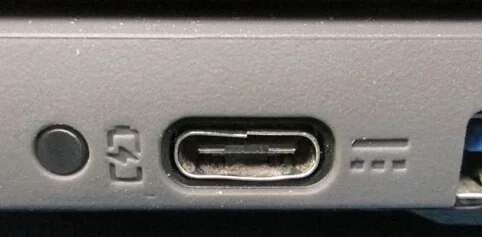
This is the number one cause people overlook. Dust, lint, and tiny crumbs can build up inside your USB C port over time. Even a small piece of debris can block the connection and stop your port from working. Think of it like a lock that has dirt inside the keyhole. The key will not turn no matter how hard you try.
If you have been using your laptop or phone on a bed or couch, this is even more likely. Fabric fibers love to find their way into open ports. A quick look with a flashlight can often reveal the problem.
Damaged or Faulty Cable
Not every problem is with the port itself. Sometimes the cable is the issue. USB C cables go through a lot of wear and tear. They get bent, stepped on, and yanked out by the cord. A frayed or bent cable will not make proper contact, and your port will seem dead.
Try swapping in a different USB C cable to rule this out. If the new cable works, you know exactly what the problem was. This simple test saves a lot of unnecessary troubleshooting.
Outdated or Corrupted Drivers
Your device uses drivers to communicate with connected hardware. When these drivers become outdated or corrupted, your USB C port not working issue can appear out of nowhere. This is especially common after a system update or when you connect a new peripheral.
Drivers act like translators between your operating system and the hardware. If the translation breaks, nothing gets through. Updating or reinstalling the driver often fixes this completely.
Power Management Settings
Many laptops have power saving features that turn off USB ports to conserve battery. While this is a great feature for battery life, it can be annoying when your port suddenly stops responding. Your system may be shutting down the port to save energy, and it does not wake back up when you need it.
This is a common reason for a USB C port stopped working on laptops that have aggressive battery optimization settings. The fix is usually quick and easy to apply.
Physical Damage to the Port
Sometimes the port itself is physically damaged. This can happen from inserting a cable at the wrong angle, using a forceful plug, or dropping your device. Bent or broken pins inside the port will prevent any connection from forming.
Physical damage is more serious than the other causes on this list. It often requires professional repair or port replacement. We will talk more about when to seek help later in this guide.
Software Conflicts and Glitches
Occasionally, a software conflict causes your USB C port to stop working. A background process may be blocking the port, or a recent update may have introduced a bug. This type of issue is more common on Windows and can show up as a device that appears and disappears randomly in your system.
A simple restart often clears up these glitches, but deeper software issues may need a bit more attention.
Hardware Troubleshooting Steps
Now that you know the common causes, let us start fixing the problem. We always recommend starting with the simplest checks and working your way up.
Inspect the Port for Debris
Grab a flashlight and look closely at your USB C port. Do you see any lint, dust, or visible debris? If so, gently clean it out. Here are safe methods to try:
- Use a wooden toothpick to carefully dislodge loose particles.
- Try compressed air to blow out dust without touching the pins.
- Use a soft-bristled brush like a clean toothbrush to sweep away debris.
- Never use metal objects like pins or needles, as these can damage the port further.
After cleaning, plug your cable back in and check if the port responds. This simple step fixes a surprising number of cases.
Test with a Different Cable and Device
Isolation is key when troubleshooting. Try your cable on a different device to see if it works. Then try a different cable on your original device. This helps you pinpoint whether the problem is with the cable, the port, or the device itself.
For example, if you have a M.2 NVME to USB C SSD enclosure and it suddenly stops being recognized, the cable or port is likely the issue rather than the enclosure. Testing with known working hardware removes guesswork.
Check for Physical Damage
Look at both the port and the cable for visible signs of damage. On the port, check for bent or missing pins. On the cable, look for fraying, kinks, or exposed wires. A damaged port or cable will not work reliably, and continuing to use it can make the problem worse.
If you notice damage, stop using that cable or port immediately. Replacing a cable is inexpensive, but ignoring a damaged port can lead to more costly repairs.
Software and Driver Fixes
If the hardware looks fine, the problem is likely software-related. These steps will help you get your USB C port working again through software fixes.
Update Your USB Drivers
Outdated drivers are one of the most common reasons for USB port issues. Here is how to update them on Windows:
- Right-click the Start button and select Device Manager.
- Expand the Universal Serial Bus controllers section.
- Right-click each USB entry and select Update driver.
- Choose Search automatically for drivers.
- Restart your computer after the update completes.
On macOS, you can update your system through Software Update in System Preferences. This ensures all drivers stay current and compatible with your hardware.
Reinstall the USB Controller Driver
If updating does not work, try uninstalling and reinstalling the driver. This forces your system to install a fresh copy. Here is how:
- Open Device Manager again.
- Find the USB controller entry.
- Right-click and select Uninstall device.
- Restart your computer.
- Windows will automatically reinstall the driver on boot.
This simple trick resolves many stubborn USB port issues. It is especially helpful when your system shows a yellow warning triangle next to the USB controller.
Disable USB Power Saving
Your power saving settings may be turning off your USB port to save energy. To fix this:
- Open Device Manager.
- Expand Universal Serial Bus controllers.
- Right-click each USB Root Hub and select Properties.
- Go to the Power Management tab.
- Uncheck Allow the computer to turn off this device to save power.
- Click OK and restart your computer.
This prevents your system from shutting down the port during idle periods. Many users report that this single fix resolved their USB C port not working problem entirely.
When Your USB C Port Needs Professional Help
Not every problem can be fixed at home. If you have tried all the steps above and your port still does not work, it is time to consider professional help. Here are signs that you need expert assistance:
- The port is visibly bent, broken, or has missing pins.
- Your device does not recognize the port at all, even after driver resets.
- You smell burning or notice discoloration near the port.
- The port works intermittently and gets worse over time.
- Your device is still under warranty, and you want to avoid voiding it.
A professional technician can diagnose internal damage and perform port replacements safely. Attempting to repair a physically damaged port yourself can cause further harm. It is always better to let an expert handle delicate hardware repairs.
For example, if you use a Sandisk Extreme Portable 2TB External USB C NVMe SSD and the port on your laptop stops recognizing it despite trying new cables and drivers, the port itself may need replacement. A pro can confirm this quickly and efficiently.
Preventing Future USB C Port Problems
Prevention is always better than cure. Here are simple habits that keep your USB C ports in great shape for years to come.
Keep Your Ports Clean
Regular cleaning prevents debris buildup. Use compressed air once a month to blow out any dust from your ports. This is especially important if you use your device in dusty environments or on fabric surfaces like beds and couches.
A clean port makes better contact and lasts longer. This one habit can save you from many headaches down the road.
Use Quality Cables and Accessories
Cheap cables are a leading cause of port problems. Poorly made cables can deliver inconsistent power, corrupt data, and even damage your port over time. Invest in certified cables from reputable brands. Look for USB IF certification or manufacturer-branded cables for the best results.
When shopping for accessories, quality matters more than price. A good USB C cable costs a few dollars more but protects your expensive devices.
Plug In Gently and Correctly
USB C ports are reversible, which means there is no wrong way to insert the cable. But plugging in too forcefully can still damage the internal pins. Always insert the cable gently and avoid yanking it out. Hold the connector when pulling the cable out rather than tugging on the cord itself.
These small habits add up and significantly extend the life of your ports.
Avoid Using Your Device While Charging
Using your laptop or phone while it charges generates extra heat. Heat can weaken the port connections over time. If you can, let your device charge while it is idle. This reduces stress on the port and helps maintain a strong connection.
If you need to use your device while charging, try to avoid resource-heavy tasks that generate excessive heat.
Quick Fixes You Can Try Right Now
If you are in a hurry and need a quick solution, try these fast fixes first:
- Restart your device. A simple reboot clears temporary glitches and resets hardware connections.
- Try a different USB C port. Many laptops have multiple ports. Testing another port tells you if the issue is port-specific.
- Check your cable. Swap in a known working cable to rule out cable failure.
- Clean the port. A quick blow of compressed air takes seconds and often solves the problem.
- Unplug and replug. Sometimes simply removing and reinserting the cable re-establishes the connection.
These five steps take less than two minutes and resolve the majority of USB C port issues. Start here before moving on to more advanced troubleshooting.
How to Know if the Problem Is Your Cable or Your Port
Figuring out whether the cable or the port is at fault is the first step in any USB C troubleshooting. Here is a simple test you can do:
| Test | Cable Issue | Port Issue |
|---|---|---|
| Try the cable on another device | Does not work on any device | Works fine on another device |
| Try a different cable on your device | New cable works fine | New cable also does not work |
| Inspect the cable for damage | Visible fraying or kinks | Cable looks fine |
| Check the port with a flashlight | Port looks clean and intact | Debris or bent pins visible |
This comparison table makes it easy to identify the source of the problem quickly. Once you know whether it is the cable or the port, you can apply the right fix.
Remember that even a high-quality device like a car camera cable USB port connection can fail if the cable itself is damaged. Always rule out the simplest explanations first.
Common Mistakes People Make When Troubleshooting USB C Ports
Avoid these common mistakes that can make the problem worse or waste your time:
- Forcing a cable into the port. This can bend pins and cause permanent damage. If it does not fit easily, something is wrong.
- Using metal objects to clean the port. Pins inside the port are delicate and easily bent. Stick to wooden toothpicks or compressed air.
- Ignoring driver updates. Many people skip driver updates and miss an easy fix. Keeping drivers current prevents many USB issues.
- Assuming the worst too quickly. Most USB C port problems are simple and fixable. Start with basic checks before concluding the port is dead.
- Using uncertified accessories. Cheap knockoff cables and adapters can cause connectivity issues and even damage your hardware.
Steering clear of these mistakes will save you time, money, and frustration. A little patience goes a long way in troubleshooting.
Expert Insight: Why USB C Ports Fail
USB C ports are designed to be durable, but they are not indestructible. The pins inside a USB C port are incredibly thin and precise. Even a small amount of debris or a slightly bent pin can break the connection. This is why cleaning and gentle handling are so important.
From a technical standpoint, USB C ports handle both power delivery and data transfer through the same connector. This dual function puts more stress on the port compared to older USB types. Over time, this stress can lead to wear and eventual failure. Understanding this helps you appreciate why proper care and quality accessories matter so much.
If you have ever dealt with a USB mouse not working on my laptop or similar device connectivity issues, you know how frustrating it is when a port stops responding. The troubleshooting principles are the same: check the simplest things first, update your software, and inspect for physical damage.
Conclusion
A USB C port not working does not have to be a major problem. In most cases, the fix is simple and takes just a few minutes. Start by cleaning the port, checking your cable, and updating your drivers. These steps resolve the vast majority of USB C issues.
If the problem persists, move on to power management settings and driver reinstallation. And if none of that works, it may be time to consult a professional. Physical damage requires expert repair, and trying to fix it yourself can make things worse.
Prevention is your best long-term strategy. Keep your ports clean, use quality cables, and handle connectors gently. These habits will keep your USB C ports working reliably for years to come.
Now that you have all the tools and knowledge, go ahead and troubleshoot your port with confidence. Most of the time, the fix is closer than you think.
Frequently Asked Questions
Why did my USB C port suddenly stop working?
Sudden USB C port failure is usually caused by debris in the port, a faulty cable, or a driver glitch. Start by cleaning the port and trying a different cable. If those do not work, check your device drivers and power management settings. Most sudden failures are simple to fix.
Can a damaged USB C port be repaired?
Yes, a damaged USB C port can usually be repaired by a professional technician. The repair involves replacing the port on the motherboard. If your device is under warranty, contact the manufacturer before seeking third-party repairs to avoid voiding your coverage.
How do I clean my USB C port safely?
Use a wooden toothpick or compressed air to gently remove debris. Never use metal objects like pins or needles, as these can bend the delicate internal pins. A soft brush or a puff of air works well for routine cleaning.
Why does my USB C port work sometimes but not others?
Intermittent USB C port issues are often caused by a loose cable, a partially damaged port, or a dirty connection. Try cleaning the port and using a different cable. If the problem persists, the port may have internal damage that needs professional inspection.
Do USB C ports wear out over time?
Yes, USB C ports can wear out with repeated use. The internal pins are thin and can bend or weaken over time. Using quality cables and handling connectors gently extends the lifespan of your ports significantly.
How much does it cost to replace a USB C port?
Replacement costs vary depending on the device and the repair service. For laptops, expect to pay between $50 and $150 for a professional port replacement. Some devices may cost more if the repair is complex or the part is hard to find.