Hard Drive Failure Signs and How to Replace a Failed Hard Drive 2
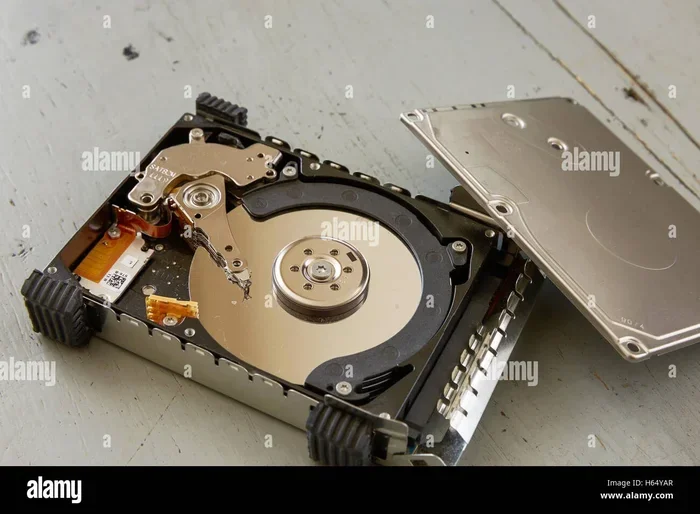
Hard drive failure can strike without warning, putting your precious data at risk. This guide covers the most common hard drive failure signs to watch for and walks you through replacing a failed hard drive in simple, easy-to-follow steps. Whether you have an HDD or SSD, you will learn how to spot trouble early, back up your data, and get a new drive running fast.
Your hard drive is the heart of your computer. It stores everything from family photos to work documents. When it starts to fail, the signs are usually there if you know what to look for. In this guide, we will walk you through the most common hard drive failure signs and show you exactly how to replace a failed hard drive without losing your data.
Whether you are dealing with a sluggish old HDD or a newer NVMe drive, this article has you covered. We will explain what goes wrong, why it happens, and what you can do about it. By the end, you will feel confident tackling the replacement yourself.
Key Takeaways
- Recognizing early warning signs like unusual noises, slow speeds, and corrupted files can save you from sudden data loss.
- Regular drive health checks using S.M.A.R.T. tools help you catch problems before they become emergencies.
- Backing up your data is the single most important step before attempting any hard drive replacement.
- Replacing a failed hard drive is a manageable DIY task with the right tools and a little patience.
- Cloning your old drive to a new one saves time and keeps your system exactly as it was.
- Upgrading to an SSD during replacement can dramatically improve your computer speed and reliability.
- Knowing when to seek professional help prevents costly mistakes when data is critically important.
📑 Table of Contents
Common Hard Drive Failure Signs
Hard drives do not usually die overnight. They give you plenty of warning if you pay attention. Here are the most common signs that your drive is struggling.
Unusual Noises From the Drive
If you hear clicking, grinding, or scratching sounds coming from your computer, pay attention. These noises often mean the mechanical parts inside an HDD are failing. A healthy drive should be nearly silent. Any new sound is a red flag.
Clicking sounds are sometimes called the “click of death.” This happens when the read/write head cannot find the correct track on the disk. Grinding noises suggest even worse mechanical damage. If you hear these sounds, stop using the drive immediately and back up your data.
Extremely Slow Performance
Is your computer taking forever to boot up? Are files opening slowly or freezing? These could be signs of a dying hard drive. When a drive has bad sectors or failing read/write heads, it struggles to access data. This makes everything feel painfully slow.
If your computer is running slow and freezing often, a failing hard drive could be the culprit. Sometimes the issue is software-related, but hardware problems are more serious. You can check your drive health using built-in tools or third-party apps like CrystalDiskInfo.
Corrupted Files and Missing Data
Do you keep finding files that will not open? Are documents disappearing or becoming corrupted for no reason? This is a classic sign of hard drive failure. When sectors on the drive become unreadable, the data stored in them gets damaged or lost entirely.
You might see error messages like “file not found” or “disk read error.” These are your computer telling you something is wrong with the storage medium. Do not ignore these warnings. They tend to get worse over time.
Drive Not Detected by the System
Sometimes a failing hard drive simply vanishes. Your computer might not show it in File Explorer or Disk Management. This can happen suddenly or gradually. A drive that shows up sometimes but not others is in serious trouble.
This issue can also be caused by loose cables or a dead SATA port. However, if you have ruled out those possibilities, the drive itself is likely failing. Check the connection first, then assume the worst if the problem persists.
Frequent Blue Screen Errors
The blue screen of death is never a good sign. While many things can cause BSOD errors, a failing hard drive is a common one. If you see error messages related to disk I/O or bad sectors, your drive is probably on its way out.
Pay attention to the specific error codes. Messages mentioning “UNMOUNTABLE_BOOT_VOLUME” or “INACCESSIBLE_BOOT_DEVICE” often point directly to hard drive problems. These errors mean your system cannot read the files it needs to start up.
Why Hard Drives Fail
Understanding why hard drives fail can help you prevent some problems and prepare for others. Not all failures are created equal.
Mechanical Wear and Tear
Traditional HDDs have moving parts. Spinning platters and read/write heads wear out over time. Most hard drives last between three and five years under normal use. After that, the risk of failure increases significantly. This is why monitoring your hard drive health becomes more important as the drive ages.
Overheating
Excessive heat is a killer of electronic components. When a hard drive runs too hot for extended periods, its internal parts degrade faster. Poor ventilation, dust buildup, and high ambient temperatures all contribute to overheating. Keep your computer clean and well-ventilated to extend drive life.
Power Surges and Electrical Issues
Sudden power spikes can damage the drive’s circuit board or firmware. This is why using a surge protector or uninterruptible power supply is a smart move. Power outages while the drive is writing data can also cause corruption.
Physical Shock and Damage
Dropping a computer or bumping it while the drive is spinning can cause head crashes. This is especially true for HDDs with moving parts. SSDs are more resistant to physical shock, but they are not indestructible. Handle your devices with care.
How to Check Your Hard Drive Health
Before you jump to replacement, it is smart to check the current state of your drive. Several tools can help you do this easily.
Using S.M.A.R.T. Monitoring Tools
S.M.A.R.T. stands for Self-Monitoring, Analysis, and Reporting Technology. It is built into most modern drives and tracks various health metrics. You can use free tools like CrystalDiskInfo or HD Tune to read these metrics.
These tools will show you the drive temperature, read error rates, spin-up time, and more. If the tool reports a “Caution” or “Bad” status, your drive is likely failing. This is your cue to back up everything and plan for a hard drive replacement.
Running Windows Built-In Diagnostics
Windows has its own tools to check drive health. Open Command Prompt as Administrator and type wmic diskdrive get status. This gives you a basic health report. You can also use the built-in Error Checking tool by right-clicking a drive in File Explorer and selecting Properties, then Tools, then Check.
Checking for Bad Sectors
Bad sectors are areas on the drive that cannot be read or written to anymore. A few bad sectors are normal, but many of them mean the drive is deteriorating. Tools like Victoria or HDDScan can scan for bad sectors and give you a clear picture of drive condition.
How to Replace a Failed Hard Drive
Now for the part you have been waiting for. Replacing a failed hard drive is not as scary as it sounds. With the right steps, you can do it yourself and get your computer back up and running.
Step 1: Back Up Your Data
This is the most important step. Before you remove the old drive, make sure all your important files are safe. Use an external hard drive, a cloud service, or a network-attached storage device. If the drive is still partially working, back up everything you can right away.
If the drive has completely failed and you cannot access your data, consider professional data recovery services. These specialists work in cleanroom environments and can often retrieve data from damaged drives. It is expensive, but it may be worth it for irreplaceable files.
Step 2: Gather Your Tools
You will need a few basic tools for the replacement:
- A screwdriver (usually Phillips-head)
- The new hard drive or SSD
- A SATA cable (if needed for HDDs)
- An external enclosure or USB adapter (for cloning)
- Cloning software like Macrium Reflect or Clonezilla
Make sure your new drive is compatible with your system. Check the interface (SATA or NVMe), the form factor (2.5-inch or 3.5-inch for HDDs, M.2 for SSDs), and the capacity you need. If you are upgrading from an HDD to an SSD, you will notice a massive improvement in speed.
Step 3: Clone Your Old Drive (Optional but Recommended)
Cloning copies everything from your old drive to the new one, including the operating system, programs, and files. This means you can swap drives without reinstalling everything from scratch.
Connect the new drive to your computer using a USB adapter or external enclosure. Run your cloning software and follow the prompts. The process can take anywhere from 30 minutes to several hours depending on the size of your drive and the speed of your connection.
After cloning is complete, shut down your computer, remove the old drive, and install the new one. Boot up and everything should be right where you left it. If you are adding a second drive rather than replacing, you can follow a guide on how to install a second NVMe M.2 SSD to get everything set up properly.
Step 4: Install the New Drive
Open your computer case and locate the drive bay. For HDDs, slide the old drive out and slide the new one in. Secure it with screws. For SSDs, especially M.2 NVMe drives, you will insert the drive at an angle into the M.2 slot and press it down flat, then secure it with a small screw.
If you are installing an M.2 NVMe SSD in your desktop PC, the process is quite straightforward. For laptops, the steps are similar but the drive bay is usually more compact. You can refer to a guide on how to install M.2 NVMe SSD in a laptop if you need more specific instructions for your device.
Step 5: Initialize and Format the New Drive
After installation, boot into Windows and open Disk Management. The new drive will appear as unallocated space. Right-click on it and select “Initialize Disk.” Choose GPT for modern systems or MBR for older ones.
Next, right-click the unallocated space and select “New Simple Volume.” Follow the prompts to assign a drive letter and format the partition. If you cloned your old drive, this step may not be necessary since the clone already includes a formatted partition.
Step 6: Verify Everything Works
Boot into your operating system and check that all your files are present. Run your drive health tool again to confirm the new drive is being recognized properly. Check that programs launch normally and files open without errors.
If you are upgrading to an SSD, you will likely notice a huge difference in boot times and application loading speeds. This alone makes the replacement process worth every minute of effort.
Preventing Future Hard Drive Failures
Replacing a failed drive is one thing. Keeping your new drive healthy is another. Here are some simple habits that go a long way.
Keep Your System Cool
Good airflow inside your computer case keeps all components, including your hard drive, at safe temperatures. Clean dust from fans and vents regularly. Consider adding case fans if your system runs hot.
Use a Surge Protector
A quality surge protector shields your hardware from power spikes. For critical systems, an uninterruptible power supply provides battery backup during outages and protects against power surges when the power returns.
Handle With Care
Avoid moving your computer while it is running, especially if it has an HDD. The spinning platters are sensitive to vibration and shock. If you need to transport a desktop, shut it down completely first.
Monitor Drive Health Regularly
Set a reminder to check your drive health every few months. Most S.M.A.R.T. monitoring tools can run in the background and alert you to potential problems. Catching issues early gives you time to back up and replace before total failure.
Keep Backups Current
The 3-2-1 backup rule is a great standard to follow. Keep three copies of your data on two different types of media, with one copy stored offsite or in the cloud. This way, even if a drive fails completely, you lose nothing.
When to Seek Professional Help
Not every hard drive problem is a DIY job. If your drive is making strange noises and you have not backed up your data, professional recovery services are your best bet. Trying to run a failing drive can cause more damage and make recovery impossible.
Similarly, if you are uncomfortable opening your computer case or handling sensitive components, there is no shame in hiring a professional. A qualified technician can diagnose the problem, recommend the right replacement, and handle the installation for you.
Hard Drive Replacement Cost and Considerations
The cost of replacing a hard drive varies depending on the type and capacity. Traditional HDDs are the most affordable option, with 1TB drives costing around $40 to $60. SATA SSDs offer a great balance of speed and price, typically running $50 to $80 for 1TB. NVMe M.2 SSDs are the fastest option and range from $60 to $150 for 1TB depending on the brand and model.
When choosing a replacement, consider your needs carefully. If you need bulk storage for media files, an HDD or a large SATA SSD works well. If you want the fastest possible performance for your operating system and applications, an NVMe SSD is the way to go. Many users choose to install their operating system on an NVMe SSD and use a larger HDD for mass storage.
Conclusion
Hard drive failure is stressful, but it does not have to be a disaster. By learning to recognize the early hard drive failure signs, you can take action before it is too late. Slow performance, unusual noises, corrupted files, and system errors are all warning signals that deserve your attention.
Replacing a failed hard drive is a skill anyone can learn. With the right tools, a bit of patience, and this guide, you can swap out a dead drive and get back to full functionality. Remember to back up your data first, consider cloning for an easy transition, and take steps to keep your new drive healthy for years to come.
Do not wait until your drive fails completely to take action. Start monitoring your drive health today and make hard drive replacement part of your regular computer maintenance routine. Your future self will thank you when disaster is averted.
Frequently Asked Questions
What are the first signs of a hard drive failing?
The earliest signs include unusually slow performance, frequent file corruption, and unusual noises like clicking or grinding. Your system may also take longer to boot up or freeze frequently. If you notice any of these symptoms, run a drive health check immediately.
Can a failed hard drive be repaired?
Software-level issues like corrupted files or bad sectors can sometimes be repaired. However, mechanical or physical damage to the drive itself usually cannot be fixed at home. Professional data recovery services can sometimes retrieve data from physically damaged drives, but it is expensive.
How long does it take to replace a hard drive?
The actual physical replacement takes about 15 to 30 minutes for most systems. Cloning your old drive to the new one can take anywhere from 30 minutes to several hours depending on the drive size and data amount. If you are installing a fresh operating system instead of cloning, add another 1 to 2 hours for setup.
Should I replace my hard drive with an SSD or HDD?
For most users, an SSD is the better choice. It offers much faster speeds, better reliability, and improved overall system responsiveness. HDDs are still useful for bulk storage where speed is not a priority. Many people use both, installing the operating system and programs on the SSD and storing files on the HDD.
Will I lose my data when replacing a hard drive?
Not if you prepare properly. Back up all your important files before starting the replacement. If you clone your old drive to the new one, your data, operating system, and programs will all transfer over automatically. Always back up first as a safety net.
How often should I replace my hard drive?
There is no set replacement schedule. Most hard drives last between three and five years, but some last much longer. The key is to monitor your drive health regularly and replace it when signs of failure appear. Proactive replacement based on health monitoring is better than waiting for a complete failure.