
Carplay Not Playing Through Car Speakers
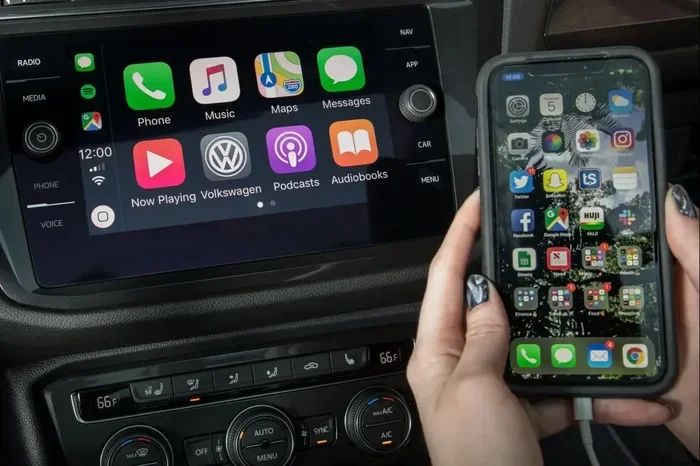
Nothing ruins a commute faster than Carplay not playing through car speakers. You tap your favorite playlist, but silence fills the cabin. This guide explains why your audio cuts out and how to fix it fast. We cover simple settings checks, connection tricks, and hardware tips. Soon, your music and calls will sound crystal clear again.
There is nothing more frustrating than settling into your car for a long drive, only to realize that Carplay not playing through car speakers has become your reality. You plug in your iPhone, the screen lights up, and your apps appear. But when you hit play, you hear nothing. Or worse, you hear a faint, distorted sound that makes your favorite songs unrecognizable. This problem affects thousands of drivers every week, and it usually stems from a simple fix that many people overlook.
Audio issues with CarPlay can happen for many reasons. Sometimes it is a cable problem. Other times, it is a software glitch. In some cases, your car stereo settings might be blocking the audio path. The good news is that you do not need to be a tech expert to solve this. With a few quick checks and some basic troubleshooting, you can restore your audio and enjoy your drives again. In this guide, we will walk you through every possible cause and show you exactly how to fix them step by step.
Key Takeaways
- Check Connections First: A loose USB cable often causes audio dropouts, so always try a different cable or port.
- Restart Both Devices: Turning off your phone and car system clears temporary glitches that block sound.
- Verify Audio Settings: Make sure your car stereo is set to the correct input source and volume limits are off.
- Update Software Regularly: Outdated iOS or car firmware can create compatibility issues with audio routing.
- Disable Bluetooth Conflicts: Sometimes Bluetooth audio overrides wired CarPlay, so turn off Bluetooth temporarily to test.
- Test With Another Phone: Using a different iPhone helps you determine if the problem is with your phone or the car.
- Seek Professional Help When Needed: If nothing works, a faulty head unit or wiring issue may require a technician.
📑 Table of Contents
- Why Is Carplay Not Playing Through Car Speakers?
- Quick Fixes to Restore Your Audio
- Troubleshooting Bluetooth and Audio Conflicts
- Software Updates That Fix Audio Issues
- When to Check Your Car Speakers and Wiring
- Expert Tips for Preventing Future Audio Problems
- Common Mistakes to Avoid
- Frequently Asked Questions
- Final Thoughts on Fixing CarPlay Audio
Why Is Carplay Not Playing Through Car Speakers?
Understanding why your audio fails is the first step toward fixing it. CarPlay relies on a stable connection between your iPhone and your car stereo. When that connection breaks or gets confused, sound is often the first thing to disappear. The issue usually falls into one of three categories: connection problems, software conflicts, or hardware faults.
Connection Problems
The most common reason for Carplay not playing through car speakers is a bad physical connection. Your USB cable might look fine on the outside, but the inside wires could be damaged. A frayed cable can still charge your phone but fail to carry audio data. Similarly, your car’s USB port might be dusty or loose. Even a small amount of lint can block the pins that send audio signals. Always inspect your cable closely and try a different one before assuming the worst.
Software Conflicts
Software glitches happen more often than you might think. Your iPhone might be running an older version of iOS that has a known bug with CarPlay audio. At the same time, your car’s infotainment system might need an update. When these two systems do not match, audio routing can fail. Sometimes, a recent app update on your phone can also interfere with how CarPlay sends sound to your speakers. Keeping everything updated is a simple way to avoid these headaches.
Hardware Faults
If your connection and software are fine, the problem might be inside your car stereo itself. The amplifier that powers your speakers could be failing. The wiring behind your head unit might have a loose connection. In rare cases, the CarPlay module in your car might be damaged. Hardware issues are less common, but they do happen, especially in older vehicles or after a previous repair job.
Quick Fixes to Restore Your Audio
Before you spend money on repairs or new parts, try these quick fixes. Most drivers find that one of these simple steps solves the problem right away. Take your time with each step and test your audio after every change.

Visual guide about carplay phone in car
Image source: carscoops.com
Restart Your Phone and Car System
A simple restart clears temporary glitches that block audio. Turn off your iPhone completely, then turn it back on. Next, restart your car’s infotainment system. Many cars have a soft reset option in the settings menu. If yours does not, disconnecting the battery for a few minutes can work, but only if you are comfortable doing that. After both devices reboot, reconnect CarPlay and test your audio again.
Swap Your USB Cable
Not all USB cables are created equal. Some cables are made only for charging and cannot carry data. Even data cables wear out over time. Try a high-quality, MFi-certified cable from a trusted brand. Plug it into a different USB port in your car if you have more than one. If your audio returns with a new cable, you know exactly what the problem was.
Check Your Car Stereo Input Settings
Your car stereo might be set to the wrong audio source. Even though CarPlay is active on the screen, the audio output might still be routed to Bluetooth or an auxiliary input. Go into your car’s audio settings and make sure the sound output is set to the CarPlay or USB source. Also, check that the volume is not muted or turned down too low. Some cars have a separate volume setting for CarPlay that is different from the main radio volume.
Troubleshooting Bluetooth and Audio Conflicts
Bluetooth and CarPlay can sometimes fight over audio control. If your phone connects to your car’s Bluetooth for calls, it might try to route all audio through Bluetooth instead of CarPlay. This creates confusion and can lead to Carplay not playing through car speakers. Here is how to sort out the conflict.
Turn Off Bluetooth Temporarily
Go to your iPhone’s settings and turn off Bluetooth. Then, reconnect CarPlay and play some music. If the audio works perfectly, you know Bluetooth was causing the issue. You can turn Bluetooth back on later, but you may need to adjust your car’s priority settings. Some cars let you choose which connection gets priority for audio. Set CarPlay as the main audio source and use Bluetooth only for phone calls.
Forget and Readd CarPlay
Sometimes the pairing between your phone and car gets corrupted. Go to your iPhone’s settings, find the CarPlay menu, and forget your car. Then, set up CarPlay again from scratch. This fresh connection often fixes audio routing problems. Make sure to follow the setup steps carefully and approve all permissions when your car asks for them.
Software Updates That Fix Audio Issues
Outdated software is a major cause of audio problems. Apple releases iOS updates that improve CarPlay stability. Car manufacturers also release firmware updates for infotainment systems. Ignoring these updates can leave you with bugs that affect sound quality and audio routing.
Update Your iPhone
Go to Settings, then General, then Software Update on your iPhone. Install any available updates. Apple often fixes CarPlay bugs in these updates. After updating, restart your phone and reconnect to your car. Test your audio with a few different apps, such as Apple Music, Spotify, and Podcasts, to make sure everything works.
Update Your Car’s Firmware
Check your car manufacturer’s website or your infotainment system’s settings for firmware updates. Some cars download updates automatically when parked. Others require you to visit a dealership or use a USB drive. Read your owner’s manual for the correct update process. A firmware update can fix known audio bugs and improve overall system stability.
When to Check Your Car Speakers and Wiring
If your phone and car software are up to date, and your connection is solid, the problem might be with your speakers or wiring. This is where things get a bit more technical, but you can still check a few things yourself before calling a professional.
Test Your Speakers With Other Sources
Play music from a different source, such as a Bluetooth phone, a USB drive, or the car radio. If all sources sound fine, the issue is likely with CarPlay specifically. If no source produces sound, you may have a speaker or amplifier problem. This helps you narrow down whether the fault is in the CarPlay system or the audio hardware.
If you notice crackling, buzzing, or distorted sound, your speakers might be damaged. You can learn more about common audio problems by reading about why car speakers crackle. This guide explains the signs of speaker damage and what you can do about it. Catching speaker issues early can save you from bigger problems later.
Inspect the Wiring Behind the Head Unit
If you are comfortable working with car electronics, you can check the wiring behind your stereo. Loose wires or corroded connections can interrupt audio signals. Make sure all plugs are secure and free of rust or dirt. If you find damaged wires, replace them with proper automotive-grade wire. Always disconnect your car battery before touching any wiring to stay safe.
Expert Tips for Preventing Future Audio Problems
Once you get your audio working again, you want to keep it that way. A few simple habits can prevent Carplay not playing through car speakers from happening again. These tips take very little time but save you a lot of frustration.
Use High-Quality Cables
Cheap cables fail often. Invest in a durable, MFi-certified USB cable that can handle daily plugging and unplugging. Keep a spare cable in your glove box so you are never stuck with a bad one. A good cable lasts longer and carries audio data more reliably.
Keep Your Phone and Car Clean
Dust and lint can clog your USB port over time. Use a can of compressed air or a soft brush to clean your car’s USB port every few months. Wipe your iPhone’s charging port as well. A clean connection is a stable connection, and it reduces the chance of audio dropouts.
Avoid Extreme Temperatures
Very hot or very cold temperatures can affect both your phone and your car electronics. Park in the shade when possible and avoid leaving your phone in the car for long periods. Extreme heat can damage cables and ports, while extreme cold can slow down electronic responses. Protecting your devices helps them perform better.
Regularly Check for Updates
Make it a habit to check for iOS and car firmware updates once a month. Set your iPhone to update automatically if you prefer. For your car, check the manufacturer’s app or website. Staying current with updates keeps your system stable and reduces the risk of audio bugs.
Common Mistakes to Avoid
When fixing audio issues, many drivers make simple mistakes that make the problem worse. Avoid these common pitfalls to save time and money.
Forcing a Cable: Never force a USB cable into a port. If it does not fit easily, check for debris or try a different cable. Forcing it can bend pins and cause permanent damage.
Ignoring Software Updates: Postponing updates might seem harmless, but outdated software is a leading cause of CarPlay audio failures. Install updates as soon as they are available.
Assuming It Is Always the Phone: Many people blame their iPhone first, but the car stereo is often the real culprit. Test with another phone to see if the problem follows your device or stays with the car.
Skipping Basic Checks: It is easy to overlook simple things like volume settings, mute buttons, or the wrong audio source. Always check the basics before moving to complex fixes.
Frequently Asked Questions
Why does CarPlay work on the screen but have no sound?
This usually happens when the audio output is routed to the wrong source, such as Bluetooth or an auxiliary input. Check your car stereo settings and make sure the sound output is set to CarPlay or USB. A loose cable can also cause this issue, so try a different USB cable.
Can a bad USB cable cause CarPlay audio to stop working?
Yes, a damaged or low-quality USB cable can carry power but fail to transmit audio data. This is one of the most common reasons for Carplay not playing through car speakers. Always use a certified cable and replace it if it shows signs of wear.
Does Bluetooth interfere with CarPlay audio?
Bluetooth can sometimes override CarPlay audio, especially if your phone is connected for calls. Turn off Bluetooth temporarily to see if your audio returns. You can also adjust your car’s settings to prioritize CarPlay for music and media.
How do I reset CarPlay on my iPhone?
Go to Settings, then General, then CarPlay. Tap on your car and select Forget This Car. Then, reconnect by plugging in your phone and following the setup prompts on your car’s screen. This fresh connection often resolves audio and connection glitches.
Why do my car speakers work with Bluetooth but not CarPlay?
This suggests the problem is specific to the CarPlay connection or audio routing. Check your USB cable, try a different port, and verify that your car stereo is set to the correct input. If the issue continues, update your iPhone and car firmware.
When should I visit a professional for CarPlay audio issues?
If you have tried different cables, restarted both devices, updated your software, and checked your settings, but the audio still fails, it may be a hardware problem. A technician can inspect your head unit, wiring, and amplifier to find the root cause.
Final Thoughts on Fixing CarPlay Audio
Dealing with Carplay not playing through car speakers can feel overwhelming, but most fixes are simple and quick. Start with the basics: check your cable, restart your devices, and verify your audio settings. Move on to software updates and Bluetooth conflicts if needed. If nothing works, inspect your speakers and wiring or seek professional help. With a little patience, you can get your audio back and enjoy every drive with clear, crisp sound.
Remember that prevention is just as important as repair. Use quality cables, keep your ports clean, and stay current with updates. These small steps keep your CarPlay running smoothly for the long term. Now that you know what to do, you can tackle audio problems with confidence and get back to enjoying your favorite music, podcasts, and calls on the road.


