How Many Usb Ports Does My Motherboard Have Support

Knowing how many USB ports your motherboard has is essential for connecting all your devices. This guide walks you through checking your motherboard USB port count, understanding different USB types, and expanding your options when you need more ports.
Have you ever sat down at your desk, ready to plug in your mouse, keyboard, external drive, and phone charger, only to realize you are running out of USB ports? You are not alone. This is one of the most common frustrations PC users face. Understanding how many USB ports your motherboard has can save you a lot of hassle and help you plan your setup better.
Your motherboard is the backbone of your computer. It connects every component together. And the USB ports on it are your gateway to connecting external devices. Whether you are building a new PC or just trying to figure out why your current setup feels cramped, this guide has you covered. We will walk you through everything you need to know about USB port counts on motherboards in simple, plain language.
Key Takeaways
- Check your motherboard manual or specs online to find the exact number of USB ports your board supports.
- USB 3.0 and USB 3.2 ports offer faster data transfer speeds than older USB 2.0 ports.
- Front panel headers on your motherboard allow you to add USB ports inside your PC case.
- A USB hub or expansion card can add extra ports if your motherboard doesn’t have enough.
- USB Type-C is becoming standard on newer motherboards and offers reversible plugging.
- Your motherboard chipset plays a big role in determining how many USB ports you get.
- Laptop motherboards usually have fewer USB ports than desktop boards.
📑 Table of Contents
Why USB Port Count Matters
Every device you plug into your computer uses a USB port. Your mouse, keyboard, webcam, external hard drive, printer, and even your phone all need one. If your motherboard does not have enough ports, you will find yourself unplugging things constantly or buying extra hardware. Knowing your port count upfront helps you avoid that frustration.
The number of USB ports varies a lot from one motherboard to another. A basic office board might have four or five. A high-end gaming motherboard could have eight or more. And laptop motherboards usually have even fewer. Let us break down what you need to know.
What Affects the Number of USB Ports
Several factors determine how many USB ports your motherboard supports. The first is the motherboard chipset. This is the chip that controls communication between your CPU and all other components. Different chipsets support different numbers of USB connections.
The second factor is the physical size of the motherboard. ATX boards are large and have room for more ports. Micro-ATX and Mini-ITX boards are smaller and may have fewer. The third factor is the manufacturer’s design choices. Some brands prioritize more USB ports. Others focus on different features like audio quality or Wi-Fi.
Also, keep in mind that some ports are on the back of your PC. These are the ones you see on the rear I/O panel. Others connect through internal headers that go to your case’s front panel. Both count toward your total USB port count.
Understanding USB Port Types
Not all USB ports are the same. Over the years, USB technology has evolved a lot. Each new version brings faster speeds and sometimes new shapes. Here is a quick look at the main types you will encounter.
USB Type-A
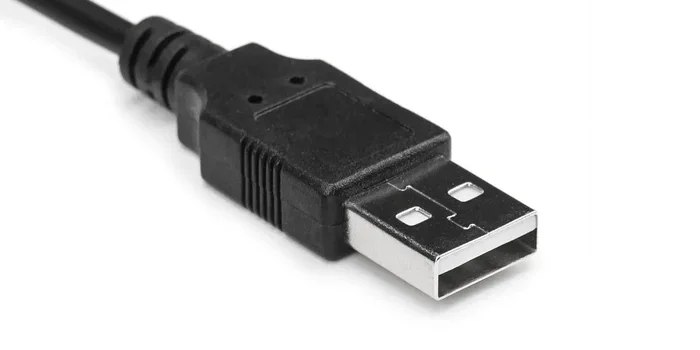
This is the classic rectangular USB port. You probably have several devices that use it. USB Type-A ports come in different versions. USB 2.0 Type-A is the oldest and slowest. USB 3.0 Type-A is blue inside and much faster. USB 3.1 and 3.2 Type-A ports offer even better speeds.
Most motherboards still include several USB Type-A ports because they are the most widely used. You will find them on keyboards, flash drives, and many peripherals. They are reliable and compatible with almost everything.
USB Type-C
USB Type-C is the newer, smaller, reversible connector. It can carry data, video, and power all through one cable. Newer motherboards, especially those designed for modern builds, often include at least one or two Type-C ports. If you have a newer phone or laptop, you probably already use Type-C.
USB Type-C can support USB 3.2 Gen 2 speeds, which means very fast file transfers. Some motherboards even support Thunderbolt through Type-C, though that is more common on higher-end boards.
USB Type-B and Mini-USB
You will see USB Type-B ports mostly on printers and larger devices. Mini-USB is older and less common now. These are not as relevant for most motherboard discussions, but they are worth knowing about. On your motherboard, you are mostly dealing with Type-A and Type-C.
How to Check How Many USB Ports Your Motherboard Has
Finding out your exact USB port count is easier than you might think. There are several straightforward methods you can use right now.
Method 1: Check the Motherboard Manual
Every motherboard comes with a manual. It lists all the ports and headers on the board. Look for the section called “Rear I/O” or “Internal Headers.” You will see a diagram showing every USB port and header. The manual will tell you the version and location of each port.
If you lost your manual, you can usually find a PDF version on the manufacturer’s website. Just search for your motherboard model number and look for the support or downloads page.
Method 2: Look Up the Specs Online
Go to the manufacturer’s website and search for your motherboard model. The product page will list all specifications, including USB port count. You will see how many USB 2.0, USB 3.0, and USB Type-C ports are built in.
This is the fastest method if you know your motherboard model. It is also the most accurate because the manufacturer lists the official numbers.
Method 3: Physically Count the Ports
The simplest way is to just look at your motherboard. Open your PC case and count the ports on the back panel. Then check for any front panel headers inside the case. Each header can connect to 2 or more ports on the front of your case.
Remember, the ports you see on the back are the ones directly on the motherboard. The front panel ports connect through internal cables to headers on the board. Both count.
USB Port Headers: The Hidden Ports
Here is something many people overlook. Your motherboard has internal USB headers that connect to the front panel of your PC case. These headers add USB ports you can use without taking up back-panel space.
Most modern motherboards include at least one front panel USB header. Some include two or three. Each header can support two USB ports on the front of your case. So if your board has two headers and you use a case with front USB ports, you could add four or more extra ports.
Not all headers are the same, though. Older headers support USB 2.0 only. Newer headers support USB 3.0 or even USB 3.2. Check your motherboard manual to see which headers you have and what speeds they support. Using the right cable matters for getting the best performance.
When You Need More USB Ports
Sometimes, no matter how many ports your motherboard has, it is just not enough. Maybe you are a content creator with multiple drives and cameras. Or maybe you have a cluttered desk with too many devices. Whatever the reason, there are ways to get more USB ports.
One popular solution is a USB hub. A hub plugs into one port and gives you several more. You can get powered hubs that include their own power supply. These are great for devices that need a lot of power, like external hard drives. Unpowered hubs work fine for low-power devices like keyboards and mice.
Another option is a USB expansion card. This plugs into a PCIe slot on your motherboard and adds extra USB ports directly to your system. These cards often support USB 3.0 or higher, so you get good speeds. This is a great choice if you need ports with strong and reliable performance.
You might also consider checking whether your motherboard supports additional features. For example, some boards let you adjust USB power delivery or enable hidden headers in the BIOS. If you are curious about what your motherboard can do overall, you might want to read up on does my motherboard support overclocking to understand its full capabilities.
Also, if you are working with a laptop, the number of ports is usually fixed. You cannot add internal headers the way you can on a desktop. A USB hub is your best friend in that situation. And if you are curious about how ports differ on laptops versus desktops, checking out do laptops have VGA ports can give you a broader picture of laptop connectivity options.
USB Speeds: Why Port Version Matters
The number of ports is not the only thing that matters. The USB version of each port affects how fast data transfers happen. Here is a quick comparison of the common USB versions you will find on motherboards.
| USB Version | Max Speed | Common Color | Year Introduced |
|---|---|---|---|
| USB 2.0 | 480 Mbps | Black or White | 2000 |
| USB 3.0 (USB 3.2 Gen 1) | 5 Gbps | Blue | 2008 |
| USB 3.1 (USB 3.2 Gen 2) | 10 Gbps | Red or Teal | 2013 |
| USB 3.2 Gen 2×2 | 20 Gbps | Red | 2017 |
| USB4 (via Type-C) | 40 Gbps | Thunderbolt compatible | 2019 |
As you can see, the speed difference is huge. If you regularly transfer large files or connect fast external drives, USB 3.0 or higher makes a big difference. Most modern motherboards include a mix of USB 2.0 and USB 3.x ports. USB 2.0 ports are fine for things like your mouse and keyboard, where speed does not matter much. Use USB 3.0 or newer ports for storage devices and cameras.
One thing to keep in mind is that a slow USB port can bottleneck a fast device. If you plug a USB 3.0 flash drive into a USB 2.0 port, it will only run at USB 2.0 speeds. Always check which version each port supports before connecting something important.
Common USB Port Problems and Fixes
Sometimes USB ports stop working or behave strangely. This can happen for a few reasons. Here are some common issues and quick fixes.
Port not recognized: Try a different device in the same port. If the new device works, the original device might be the problem. If neither works, the port might be disabled in BIOS or have a driver issue.
Slow data transfer: Make sure you are plugging into the right port. Check if the port is USB 3.0 or higher. Also, avoid using long USB cables for fast transfers, as they can slow things down.
Device disconnects randomly: This could be a power issue. Try plugging the device into a different port. If that does not work, a powered USB hub can help provide stable power.
For more troubleshooting help, you might find it useful to read about why does my computer fan keep running, as some USB-related power issues can be linked to broader system behavior.
Best Practices for Using USB Ports
Taking care of your USB ports helps them last longer and work better. Here are some simple tips to follow.
- Plug devices in gently. Do not force a connector. If it does not fit, check the orientation.
- Use the right cable. Cheap or damaged cables can cause slow speeds or connection drops.
- Keep ports clean. Dust can build up inside ports and cause connection problems. Use compressed air to clean them gently.
- Use a surge protector or UPS. Power surges can damage USB devices and even the ports themselves.
- Update your USB drivers. Outdated drivers can cause compatibility issues and slow performance.
- Do not overload a single port. Avoid connecting too many high-power devices to one port without a powered hub.
Final Thoughts
Knowing how many USB ports your motherboard has is more important than most people realize. It affects how you set up your workspace, what devices you can use, and how smoothly everything runs. Whether you have a basic office PC or a powerful gaming rig, understanding your port situation helps you make smart decisions.
Start by checking your motherboard manual or looking up your model online. Count the back-panel ports and the internal headers. Understand the USB versions each port supports. And if you need more ports, a USB hub or expansion card can fill the gap.
Take a few minutes today to figure out your USB port situation. You will thank yourself later when you are not scrambling for an available port. A well-planned setup makes everything smoother and more enjoyable.
Frequently Asked Questions
How do I know how many USB ports my motherboard has?
Check your motherboard manual or look up your model online on the manufacturer’s website. You can also physically open your PC case and count the ports on the back panel, plus check for internal front-panel headers inside the case.
Can I add more USB ports to my motherboard?
Yes. You can use a USB hub to multiply your existing ports. For better performance, you can install a USB expansion card in a PCIe slot. This adds dedicated ports with strong speeds directly to your system.
What is the difference between USB 2.0 and USB 3.0 ports on a motherboard?
USB 2.0 has a max speed of 480 Mbps, while USB 3.0 can reach 5 Gbps. USB 3.0 ports are usually blue inside. USB 2.0 ports are fine for mice and keyboards, but USB 3.0 is much better for fast file transfers and external drives.
Why are some of my USB ports not working?
This can happen if a port is disabled in BIOS, if a driver is outdated, or if the port has a physical issue. Try restarting your PC, updating USB drivers, or testing the port with a different device to narrow down the cause.
Does every motherboard have USB Type-C ports?
No, not every motherboard has USB Type-C. Newer and higher-end boards are more likely to include Type-C ports. Older or budget boards may only have USB Type-A ports. Check your motherboard specs to be sure.
How many front panel USB headers does a typical motherboard have?
Most motherboards have one or two front panel USB headers. Each header can support two USB ports on the front of your case. Newer boards may include USB 3.0 headers that offer faster speeds for front panel ports.