What Is the C Folder in Windows
The C folder in Windows is the main system drive where your operating system, programs, and personal files live. It is also called the C drive or C: drive and serves as the root of your laptop’s file system. Understanding what the C folder contains helps you manage storage, troubleshoot problems, and keep your computer running smoothly.
Have you ever opened your laptop and wondered what actually lives inside that little C icon on your screen? The C folder in Windows is one of the most important parts of your entire system. It is the starting point for everything your computer does. Without it, your laptop would not even turn on properly.
Many people use their computers every day without ever thinking about what the C drive actually is. They save files, install apps, and browse the web without realizing that all of this happens inside the C folder. In this guide, we will break down exactly what the C folder is, what it contains, and why it matters so much for your laptop.
Whether you are a complete beginner or someone who has used Windows for years, this article will help you understand your C drive better. Let us walk through it together in simple, plain language.
Key Takeaways
- The C folder is the primary drive: It holds your Windows operating system and all essential system files.
- It organizes your entire laptop: From program files to user data, everything starts at the C drive.
- Running low on C drive space causes problems: Slow performance, update failures, and error messages often stem from a full C folder.
- You can manage C folder contents safely: Using Disk Cleanup and File Explorer helps you free up space without breaking your system.
- The C drive is a disk partition: It is a logical division of your hard drive or SSD that Windows uses as the default boot drive.
- Backing up C folder data is critical: Protecting your system files and personal data prevents permanent loss.
📑 Table of Contents
- What Exactly Is the C Folder in Windows?
- What Does the C Folder Contain?
- Why the C Folder Matters for Your Laptop
- Common Problems with the C Folder
- How to Manage and Optimize the C Folder
- How the C Folder Relates to Your Laptop Storage
- Quick Tips for C Folder Health
- Expert Insights on C Drive Management
- Final Thoughts
What Exactly Is the C Folder in Windows?
The C folder is the main drive letter assigned to your primary hard drive or solid-state drive in Windows. When you install Windows on a laptop, the system automatically labels the main partition as C. This becomes your default location for the operating system, installed programs, and user files.
Think of the C folder as the heart of your laptop. Just like your heart pumps blood to every part of your body, the C drive supplies everything your computer needs to function. Every time you open an app, save a document, or run a system update, the C folder is involved.
Why Is It Called the C Drive?
The letter C has a historical reason behind it. In early computers, the A and B drive letters were reserved for floppy disk drives. When hard drives became common, the next available letter was C. Microsoft kept this tradition in Windows, and it has stuck ever since. Today, even though most laptops no longer have floppy drives, the C drive label remains the standard.
Your Windows directory lives inside the C folder. This is where the core files that run your operating system are stored. You will also find folders like Program Files, Users, and Windows nested inside the C drive. Each one plays a specific role in keeping your laptop working.
What Does the C Folder Contain?
The C folder is packed with important files and folders. Understanding what is inside helps you manage your laptop more effectively. Here is a closer look at the main contents of the C drive.
Windows System Files
The largest and most critical section of the C folder is the Windows folder. This contains all the operating system files that make your laptop run. These files handle everything from displaying your desktop to managing mouse clicks and keyboard input.
Deleting or modifying files inside the Windows folder is extremely risky. Doing so can cause your system to crash or fail to boot. Always let Windows manage its own system files.
Program Files
When you install software on your laptop, it typically goes into the Program Files folder on the C drive. This includes apps like your web browser, office suite, and games. Each program gets its own subfolder inside Program Files.
Over time, installed programs can take up a lot of space on the C drive. This is one of the main reasons people run low on disk space. If you notice your laptop slowing down, checking your program files is a good first step.
User Data and Documents
Your personal files also live on the C drive by default. Documents, pictures, downloads, and desktop files are all stored in the Users folder. This is convenient because it keeps your data close to the system, but it also means a system problem could affect your personal files too.
Why the C Folder Matters for Your Laptop
The C folder is not just another folder. It is the foundation of your entire laptop experience. Here is why it matters so much.
System Performance
Your laptop’s speed depends heavily on the C drive. When the C folder gets full, your computer slows down. Windows needs free space to move files, run updates, and manage temporary data. Without enough room, even simple tasks become sluggish.
A good rule of thumb is to keep at least 15 to 20 percent of your C drive free at all times. This gives Windows the breathing room it needs to operate efficiently.
System Recovery and Updates
Windows uses the C folder to store recovery files and update data. When your laptop needs to repair itself or install a major update, it relies on the C drive having enough space and intact system files. A corrupted C folder can make updates fail or recovery impossible.
This is why many experts recommend creating a system image backup regularly. It captures the entire C folder and lets you restore your laptop if something goes wrong.
File Management and Organization
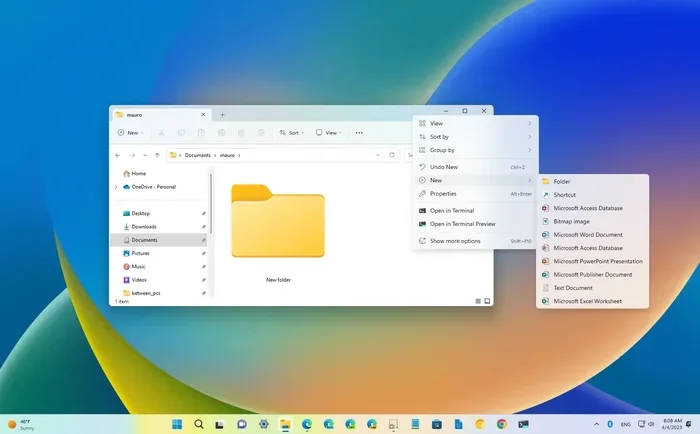
Understanding the C folder helps you organize your files better. When you know where things are stored, you can find them faster and keep your laptop tidy. Using File Explorer to navigate the C drive is the easiest way to manage your files.
Many people create their own folders inside the C drive for specific projects or categories. This keeps things neat and makes it easier to locate files when you need them.
Common Problems with the C Folder
Like any part of your laptop, the C folder can run into issues. Here are the most common problems people face and what you can do about them.
Low Disk Space Warnings
The most common issue is running out of space on the C drive. You might see warning messages telling you that your disk is almost full. This happens when too many programs, files, and temporary data build up over time.
Windows has a built-in tool called Disk Cleanup that helps you remove unnecessary files. You can also move large files to another drive or external storage to free up room on the C folder.
Slow Boot Times
If your laptop takes forever to start up, a crowded C drive might be the cause. When the C folder is packed with data, Windows struggles to load the files it needs during boot. Clearing out unused programs and temporary files can significantly speed up startup.
Corrupted System Files
Sometimes system files inside the C folder become corrupted. This can cause errors, crashes, and unexpected behavior. Windows includes a tool called System File Checker that scans for and repairs damaged files. Running this tool is a safe way to fix many common C drive problems.
How to Manage and Optimize the C Folder
Keeping your C folder healthy is one of the best things you can do for your laptop. Here are practical tips to help you manage and optimize the C drive.
Use Disk Cleanup Regularly
Disk Cleanup is a free Windows tool that removes temporary files, old updates, and system junk. To use it, simply search for Disk Cleanup in the Start menu and select your C drive. The tool will show you how much space you can recover.
Running Disk Cleanup once a month is a great habit. It keeps your C folder lean and your laptop running smoothly.
Move Large Files to Another Drive
If you have a second drive or an external hard drive, consider moving large files like videos and backups off the C drive. This frees up valuable space and reduces clutter on your main system drive.
You can also change where new apps install by default. Many programs allow you to choose a different drive during setup, which takes the load off the C folder.
Enable Storage Sense
Windows 10 and 11 include a feature called Storage Sense that automatically cleans up your C drive. It removes temporary files and empties the recycle bin on a schedule. You can turn it on in your system settings and let it work in the background.
This is one of the easiest ways to maintain your C folder without doing any manual work. It runs quietly and keeps your disk space under control.
Check What Is Taking Up Space
If you are not sure what is eating up your C drive, use a storage analysis tool. These tools scan your C folder and show you a visual breakdown of what is using the most space. You can then decide what to delete or move.
Many free tools are available for this purpose. They make it easy to spot large folders and old files that you no longer need.
How the C Folder Relates to Your Laptop Storage
The C folder is deeply connected to your laptop’s overall storage setup. Your hard drive or SSD is divided into partitions, and the C drive is the primary one. Other partitions might exist for recovery or additional storage, but the C folder is where your operating system lives.
Understanding this relationship helps you make smarter decisions about how you use your laptop. For example, if you have a small SSD, you need to be especially careful about what you install on the C drive. Every program and file adds up quickly on a smaller drive.
For more information about how laptop storage works and what components affect it, you might want to check out what the RAM in a laptop does, since memory and storage work together to keep your system running well.
Similarly, knowing what your laptop storage is good for helps you plan how to use the C folder effectively. If you store too much on the C drive, you may slow down your system or run into space issues that affect your daily workflow.
Quick Tips for C Folder Health
- Keep at least 15 to 20 percent free: This ensures Windows has room to operate smoothly.
- Run Disk Cleanup monthly: It removes hidden temporary files that pile up over time.
- Do not manually delete system folders: Let Windows handle its own files to avoid corruption.
- Use Storage Sense: Automate your cleanup so you do not have to think about it.
- Back up your data regularly: Protect your personal files stored in the C folder from unexpected loss.
- Monitor disk usage: Check your C drive space often so problems do not sneak up on you.
Expert Insights on C Drive Management
Experienced IT professionals always emphasize the importance of a healthy C drive. They recommend treating the C folder with care because it houses your entire operating system. A well-managed C drive leads to faster performance, fewer errors, and a longer laptop lifespan.
One common mistake users make is installing everything on the C drive by default. Over time, this fills up the system drive and causes performance issues. Experts suggest being intentional about where you store files and which apps you install.
Another tip from professionals is to avoid downloading large files directly to the C drive. Instead, save them to an external drive or a secondary partition. This keeps your C folder lean and focused on the files that matter most for system operation.
Final Thoughts
The C folder in Windows is far more than just a letter on your screen. It is the core of your laptop’s file system, housing your operating system, programs, and personal data. Taking care of your C drive pays off in better performance, fewer errors, and a smoother computing experience.
By understanding what the C folder contains and how to manage it, you take control of your laptop’s health. Simple habits like running Disk Cleanup, monitoring disk space, and backing up your data go a long way. Your C drive works hard for you every day, so give it the attention it deserves.
Remember, a well-organized C folder means a faster, more reliable laptop. Start applying these tips today and feel the difference in your daily computing experience.
Frequently Asked Questions
What is the C folder in Windows used for?
The C folder stores your Windows operating system, installed programs, and user files. It is the main drive where everything your laptop needs to run is kept. Without the C folder, your computer would not be able to start or function.
Can I delete files from the C folder safely?
You can delete some files safely, like temporary files and old downloads. However, you should never delete files inside the Windows or Program Files folders manually. Use trusted tools like Disk Cleanup to remove unnecessary files without risking system damage.
How much space should I keep free on my C drive?
Experts recommend keeping at least 15 to 20 percent of your C drive free. This gives Windows enough room to manage files, run updates, and maintain performance. If your C drive regularly drops below 10 percent free, you should take action to free up space.
What happens if the C folder becomes corrupted?
A corrupted C folder can cause boot failures, system errors, and data loss. Windows includes tools like System File Checker and DISM that can repair damaged system files. In severe cases, you may need to reinstall Windows or restore from a backup.
Is the C drive the same as my hard drive?
The C drive is a partition on your hard drive or SSD. Your physical drive may have multiple partitions, with C being the primary one. The C drive is where Windows is installed and where your system files live.
How do I check what is taking up space on my C folder?
You can use Windows built-in Storage settings or a third-party storage analysis tool. Simply go to Settings, then System, then Storage, and select your C drive. This shows you a breakdown of what is using the most space on your C folder.
=== CONCLUSION ===
The C folder in Windows is the backbone of your laptop’s file system. It holds your operating system, programs, and personal data all in one place. Understanding how it works and how to keep it healthy is one of the best things you can do for your computer. With the tips and insights in this guide, you are now equipped to manage your C drive with confidence. Keep your C folder clean, keep your laptop fast, and enjoy a smoother computing experience every day.