Laptop Runtime Limit
The laptop runtime limit is the maximum time your device can run continuously before hitting thermal, battery, or performance boundaries. Understanding this limit helps you avoid slowdowns, protect hardware, and get the most from every charge. This guide covers what sets the runtime limit, how to measure it, and simple steps to push your laptop further safely.
Have you ever noticed your laptop slowing down, shutting down, or draining fast during a long work session? That frustrating experience often comes down to something called the laptop runtime limit. It is the point where your device simply cannot keep going at full speed without hitting a wall.
Whether you are working from home, studying for exams, or gaming on the go, knowing your laptop runtime limit can save you from unexpected shutdowns and frustrating lag. This article breaks down everything you need to know, from what causes runtime limits to practical fixes you can try today.
The good news is that most laptops have a lot more runtime than people think. A few simple changes can unlock extra hours of use and keep your machine running cool and smooth. Let us dive in.
Key Takeaways
- Thermal throttling is the #1 enemy: Heat forces your laptop to slow down, cutting runtime and hurting performance.
- Battery health matters: A degraded battery shortens runtime fast, even if everything else works fine.
- Power settings can help: Tweaking Windows power plans and using battery saver mode extends your runtime noticeably.
- Background apps drain time: Unnecessary programs running in the background eat up battery and push your laptop closer to its limit.
- Cooling solutions make a difference: A simple cooling pad or clean fans can add meaningful runtime to your sessions.
- Upgrade hardware for better endurance: More RAM and a fast laptop NVMe M.2 SSD reduce strain on your system, helping it run longer.
📑 Table of Contents
What Is a Laptop Runtime Limit?
A laptop runtime limit is the maximum amount of time your laptop can run continuously before it hits a performance or safety barrier. This limit is not just about battery life. It involves heat, power draw, hardware stress, and software demands working together.
Think of it like running a marathon. Your body has a limit on how long it can sprint at full speed. A laptop works the same way. Push it too hard for too long, and it will slow down, shut off, or throttle performance to protect itself.
Several factors set your laptop runtime limit:
- Battery capacity – How much energy your battery can store.
- Thermal design – How well your laptop handles heat buildup.
- Processor load – Heavy tasks like video editing or gaming drain power fast.
- Background processes – Apps running silently eat up runtime without you noticing.
- Power settings – Your chosen mode affects how long the battery lasts.
Understanding these factors gives you control. You cannot always change your battery size, but you can manage everything else.
Why Does Your Laptop Hit a Runtime Wall?
Every laptop has a built-in safety system. When temperatures climb too high, the device steps in to protect itself. This is called thermal throttling, and it is the biggest reason laptops hit a runtime limit during heavy use.
Thermal Throttling Explained
When your laptop processor gets too hot, it automatically reduces speed. This prevents damage but kills performance. You will notice apps lag, games stutter, and fans get loud. All of this happens because the laptop runtime limit has been triggered by heat.
Overheating can happen for many reasons:
- Dust clogging the vents and fans
- Placing the laptop on soft surfaces like beds or couches
- Running demanding software for hours without a break
- High room temperatures
- Aging thermal paste between the processor and heatsink
If you have ever wondered whether a laptop can overheat to dangerous levels, the answer is yes — though modern laptops have safety cutoffs. Still, repeated overheating shortens your device lifespan. You can learn more about laptop overheating risks in our guide on laptop overheating dangers.
Battery Degradation Over Time
Laptop batteries wear out. Each charge cycle slightly reduces the battery’s total capacity. After hundreds of cycles, your laptop runtime limit drops significantly. A battery that once lasted 8 hours might now last only 3.
This is why battery health matters so much. If your runtime keeps getting shorter, the battery is likely the culprit. Replacing the battery or adjusting your usage habits can bring your runtime back up.
How to Measure Your Laptop Runtime Limit
You cannot improve what you do not measure. Checking your laptop runtime limit is easier than you might think. A few tools and simple tests give you a clear picture.
Built-In Windows Tools
Windows has several tools that show battery health and power usage:
- Battery Report – Open Command Prompt and type
powercfg /batteryreport. This creates a detailed HTML file showing your battery capacity, charge cycles, and runtime estimates. - Task Manager – Press Ctrl + Shift + Esc and check the Processes tab. You will see which apps use the most power.
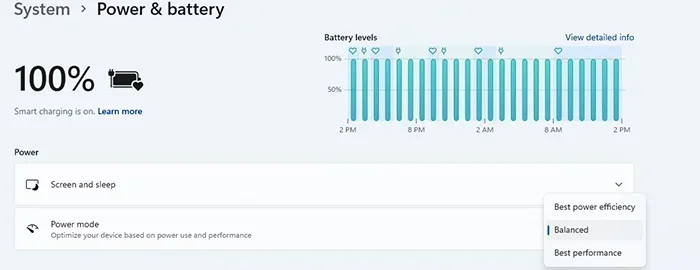
- Power Settings – Go to Settings > System > Power & Battery to see your current battery percentage and estimated remaining time.
Third-Party Monitoring Tools
Apps like HWiNFO, HWMonitor, and BatteryInfoView give you deeper insights. They track temperatures, power draw, and battery wear in real time. These tools help you spot problems before they hurt your laptop runtime limit.
Tips to Extend Your Laptop Runtime
Want more hours from every charge? These practical tips help you stretch past your laptop runtime limit and get the most from your device.
Adjust Your Power Settings
Windows power plans have a big impact on runtime. Switch to Battery Saver mode or the Power Saver plan. These settings reduce background activity, lower screen brightness, and slow the processor slightly to save power.
Here is what you can do in your power settings:
- Lower screen brightness to 50% or less
- Set the screen to turn off after 5 minutes of inactivity
- Enable sleep mode after 10 minutes
- Turn off keyboard backlighting
- Disable Wi-Fi and Bluetooth when not needed
Close Unnecessary Background Apps
Many apps keep running even when you are not using them. They eat up battery and push your laptop runtime limit down fast. Check Task Manager and close anything you do not need.
Common battery hogs include:
- Web browsers with many tabs open
- Cloud sync services like OneDrive or Dropbox
- Antivirus scans running in the background
- Streaming apps left running in the background
Keep Your Laptop Cool
Heat is the silent killer of runtime. A hot laptop throttles performance and drains battery faster. Keep your device cool with these steps:
- Use a hard, flat surface for airflow
- Clean vents and fans every few months
- Use a laptop cooling pad
- Avoid using your laptop in direct sunlight
- Replace old thermal paste if your device is several years old
Upgrade Key Hardware Components
Sometimes the best way to improve runtime is to upgrade parts. More RAM means your laptop handles tasks faster and returns to idle sooner, saving power. A fast storage drive like a 512GB PCIe NVMe M.2 SSD reduces load times and cuts power use compared to older drives.
You can also upgrade your laptop RAM to reduce strain on the system. When your processor and memory work together smoothly, the whole system runs cooler and lasts longer on battery.
Common Mistakes That Shorten Laptop Runtime
Many users unknowingly hurt their laptop runtime limit every day. Avoid these common mistakes to keep your battery lasting longer.
Keeping Too Many Tabs Open
Each browser tab uses memory and processor power. The more tabs you have open, the harder your laptop works. Close tabs you are not actively reading. Use bookmark folders to save pages for later without draining battery.
Ignoring Software Updates
Operating system updates often include power management improvements. Skipping updates means you miss out on optimizations that could extend your runtime. Keep Windows and your drivers up to date.
Charging to 100% All the Time
Keeping your battery at full charge constantly stresses the cells. If you use your laptop plugged in most of the time, consider limiting the charge to 80%. Many modern laptops have built-in battery charge limiters in their software.
Running Heavy Apps on Battery
Video editing, 3D rendering, and gaming pull massive power. Save these tasks for when you are plugged in. Running them on battery not only shortens runtime but also heats up the device faster.
When to Consider a New Laptop for Better Runtime
Sometimes the laptop runtime limit is just a sign that your device is aging. If your battery barely lasts an hour even after replacing it, and cooling fixes do not help, it might be time for an upgrade.
Look for laptops with strong battery capacity, efficient processors, and good thermal design. Machines with more RAM and fast storage also manage power better because they complete tasks quicker and idle faster.
For heavy multitaskers, a machine with expandable RAM and a solid-state drive makes a huge difference. Check out our guide on laptops with lots of RAM if you want to explore options that handle demanding workloads without hitting runtime walls.
Also consider laptops with modern power-efficient chips. Newer generation processors use less energy while delivering better performance. This means longer runtime and less heat, even during tough tasks.
Final Thoughts on Laptop Runtime Limit
The laptop runtime limit is not a fixed number. It changes based on how you use your device, what software you run, and how well you maintain it. By understanding what drives runtime limits and taking simple steps to manage heat, power settings, and background apps, you can get significantly more from every charge.
Small habits like closing unused apps, keeping your laptop cool, and adjusting power plans add up fast. And when hardware upgrades make sense, they can transform your entire experience. A well-maintained laptop runs longer, performs better, and lasts for years.
Take control of your laptop runtime limit today. Try one or two tips from this guide and notice the difference. Your battery — and your productivity — will thank you.
Frequently Asked Questions
What does laptop runtime limit mean?
The laptop runtime limit is the maximum time your laptop can run continuously before it slows down, overheats, or shuts down due to battery, thermal, or performance constraints. It depends on battery health, workload, and how well your device manages heat.
How can I extend my laptop’s runtime on battery?
You can extend runtime by lowering screen brightness, closing background apps, using Battery Saver mode, keeping your laptop cool, and disabling unused features like Wi-Fi and Bluetooth. These simple steps reduce power draw and help you get more hours from each charge.
Why does my laptop overheat and lose runtime so fast?
Overheating happens when dust blocks vents, fans work poorly, or your laptop sits on soft surfaces that block airflow. Heat triggers thermal throttling, which forces the processor to slow down and drains battery faster, cutting your runtime short.
Can upgrading RAM improve laptop runtime?
Yes, upgrading RAM helps your laptop handle tasks faster and return to idle sooner, which reduces overall power use. Less strain on the processor means less heat and longer battery life during demanding workloads.
Is it bad to keep my laptop plugged in all the time?
Keeping your laptop plugged in constantly can stress the battery over time, reducing its total capacity and shortening runtime. Many modern laptops offer battery charge limiters that cap charging at 80% to protect battery health.
How often should I replace my laptop battery?
Most laptop batteries last 2 to 4 years or 300 to 1000 charge cycles. If your runtime drops significantly even after adjusting settings and power habits, it is likely time to replace the battery and restore your laptop’s endurance.