What Is Rts on a Monitor
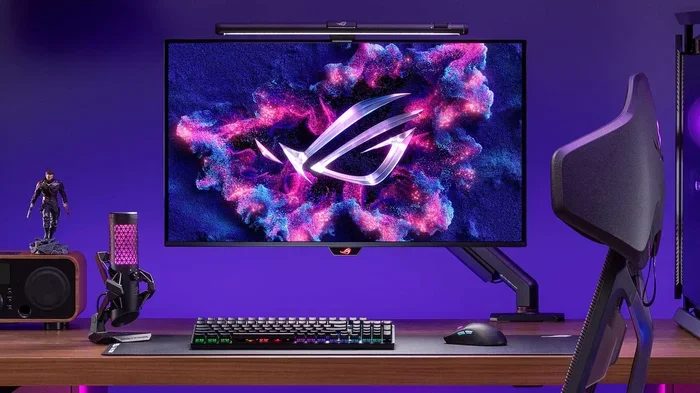
RTS on a monitor stands for Real-Time Strategy mode, a preset display setting designed to enhance your gaming visuals. This mode adjusts color, contrast, and response time to give you a clearer view of small units and details on screen. Whether you play on a laptop or a desktop setup, understanding RTS mode helps you get the most out of your gaming display.
If you have ever stared at your screen during a intense match of StarCraft or Age of Empires and wished you could see those tiny units more clearly, you are not alone. RTS on a monitor is a feature that many gamers overlook, but it can make a huge difference in how you play. RTS stands for Real-Time Strategy, and the mode on your monitor is built specifically for this type of gaming. It tweaks the colors, sharpness, and response settings so that every little detail on your screen pops. In this guide, we will walk you through exactly what RTS mode does, how it works, and why you should consider using it. We will also cover how to enable it and share tips to get the best experience. By the end, you will know everything you need to make your RTS gaming sessions smoother and more enjoyable.
Many people buy a gaming monitor but never explore the different game modes it offers. These presets are designed to fine-tune your display for specific types of games. RTS mode is one of the most useful ones for strategy fans. It is not just a fancy label. It changes real settings on your monitor that affect how you see and react to what is on screen. If you have ever wondered why your monitor has modes like FPS, Racing, or RTS, this article will clear it all up. Let us dive in and break it down in simple terms.
Key Takeaways
- RTS mode optimizes your monitor for real-time strategy games by adjusting color, contrast, and clarity settings.
- It reduces input lag and improves unit visibility, making small on-screen details easier to spot.
- RTS mode is different from FPS and racing modes, each tailored for specific game genres.
- Enabling RTS mode is simple and usually done through your monitor’s on-screen display menu.
- Pairing RTS mode with good system performance (like proper RAM and GPU health) gives the best results.
- Not all monitors have an RTS preset, but many gaming monitors do offer it.
- Customizing your display settings beyond RTS mode can further improve your gaming experience.
📑 Table of Contents
- What Does RTS Stand For on a Monitor?
- How RTS Mode Works on Your Monitor
- Benefits of Using RTS Mode on a Monitor
- RTS Mode vs Other Monitor Game Modes
- How to Enable RTS Mode on Your Monitor
- Tips for Optimizing Your Monitor for RTS Gaming
- Common Mistakes People Make with RTS Mode
- Final Thoughts on RTS Mode
What Does RTS Stand For on a Monitor?
RTS stands for Real-Time Strategy. In the gaming world, real-time strategy games require you to make quick decisions while managing resources, building structures, and controlling armies all at the same time. Games like StarCraft II, Age of Empires, and Company of Heroes fall into this category. The RTS mode on a monitor is a preset that adjusts your display settings to match the needs of these games.
When you play an RTS game, you often need to see many small units on screen at once. A single missed scout or a hidden enemy unit can cost you the whole match. RTS mode on a monitor helps by enhancing the visual clarity of small objects and improving the overall contrast. This makes it easier to spot details that you might otherwise miss. The mode also tends to boost color saturation slightly, which helps different units stand out from the background.
Think of it this way. Your monitor normally shows everything in a balanced, general-purpose mode. But when you switch to RTS mode, it is like putting on a pair of glasses that helps you focus on the tiny details that matter most in strategy games. It is a simple but powerful tool that can give you a real edge.
Why Is It Called RTS Mode?
The name is straightforward. Monitor manufacturers label this preset as “RTS” because it is designed for real-time strategy games. Just like how some monitors have a “Movie” mode or a “Reading” mode, the RTS mode is one of several game-specific presets. Each preset adjusts the monitor’s internal settings to match the visual demands of that particular type of content. For RTS games, the key needs are clarity, color distinction, and low delay.
How RTS Mode Works on Your Monitor
RTS mode works by changing several display settings at the same time. These changes happen inside your monitor and are activated with the press of a button or a few clicks through the monitor’s menu. Let us look at what actually happens when you turn on RTS mode.
Visual Settings Adjustments
When you enable RTS mode, your monitor typically makes the following changes:
- Color temperature shifts to make greens and browns more vivid, which are common in strategy game maps.
- Contrast is boosted so that dark areas of the screen show more detail. This helps you spot hidden units in shadows.
- Edge enhancement is increased, which makes the outlines of small units sharper and easier to see.
- Brightness may be adjusted to ensure that units on darker parts of the map remain visible.
- Color saturation is raised slightly to help different teams or factions stand out from each other.
All of these changes work together to give you a clearer, more detailed picture. You do not need to adjust each setting manually. The monitor does it all for you when you switch to RTS mode.
Input Lag Reduction
One of the most important benefits of RTS mode is the reduction of input lag. Input lag is the delay between when you click your mouse and when you see the action happen on screen. In a fast-paced strategy game, even a small delay can mean the difference between winning and losing.
RTS mode often reduces input lag by simplifying the image processing steps your monitor takes. Instead of applying heavy color corrections or filters, the monitor focuses on delivering the image as quickly as possible. This means your commands feel more responsive. If you have ever felt like your clicks were not registering fast enough, switching to RTS mode might help.
For those who want to learn more about pushing their monitor performance further, check out is overclocking your monitor worth it for useful tips on getting extra performance from your display.
Black Level and Gamma Adjustments
RTS mode also tweaks the black levels and gamma curve on your monitor. This is important because many strategy games feature dark environments like forests, caves, or nighttime battles. By deepening the blacks and adjusting the gamma, the monitor ensures that you can see details in dark areas without losing the bright parts of the image. The result is a more balanced and playable display in all lighting conditions within the game.
Benefits of Using RTS Mode on a Monitor
Using RTS mode comes with several real benefits that can improve your gaming experience. Let us break them down.
Better Unit Visibility
The biggest advantage of RTS on a monitor is the improved visibility of small game units. In games like StarCraft, you might be controlling dozens of tiny units across a large map. Without the right display settings, these units can blend into the terrain. RTS mode makes them pop, helping you spot enemy movements and manage your army more effectively.
Improved Color Distinction
Strategy games often use similar color palettes for different factions or terrain types. RTS mode enhances the color distinction so you can tell at a glance which units belong to which side. This is especially helpful in team games where multiple players and colors are on screen at the same time.
Faster Visual Response
Because RTS mode reduces input lag and streamlines image processing, your screen responds faster to your actions. This means less waiting and more doing. Over long gaming sessions, this can reduce eye strain and fatigue as well, since your eyes are not working as hard to process a sluggish image.
Better Gaming Performance Overall
While RTS mode is a display feature, it works hand in hand with your system’s overall gaming performance. A monitor with low input lag and good color response complements a strong GPU and sufficient RAM. If your laptop or PC is struggling to keep up, even the best monitor settings will not help much. For tips on keeping your system running smoothly, check out what does RAM do on a laptop to understand how memory affects your gaming.
RTS Mode vs Other Monitor Game Modes
Most modern gaming monitors come with several preset modes. Understanding how RTS mode compares to the others helps you choose the right one for your needs.
| Mode | Best For | Key Adjustments |
|---|---|---|
| RTS Mode | Real-time strategy games | Enhanced contrast, color saturation, edge sharpening, reduced input lag |
| FPS Mode | First-person shooters | Boosted brightness, higher contrast, emphasis on dark-light transitions |
| Racing Mode | Racing and driving games | Wider color range, smoother motion, enhanced green tones |
| Movie Mode | Watching films | Warmer color temperature, balanced contrast, accurate skin tones |
| Standard Mode | General use | Neutral settings, no special adjustments |
Each mode serves a different purpose. RTS mode is unique because it focuses on clarity and detail rather than motion or color accuracy. If you mainly play strategy games, RTS mode is the clear winner. But if you switch between game types, you may want to switch modes depending on what you are playing.
Some monitors also let you create custom profiles. This means you can save your own settings and switch between them quickly. For more on choosing the right monitor for your needs, check out how to buy a secondary monitor to explore options that support multiple game modes.
How to Enable RTS Mode on Your Monitor
Enabling RTS mode is usually very simple. Here is a step-by-step guide.
- Locate the menu button on your monitor. This is usually a joystick or a set of buttons on the bottom or back of the screen.
- Open the on-screen display (OSD) menu by pressing the menu button.
- Navigate to the “Game Mode” or “Preset” section. This is often found under a “Picture” or “Display” tab.
- Select RTS mode from the list of available presets.
- Save your selection and exit the menu.
Once enabled, your monitor will automatically apply the RTS settings. You should notice a difference in color vibrancy and detail sharpness right away. If you do not see an RTS option, your monitor may not have this specific preset. In that case, you can manually adjust the settings we discussed earlier to mimic the RTS effect.
What If Your Monitor Does Not Have RTS Mode?
Not every monitor has an RTS preset, especially budget or older models. But you can still achieve similar results by adjusting the settings manually. Start by increasing the contrast slightly, boosting the color saturation, and enabling any sharpness or edge enhancement features your monitor offers. You can also reduce the response time setting if your monitor has one. These manual adjustments will not be as precise as a dedicated RTS preset, but they will get you close.
To get the most out of your display, make sure your system itself is running well. If your GPU is running too hot, it can limit your performance. Learn about what is a good idle GPU temperature to make sure your graphics card is healthy and performing at its best.
Tips for Optimizing Your Monitor for RTS Gaming
Beyond just switching to RTS mode, there are several other things you can do to improve your strategy gaming setup.
Adjust Your In-Game Settings
Your monitor settings are only half the equation. Your in-game settings also matter. Make sure your game’s brightness and contrast settings are tuned to work well with RTS mode. If the game is too dark, increase the brightness slider in the game settings. If colors look washed out, lower the saturation slightly in the game and let the monitor handle the boost.
Keep Your Drivers Updated
Graphics driver updates often include optimizations for specific games. Keeping your drivers up to date ensures that your monitor and GPU work together efficiently. This can reduce input lag and improve overall visual quality.
Consider Your Room Lighting
Your monitor’s performance also depends on your environment. Playing in a dark room can make it harder to see dark areas of the map, even with RTS mode. Try to keep some ambient light in the room. This reduces eye strain and helps you see details on screen more clearly.
Make Sure Your System Is Up to Par
A great monitor means nothing if your laptop or PC cannot keep up. Make sure you have enough RAM to handle your games smoothly. For guidance on how much memory you need, check out what amount of RAM is good on a laptop to find the right setup for your gaming needs.
Use a Monitor with a High Refresh Rate
If you are serious about RTS gaming, consider a monitor with a high refresh rate. A 144Hz or 240Hz monitor delivers smoother motion and faster response times than a standard 60Hz display. This can be a game-changer when you need to react quickly to enemy movements on the map.
Calibrate Your Monitor Regularly
Over time, your monitor’s settings can drift. It is a good idea to check and recalibrate your display every few months. Many monitors have built-in calibration tools, or you can use external calibration devices for more precise results. Regular calibration ensures that your RTS mode always looks its best.
Common Mistakes People Make with RTS Mode
Even though RTS mode is easy to use, there are a few common mistakes that gamers make. Avoiding these can help you get the best experience.
- Leaving RTS mode on for all games. RTS mode is optimized for strategy games. Using it for shooters or movies may not give you the best results. Switch modes based on what you are playing.
- Ignoring system performance. A great monitor setting will not fix a slow system. Make sure your hardware can keep up with the demands of modern RTS games.
- Not adjusting in-game settings. RTS mode adjusts your monitor, but your game settings also need to be tuned. Work on both for the best outcome.
- Forgetting to update drivers. Outdated drivers can cause compatibility issues and reduce performance. Keep them updated.
- Over-brightening your monitor. While RTS mode boosts brightness, setting it too high can cause eye strain. Find a comfortable balance.
Final Thoughts on RTS Mode
RTS on a monitor is a simple but powerful feature that every strategy gamer should know about. It takes your display from a general-purpose screen into a tool optimized for spotting tiny units, reading complex maps, and reacting to fast-moving battles. The mode adjusts colors, contrast, sharpness, and input lag to give you the best possible view of your game world.
Whether you are a casual player or a competitive gamer, enabling RTS mode can improve your experience. It is easy to turn on, works with most gaming monitors, and does not cost you anything extra. Pair it with a well-optimized system and good in-game settings, and you will notice the difference right away.
Take a few minutes to explore your monitor’s presets. You might be surprised at how much of a difference the right mode makes. Gaming is about enjoying every moment, and RTS mode helps you see every detail of the battle. So go ahead, switch to RTS mode, and take your strategy gaming to the next level.
Frequently Asked Questions
What does RTS stand for on a monitor?
RTS stands for Real-Time Strategy. It is a monitor preset mode designed specifically for strategy games. When enabled, it adjusts color, contrast, and sharpness settings to make small game units and details easier to see on screen.
How do I enable RTS mode on my monitor?
To enable RTS mode, press the menu button on your monitor, navigate to the Game Mode or Preset section in the on-screen display menu, and select RTS. Your monitor will automatically apply the optimized settings for strategy gaming.
Is RTS mode the same as FPS mode on a monitor?
No, RTS mode and FPS mode are different. RTS mode is optimized for real-time strategy games with enhanced detail visibility and color distinction. FPS mode is designed for first-person shooters with boosted brightness and contrast for fast-paced action.
Can I use RTS mode for games other than strategy games?
You can, but it is not ideal. RTS mode is tailored for strategy games where seeing small details matters. For other game types, you may want to use the mode that matches your genre, such as FPS mode for shooters or Movie mode for watching films.
Do all monitors have an RTS mode?
Not all monitors have an RTS preset. Higher-end gaming monitors are more likely to include it. If your monitor does not have an RTS option, you can manually adjust settings like contrast, color saturation, and sharpness to achieve a similar effect.
Does RTS mode improve FPS in games?
RTS mode does not directly increase your frame rate. However, it reduces input lag and improves visual clarity, which can make your gaming feel smoother and more responsive. For better FPS, you also need to ensure your system hardware is strong enough for the game.