What Is Dell Peripheral Manager
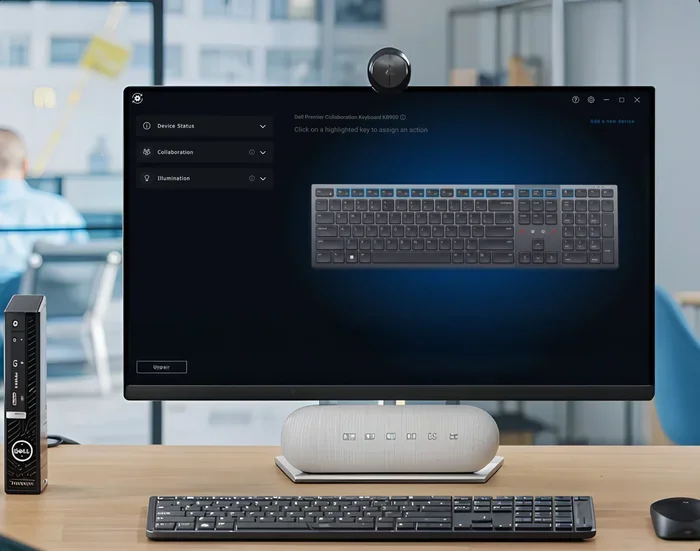
Dell Peripheral Manager is a free utility software from Dell that lets you manage, update, and configure your laptop peripherals. It works with mice, keyboards, headsets, webcams, and other Dell accessories to keep them running smoothly. The tool simplifies device setup, driver updates, and performance tuning for Dell laptop users. If you own a Dell laptop, this software can save you time and frustration with peripheral issues.
Dell Peripheral Manager is a software tool designed by Dell to help you manage all the external devices connected to your laptop. Think of it as a control center for your laptop accessories. If you use a Dell laptop and connect mice, keyboards, headsets, or webcams, this tool makes life much easier. It handles driver updates, device settings, and troubleshooting all in one place.
Many people wonder why their Dell peripherals stop working or behave strangely. Often, the answer is outdated drivers or incorrect settings. Dell Peripheral Manager solves these problems by keeping everything organized and up to date. It is a lightweight application that runs in the background and alerts you when something needs attention.
Whether you are a student, a professional, or a casual user, managing your laptop peripherals matters. A mouse that lags, a keyboard that misses keystrokes, or a headset with poor audio quality can ruin your experience. This tool ensures your devices work the way they should. It is one of those small utilities that makes a big difference in daily use.
The software is part of Dell’s broader ecosystem of support tools. It works alongside other Dell utilities to keep your laptop running at its best. If you have ever struggled with getting a new peripheral to work correctly on your Dell machine, this tool is worth knowing about.
Key Takeaways
- Centralized Control: Dell Peripheral Manager gives you one place to manage all your Dell laptop peripherals.
- Easy Driver Updates: The tool automatically checks for and installs the latest drivers for your devices.
- Device Configuration: You can customize settings for mice, keyboards, headsets, and more right from the app.
- Free to Use: This is a free utility that comes with or can be downloaded for Dell laptops.
- Troubleshooting Help: It helps identify and fix common peripheral connectivity and performance problems.
- Wide Compatibility: Works with a broad range of Dell input devices and accessories.
📑 Table of Contents
What Does Dell Peripheral Manager Do?
At its core, Dell Peripheral Manager handles the communication between your laptop and external devices. It acts as a bridge that ensures your devices are recognized, configured, and performing well. Here is a closer look at what this tool actually does.
Device Detection and Recognition
When you plug in a new peripheral, the software detects it automatically. It identifies the device type and checks whether the right drivers are installed. If a driver is missing or outdated, the tool notifies you. This saves you the hassle of manually searching for drivers on Dell’s website.
Driver Updates and Maintenance
One of the most important jobs of this tool is keeping your peripheral drivers current. Drivers are the software that tells your laptop how to talk to your devices. Outdated drivers can cause lag, disconnections, and poor performance. The manager checks for updates regularly and installs them when available.
Device Configuration and Customization
You can adjust settings for your connected devices through the manager. For example, if you connect a Dell mouse, you can change its sensitivity, button functions, and scroll speed. If you use a Dell keyboard, you can remap keys or adjust backlight settings. This level of customization helps you get the most out of your peripherals.
Key Features of Dell Peripheral Manager
The tool comes packed with features that make peripheral management simple. Let us walk through the most useful ones.
- Automatic Driver Scanning: The software scans all connected devices and checks driver health.
- One-Click Updates: You can update all peripheral drivers with a single click.
- Device Status Dashboard: See at a glance which devices are working properly and which need attention.
- Performance Profiles: Some devices support performance profiles that you can switch between for different tasks.
- Troubleshooting Wizard: Built-in tools help diagnose and fix common peripheral problems.
- Low Resource Usage: The tool runs quietly in the background without slowing down your laptop.
These features make Dell Peripheral Manager a practical addition to any Dell laptop setup. It removes the guesswork from managing your devices and keeps everything running smoothly.
How to Install and Set Up Dell Peripheral Manager
Getting started with this tool is straightforward. Follow these steps to install and configure it on your Dell laptop.
- Check Your System Requirements: Make sure your laptop meets the basic requirements. The tool works with most modern Dell laptops running Windows 10 or Windows 11. Having enough good RAM for your laptop ensures the software runs smoothly alongside other applications.
- Download the Software: Visit Dell’s official support website and search for Dell Peripheral Manager. You can also find it through the Dell SupportAssist tool, which is pre-installed on many Dell laptops.
- Run the Installer: Download the installer file and run it. Follow the on-screen prompts to complete the installation.
- Launch the Application: Once installed, open the tool from your Start menu or system tray. It will automatically scan your connected peripherals.
- Review and Update: Check the dashboard for any devices that need driver updates. Apply updates as recommended by the tool.
- Customize Your Settings: Go through the device settings and adjust them to match your preferences.
The entire process takes just a few minutes. Once set up, the tool runs in the background and handles most tasks automatically. You do not need to be a tech expert to use it effectively.
Compatible Devices and Peripherals
Dell Peripheral Manager works with a wide range of Dell-branded peripherals. Here are the most common device types it supports.
Mice and Trackpads
The tool fully supports Dell mice, including wireless and gaming models. If you are unsure what your laptop pointing device is officially called, you can check the Dell Peripheral Manager for details. Many users ask what the laptop mouse is called, and the answer is that Dell Peripheral Manager recognizes all standard input pointing devices. You can adjust DPI settings, polling rates, and button mappings for compatible models.
Keyboards
Dell keyboards, both wired and wireless, are supported. The manager lets you customize key bindings, adjust backlight colors, and set up shortcut keys. This is especially useful for Dell mechanical keyboards and slim notebook keyboards.
Headsets and Audio Devices
Dell headsets and USB audio devices work with the manager too. You can adjust audio profiles, microphone settings, and surround sound configurations through the tool.
Webcams and Displays
Some Dell webcams and external displays can be configured through the peripheral manager. The tool helps ensure your display drivers are current and your webcam settings are optimized for video calls.
It is worth noting that the tool works best with Dell-branded devices. Third-party peripherals may still work, but full customization options might be limited. For the best experience, stick with Dell accessories when possible.
Troubleshooting Common Issues
Even with Dell Peripheral Manager, you may run into occasional issues. Here are some common problems and how to fix them.
Device Not Recognized
If a peripheral is not showing up in the manager, try unplugging and replugging the device. Restart the tool and check the dashboard. If the issue persists, visit Dell’s support page to manually download the latest driver for your specific device model.
Driver Conflicts
Sometimes updating one driver can cause conflicts with another. The troubleshooting wizard in the manager can help identify these conflicts. If the wizard does not resolve the issue, you may need to uninstall and reinstall the driver for the affected device.
Poor Performance or Lag
If your peripheral feels sluggish, check for driver updates first. Also make sure your laptop has sufficient resources to handle the device. Having adequate RAM for your laptop plays a big role in how smoothly peripherals perform, especially during demanding tasks like gaming or video editing.
Connectivity Issues with Wireless Devices
For wireless mice and keyboards, make sure the USB receiver is plugged in properly. Try moving the receiver closer to the device. If problems continue, remove the device from the manager and re-pair it following the on-screen instructions.
Most issues can be resolved quickly with the built-in tools. Dell Peripheral Manager is designed to handle the most common problems without requiring advanced technical knowledge.
Is Dell Peripheral Manager Worth Using?
The short answer is yes. This free tool adds real value to any Dell laptop. It saves time, reduces frustration, and keeps your peripherals performing at their best. Managing drivers and device settings manually can be tedious and error-prone. Dell Peripheral Manager simplifies all of that.
Think of it as part of your overall laptop maintenance routine. Just like you update your operating system and antivirus software, keeping your peripheral drivers current matters. It is a small investment of time that pays off in reliability and performance. If you take good care of your laptop and its accessories, you protect your investment in the long run.
For Dell laptop owners, this tool is practically a no-brainer. It is free, easy to use, and designed specifically for your hardware. Whether you are setting up a new laptop or maintaining an older one, Dell Peripheral Manager belongs in your software toolkit.
Dell Peripheral Manager vs Manual Driver Management
You might wonder whether you really need this tool. After all, you can update drivers manually through Device Manager in Windows. So what makes Dell Peripheral Manager different?
Manual driver management works, but it takes more time and effort. You need to visit Dell’s website, find the correct driver for your exact model, download it, and install it. With Dell Peripheral Manager, all of this happens automatically. The tool knows your laptop model and recommends the right drivers without any guesswork.
Manual management also leaves room for mistakes. You might install the wrong driver or skip an update. The manager eliminates these risks by handling everything in one place. It is the difference between a DIY approach and a streamlined, automated experience.
Final Thoughts
Dell Peripheral Manager is a simple but powerful tool for anyone who uses a Dell laptop with external devices. It takes the hassle out of managing mice, keyboards, headsets, and other peripherals. From automatic driver updates to device customization and troubleshooting, it covers all the essentials.
If you want your laptop peripherals to work flawlessly, give this tool a try. It is free, easy to set up, and genuinely useful. Taking a few minutes to configure your devices through the manager can save you hours of frustration down the road. Keep your Dell laptop and its peripherals running at their best with this handy utility.
Managing your laptop peripherals does not have to be complicated. With the right tools, it becomes second nature. Dell Peripheral Manager is one of those tools that quietly does its job in the background, making sure everything works as it should. It is a small piece of software that delivers real, practical value every day.
Frequently Asked Questions
Is Dell Peripheral Manager free to download?
Yes, Dell Peripheral Manager is a free utility provided by Dell. You can download it from Dell’s official support website or find it pre-installed on many newer Dell laptops. There are no hidden fees or premium tiers.
What laptops is Dell Peripheral Manager compatible with?
The tool works with most Dell laptops running Windows 10 or Windows 11. It is designed specifically for Dell hardware and works best with Dell-branded peripherals. Older Dell models may also support the tool, but check Dell’s website for your specific model.
Can Dell Peripheral Manager improve peripheral performance?
Yes, the tool can improve performance by ensuring your device drivers are always up to date. Updated drivers fix bugs, improve compatibility, and often boost device responsiveness. It also lets you fine-tune settings for optimal performance.
Do I need an internet connection to use Dell Peripheral Manager?
You need an internet connection to download driver updates and new features. However, you can still use the tool’s basic features, such as viewing device status and adjusting settings, without being online. Connecting to the internet regularly ensures your drivers stay current.
Is Dell Peripheral Manager safe to install?
Absolutely. It is an official Dell utility and is completely safe to install. It comes directly from Dell and is digitally signed. Always download it from Dell’s official website to ensure you get the genuine version.
Can I uninstall Dell Peripheral Manager if I do not need it?
Yes, you can uninstall it at any time through your laptop’s settings. It is a lightweight application and removing it will not affect your laptop’s core functionality. However, you will lose the convenience of automatic peripheral management and driver updates.
=== CONCLUSION ===
Dell Peripheral Manager is a valuable free tool for any Dell laptop user. It simplifies the management of your peripheral devices, keeps drivers updated, and helps troubleshoot common issues. The tool is easy to install, lightweight, and designed specifically for Dell hardware. If you own a Dell laptop, adding this utility to your setup is a smart move. It saves time, improves device performance, and reduces the headaches that come with managing multiple peripherals. Take a few minutes today to explore what Dell Peripheral Manager can do for you, and enjoy a smoother, more reliable laptop experience.