What Is a Bookmark in Computers
A bookmark in computers is a saved shortcut that lets you quickly return to your favorite web pages without typing the URL again. Bookmarks help you organize, save, and access your most visited sites in seconds. Whether you are a casual browser or a power user, understanding how bookmarks work can save you significant time and frustration.
Have you ever found a web page you love and wanted to visit it again without searching for it? That is exactly where a bookmark in computers comes in handy. A bookmark in computers is simply a saved link to a web page that you can access anytime with just one click. Instead of typing a long URL or searching for the page again, you store it in your browser for quick return visits.
Most people use bookmarks every single day without even realizing it. Whether you are saving a recipe, a news article, or a work document, bookmarks make the internet feel more personal and organized. In this guide, we will walk you through everything you need to know about bookmarks in computers, from the basics to advanced tips that will level up your browsing experience.
If you have ever wondered how to save a page, organize your saved links, or sync them across devices, you are in the right place. Let us dive in and explore the world of browser bookmarks together.
Key Takeaways
- A bookmark in computers stores your favorite web page addresses for quick and easy access.
- Creating bookmarks takes just seconds using any modern web browser.
- Organizing bookmarks into folders keeps your browser tidy and efficient.
- Advanced features like bookmark sync and bookmarklets make managing saved pages even easier.
- Having enough RAM helps your browser handle large bookmark collections smoothly.
- Exporting and importing bookmarks lets you transfer your saved pages between devices.
📑 Table of Contents
Understanding What a Bookmark in Computers Means
A bookmark in computers is a stored reference to a specific web page. When you bookmark a page, your browser saves the URL, the page title, and sometimes a small preview of the content. This allows you to return to that page later without having to remember or type the full web address.
Think of a bookmark like a sticky note you place on a page in a book. Instead of flipping through hundreds of pages to find the one you want, you just look at your sticky note and go straight there. That is the power of a web bookmark.
Bookmarks are stored locally on your device by default. However, most modern browsers also offer the option to sync your bookmarks with the cloud. This means your saved links follow you across multiple devices, whether you are on your laptop, tablet, or phone.
How Bookmarks Differ from Browser History
It is easy to confuse bookmarks with browsing history, but they serve different purposes. Your browsing history is a record of every page you visit automatically. Bookmarks, on the other hand, are pages you intentionally save because you want to return to them. History is temporary and gets cleared automatically, while bookmarks stay until you delete them.
How Do Bookmarks Work in Your Browser?
When you click the bookmark icon in your browser, the software captures the current page URL and stores it in a small database file on your device. This process uses a small amount of your RAM in a laptop to keep the bookmark data readily accessible while the browser is open. The more bookmarks you have, the more memory your browser may use to manage them.
Each bookmark typically stores three pieces of information: the page URL, the title of the page, and the date it was saved. Some browsers also store a favicon, which is the small icon you see next to each bookmark in your list.
The Role of System Memory in Bookmark Management
Your browser needs enough memory to handle all your open tabs, saved bookmarks, and active sessions. If you have thousands of bookmarks, having a good amount of RAM for a laptop ensures your browser runs smoothly when you open your bookmark manager or search through saved links. A system with at least 8GB of RAM handles bookmark operations without noticeable lag.
When you click on a bookmark, your browser reads the stored URL from the database and loads the page. This all happens in milliseconds, but it relies on your computer’s memory and storage to work properly. If your system is low on resources, opening a large bookmark folder might feel slow.
How to Create and Save a Bookmark
Creating a bookmark in computers is incredibly simple. Every major browser has a built-in bookmarking feature. Here is how you do it in the most popular browsers.
Bookmarking in Google Chrome
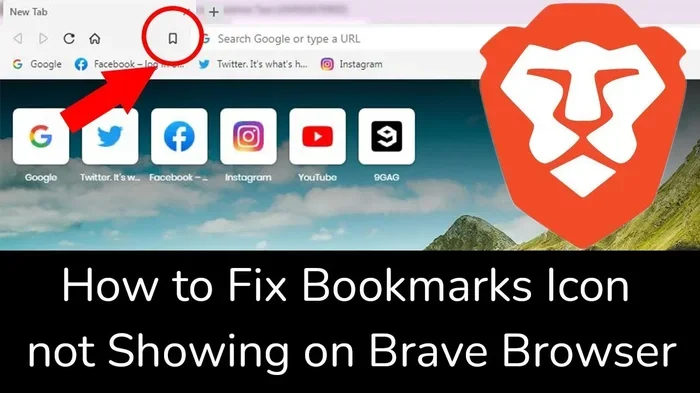
Open the web page you want to save. Look at the address bar at the top of your browser. You will see a small star icon on the right side. Click that star, and a small menu will pop up. You can choose which folder to save it in, edit the name of the bookmark, and even add a shortcut tag. Click “Done,” and your bookmark shortcut is saved.
Bookmarking in Mozilla Firefox
In Firefox, the process is very similar. Click the star icon in the address bar. A dialog box will appear where you can name your bookmark and choose a folder. Firefox also lets you bookmark an entire folder of tabs at once, which is great for saving multiple pages at the same time.
Bookmarking in Microsoft Edge and Safari
In Edge, click the star icon in the address bar and choose where to save it. In Safari on Mac, press Command plus D on your keyboard, or click the share button and select “Add Bookmark.” Both browsers make it easy to save your favorite pages in seconds.
Keyboard Shortcuts for Quick Bookmarking
Learning a few keyboard shortcuts can speed up your bookmarking workflow significantly. In most browsers, pressing Ctrl plus D (or Command plus D on Mac) instantly saves the current page as a bookmark. This is one of the fastest ways to save a favorite page without taking your hands off the keyboard.
Organizing Your Bookmarks for Easy Access
As your collection of saved links grows, keeping them organized becomes essential. A messy bookmark list is frustrating and wastes time. Here is how to keep your browser bookmarks neat and easy to find.
Creating Bookmark Folders
The simplest way to organize your bookmarks is by creating folders. You can create folders for different categories like “Work,” “Recipes,” “Travel,” or “Research.” Right-click in your bookmark manager and select “New Folder.” Then drag and drop bookmarks into the appropriate folder. This makes finding any saved page quick and painless.
Using the Bookmark Bar
The bookmark bar is the thin toolbar that sits just below the address bar in most browsers. It gives you one-click access to your most important bookmarks. Keep only your most frequently visited sites on the bookmark bar, and store the rest in folders. A cluttered bookmark bar defeats the purpose of quick access.
Renaming and Editing Bookmarks
Over time, you may want to rename a bookmark or change where it is stored. Most browsers let you right-click any bookmark and select “Edit.” From there, you can change the name, URL, folder location, or add a keyword shortcut. Regular bookmark editing keeps your list clean and up to date.
Deleting Unwanted Bookmarks
Not every saved page stays useful forever. If you have bookmarks for pages you no longer visit, it is a good idea to clean them up. Right-click the bookmark and select “Delete.” Regularly removing outdated bookmarks keeps your list manageable and your browser fast. Think of it like decluttering your desk. This practice of bookmark deletion is an important part of maintaining a healthy browser.
Advanced Bookmark Features You Should Know
Once you understand the basics, there are several powerful features that can take your bookmark management to the next level. These tools are especially helpful if you spend a lot of time online for work or research.
Bookmark Sync Across Devices
One of the best features of modern browsers is bookmark sync. When you sign into your browser account, your bookmarks are backed up to the cloud. This means you can access your saved pages on any device. Your cloud bookmarks update in real time, so adding a bookmark on your laptop instantly makes it available on your phone or tablet.
Bookmark sync relies on your browser’s cloud infrastructure and uses your device’s memory to temporarily hold syncing data. The RAM does what it does in a laptop by keeping this sync process smooth and responsive, especially when you have a large collection of saved pages.
Bookmarklets: Tiny Tools in Your Browser
A bookmarklet is a small JavaScript tool saved as a bookmark. When you click it, it performs a specific action on the current page. For example, you can create a bookmarklet that saves the current page to a note-taking app, translates the page, or extracts all the links on a page. Bookmarklets are powerful little tools that many power users swear by.
Searching and Filtering Your Bookmarks
Most browsers include a search function inside the bookmark manager. You can type a keyword or page title to quickly find a specific saved link. This bookmark search feature saves you from scrolling through hundreds of entries. Use descriptive names for your bookmarks to make search results more accurate.
Importing and Exporting Bookmarks
Switching browsers? No problem. Most browsers let you import bookmarks from another browser and export bookmarks to an HTML file. This is incredibly useful when you are setting up a new computer or moving to a different browser. You can also share your bookmark collection with others by exporting it as a file.
Common Bookmark Mistakes and How to Avoid Them
Even experienced browser users make mistakes with their bookmarks. Here are some common errors and how to fix them.
Saving Too Many Bookmarks Without Organizing
The biggest mistake people make is saving pages without any system. Before long, you have hundreds of unsorted bookmarks and cannot find anything. The fix is simple: create folders and sort your bookmarks regularly. Spend five minutes every week organizing your saved links. A good bookmark manager approach prevents clutter from building up over time.
Not Updating Broken Bookmarks
Web pages change or get deleted over time. A bookmark that worked six months ago might now lead to a 404 error page. Periodically check your bookmarks and remove or update any that no longer work. This keeps your bookmark list reliable and useful.
Ignoring Built-in Management Tools
Many browsers have built-in tools for managing bookmarks, but few people use them. Take time to explore your browser’s bookmark manager. Learn how to sort, search, and bulk-edit your bookmarks. A few minutes of setup now can save you hours of frustration later.
Relying Only on Bookmarks for Important Information
Bookmarks are great for quick access, but they are not a backup system. If you lose your data or switch computers without syncing, you could lose all your saved pages. Always use a browser account with sync enabled, or periodically export your bookmarks to an HTML file as a backup.
If you find that your browser struggles with a large number of bookmarks, it might be time to consider whether your current setup is holding you back. Sometimes, the issue is not the browser but the hardware. If your laptop feels sluggish when managing hundreds of bookmarks, you might benefit from upgrading RAM in a laptop to improve overall browser performance and multitasking capability.
Conclusion
A bookmark in computers is one of the simplest yet most useful tools available in any web browser. From saving your favorite pages to organizing research and staying productive, bookmarks make the internet more personal and efficient. Whether you are a casual user or someone who spends hours online every day, taking control of your bookmarks can transform your browsing experience.
Start by creating bookmarks for the pages you visit most often. Then, organize them into clear folders. Explore advanced features like sync, bookmarklets, and search to get even more out of your saved links. With a little effort, your bookmark collection will become a powerful productivity tool.
Remember, bookmarks are not just about saving links. They are about building a personalized web that works for you. So go ahead, save that page, organize your folders, and enjoy a faster, more streamlined browsing experience. Your future self will thank you every time you click on a well-organized bookmark.
Frequently Asked Questions
What is the purpose of a bookmark in a computer browser?
A bookmark saves the URL of a web page so you can return to it quickly without searching or typing the address again. It acts like a digital shortcut to your favorite or most-visited pages, making your browsing experience faster and more convenient.
How do I find my saved bookmarks in my browser?
Most browsers let you access bookmarks by pressing Ctrl plus Shift plus B (or Command plus Shift plus B on Mac). You can also click the menu icon and look for “Bookmarks” or “Library.” This opens your full bookmark manager where you can view, edit, and organize all your saved links.
Can I sync my bookmarks across different devices?
Yes, most modern browsers offer bookmark sync when you sign into your browser account. This means your bookmarks are backed up to the cloud and available on any device you log into. As long as you have enough system memory, the sync process runs smoothly and keeps your bookmarks up to date across all your devices.
What is the difference between a bookmark and a favorite?
There is no real difference. “Bookmarks” is the term used by Chrome, Firefox, and Edge, while “Favorites” is the term used by Internet Explorer and Safari. Both serve the same purpose of saving web page links for quick access later, and you can transfer between them easily.
How many bookmarks can a browser handle before it slows down?
Most modern browsers can handle tens of thousands of bookmarks without issues. However, performance can vary depending on your device. If your browser slows down with many bookmarks, it may be due to limited system resources. Ensuring your laptop has sufficient memory helps keep bookmark management fast and responsive.
Is it safe to export my bookmarks to a file?
Yes, exporting bookmarks to an HTML file is completely safe and is a recommended backup practice. The exported file contains only your saved URLs and titles, with no personal data or passwords. Store the file in a safe location, and you can import it into any browser at any time.