What to Do When You Get a New Laptop
Getting a new laptop is exciting, but setting it up the right way matters. This guide walks you through every step, from unboxing to optimizing performance. You will learn how to update software, secure your device, install essential apps, and boost speed. Follow these tips to make the most of your new laptop from day one.
You just unboxed your shiny new laptop. The box is still open, the charger is plugged in, and that fresh electronics smell is filling the room. It is tempting to start using it right away, but pausing for a few minutes can save you a lot of headaches later. This guide shows you exactly what to do when you get a new laptop so you set it up the smart way.
Whether you bought a budget model or a high-end machine, the first steps are the same. You need to update the system, remove unwanted software, secure your data, and fine-tune settings for the best experience. A little effort upfront goes a long way. Let us walk through each step together.
Key Takeaways
- Update Everything First: Run system and driver updates immediately to fix bugs and patch security gaps.
- Secure Your Device: Set up passwords, encryption, and backups to keep your data safe from day one.
- Remove Bloatware: Delete pre-installed junk software to free up space and improve performance.
- Install Essential Apps: Add the tools you actually need for productivity, browsing, and entertainment.
- Boost Performance: Upgrade RAM or storage if needed, and adjust settings for a faster experience.
- Protect Your Investment: Use a cooling pad, clean your laptop regularly, and check your warranty.
📑 Table of Contents
- Step 1: Update Your Operating System and Drivers
- Step 2: Remove Bloatware and Unwanted Software
- Step 3: Secure Your Laptop and Protect Your Data
- Step 4: Install Essential Apps and Software
- Step 5: Optimize Performance and Settings
- Step 6: Personalize and Protect Your Laptop
- Step 7: Set Up Peripherals and Accessories
- Final Tips for Keeping Your Laptop Running Well
- Conclusion
Step 1: Update Your Operating System and Drivers
The first thing you should do after turning on your new laptop is check for updates. Operating systems release patches constantly to fix bugs and close security holes. If you skip this step, your laptop could be vulnerable right out of the box.
On Windows, go to Settings, then Update & Security, and click Check for Updates. On macOS, open System Preferences, then Software Update. Let any pending downloads install. Your laptop may restart a few times during this process. That is completely normal.
Why Driver Updates Matter
Drivers are the software that lets your laptop talk to hardware like the display, keyboard, and touchpad. Old drivers can cause glitches, slow performance, or even prevent features from working. Visit your laptop manufacturer’s website and download the latest drivers for your specific model.
You can also use built-in tools like Windows Device Manager to check for driver updates. Simply right-click the Start button, select Device Manager, and look for any yellow warning icons. Those mean a driver needs attention. Fix them one by one for a smoother experience.
Do not forget to update your browser too. Your browser is the gateway to the internet, and outdated versions can pose security risks. Check for updates in your browser settings or let it update automatically.
Step 2: Remove Bloatware and Unwanted Software
New laptops often come packed with pre-installed apps you do not need. These programs are called bloatware. They take up storage space, slow down your system, and can be annoying with constant pop-ups. Removing them is one of the best things you can do for laptop performance.
On Windows, go to Settings, then Apps, and scroll through the list. Uninstall anything you do not recognize or do not plan to use. On macOS, open Finder, go to Applications, and drag unwanted apps to the Trash. Empty the Trash when you are done.
Common Bloatware to Remove
- Trial versions of antivirus software
- Manufacturer utility apps you will never open
- Pre-installed games or media players
- Browser toolbars and search engine extensions
- Coupon and shopping helper apps
Be careful not to remove drivers or system tools that your laptop needs. If you are unsure about an app, look it up online before deleting it. A quick search can save you from accidentally removing something important.
Step 3: Secure Your Laptop and Protect Your Data
Security should be a top priority when setting up a new laptop. You are putting personal information, passwords, and possibly financial data onto this device. Taking a few minutes to lock things down can prevent serious problems later.
Start by setting up a strong password or PIN. Avoid using things like your birthday or a simple sequence like 1234. Use a mix of letters, numbers, and symbols. Both Windows and macOS offer built-in password managers now, so you do not have to remember every single one.
Enable Encryption
Encryption scrambles your data so that only you can read it. On Windows, look for BitLocker in Settings. On macOS, enable FileVault in System Preferences. Both tools are free and built right into your operating system. Turn them on as soon as possible.
Another important step is setting up a backup routine. Use an external hard drive or a cloud service like OneDrive or Google Drive. Schedule automatic backups so you never lose your files if something goes wrong. A backup is your safety net, and you hope you never need it.
Step 4: Install Essential Apps and Software
Now that your laptop is clean and secure, it is time to add the tools you actually need. The apps you install will shape how you use your laptop every day. Choose carefully and keep things organized.
Start with the basics. A good web browser, an office suite, and an antivirus program are must-haves for most users. If you do a lot of work, consider adding a project management tool or a note-taking app. Keep your app list lean to avoid slowing down your system.
Top Free Apps Worth Installing
- Google Chrome or Firefox for a reliable browsing experience
- LibreOffice for free document editing
- VLC Media Player for playing any video format
- 7-Zip for opening compressed files
- Spotify or YouTube Music for entertainment
Be careful about downloading apps from unknown sources. Stick to official websites or trusted app stores. Downloading software from sketchy sites can introduce malware and viruses to your new laptop.
Step 5: Optimize Performance and Settings
Even a brand-new laptop can benefit from a few performance tweaks. These small changes can make a big difference in how fast and smooth your experience feels every day.
Start by checking your startup programs. Many apps launch automatically when you turn on your laptop, which slows down boot time. On Windows, open Task Manager, go to the Startup tab, and disable anything you do not need right away. On macOS, go to System Preferences, then Users & Groups, and manage login items.
Consider a Hardware Upgrade
If your laptop feels sluggish even after software tweaks, a hardware upgrade might help. Adding more memory is one of the easiest ways to boost speed. You can upgrade your RAM in many laptops, and it makes a noticeable difference when multitasking.
Another option is swapping in a solid-state drive if your laptop still uses an older hard drive. An SSD loads programs faster and makes the whole system feel more responsive. Check your laptop’s manual to see if these upgrades are possible for your model.
Do not overlook the power settings either. Switch to a performance mode when you need speed, and use a balanced or power-saver mode when you are on battery. These small adjustments add up over time.
Step 6: Personalize and Protect Your Laptop
Now for the fun part. Personalizing your laptop makes it feel like yours. Change your wallpaper, adjust the theme, and arrange your desktop the way you like it. These small touches make your daily workflow more enjoyable.
But personalization should not stop at looks. You also need to protect the physical device. Invest in a good laptop sleeve or case. Use a laptop cooling pad if you run demanding programs for long periods. Keep your keyboard clean and avoid eating or drinking near your laptop.
Check Your Warranty
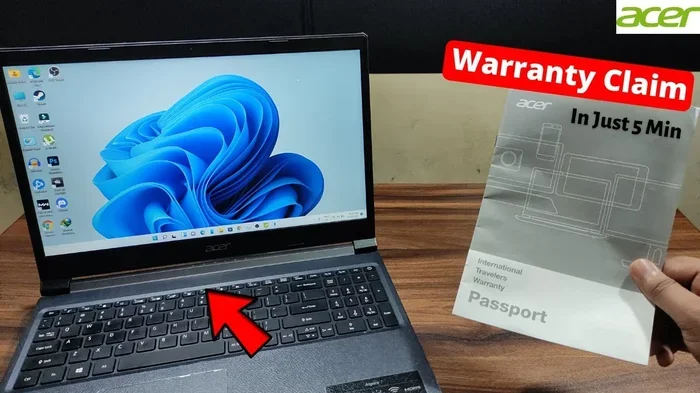
Before you forget, take a moment to register your laptop with the manufacturer. This step activates your warranty and gives you access to support if something goes wrong. Save your purchase receipt and note the warranty expiration date. Most laptops come with a one-year warranty, but some brands offer extended options.
Also, set up your laptop’s tracking and recovery features. Both Windows and macOS have tools that let you locate, lock, or wipe your laptop remotely if it gets lost or stolen. These features are easy to set up and can save you a lot of stress down the road.
Step 7: Set Up Peripherals and Accessories
Your new laptop probably did not come with everything you need. A mouse, external keyboard, or monitor can make a huge difference in your productivity. Setting up these devices is straightforward and makes a big impact.
If you are using a mouse, connecting it is simple. You can connect a wired or wireless mouse in just a few minutes. For wireless options, make sure you have the right adapter or Bluetooth capability. A comfortable mouse reduces strain during long work sessions.
Do not forget to check your laptop accessories too. A quality webcam cover, a surge protector for your charger, and a laptop stand for better ergonomics are all worth considering. These small investments protect your device and improve your comfort over time.
Final Tips for Keeping Your Laptop Running Well
Setting up your laptop is just the beginning. Ongoing maintenance keeps it running smoothly for years. Here are a few habits to build into your routine.
- Restart your laptop regularly. This clears temporary files and applies pending updates.
- Keep your storage at least 15% free. A full drive slows down your system significantly.
- Run disk cleanup tools monthly. These remove temporary files and free up space.
- Scan for malware weekly. Even with a good antivirus, periodic scans add extra protection.
- Clean the vents and fans. Dust buildup causes overheating and reduces performance.
- Calibrate your battery. Let it drain to zero once a month, then charge to full without interruption.
Following these habits takes just a few minutes each month but pays off in the long run. Your laptop will stay fast, secure, and reliable for years to come.
Conclusion
Setting up a new laptop does not have to be overwhelming. By following these steps, you cover all the essentials: updates, security, app installation, performance tuning, and physical protection. The time you invest now saves you from problems later and helps you get the most out of your new laptop.
Remember, every laptop is different, and not every step will apply to your specific model. Use this guide as a checklist and adapt it to your needs. The goal is a clean, fast, secure, and personalized setup that works for you. Enjoy your new device and the productivity it brings.
Frequently Asked Questions
What should I do first when I get a new laptop?
Start by updating your operating system and drivers. These updates fix bugs, patch security holes, and improve overall stability. Run all pending updates before you install any new apps or start using the laptop for sensitive tasks.
How do I remove bloatware from a new laptop?
On Windows, go to Settings, then Apps, and uninstall programs you do not need. On macOS, open Finder, go to Applications, and drag unwanted apps to the Trash. Focus on removing trial software, duplicate tools, and manufacturer apps you will never use.
Should I upgrade the RAM on a new laptop?
It depends on how you use your laptop. If you multitask with many apps or use demanding software, adding more memory helps a lot. You can check how much RAM you actually need before making the investment.
How do I keep my new laptop secure?
Set up a strong password, enable encryption through BitLocker or FileVault, and turn on automatic backups. Also, install a reputable antivirus program and keep it updated. These steps protect your data from the moment you start using the laptop.
What accessories do I need for a new laptop?
At a minimum, get a mouse, a laptop sleeve or case, and a surge protector for your charger. If you work at a desk for long hours, consider a laptop stand, an external keyboard, and a cooling pad for better ergonomics and airflow.
How often should I clean my laptop?
Wipe down the exterior weekly and clean the keyboard monthly. Every few months, check the vents and fans for dust buildup. Regular cleaning prevents overheating and keeps your laptop running smoothly over time.