What Is Included in Windows 11 Home
Windows 11 Home is the most popular edition of Microsoft’s latest operating system. It comes packed with a fresh redesigned interface, built-in apps, and essential security tools. This edition is designed for everyday users who want a reliable and modern computing experience. Below you will find everything that is included and what to expect.
Windows 11 Home has been around for a while now, but many people still wonder what exactly comes in this edition. If you are thinking about upgrading or buying a new PC, it helps to know what you are getting. This guide breaks down every major feature, tool, and requirement so you can make an informed decision.
The operating system is designed for everyday users. Whether you browse the web, watch videos, play games, or handle office work, Windows 11 Home has you covered. Let us dive into what makes this edition special and what you can expect when you first turn it on.
Key Takeaways
- Fresh Interface: Windows 11 Home features a centered Start menu, new Snap layouts, and a redesigned taskbar for a cleaner look.
- Built-In Apps: You get Microsoft Store, Edge browser, Copilot, Paint, and many more tools right out of the box.
- Gaming Features: DirectStorage, Auto HDR, and Xbox Game Pass integration make it a solid choice for gamers.
- Security Tools: Windows 11 Home includes Windows Defender, BitLocker basics, and regular security updates.
- Productivity Boost: Virtual desktops, Snap layouts, and Microsoft Teams integration help you stay organized and efficient.
- System Requirements: You need at least 4GB of RAM and 64GB of storage, though 8GB RAM is recommended for smooth performance.
📑 Table of Contents
What Is Windows 11 Home
Windows 11 Home is the base edition of Microsoft’s latest operating system. It is built for home users, students, and casual computer owners. Unlike the Pro or Enterprise editions, this version focuses on simplicity and everyday usability.
When you install Windows 11 Home, you get a complete package. The interface looks fresh and modern. The Start menu is centered. The taskbar is cleaner. And the whole experience feels more streamlined than older versions of Windows.
This edition includes all the core features you need. You get a web browser, a store for apps, built-in security tools, and productivity features. It is a full-featured operating system that handles most tasks with ease.
System Requirements for Windows 11 Home
Before you install or upgrade to Windows 11 Home, you need to check if your PC can run it. Microsoft has set specific hardware requirements. Here is what you need at a minimum.
Minimum Requirements
- Processor: 1 GHz or faster with at least two cores on a compatible 64-bit processor.
- RAM: 4GB of memory.
- Storage: 64GB of available disk space.
- TPM: Trusted Platform Module version 2.0.
- Secure Boot: UEFI firmware with Secure Boot capability.
- Graphics: DirectX 12 compatible graphics card.
- Display: 9-inch diagonal screen with at least 720p resolution.
- Internet: A Microsoft account and internet connection are required for setup.
These are the bare minimums. In real-world use, 4GB of RAM can feel tight. If you plan to run multiple apps at once or do any multitasking, you should aim higher. Many users find that a Windows 11 8GB RAM laptop offers a much smoother experience for daily tasks.
Recommended Specifications
For the best experience with Windows 11 Home, Microsoft and experts recommend going above the minimums. Here is what ideal specs look like.
- Processor: Intel Core i5 or AMD Ryzen 5 (or newer).
- RAM: 8GB to 16GB of memory.
- Storage: 256GB SSD or larger.
- Graphics: Dedicated GPU for gaming or creative work.
If you want a machine that will handle everything smoothly, consider a Windows 11 16GB RAM laptop. This amount of memory gives you plenty of room for multitasking, creative work, and even light gaming.
Built-In Apps and Tools
One of the best things about Windows 11 Home is the collection of built-in apps. You do not need to download everything from scratch. Many useful tools come pre-installed and ready to use.
Microsoft Store
The Microsoft Store is your go-to place for apps. You can find games, productivity tools, social media apps, and more. The store has been redesigned in Windows 11 and is much faster and easier to navigate.
You can also install classic Windows apps and new Universal Windows Platform apps from the store. It is a central hub for keeping your software up to date.
Microsoft Edge Browser
Edge comes built into Windows 11 Home and is the default web browser. It is fast, supports extensions, and integrates well with Microsoft services. You get features like vertical tabs, collections, and built-in reading mode.
Copilot
Copilot is Microsoft’s AI assistant. It is built into Windows 11 Home and helps you with tasks like writing, summarizing, and generating ideas. You can access it from the taskbar or use keyboard shortcuts to pull it up quickly.
Copilot uses AI to help you work smarter. It can draft emails, suggest ideas, and even help you troubleshoot problems. It is a powerful addition that makes the OS feel more modern.
Other Built-In Apps
Here are some other tools you will find in Windows 11 Home:
- Paint: A simple graphics editor for quick edits and doodles.
- Notepad: A lightweight text editor for quick notes.
- Snipping Tool: Lets you capture screenshots and annotate them.
- Calendar: Syncs with your Microsoft account for scheduling.
- Mail: A built-in email client for Outlook and other accounts.
- Photos: View and edit your personal photo collection.
- Media Player: Plays music and video files locally.
- Xbox App: Manage your gaming library and connect with friends.
Key Features You Get with Windows 11 Home
Windows 11 Home comes with several standout features that improve how you use your computer every day. These are not just cosmetic changes. They make your workflow faster and more intuitive.
Redesigned Start Menu
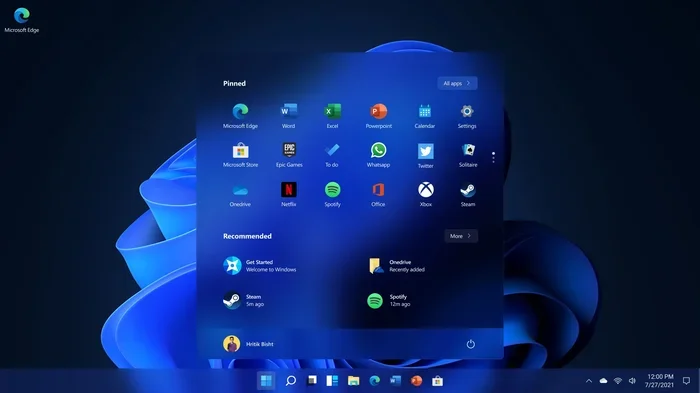
The Start menu in Windows 11 Home is centered on your screen. It is clean and simple. You see your pinned apps and recent files right at the top. There are no live tiles like in Windows 10. The design is minimal and focused.
This change makes the Start menu feel less cluttered. You can find what you need quickly. It is a small change that makes a big difference in daily use.
Snap Layouts
Snap layouts are one of the most useful features in Windows 11 Home. When you hover over the maximize button on any window, you see layout options. You can snap your windows into predefined arrangements.
This is perfect for multitasking. You can have two, three, or even four apps open side by side with just a few clicks. It saves you from manually resizing and arranging windows every time.
Virtual Desktops
Virtual desktops let you create multiple desktop spaces. You can have one desktop for work and another for personal use. Each desktop can have its own set of open apps and windows.
This feature is great for staying organized. You can switch between desktops with a simple gesture or keyboard shortcut. It helps you keep your workspace clean and focused.
Widgets
Widgets in Windows 11 Home give you quick access to news, weather, sports scores, and more. You can access them from the taskbar with a single click. The feed is customizable and pulls from Microsoft services.
Widgets are a nice touch for staying informed without opening a browser. They are especially useful during your morning routine when you want a quick overview of your day.
Gaming Features
Windows 11 Home includes several features that gamers will appreciate. DirectStorage allows games to load faster by using the GPU for decompression. Auto HDR enhances the visual quality of supported games automatically.
The Xbox app is built in, giving you access to Game Pass, your friends list, and game management. If you are a casual or serious gamer, these features make Windows 11 Home a solid choice.
Microsoft Teams Integration
Microsoft Teams is built directly into the taskbar of Windows 11 Home. You can chat, call, and video conference without downloading a separate app. This is convenient for anyone who uses Teams for work or school.
What Is Not Included in Windows 11 Home
While Windows 11 Home is feature-rich, it does not include everything. Some advanced tools are reserved for the Pro or Enterprise editions. Here is what you will not get in the Home edition.
- BitLocker Full Encryption: Home has basic device encryption but lacks the full BitLocker management tools.
- Group Policy Editor: This tool for managing system settings is not available in Home.
- Hyper-V: The built-in virtualization platform is limited to Pro and Enterprise editions.
- Remote Desktop Host: You can connect to other PCs but cannot host remote desktop sessions in Home.
- Azure Active Directory Join: This enterprise-level feature is not included.
- Windows Sandbox: A lightweight desktop environment for testing software safely is only in Pro.
For most home users, these missing features do not matter much. The Home edition covers everyday needs very well. If you need any of these advanced tools, you may want to look at the Pro edition instead.
Is Windows 11 Home Right for You
Deciding whether Windows 11 Home is the right choice depends on how you use your computer. For the vast majority of users, it is more than enough. Here is a quick look at who should choose this edition.
Choose Windows 11 Home if:
- You use your PC for browsing, streaming, and casual gaming.
- You want a clean and simple user experience.
- You do not need advanced business or enterprise features.
- You want the latest Windows features at an affordable price.
- You are a student or home user who needs reliable performance.
Consider Windows 11 Pro if:
- You need BitLocker encryption or Group Policy management.
- You use Hyper-V for virtualization.
- You manage multiple PCs in a business environment.
- You need Remote Desktop hosting capabilities.
For most people, Windows 11 Home strikes the perfect balance. It gives you a modern, feature-rich operating system without the complexity or cost of higher-tier editions. If your PC meets the system requirements, upgrading to this edition is a great move.
Before you make the switch, make sure your hardware is compatible. Check your processor, RAM, and storage against the requirements listed above. If you are buying a new laptop, look for models with at least 8GB of RAM and an SSD for the best experience with Windows 11 Home.
If you use a laptop and want to make sure your peripherals work well, a good wireless mouse for HP laptop Windows 11 can enhance your daily workflow. Compatibility with accessories is always a good thing to consider when setting up a new OS.
Final Thoughts on Windows 11 Home
Windows 11 Home is a solid, modern operating system that delivers a great experience for everyday users. It brings a refreshed interface, useful built-in tools, and strong gaming features. The Snap layouts, virtual desktops, and Copilot AI assistant add real value to your daily workflow.
The system requirements are reasonable, and the built-in apps cover most common tasks. You get security tools, a modern app store, and seamless integration with Microsoft services. It is a well-rounded package that handles everything from casual browsing to light creative work.
If you are upgrading from an older version of Windows or buying a new PC, Windows 11 Home is a fantastic choice. It is user-friendly, feature-packed, and designed with the modern user in mind. You will find that it makes your computer feel faster, cleaner, and more enjoyable to use every single day.
Frequently Asked Questions
What is the difference between Windows 11 Home and Windows 11 Pro?
Windows 11 Home is designed for everyday home users and includes the core features like the redesigned Start menu, Snap layouts, and Microsoft Store. Windows 11 Pro adds advanced tools like BitLocker, Group Policy Editor, Hyper-V, and Remote Desktop hosting. For most home users, the Home edition provides everything they need.
Can I upgrade from Windows 10 to Windows 11 Home for free?
Yes, if your PC meets the system requirements, you can upgrade from Windows 10 to Windows 11 Home for free through the Settings app. Microsoft still offers this upgrade for eligible devices. You should check your hardware compatibility before starting the process.
Does Windows 11 Home include Microsoft Office?
No, Microsoft Office is not included in Windows 11 Home. You will need to purchase a Microsoft 365 subscription or a one-time Office license separately. However, the operating system does include free alternatives like Microsoft Edge, Paint, and basic apps for everyday tasks.
What are the minimum RAM requirements for Windows 11 Home?
The minimum RAM requirement for Windows 11 Home is 4GB. However, 4GB is quite limiting for multitasking. For a smoother experience, 8GB is recommended, and 16GB is ideal if you run demanding applications or games. Check out our guide on what a Windows 11 8GB RAM laptop can handle.
Is Windows 11 Home good for gaming?
Yes, Windows 11 Home is a great choice for gaming. It includes DirectStorage for faster game loading, Auto HDR for enhanced visuals, and the Xbox app for Game Pass access. These features make it a strong gaming platform without needing the Pro edition.
Do I need an internet connection to set up Windows 11 Home?
Yes, Microsoft requires an internet connection and a Microsoft account to complete the initial setup of Windows 11 Home. This is part of their security and activation process. After setup, you can use the PC offline, but an internet connection is needed for updates and app downloads.