What Can I Put Under My Laptop Keep It Cool
Keeping your laptop cool is essential for performance and longevity. You can use cooling pads, laptop stands, or even simple household items to improve airflow underneath your device. What can I put under my laptop keep it cool? The answer includes specialized cooling accessories, DIY hacks, and smart placement choices that reduce heat buildup and prevent overheating.
Your laptop works hard every day. Whether you are streaming videos, working from home, or gaming on the go, heat builds up inside the machine. Over time, that heat can slow things down, cause crashes, and even damage internal parts. Many people ask themselves, what can I put under my laptop keep it cool, and the good news is there are plenty of options. From simple household items to specialized accessories, you have many ways to improve airflow and keep your device running smoothly.
Temperature management matters more than most people realize. A laptop that runs too hot will throttle its performance to protect itself. This means your programs run slower, your battery drains faster, and your hardware wears out sooner. The surface your laptop sits on plays a huge role in how well it cools. Hard, flat surfaces let air flow freely. Soft surfaces like beds, couches, and pillows block the vents and trap heat underneath. Understanding this simple fact is the first step toward better cooling.
In this guide, we will walk through everything you can place under your laptop to keep it cool. We cover laptop cooling pads, adjustable stands, DIY hacks, and everyday items that work surprisingly well. We also share common mistakes to avoid and expert tips that make a real difference. By the end, you will know exactly how to keep your laptop at a safe temperature no matter what you are doing.
Key Takeaways
- Cooling pads and stands are the most effective tools to keep your laptop temperature in check.
- Household items like books or cooling mats can work in a pinch.
- Proper airflow is the key factor in preventing laptop overheating.
- DIY solutions are budget-friendly and surprisingly effective for many users.
- Avoid soft surfaces like beds or couches that block vents and trap heat.
- Regular cleaning of vents and fans complements any cooling solution you choose.
- Checking your laptop temperature regularly helps you catch overheating early.
📑 Table of Contents
Why Does Your Laptop Overheat?
Before you grab a cooling pad or stack of books, it helps to understand why laptops get hot in the first place. Heat is a natural byproduct of the components inside your machine. The processor, graphics card, and hard drive all generate heat when they work. Your laptop has fans and vents designed to push that heat out. But sometimes, those systems are not enough.
Common Causes of Laptop Overheating
- Blocked vents: Placing your laptop on a soft surface like a bed or blanket blocks the air vents. Hot air gets trapped and cannot escape.
- Dust buildup: Over time, dust collects inside the fans and vents. This restricts airflow and makes your laptop work harder to stay cool.
- Heavy workloads: Running demanding programs like video editors or games pushes your processor hard, generating more heat than usual.
- Old thermal paste: The paste between your processor and heat sink degrades over time, reducing heat transfer efficiency.
- High room temperature: Using your laptop in a warm environment makes it harder for the cooling system to do its job.
- Too many background programs: Multiple open applications force your CPU to work harder, producing extra heat.
Knowing the cause helps you pick the right solution. If blocked vents are the problem, raising your laptop and improving airflow solves it quickly. If dust buildup is the issue, a good cleaning session helps a lot. For heavy workloads, active cooling solutions like laptop cooling pads make the biggest difference.
It is also worth noting that some laptops run hotter than others. Gaming laptops and powerful workstations naturally produce more heat than basic models. If you have a high-performance machine, investing in a dedicated cooling solution is especially important. Checking your how do I check RAM on my laptop can also help you monitor system health, since memory usage affects overall heat output.
Best Things to Put Under Your Laptop to Keep It Cool
Now let us get into the main question: what can I put under my laptop keep it cool? There are many options, ranging from purpose-built accessories to simple household items. Each has its own benefits, and some work better than others depending on your setup and budget.
Laptop Cooling Pads
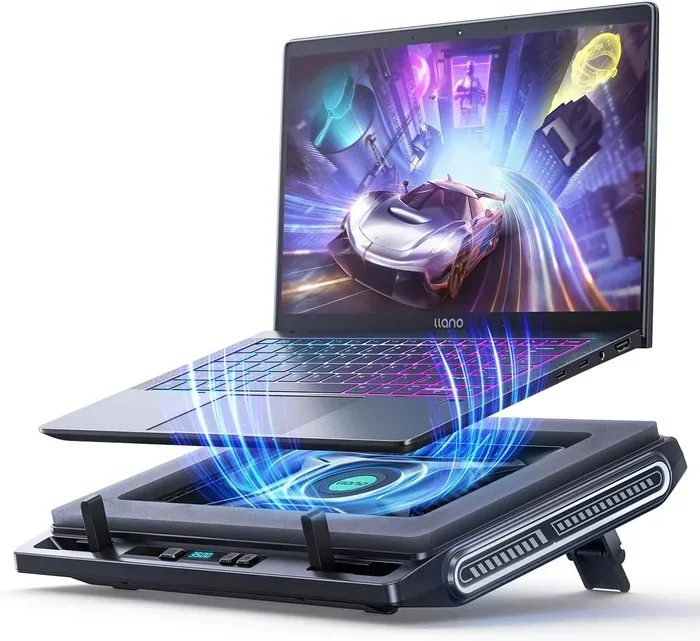
A laptop cooling pad is the most popular and effective option. These are flat platforms with built-in fans that blow air up through the bottom of your laptop. They plug into a USB port and start working right away. Most cooling pads have adjustable fan speeds and ergonomic stands that raise your laptop to a comfortable angle.
Here is why cooling pads work so well:
- Active airflow: The fans push cool air directly onto the bottom of your laptop, where the hottest components sit.
- Elevated design: Raising the laptop opens up space underneath for better air circulation.
- Extra USB ports: Many cooling pads include additional USB hubs for connecting peripherals.
- Adjustable height: You can tilt the laptop to a comfortable typing angle while improving cooling.
When choosing a cooling pad, look for one that matches your laptop size. A 15-inch pad will not work well for a 17-inch machine. Also, pay attention to fan quality. More fans do not always mean better cooling. Larger, slower-spinning fans often move more air with less noise. Brands like Cooling Master, KLIM, and Tree New Bee offer reliable options at various price points.
Laptop Stands
A laptop stand is a simpler alternative to a cooling pad. These are usually made of metal or plastic and elevate your laptop off the desk. They do not have built-in fans, but they improve passive airflow significantly. A stand creates space between the laptop bottom and the desk, allowing hot air to rise away from the machine.
Laptop stands are great for people who prefer a clean, minimal setup. They are lightweight, portable, and often fold flat for easy transport. Some stands are adjustable, letting you change the angle throughout the day. If you use your laptop on a desk most of the time, a stand is a simple and effective cooling solution.
If you are wondering whether upgrading your how much RAM memory do I need for my laptop could also help with heat management, the answer is nuanced. More RAM can reduce the workload on your processor, which in turn generates less heat. It is a worthwhile consideration alongside physical cooling solutions.
Cooling Mats and Gel Pads
Cooling mats and gel pads are another option worth considering. These are flat, flexible pads that you place under your laptop. Some contain cooling gel that absorbs heat, while others have a textured surface that promotes airflow. They work well for light use and are especially popular for people who use their laptops on their laps.
Gel pads are affordable and require no power source. They simply sit under your laptop and help dissipate heat through their material. Cooling mats are similar but may include a thin fan for added airflow. These are not as powerful as full cooling pads, but they are a good budget-friendly option for everyday use.
DIY Solutions: Household Items That Work
Not everyone wants to spend money on a specialized accessory. The good news is there are several household items you can use to improve laptop cooling right now. These DIY solutions are free and surprisingly effective.
Books or wooden blocks: Placing two books or small wooden blocks under the back edge of your laptop raises it and creates an air gap underneath. This simple trick improves airflow without spending a dime. Just make sure the items are stable and will not slide around.
Wire racks or oven trays: A small wire cooling rack, like the kind used for baked goods, makes an excellent laptop stand. The open grid design allows air to flow through from all directions. Place it on your desk, set your laptop on top, and enjoy improved cooling.
Portable laptop desks: These are small, foldable desks designed for lap use. Many come with built-in ventilation holes and raised edges that keep the laptop elevated. They are a great investment if you like working from your couch or bed.
Just remember that DIY solutions are not as refined as purpose-built accessories. They work well for everyday tasks but may not be enough for heavy gaming or video editing. For demanding workloads, a dedicated cooling pad remains the best choice.
Laptop Cooling Pads vs. Stands: Which Is Better?
Choosing between a cooling pad and a laptop stand depends on your needs, budget, and how you use your laptop. Both options improve airflow, but they work differently and offer different benefits.
| Feature | Cooling Pad | Laptop Stand |
|---|---|---|
| Active Cooling | Yes, built-in fans | No, passive airflow only |
| Price Range | $15 to $50 | $10 to $40 |
| Portability | Moderate, needs USB power | Very portable, no power needed |
| Best For | Gaming, heavy workloads | Light use, office work |
| Setup | Plug in and go | Place and use |
| Extra Features | USB hubs, adjustable fans | Adjustable angles, lightweight |
If you game, edit video, or run intensive software, a cooling pad is the clear winner. The active fans make a real difference under heavy load. If you mostly browse the web, write documents, or do light work, a laptop stand is a simpler and more portable choice.
Some people use both. A stand for everyday desk use and a cooling pad for heavy tasks gives you the best of both worlds. You can also check your system performance regularly. If you want to learn more about monitoring your hardware, look into how do I check RAM on my laptop to keep everything running smoothly.
Common Mistakes That Make Laptop Overheating Worse
Avoiding common mistakes is just as important as choosing the right cooling solution. Many people unknowingly make their laptop cooling problems worse with simple habits.
Using Your Laptop on Soft Surfaces
This is the number one mistake. Using your laptop on a bed, sofa, pillow, or blanket blocks the air vents completely. The fans suck in fabric fibers and hot air gets trapped inside. Over time, this causes dust to build up faster and temperatures to rise steadily. Always use your laptop on a hard, flat surface whenever possible.
Ignoring Vent Cleaning
Even with the best cooling pad underneath, clogged vents will keep your laptop hot. Dust and lint build up in the vents and block airflow. Use compressed air to clean the vents every few weeks. If you are comfortable opening your laptop, a deeper cleaning of the fans and heat sink can make a huge difference.
Placing the Laptop Near Heat Sources
Keep your laptop away from radiators, sunny windows, and heating vents. The ambient temperature around your machine affects how well it cools. If the air around the laptop is already hot, the cooling system has to work much harder to maintain safe temperatures.
Running Too Many Programs
Every open program uses processor resources and generates heat. If you have dozens of browser tabs, background apps, and startup programs running, your laptop is working harder than it needs to. Close programs you are not using and disable unnecessary startup applications. This reduces heat output without any extra hardware.
Expert Tips for Keeping Your Laptop Cool
Beyond placing items under your laptop, a few expert-level habits can keep temperatures in check all year round.
Monitor your laptop temperature: Free software like HWMonitor, Core Temp, or SpeedFan lets you watch your CPU and GPU temperatures in real time. If you notice temperatures climbing above 85 degrees Celsius during normal use, it is time to improve your cooling setup.
Elevate the back of your laptop: Even a small angle improvement helps hot air escape from the rear vents. A tilted stand or a thin book under the back edge creates a natural airflow channel. This works especially well when combined with a cooling pad.
Keep your laptop in a cool room: Air conditioning or fans in your room help your laptop cooling system work more efficiently. A cool environment makes a noticeable difference during long work sessions.
Use your laptop on a desk, not your lap: Your lap blocks vents and traps heat against your body. A desk or table provides a hard, flat surface that allows full airflow. If you must use it on your lap, a cooling mat or portable laptop desk helps.
Replace thermal paste periodically: If your laptop is more than two or three years old and running hot, the thermal paste between the processor and heat sink may have dried out. Replacing it restores proper heat transfer. This is a more advanced fix, but it can dramatically lower temperatures.
Consider a laptop dock or station: If you use your laptop at a desk all day, a docking station can improve airflow and connectivity. Some docks include built-in cooling fans and additional ports that reduce the strain on your laptop’s internal components.
These tips, combined with the right item placed under your laptop, create a comprehensive cooling strategy. Whether you choose a laptop cooling pad, a simple stand, or a DIY solution, the key is consistent airflow and regular maintenance.
Final Thoughts
Keeping your laptop cool does not have to be complicated or expensive. The answer to what can I put under my laptop keep it cool is simpler than you might think. A cooling pad, a laptop stand, a gel mat, or even a couple of books can make a real difference. The important thing is to ensure air flows freely underneath your device at all times.
Combine your cooling solution with good habits like regular vent cleaning, monitoring temperatures, and avoiding soft surfaces. These small changes add up to a longer-lasting, faster-performing laptop. Whether you are a casual user or a power user, taking care of your laptop’s temperature is one of the best things you can do for its longevity and performance.
Start with one solution today. Try a cooling pad, adjust your workspace, or simply raise the back of your laptop with a book. You will notice the difference immediately. Your laptop will run cooler, quieter, and faster. And you will protect your investment for years to come.
Frequently Asked Questions
What is the best thing to put under a laptop for cooling?
A laptop cooling pad with built-in fans is the most effective option. It actively pushes cool air up through the bottom of the laptop. If you prefer a simpler solution, a laptop stand or even a wire rack works well for passive cooling. The key is to keep airflow unobstructed underneath the device.
Can I put my laptop on a pillow to keep it cool?
No, pillows and soft surfaces block air vents and trap heat. They make overheating worse, not better. Always use a hard, flat surface or a dedicated cooling pad. If you need to use your laptop on a soft surface, place a hard board or cooling mat underneath first.
How do I know if my laptop is overheating?
Signs of overheating include a hot bottom surface, loud fan noise, slow performance, and unexpected shutdowns. You can also use free temperature monitoring software to check your CPU and GPU temperatures. If temperatures consistently exceed 85 degrees Celsius, your laptop needs better cooling.
Do laptop cooling pads really work?
Yes, laptop cooling pads are effective, especially during heavy workloads like gaming or video editing. The built-in fans increase airflow and reduce internal temperatures by several degrees. For light tasks like browsing and document editing, a simple stand may be enough instead.
How often should I clean my laptop vents?
You should clean your laptop vents every two to four weeks, depending on your environment. If you use your laptop on a bed or carpet, dust builds up faster and requires more frequent cleaning. Use compressed air to blow dust out of the vents gently.
Can I use a book to elevate my laptop for better cooling?
Yes, placing a book or wooden block under the back edge of your laptop is a simple and free way to improve airflow. It raises the rear of the laptop and creates space for hot air to escape. Just make sure the book is stable and will not slide off your desk.