What Is a Gateway Ip Address
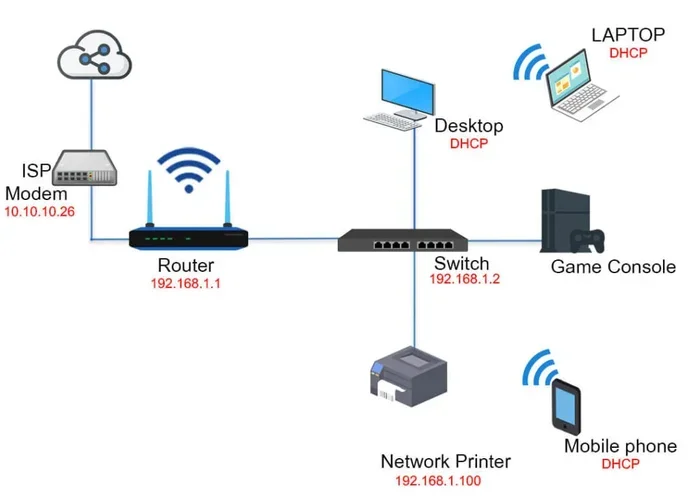
A gateway ip address is the entry and exit point for all data traveling between your laptop and the internet. It acts like a postal sorting center, directing traffic between your local network and the wider web. Understanding your gateway ip address helps you troubleshoot connection problems and manage your network settings with confidence.
Every time you browse a website, send an email, or stream a video on your laptop, your data travels through a specific path. That path starts and ends at a special address known as the gateway ip address. Think of it as the front door of your home network. Without it, your laptop would be completely isolated from the internet.
Whether you are a student, a remote worker, or just someone who enjoys streaming content, understanding your gateway ip address can save you a lot of frustration. It helps you troubleshoot slow connections, fix network errors, and even improve your overall network security. In this guide, we will break down everything you need to know about gateway IP addresses in simple, easy-to-understand terms.
By the end of this article, you will know exactly what a gateway ip address is, how it works behind the scenes, and how to find it on your laptop. We will also cover common problems and practical fixes. Let us dive right in.
Key Takeaways
- Gateway ip address defined: It is the unique address your laptop uses to send and receive data outside your local network.
- Easy to find: You can locate your gateway ip address using simple built-in tools like Command Prompt or Terminal on any laptop.
- Common problems exist: Issues like incorrect gateway settings or IP conflicts can slow down or block your internet connection.
- Fixes are straightforward: Most gateway ip address problems can be resolved with a few simple steps like restarting your router or resetting network settings.
- Security matters: Knowing your gateway ip address helps you protect your local network from unauthorized access.
- Different from public IP: Your gateway ip address is private and local, while your public IP address is what the outside world sees.
📑 Table of Contents
- What Is a Gateway Ip Address?
- How To Find Your Gateway Ip Address on a Laptop
- Common Gateway Ip Address Problems
- How To Fix Gateway Ip Address Issues
- Gateway Ip Address vs. Public Ip Address
- How to Improve Your Gateway Ip Address Performance
- Security Tips for Your Gateway Ip Address
- When To Contact Your Internet Service Provider
What Is a Gateway Ip Address?
A gateway ip address is a unique numerical label assigned to your router or network device. It serves as the bridge between your local network and the broader internet. When your laptop wants to communicate with a website or an external server, it sends the data to the gateway first. The gateway then forwards that data to its destination.
You can think of the network gateway as a traffic controller. It receives outgoing requests from your devices and directs incoming responses back to the correct device on your local network. Every device on your network, including your laptop, smartphone, and smart TV, uses this same gateway to reach the outside world.
How the Gateway Ip Address Works
When you type a URL into your browser, your laptop does not directly connect to the website. Instead, it sends the request to the default gateway. The gateway then routes your request through a series of networks until it reaches the target server. The response follows the same path back to your laptop through the gateway.
This process happens in milliseconds. But behind the scenes, several key components make it work:
- TCP/IP protocol: This is the language your devices use to communicate over the network.
- IPv4 address: The most common format for IP addresses, made up of four number groups separated by dots.
- Subnet mask: A number that defines which part of the IP address identifies your network and which part identifies your specific device.
- Default route: The path your laptop takes when it needs to send data outside your local network.
All of these elements work together to make sure your data reaches the right destination. The gateway ip address is the starting point of that journey.
How To Find Your Gateway Ip Address on a Laptop
Finding your gateway ip address is easier than you might think. Both Windows and Mac laptops come with built-in tools that make this process quick and straightforward. You do not need any special software or technical expertise.
Finding the Gateway Ip Address on Windows
On a Windows laptop, you can use the Command Prompt to find your gateway address. Here is how:
- Press the Windows key and type “cmd.”
- Open the Command Prompt application.
- Type
ipconfigand press Enter. - Look for the line that says “Default Gateway.”
The number listed next to “Default Gateway” is your gateway ip address. It usually looks something like 192.168.1.1 or 10.0.0.1. This is the address your laptop uses to communicate with your router.
For a deeper look at your network configuration, you can also type ipconfig /all in the Command Prompt. This displays additional details like your subnet mask, DNS servers, and network adapter information.
Finding the Gateway Ip Address on Mac
On a Mac laptop, the process is slightly different:
- Click the Apple menu and select “System Settings.”
- Go to the “Network” section.
- Select your active connection (Wi-Fi or Ethernet).
- Click “Details” or “Advanced.”
- Look for the “Router” field. That number is your gateway ip address.
You can also use the Terminal app on a Mac. Simply type netstat -nr | grep default and press Enter. The result will show your default gateway address right away.
Why Knowing Your Gateway Ip Address Matters
Knowing your gateway ip address is useful in many situations. You need it when configuring network settings, setting up a wireless router, or troubleshooting connection issues. It also comes in handy when you want to access your router’s admin panel to change security settings or update firmware.
Additionally, if you are setting up a new device on your network, having your gateway address ready makes the process much smoother. It ensures your new device connects properly and communicates with the rest of your local network.
Common Gateway Ip Address Problems
Even though gateway IP addresses work silently in the background, problems can and do occur. When they do, your internet connection suffers. Here are the most common issues you might encounter.
Incorrect Gateway Settings
Sometimes your laptop may be configured with the wrong gateway ip address. This can happen after a router change, a software update, or manual network configuration. When the gateway address is incorrect, your laptop cannot send or receive data outside your local network. You will see a “No Internet” or “Limited Connectivity” message on your screen.
This is one of the most frequent causes of network problems on laptops. The good news is that it is usually easy to fix by resetting your network settings or re-entering the correct gateway address.
IP Address Conflicts
An IP conflict occurs when two devices on the same network are assigned the same address. This can confuse your network gateway and cause intermittent connection drops. You might notice that your internet works sometimes but not other times.
IP conflicts are more common in households or offices with many devices. Each device needs a unique address on the network. If two devices share the same address, the network gateway does not know where to send the data, and both devices suffer.
Gateway Not Responding
A “Gateway Not Responding” error means your laptop cannot communicate with the router. This can happen due to a router outage, a loose cable, or a firmware issue. When this happens, your laptop is essentially cut off from the internet, even though it may still be connected to the Wi-Fi network.
Before assuming the worst, try a simple network troubleshooting step like restarting your router. In many cases, this resolves the issue immediately. If the problem persists, you may need to check your network adapter settings or update your router firmware.
How To Fix Gateway Ip Address Issues
Most gateway-related problems can be solved with a few straightforward steps. Here are the most effective fixes you can try on your laptop.
Restart Your Router and Laptop
This is the oldest and most reliable fix in the book. Restarting your router clears its memory and refreshes its connection to your internet service provider. Restarting your laptop refreshes its network configuration and re-establishes the connection to the gateway.
Turn off your router, wait 30 seconds, and turn it back on. Then restart your laptop. In most cases, this simple step resolves the issue and restores your internet connection.
Release and Renew Your IP Address
If restarting does not work, you can try releasing and renewing your IP address through the Command Prompt. This forces your laptop to request a fresh IP configuration from the router, including the correct gateway ip address.
Open Command Prompt and type these commands one at a time:
ipconfig /releaseipconfig /renew
After running these commands, check if your internet connection is restored. This method is especially helpful when your laptop has cached an incorrect or outdated gateway address.
Reset Your Network Settings
If the above steps do not work, you can reset your laptop’s network settings to their default values. On Windows, go to Settings > Network & Internet > Advanced network settings > Network reset. This will remove all network adapters and reinstall them with fresh settings.
Keep in mind that resetting your network settings will delete saved Wi-Fi passwords and custom configurations. You will need to reconnect to your Wi-Fi network and re-enter your password after the reset.
Check Your Network Adapter Settings
Sometimes the issue lies in your network adapter settings. Open your network adapter properties and make sure the Internet Protocol Version 4 (TCP/IPv4) is set to obtain an IP address automatically. This ensures your laptop always receives the correct gateway ip address from your router.
If you have manually set an IP address in the past, it might conflict with your router’s settings. Switching to automatic detection is usually the safest and most reliable approach.
Gateway Ip Address vs. Public Ip Address
It is easy to confuse your gateway ip address with your public IP address, but they are two very different things. Your gateway IP address is private and local. It only exists within your home or office network. It is the address your laptop uses to talk to your router.
Your public IP address, on the other hand, is what the outside world sees. When you visit a website, the website sees your public IP address, not your gateway address. Your router acts as a translator, converting your private requests into public ones and vice versa.
Here is a simple comparison:
- Gateway IP Address: Private, local, used for internal network communication. Usually starts with 192.168.x.x or 10.x.x.x.
- Public IP Address: Assigned by your internet service provider, visible to the outside world, unique across the entire internet.
Understanding this difference is important for network troubleshooting and security. Your gateway address keeps your internal network organized, while your public address connects you to the global internet.
Also, keep in mind that your network configuration can affect how smoothly these two addresses work together. If your router is not properly configured, data may not flow correctly between your private network and the public internet. This is why it is always good to know where to find and how to check both addresses on your laptop.
How to Improve Your Gateway Ip Address Performance
Once you understand your gateway ip address, you can take steps to improve your network performance. A well-optimized gateway leads to faster speeds, fewer disconnections, and a more reliable internet experience.
Keep Your Router Firmware Updated
Router manufacturers regularly release firmware updates that fix bugs and improve performance. Check your router’s admin panel (by entering your gateway ip address into a browser) to see if updates are available. Keeping your firmware current ensures your gateway handles traffic efficiently.
Place Your Router in a Central Location
The physical location of your router affects how well your devices connect to the network gateway. Place your router in a central, open area of your home or office. Avoid placing it near thick walls, metal objects, or electronic devices that can cause interference.
Limit Unnecessary Network Traffic
Too many devices streaming, downloading, or uploading at the same time can overwhelm your gateway. If you notice slow speeds, try disconnecting devices you are not actively using. This frees up bandwidth and helps your internet connection run more smoothly.
Also, if you find that your laptop struggles with network tasks, it might be worth checking what a good amount of ram is for a laptop to ensure your system can handle modern network demands efficiently.
Security Tips for Your Gateway Ip Address
Your gateway ip address is the gateway to your entire network. If someone gains unauthorized access to it, they can potentially see all the traffic flowing through your network. Here are some simple security tips to keep your gateway and network safe.
- Change the default admin password: Most routers come with a default username and password. Change these immediately to something strong and unique.
- Enable WPA3 encryption: This is the latest and most secure Wi-Fi encryption standard. It protects your wireless network from unauthorized access.
- Disable remote management: Unless you specifically need it, turn off remote access to your router’s admin panel.
- Use a strong firewall: Most routers have built-in firewalls. Make sure yours is enabled and properly configured.
- Regularly check connected devices: Log into your router using your gateway ip address and review the list of connected devices. If you see anything unfamiliar, investigate it right away.
Taking these simple steps goes a long way in protecting your local network and all the devices connected to it. Your gateway is the gateway to your digital life, so treat it with care.
When To Contact Your Internet Service Provider
Most gateway ip address issues can be resolved at home with the steps we have covered. However, there are times when professional help is needed. If you have tried all the troubleshooting steps and your internet still does not work, the problem may be with your ISP’s network.
Contact your internet service provider if you experience any of the following:
- Your gateway ip address keeps changing unexpectedly.
- You see a “No Gateway” or “Default Gateway Not Available” error that persists after restarting.
- Your internet connection drops frequently throughout the day.
- None of your devices can connect to the internet, even after resetting the router.
Your ISP can run diagnostics on their end and check if there is an issue with your connection. They can also help you identify if your network adapter or router needs to be replaced.
Remember, knowing your gateway ip address empowers you to take control of your network. It gives you the knowledge to troubleshoot problems, optimize performance, and keep your connection secure. With the information in this guide, you are well-equipped to handle most gateway-related challenges that come your way.
Frequently Asked Questions
What is the difference between a gateway ip address and a regular ip address?
A regular IP address identifies a specific device on a network, while a gateway ip address identifies the router or device that connects your local network to the internet. Think of the regular IP address as your house number and the gateway as the main road that leads in and out of your neighborhood.
Can two devices on the same network have the same gateway ip address?
Yes, all devices on the same local network share the same gateway ip address. This is by design. Every device uses the gateway to send and receive data outside the network. The gateway then directs the traffic to the correct device using each device’s unique private IP address.
Is it safe to share my gateway ip address with others?
Your gateway ip address is a private address that only works within your local network. Sharing it with someone outside your network does not pose a security risk because it is not routable on the public internet. However, anyone connected to your Wi-Fi can see it, so always keep your Wi-Fi password secure.
Why does my gateway ip address keep changing?
Most home routers assign gateway addresses dynamically using DHCP. This means the address can change if the router restarts or if the lease expires. If you want a fixed gateway address, you can set a static IP in your router’s admin panel by entering your gateway ip address into a web browser.
What should I do if my laptop says “Gateway Not Available”?
This error usually means your laptop cannot communicate with your router. Start by restarting both your router and laptop. If that does not work, try releasing and renewing your IP address through Command Prompt. You can also check your network adapter settings to make sure TCP/IPv4 is set to obtain an IP address automatically.
How can I protect my gateway ip address from hackers?
The best way to protect your gateway is to secure your router. Change the default admin password, enable WPA3 encryption, keep your firmware updated, and disable remote management. These steps make it much harder for unauthorized users to access your gateway ip address and your network.
=== CONCLUSION ===
Your gateway ip address is one of the most important pieces of your laptop’s network setup. It is the bridge between your device and the vast world of the internet. Without it, your internet connection simply would not work. Now that you understand what it is, how to find it, and how to troubleshoot common problems, you are much better equipped to handle network issues on your own.
Take a few minutes today to locate your gateway address on your laptop. Check your router settings, make sure your firmware is up to date, and review your security configurations. These small steps can make a big difference in the speed, stability, and safety of your network. The more you know about your gateway ip address, the more control you have over your digital experience.