Dell Network Adapter Missing
The Dell Network Adapter Missing error is a common problem that stops your laptop or desktop from connecting to the internet. This guide walks you through every fix, from simple driver updates to hardware checks. You will learn why this happens, how to solve it fast, and how to keep it from coming back.
There is nothing more frustrating than sitting down at your Dell laptop or desktop, ready to get work done, only to find that your network adapter is missing. You click on the Wi-Fi icon, and nothing happens. You open Network Settings, and your Ethernet connection is nowhere to be found. If this sounds familiar, you are not alone. The Dell Network Adapter Missing issue affects thousands of users every year, and the good news is that it is usually fixable without spending a dime.
In this guide, we will walk you through every possible cause and solution. Whether you use a Dell XPS, a Dell Inspiron, or any other Dell model, this article has you covered. We will start with the simplest fixes and work our way up to more advanced troubleshooting steps. By the end, you will know exactly what to do and why it happens.
Let us dive right in and get your network connection back up and running.
Key Takeaways
- Driver issues are the #1 cause: Outdated or corrupted network drivers are the most common reason your Dell adapter goes missing.
- Device Manager is your best friend: Checking Device Manager first can reveal hidden or disabled adapters in seconds.
- Windows updates can break things: Sometimes a Windows update removes or conflicts with your network adapter driver.
- Hardware failure is possible: If software fixes don’t work, the adapter card itself may need replacement.
- Dell docking stations can trigger this: Connecting through a docking station sometimes causes the adapter to disappear.
- Prevention is simple: Regular driver updates and proper shutdowns can stop this problem from returning.
📑 Table of Contents
- What Is a Dell Network Adapter and Why Does It Go Missing?
- Common Causes of Dell Network Adapter Missing
- How to Fix Dell Network Adapter Missing: Step-by-Step Solutions
- Dell Network Adapter Missing on Windows 10 and Windows 11
- Preventing Dell Network Adapter Missing in the Future
- When to Replace Your Dell Network Adapter Hardware
- Expert Insights and Pro Tips
- Conclusion
What Is a Dell Network Adapter and Why Does It Go Missing?
Every Dell computer has a network adapter. This is a small piece of hardware, either built into the motherboard or added as a card, that lets your device connect to a network. It could be a Wi-Fi adapter, an Ethernet adapter, or both. When your system cannot find this adapter, Windows shows the error that most users call Dell Network Adapter Missing.
Think of the network adapter like a door between your computer and the internet. If the door disappears, no data can get through. Your laptop still works perfectly for offline tasks, but anything that needs an internet connection simply fails.
The problem can show up in different ways. Sometimes the adapter is still there but Windows just cannot see it. Other times, the hardware itself has a real issue. Either way, the symptoms look the same to you: no Wi-Fi, no Ethernet, and a blank network icon in your taskbar.
How Dell Network Adapters Work
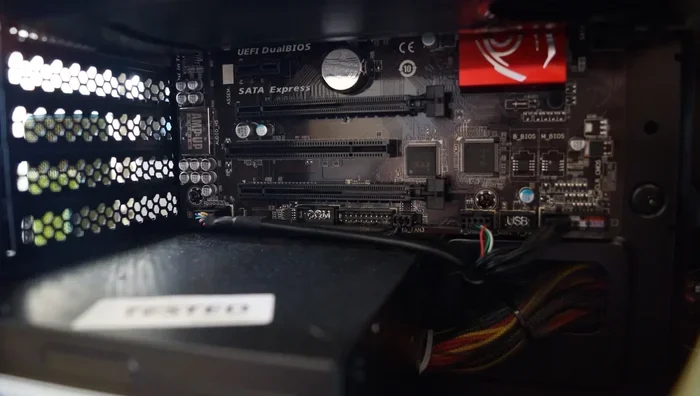
Dell computers use different types of network adapters depending on the model and age. Newer Dell laptops often have a wireless adapter built right into the motherboard. Older models or desktops might use a PCIe network card that you can slot into the motherboard. Dell docking stations also add network capabilities through USB or Ethernet ports.
Each adapter needs a driver to talk to Windows. A driver is like a translator. It tells Windows how to communicate with the hardware. When that translator breaks, goes missing, or gets outdated, Windows cannot find the adapter anymore. This is the root cause of most Dell Network Adapter Missing problems.
Common Causes of Dell Network Adapter Missing
Before you start fixing anything, it helps to understand what went wrong. Here are the most common reasons your Dell network adapter disappears.
1. Corrupted or Outdated Network Drivers
This is the number one cause. Network drivers can become corrupted after a rough shutdown, a power outage, or a software conflict. They can also become outdated when Windows installs an update that does not match your current driver version. The result is the same: your Dell Network Adapter Missing error appears.
2. Windows Update Conflicts
Windows updates are supposed to make your system better, but sometimes they cause problems. A recent Windows update might overwrite your network adapter driver or remove it entirely. This is a known issue, especially after major feature updates to Windows 10 or Windows 11.
3. Disabled Adapter in Device Manager
Sometimes the adapter is still there, but it has been accidentally disabled. This can happen during a driver update, a system restore, or even by pressing the wrong keyboard shortcut. The adapter shows up as “disabled” in Device Manager, which means Windows will not use it.
4. Hardware Failure
In rare cases, the network adapter hardware itself fails. This can happen due to age, overheating, electrical surges, or physical damage. If you have tried every software fix and nothing works, a hardware issue might be the culprit.
5. Docking Station or Peripheral Conflicts
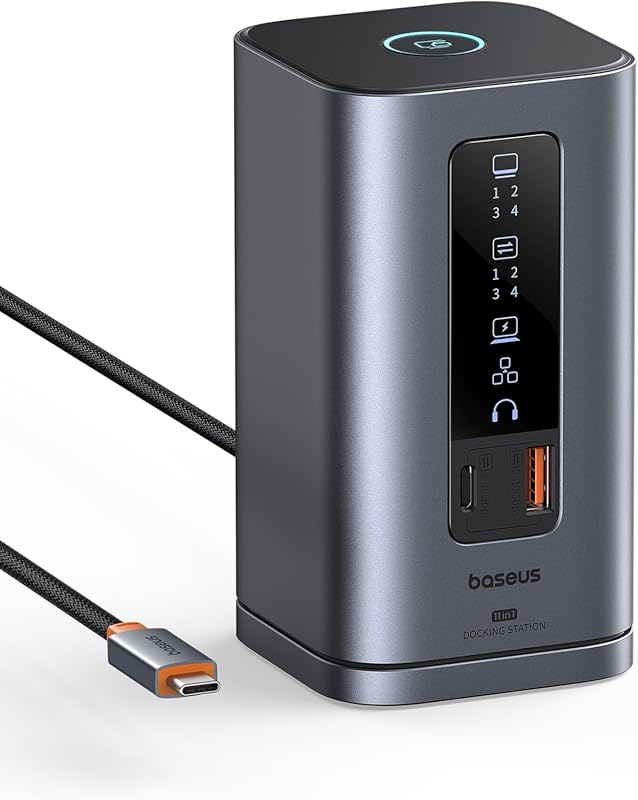
If you use a Dell docking station or connect your laptop to external peripherals, these devices can sometimes conflict with the built-in network adapter. The system might prioritize the docking station connection and lose track of the internal adapter.
How to Fix Dell Network Adapter Missing: Step-by-Step Solutions
Now that you know the causes, let us fix the problem. Follow these steps in order, starting with the simplest solution.
Step 1: Check Device Manager for the Missing Adapter
Open Device Manager by right-clicking the Start button and selecting Device Manager from the menu. Look for the Network Adapters section and click the arrow to expand it.
If you see your Dell adapter listed but it has a yellow triangle, the driver needs attention. If you do not see it at all, it might be hidden. Click View at the top and select Show Hidden Devices. Sometimes the adapter is there but just not visible by default.
Step 2: Update or Reinstall the Network Driver
Right-click on your network adapter in Device Manager and select Update Driver. Choose Search Automatically for Drivers. Windows will look for the latest driver online and install it.
If that does not work, try uninstalling the driver. Right-click the adapter, select Uninstall Device, and check the box that says Delete the Driver Software for This Device. Restart your Dell laptop, and Windows will reinstall a fresh driver automatically.
You can also visit Dell Support directly and download the latest network adapter driver for your specific model. This is often the fastest way to get the right driver.
Step 3: Run the Windows Network Troubleshooter
Windows has a built-in tool that can detect and fix common network problems. Go to Settings, then System, then Troubleshoot, and click on Other Troubleshooters. Find the Network Adapter option and click Run. The tool will scan for issues and try to resolve them on its own.
This is a quick and easy fix that works surprisingly often. Many users have reported that the troubleshooter brought their network connection back in just a few minutes.
Step 4: Reset Network Settings
If the troubleshooter does not help, try resetting your network settings. Go to Settings, then Network and Internet, and look for Network Reset. Click Reset, and your system will remove all network adapters and reinstall them with fresh drivers.
Keep in mind that this will delete all saved Wi-Fi passwords and network configurations. You will need to reconnect to your Wi-Fi and enter your password again after the reset.
Step 5: Check for Windows Updates
Sometimes the fix is already waiting for you in a newer Windows update. Go to Settings, then Windows Update, and click Check for Updates. Install any pending updates and restart your computer. This can resolve conflicts that cause the Dell Network Adapter Missing error.
If a recent update caused the problem, you can also try rolling back. Go to Settings, then Windows Update, then View Update History, then Uninstall Updates. Look for the most recent network-related update and remove it.
Step 6: Check Your BIOS Settings
Your Dell computer’s BIOS controls hardware settings, including the network adapter. Restart your Dell and press F2 to enter the BIOS setup. Look for a section called Network or Integrated Devices. Make sure the network adapter is enabled. If it is disabled, switch it to Enabled, save your changes, and exit.
This is a less common fix, but it has helped many users who could not find any other solution. BIOS settings can change after a system restore or a firmware update, which is why this step matters.
Dell Network Adapter Missing on Windows 10 and Windows 11
The Dell Network Adapter Missing issue can appear on both Windows 10 and Windows 11, but the fixes are slightly different for each operating system. Here is what you need to know.
Fixing the Issue on Windows 10
On Windows 10, the most effective fix is usually a driver rollback or reinstall. Open Device Manager, find your network adapter, right-click it, and select Properties. Go to the Driver tab and click Roll Back Driver if that option is available. This undoes the most recent driver change and often fixes the problem immediately.
If the rollback option is grayed out, uninstall the driver completely and restart. Windows 10 will pull a fresh driver from its built-in library.
Fixing the Issue on Windows 11
Windows 11 has a slightly different interface but similar fixes. Open Settings, go to System, then Troubleshoot, and run the Network Adapter troubleshooter. Windows 11 also has a new feature called Network Reset that works well for this issue.
Another Windows 11-specific fix is to use the Command Prompt. Open Command Prompt as Administrator and type netsh winsock reset. Press Enter, restart your computer, and check if the adapter comes back. This command resets the network stack to its default state and can resolve deep system conflicts.
Comparison: Windows 10 vs. Windows 11 Fixes
Both operating systems respond well to driver updates and network resets. Windows 11 adds the Command Prompt method, which can solve stubborn cases. Windows 10 users benefit from the tried-and-true driver rollback feature. The core steps are the same regardless of which version you use.
Preventing Dell Network Adapter Missing in the Future
The best way to deal with this problem is to stop it from happening in the first place. Here are simple habits that keep your Dell network adapter healthy.
- Update your drivers regularly. Check Dell Support for driver updates at least once a month. This keeps your network adapter running on the latest software.
- Shut down properly. Always use the Start menu to shut down your Dell laptop or desktop. Force shutting down by holding the power button can corrupt drivers and files.
- Use a surge protector. Electrical surges can damage internal hardware, including your network adapter. A simple surge protector adds a layer of protection.
- Keep Windows updated. Windows updates often include driver improvements and security patches that prevent adapter conflicts.
- Avoid cheap docking stations. If you use a Dell docking station, make sure it is a genuine Dell product or a reputable brand. Cheap knockoff docking stations can cause conflicts with your network adapter.
If you also experience other Dell issues, such as problems with your Dell XPS laptop RAM, you may want to check out our detailed guide on Dell XPS Laptop RAM Upgrade for helpful tips. Similarly, Dell Inspiron users who need memory upgrades can find valuable information in our Dell Inspiron 16GB RAM Laptop article. For users with older Dell laptops running an i3 processor with 4GB RAM, our Dell Laptop i3 4GB RAM guide offers practical advice on keeping older systems running smoothly.
For broader Dell troubleshooting help, our Dell Inspiron Laptop RAM Upgrade article covers common hardware upgrade steps that can improve overall system stability and performance.
When to Replace Your Dell Network Adapter Hardware
Software fixes solve the Dell Network Adapter Missing problem most of the time. But what if none of the steps above work? Then it is time to consider hardware replacement.
Signs that your adapter hardware has failed include the adapter not showing up in Device Manager even after a full driver reinstall, a burning smell or unusual heat coming from your Dell laptop, and the problem persisting across multiple operating system reinstalls.
For Dell desktops, replacing a PCIe network card is straightforward. You open the case, remove the old card, and slot in a new one. Most Dell desktops use standard PCIe slots, so any compatible network card will work. Prices for replacement PCIe network cards start as low as $15 to $30.
For Dell laptops, the process is a bit more involved. The network adapter is usually soldered onto the motherboard or connected via a small cable. In some Dell models, you can replace the adapter yourself, but in others, you will need professional repair. Check your Dell model’s service manual before attempting any hardware replacement.
If your Dell laptop is still under warranty, contact Dell Support before opening the case. Replacing parts yourself can void your warranty. Dell’s support team can often arrange a repair or replacement at no cost if the adapter failure is not caused by physical damage.
Expert Insights and Pro Tips
Here are some extra tips from experienced Dell technicians that can save you time and effort.
- Check your Dell Support website. Dell has a dedicated support page for every model. Enter your service tag number, and it will show you all the drivers you need, including the latest network adapter driver.
- Use Dell SupportAssist. This free Dell tool automatically scans your system for outdated drivers and installs updates. It can often fix the Dell Network Adapter Missing issue with just one click.
- Try a USB network adapter as a temporary fix. If you need internet right away and cannot wait for a driver fix, a USB-to-Ethernet adapter is a quick workaround. Plug it in, install the driver, and you are back online.
- Create a system restore point. Before making any major changes to your drivers or network settings, create a restore point. If something goes wrong, you can roll back to a working state in seconds.
These pro tips come from real-world Dell repair experience. They can make the difference between a five-minute fix and hours of frustration.
Conclusion
The Dell Network Adapter Missing issue is annoying, but it is almost always fixable. Start with the simple steps like checking Device Manager, updating drivers, and running the Windows troubleshooter. If those do not work, move on to network resets, BIOS checks, and Windows updates. In the rare cases where software fixes fail, hardware replacement is your final option.
Remember that prevention is your best tool. Keep your drivers updated, shut down your Dell properly, and use quality accessories. These small habits will save you from dealing with this problem again in the future.
Now that you know exactly how to handle a missing network adapter, you can tackle this issue with confidence. Your Dell computer will be back online in no time, and you will be better prepared if the problem ever comes back.
Frequently Asked Questions
Why did my Dell network adapter suddenly disappear?
The most common reason is a corrupted or outdated network driver. Windows updates, rough shutdowns, or software conflicts can all cause the driver to break. Start by checking Device Manager to see if the adapter is listed or hidden.
Can a Windows update cause the Dell Network Adapter Missing error?
Yes, absolutely. Windows updates sometimes overwrite or remove network adapter drivers. If the problem started after a recent update, try rolling back the driver or uninstalling the latest Windows update to see if that fixes it.
Is it safe to uninstall the network driver in Device Manager?
Yes, it is completely safe. When you uninstall the driver and restart your Dell laptop or desktop, Windows will automatically reinstall a fresh driver. This often fixes deep driver corruption that a simple update cannot resolve.
How do I know if my network adapter hardware has failed?
If the adapter does not appear in Device Manager even after a complete driver reinstall, and it does not show up after a network reset, the hardware may be dead. Other signs include unusual heat, a burning smell, or the problem persisting across multiple operating system reinstalls.
Can a Dell docking station cause the network adapter to go missing?
Yes, docking stations can sometimes conflict with the built-in network adapter. The system may prioritize the docking station connection and lose track of the internal adapter. Try disconnecting the docking station and see if the adapter reappears.
What should I do if none of the software fixes work?
If software fixes do not resolve the issue, you may need to replace the network adapter hardware. For desktops, a new PCIe network card is affordable and easy to install. For laptops, check your Dell warranty first and contact Dell Support for professional repair options.