What Is Windows Media Player
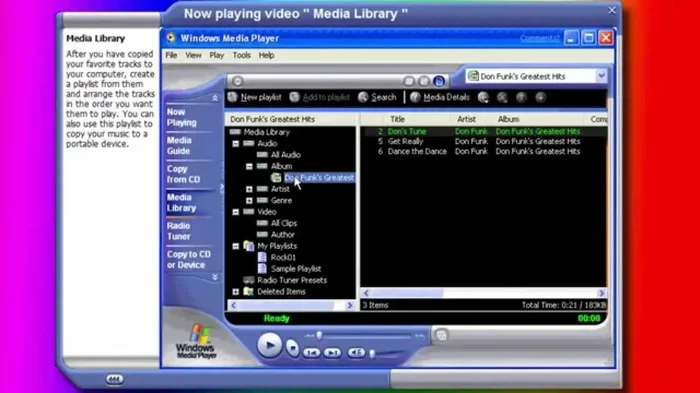
Windows Media Player is a free media player app built into Windows laptops and desktops. It lets you play audio and video files, manage your media library, and even burn CDs. Whether you are watching movies or listening to music, Windows Media Player handles most common file formats with ease.
Windows Media Player has been around for a long time. It is one of the most recognized media player software programs in the world. If you have ever used a Windows laptop, chances are you have opened this app without even thinking about it. But what exactly is Windows Media Player, and why does it still matter today?
This guide breaks down everything you need to know. We will cover what it does, how it works, and whether it is still worth using in 2025. If you want a simple, honest look at this classic media player, you are in the right place.
Key Takeaways
- Built-in media player: Windows Media Player comes pre-installed on most Windows laptops and PCs.
- Wide format support: It plays popular audio and video files like MP3, WMV, and MP4.
- Media library management: You can organize, sort, and search your music and video collections easily.
- Free and lightweight: No extra cost or heavy system resources needed for basic playback.
- Customizable experience: You can adjust playback speed, equalizer settings, and visual themes.
- Legacy software: Microsoft has shifted focus to newer apps, but Windows Media Player remains functional.
📑 Table of Contents
- What Is Windows Media Player?
- Key Features of Windows Media Player
- System Requirements for Windows Media Player
- File Formats Supported by Windows Media Player
- Windows Media Player vs. Other Media Players
- How to Use Windows Media Player on Your Laptop
- Is Windows Media Player Still Worth Using?
- Common Issues and How to Fix Them
- Final Thoughts
What Is Windows Media Player?
Windows Media Player is a free application developed by Microsoft. It comes pre-installed on most Windows operating systems, including Windows 10 and Windows 11. Its main job is to play audio and video files stored on your computer. Think of it as the default way your laptop handles music and movies.
The app has been around since the mid-1990s. Over the years, Microsoft has updated it several times. Each new version added better features, improved performance, and support for more file types. Despite many changes, the core purpose has stayed the same. It is a simple tool for playing digital media on your PC.
Why Was Windows Media Player Created?
Back in the day, people needed a way to listen to music and watch videos on their computers. There were not many options available. Microsoft saw this gap and built a program that could handle both audio and video playback. The goal was simple. Give Windows users a reliable, built-in tool for enjoying their media files.
Over time, the software grew in popularity. It became the go-to entertainment software for millions of people worldwide. Even today, many laptop users still rely on it for everyday playback needs.
Key Features of Windows Media Player
Windows Media Player offers a solid set of features. While it may not have all the bells and whistles of newer apps, it covers the essentials very well. Here is a closer look at what you get.
Audio and Video Playback
The most obvious feature is playback support. Windows Media Player can handle a wide range of audio and video formats. Common formats like MP3, WAV, WMV, and MP4 work right out of the box. You do not need to download extra codecs or plugins for most files.
The playback controls are straightforward. You get play, pause, stop, skip, and volume buttons. There is also a progress bar that lets you jump to any part of a track or video. These basic controls make it easy for anyone to use, regardless of technical skill.
Media Library Management
One of the standout features is the media library. This is where you can organize all your music and video files. The library automatically sorts your content by artist, album, genre, and title. You can create playlists, search for specific songs, and browse your collection with ease.
If you have a large music collection, this feature is a lifesaver. Instead of scrolling through folders full of files, you get a clean, visual interface. It makes finding and playing your favorite tracks quick and simple.
Equalizer and Playback Settings
Windows Media Player includes a built-in equalizer. This lets you adjust the sound frequencies to suit your preferences. You can boost bass, sharpen treble, or create a custom sound profile. It is a nice touch for anyone who cares about audio quality.
You can also change playback speed. Want to listen to a podcast faster? You can speed it up. Prefer to watch a video in slow motion? That option is there too. These small details add up to a more personalized experience.
CD and DVD Support
Even though CDs and DVDs are becoming outdated, Windows Media Player still supports them. You can play music CDs, rip tracks to your hard drive, and burn your own audio CDs. It also handles DVD playback, though you may need additional software for some commercial DVDs.
This feature is especially useful for older laptops that still have CD or DVD drives. It gives new life to physical media that might otherwise go unused.
System Requirements for Windows Media Player
One of the best things about Windows Media Player is that it does not demand much from your laptop. Because it is a lightweight application, it runs smoothly on most systems. However, there are still some basic requirements you should know about.
Your laptop needs a compatible version of Windows. The software works on Windows 10, Windows 11, and older versions like Windows 7 and Windows 8. As for hardware, you do not need a powerful machine. Even budget laptops can run it without any issues.
That said, if you want smooth playback of high-definition video files, having enough RAM helps. A laptop with at least 4GB to 8GB of good ram for laptop use will handle HD content without stuttering. If your laptop struggles with playback, checking your RAM and upgrading if needed can make a big difference. You can learn more about what is good ram for laptop to understand your options.
Recommended Specs for Smooth Playback
- Operating System: Windows 10 or Windows 11
- Processor: 1 GHz or faster
- RAM: 2 GB minimum (4 GB recommended for HD video)
- Hard Drive Space: At least 100 MB free for installation
- Graphics Card: Any standard integrated graphics card
These are modest requirements. Almost any modern laptop can meet or exceed them. This is part of why Windows Media Player remains so accessible to users everywhere.
File Formats Supported by Windows Media Player
Windows Media Player supports a variety of audio and video file formats. Understanding which formats work can save you from frustration when trying to play a file. Here is a breakdown of the most common ones.
| Format | Type | Supported? |
|---|---|---|
| MP3 | Audio | Yes |
| WAV | Audio | Yes |
| WMA | Audio | Yes |
| MP4 | Video | Yes |
| WMV | Video | Yes |
| AVI | Video | Yes |
| FLAC | Audio | Limited |
| MKV | Video | Limited |
As you can see, the most popular formats work without any problems. For formats marked as “limited,” you might need to install additional codecs or use a different player. If you run into compatibility issues, a media player like VLC is a great alternative. You can check the VLC Media Player system requirements to see if it is a good fit for your laptop.
Windows Media Player vs. Other Media Players
While Windows Media Player is a solid choice, it is not the only option. Many laptop users turn to third-party media players for extra features. Let us compare a few popular alternatives.
Windows Media Player vs. VLC Media Player
VLC Media Player is one of the most popular free media players available. It supports almost every file format imaginable. It also offers advanced features like video streaming, subtitle support, and customizable interfaces. However, VLC can feel a bit overwhelming for new users because of its many options.
Windows Media Player, on the other hand, keeps things simple. The interface is clean and familiar. It integrates well with the Windows operating system. For everyday playback of common file types, it works just fine. If you need advanced features, VLC might be the better choice.
Windows Media Player vs. Groove Music
Microsoft introduced Groove Music as a replacement for the music-playing side of Windows Media Player. Groove Music focuses specifically on audio playback and music streaming. It has a modern interface and integrates with Microsoft’s cloud services.
However, Groove Music does not handle video files. If you want a single app for both music and videos, Windows Media Player is the more versatile option. It is a one-stop solution for all your digital media needs.
How to Use Windows Media Player on Your Laptop
Using Windows Media Player is straightforward. Here is a quick step-by-step guide to get you started.
- Open the app: Click the Start menu and type “Windows Media Player.” Select the app from the results.
- Open a file: Click “File” and then “Open.” Browse to the location of your media file and select it.
- Browse your library: Click the “Library” tab to see your organized music and video collection.
- Create a playlist: Right-click in the library area, choose “New Playlist,” and add your favorite tracks.
- Adjust settings: Go to “Organize” and then “Options” to customize playback settings, libraries, and privacy options.
These steps work on both Windows 10 and Windows 11 laptops. The interface may look slightly different depending on your version, but the basics remain the same. Once you get comfortable with the layout, you will find it easy to navigate.
Tips for Getting the Best Experience
- Keep your media files organized in one folder for easier library scanning.
- Use the “Now Playing” mode for a full-screen viewing experience.
- Update your Windows operating system regularly to ensure compatibility.
- If a file does not play, try installing a codec pack or switching to an alternative player.
Is Windows Media Player Still Worth Using?
Microsoft has been shifting its focus toward newer apps like the Movies & TV app and Groove Music. Some users wonder if Windows Media Player is still relevant. The answer depends on your needs.
If you want a simple, no-fuss way to play your media files, Windows Media Player is still a great choice. It is free, built into your system, and requires no extra downloads. For basic audio and video playback, it gets the job done reliably.
However, if you need advanced features like streaming from the internet, extensive subtitle support, or support for rare file formats, you might want to explore other options. Apps like VLC or Plex offer more functionality for power users.
That said, Windows Media Player has one major advantage. It is already on your laptop. You do not need to install anything or configure anything extra. For casual users who just want to press play and enjoy their media, that convenience is hard to beat.
Common Issues and How to Fix Them
Like any software, Windows Media Player can sometimes have issues. Here are the most common problems and their solutions.
File Will Not Play
This usually happens when the file format is not supported or a codec is missing. Try converting the file to a more common format like MP4 or MP3. You can also check for Windows updates, as these often include new codec support.
Poor Video Quality
If your video looks blurry or choppy, your laptop may not have enough processing power or RAM for HD content. Consider upgrading your RAM or closing other apps while watching videos. For more information on how RAM affects your laptop’s performance, check out this guide on what is the ram on a laptop.
App Opens Slowly
A slow-loading app can be frustrating. Clearing your media library cache or resetting the app settings can help. Make sure your laptop is not running too many background programs at the same time.
Final Thoughts
Windows Media Player has stood the test of time. It is a reliable, user-friendly media player that comes built into your Windows laptop. While newer alternatives offer more features, there is something to be said for simplicity and ease of use.
Whether you are listening to your favorite playlist, watching a movie, or ripping a CD, Windows Media Player handles the job well. It may not be the most advanced tool on the market, but for everyday media playback, it is hard to argue with its convenience and accessibility.
If you are new to this app, give it a try. If you are a long-time user, it is worth exploring the latest features in recent updates. Either way, Windows Media Player remains a valuable part of the Windows experience for laptop users everywhere.
Frequently Asked Questions
Can I download Windows Media Player for free?
Yes, Windows Media Player comes pre-installed on most Windows laptops. You do not need to download or pay for it. It is a free application included with the Windows operating system at no extra cost.
Is Windows Media Player available on Windows 11?
Yes, Windows Media Player is available on Windows 11. Microsoft has continued to include it as a built-in media player option alongside newer apps like Movies & TV and the redesigned Windows Media Player with a modern interface.
Can Windows Media Player play 4K video files?
Windows Media Player can attempt to play 4K video files, but smooth playback depends on your laptop’s hardware. You need a capable processor, a dedicated or strong integrated graphics card, and enough RAM. For the best 4K experience, consider using a dedicated media player or check your system specs first.
How do I rip music from a CD using Windows Media Player?
Insert your CD into the laptop’s disc drive. Open Windows Media Player and click the “Rip CD” button. Choose the tracks you want to rip and select your preferred audio format. The software will then copy the music files to your hard drive for easy access.
Why does Windows Media Player not support some video formats?
Windows Media Player supports common formats like MP4, WMV, and AVI out of the box. For less common formats, it may lack the necessary codecs. You can install codec packs to expand support, or use an alternative media player like VLC for broader format compatibility.
Can I use Windows Media Player on a Mac?
No, Windows Media Player is designed specifically for Windows operating systems. It is not officially available for macOS. Mac users should look for alternatives like VLC Media Player or Apple’s built-in QuickTime Player for similar media playback functionality.
=== CONCLUSION ===
Windows Media Player is a classic, reliable media player that has been a staple of the Windows experience for decades. It offers straightforward audio and video playback, a well-organized media library, and useful features like equalizer settings and CD support. While newer alternatives exist, it remains a solid choice for everyday media needs on any Windows laptop.
It is free, lightweight, and already installed on your system. For casual users and tech enthusiasts alike, it delivers a dependable playback experience without any fuss. Give it a try, and you might just find it is all you need for your media enjoyment.