What Do the Gmail Chat Symbols Mean
Gmail Chat symbols help you understand message status, availability, and features at a glance. From green dots to paperclip icons, each symbol tells you something important about your conversations. Learning these icons makes navigating Google Chat faster and easier for everyone.
Gmail Chat is a handy tool for quick conversations at work and home. But if you have ever stared at tiny icons and wondered what they all mean, you are not alone. The Gmail Chat symbols can seem confusing at first. Each little icon carries a specific meaning that helps you navigate your conversations with ease.
Understanding these symbols saves you time and reduces confusion. You will know exactly when a message was delivered, who is online, and what each button does. This guide breaks down every symbol you will encounter in Gmail Chat. By the end, you will feel confident using the platform like a pro.
Key Takeaways
- Status icons show your availability: Green means active, yellow means idle, and red means busy.
- Message symbols give you delivery info: Checkmarks and timestamps tell you if your message was sent and read.
- Video and call icons are easy to spot: Camera and phone symbols help you start chats quickly.
- Customization options exist: You can change notification settings and chat preferences to suit your needs.
- Pinned messages and attachments have unique icons: These help you organize important conversations.
- Group chats have special indicators: You can see who is online and who has read your messages.
📑 Table of Contents
- What Are Gmail Chat Symbols?
- Status Icons and What They Tell You
- Message Status Symbols
- Call and Video Icons
- Attachment and Feature Icons
- Customizing Your Chat Experience
- Common Symbols You Might Not Know About
- Quick Tips for Reading Gmail Chat Symbols
- Why Understanding Gmail Chat Symbols Matters
- Conclusion
What Are Gmail Chat Symbols?
Gmail Chat symbols are small icons that appear throughout the chat interface. They tell you about message status, user availability, and chat features. Google Chat symbols are designed to give you quick information without needing to click or dig around. Think of them as a visual language built right into your inbox.
These icons cover everything from online status dots to message delivery markers. They also include icons for attachments, pinned messages, and video calls. Each symbol serves a clear purpose. Once you learn what they mean, using Gmail Chat becomes much smoother.
You might notice that some symbols change over time. For example, a dot next to a contact might shift from green to yellow. This tells you their status has changed. Keeping an eye on these small details helps you communicate more effectively.
It is also worth noting that Google updates the chat interface from time to time. New symbols may appear, and old ones might change slightly. But the core meanings stay consistent. This guide covers the most common symbols you will see right now.
Status Icons and What They Tell You
The Green Dot
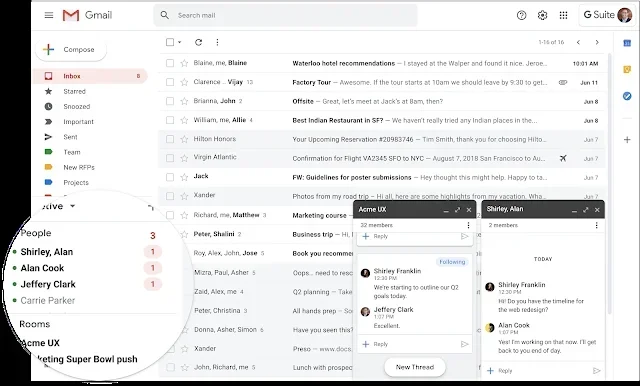
A green dot next to a contact name means they are currently active. This is the most common chat availability symbol you will see. When someone has a green dot, they are online and can receive messages instantly.
If you send a message to someone with a green dot, expect a quick reply. This is a great sign that the person is available and engaged. It works much like a live indicator in other messaging apps.
The Yellow or Orange Dot
A yellow or orange dot means the person is idle. They have not actively used Gmail or Google Chat for a while. They are still signed in, but they might not see your message right away.
This is similar to a “away” status. You can still send them a message, but do not expect an instant response. The yellow dot helps you set the right expectations for reply times.
The Red Dot or Busy Status
A red dot or a busy indicator means the person is occupied. They may have set their status to “Do Not Disturb” or “Busy.” This tells you they are not available for a chat right now.
It is still okay to send a message. They will see it when they come back. But avoid sending long messages that need immediate attention. Respecting the busy status helps build good communication habits.
No Dot or Offline Status
If you see no dot at all, the person is offline. They are not signed in to Gmail Chat or have set themselves as unavailable. Messages sent to offline contacts will be delivered when they sign back in.
You can still message them, and the message will wait in their inbox. This is similar to sending an email. The Gmail chat interface handles offline messages seamlessly in the background.
Message Status Symbols
Sent and Delivered Markers
When you send a message, Gmail Chat shows you a status marker. A single checkmark usually means the message has been sent. A double checkmark means it has been delivered to the recipient.
These markers are similar to what you see in other messaging platforms. They give you peace of mind that your message reached the right place. If you only see a single checkmark, the message is still on its way.
Read Receipts
Some messages show a second checkmark that changes color or fills in when the recipient reads it. This is called a read receipt. It tells you the person has opened and viewed your message.
Keep in mind that read receipts depend on the recipient’s settings. Some people turn them off for privacy reasons. If you do not see a read receipt, it does not mean the message was ignored.
Timestamp Indicators
Every message in Gmail Chat has a timestamp. This small icon or text shows when the message was sent. Hovering over the timestamp gives you the exact date and time.
Timestamps help you keep track of conversation flow. They are especially useful in busy group chats where messages come in fast. You can quickly find the right message by checking its timestamp.
Call and Video Icons
Video Call Symbol
The video call icon looks like a small camera. Clicking it starts a Google Meet video call with the contact. This is one of the most useful Gmail Chat symbols because it lets you see the person face to face.
Video calls work best when both people have a working camera and microphone. If you want great audio quality during your calls, consider using a dedicated headset. Good audio makes a big difference in how clear your conversations sound.
Voice Call Symbol
The voice call icon looks like a telephone receiver. Clicking it starts an audio-only call. This is handy when you do not need video but still want a real-time conversation.
Voice calls use less bandwidth than video calls. They are a great option when you are on a slow internet connection. The chat availability symbol next to the contact name helps you decide if a call is appropriate.
Group Call Icon
In group chats, you will see a group call icon. This lets you start a video or voice call with multiple people at once. It is perfect for team meetings or quick group check-ins.
Google Chat makes group calls easy to set up. Everyone in the group gets a notification when the call starts. You can also share your screen during the call to collaborate on documents or presentations.
Attachment and Feature Icons
Paperclip and Attachment Symbols
The paperclip icon is a universal symbol for attachments. In Gmail Chat, it lets you share files, images, and documents. Clicking the paperclip opens your file picker.
You can attach files directly from Google Drive or upload from your computer. The attachment icon makes sharing quick and easy. It is one of the most clicked symbols in Gmail Chat.
Pinned Message Icon
A pin icon means a message has been pinned to the top of the chat. Pinned messages stay visible so you can find them easily. This is useful for important reminders or key decisions in a conversation.
You can pin a message by clicking the three dots next to it and selecting “Pin.” Only a few messages can be pinned at a time. This feature helps keep the most important information front and center.
Emoji and Reaction Icons
Gmail Chat lets you react to messages with emojis. A small emoji icon appears next to each message. Clicking it opens a picker with common reactions like thumbs up, heart, and laugh.
Reactions are a quick way to respond without typing a full message. They work great in busy group chats where a simple “thumbs up” can save everyone time. The reaction count appears below the emoji, so you can see how many people agree.
Customizing Your Chat Experience
Google Chat lets you adjust how symbols and notifications work for you. You can change notification sounds, mute conversations, and set your own status. These settings help you control how you interact with the platform.
To access chat settings, click the gear icon in the chat panel. From there, you can toggle notifications on or off. You can also choose how your own status is displayed to others. Taking a few minutes to customize your settings can make a big difference.
It is also helpful to know that running Gmail Chat alongside other apps can affect performance. If you have many tabs open and your computer is slow, consider checking your system resources. Having enough memory helps the chat interface run smoothly.
You can also adjust your notification preferences for mobile devices. This ensures you get alerts for important messages without being overwhelmed. Customization is one of the best ways to make Gmail Chat work for you.
Common Symbols You Might Not Know About
Gmail Chat has a few symbols that are easy to miss. These hidden icons offer extra functionality once you know what they mean. Here are some of the less obvious ones you should look out for.
- The mute icon: This looks like a speaker with a line through it. It means notifications for that chat are turned off.
- The search icon: A magnifying glass lets you search within a specific chat or conversation.
- The quote icon: A quotation mark symbol lets you reply to a specific message in a group chat.
- The translate icon: A small globe or character icon offers to translate messages in other languages.
- The keyboard shortcut icon: A small keyboard symbol shows you available shortcuts for faster chatting.
Each of these symbols adds a layer of functionality to your chat experience. The more you explore, the more useful they become. Spend a few minutes clicking around to discover what each one does.
Quick Tips for Reading Gmail Chat Symbols
Here are some quick tips to help you master Gmail Chat symbols fast:
- Hover over any icon to see a tooltip that explains what it means.
- Check the color of the status dot first when deciding who to message.
- Use the search icon to find old messages quickly in long conversations.
- Customize your notifications so you only get alerts for the chats that matter.
- Keep your browser updated so all symbols display correctly.
These small tips make a big difference in your daily chat workflow. They help you stay organized and respond faster. Once you build the habit of checking icons, it becomes second nature.
Another great tip is to explore the settings menu regularly. Google often adds new features and icons with updates. Staying current ensures you never miss out on useful functionality.
Why Understanding Gmail Chat Symbols Matters
Knowing what the symbols mean transforms how you use Gmail Chat. Instead of guessing, you can read the interface at a glance. This leads to faster responses, fewer missed messages, and better communication overall.
In a work environment, this skill is especially valuable. You can quickly see who is available and who is busy. You can spot unread messages and important pinned notes in seconds. It makes you more efficient and professional in your digital communication.
For personal use, understanding chat symbols helps you stay connected with friends and family. You know when someone is online and ready to chat. You can send the right type of message at the right time.
The Gmail Chat symbols are more than just tiny pictures. They are a communication tool that helps you navigate conversations with confidence. Taking the time to learn them pays off every single day.
Conclusion
Gmail Chat symbols might seem small, but they carry a lot of meaning. From status dots that show who is online to message markers that confirm delivery, each icon serves a purpose. Understanding these symbols makes your chat experience smoother and more efficient.
This guide has covered the most important symbols you will encounter in Gmail Chat. You now know what the status icons mean, how to read message markers, and what each call and feature icon does. You also have practical tips to customize your chat experience and boost your productivity.
Take a few minutes today to explore your Gmail Chat interface with fresh eyes. Hover over each icon and test what it does. The more you practice, the more natural it will feel. Mastering Gmail Chat symbols is a small skill that makes a big difference in how you communicate every day.
Start using these tips right away and notice how much easier your chats become. You will wonder how you ever managed without this knowledge. Happy chatting.
Frequently Asked Questions
What does the green dot mean in Gmail Chat?
The green dot means the person is currently online and active in Google Chat. They can receive and respond to messages right away. This is the best time to send a message if you need a quick reply.
Why do some messages not show read receipts?
Read receipts depend on the recipient’s settings. Some people turn them off for privacy reasons. If you do not see a read receipt, it does not mean your message was ignored or not seen.
Can I change my status symbol in Gmail Chat?
Yes, you can change your status by clicking on your profile picture and selecting a new status. You can choose from options like Available, Busy, or Away. This updates the symbol that others see next to your name.
What is the pin icon used for in Gmail Chat?
The pin icon marks an important message so it stays at the top of the chat. This is useful for reminders, key decisions, or anything you need to reference later. You can pin a message by clicking the three dots next to it and choosing “Pin.”
Do Gmail Chat symbols work on mobile devices?
Yes, the same symbols appear on both desktop and mobile versions of Gmail Chat. The icons may look slightly different depending on your screen size, but they mean the same thing. You can access all features including status dots, message markers, and call icons on your phone.
How do I know if a message was delivered in Gmail Chat?
Look for the double checkmark next to your message. This means it has been delivered to the recipient. A single checkmark means it is still on its way. The timestamp next to the marker shows exactly when delivery happened.