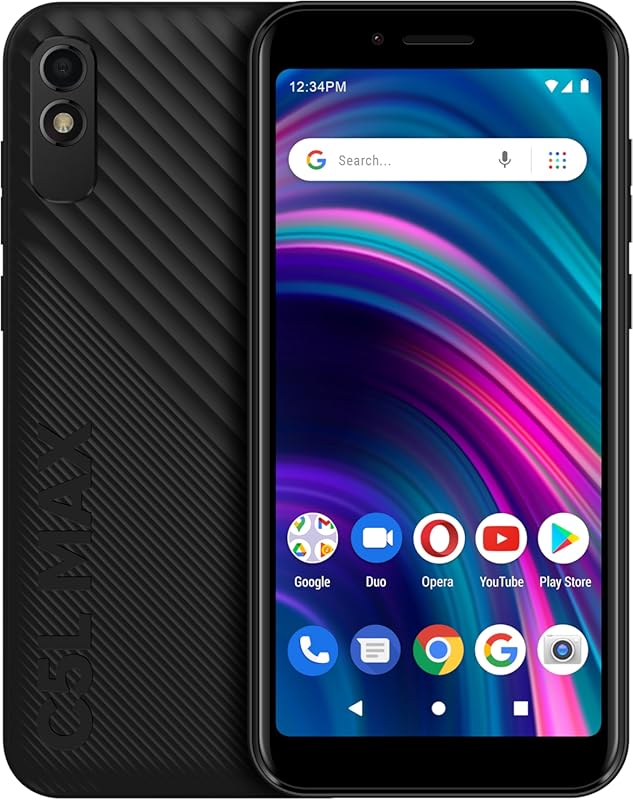
What Do the Icons on a Cell Phone Mean
Ever stared at your phone screen wondering what all those tiny icons mean? You are not alone. This guide explains what do the icons on a cell phone mean in simple terms, covering status bar symbols, notification alerts, and connectivity signals. Whether you use an Android or an iPhone, you will find clear answers to the most common mobile phone icon questions right here.
Your cell phone screen is packed with tiny symbols. Some sit quietly at the top of your display. Others pop up when you get a message or connect to the internet. Have you ever wondered what do the icons on a cell phone mean? Most people scroll past these little pictures every day without a second thought. But they actually carry important information. They tell you about your battery life, your signal strength, and whether your phone is connected to WiFi or Bluetooth. This guide breaks down every major icon you will see on your phone. We will keep things simple and easy to follow.
Think of your phone’s icon bar like a dashboard in a car. Just as a dashboard tells you your speed, fuel level, and engine status, your phone’s icons give you real-time updates. You do not need to be a tech expert to understand them. A little knowledge goes a long way. Once you know what these symbols mean, you will feel more confident using your device. You will also be better equipped to solve small problems on your own.
We have organized this guide into clear sections. Each section covers a different group of icons. We use simple language and practical examples throughout. By the end, you will know your phone much better. Let us get started.
Key Takeaways
- Status bar icons give you instant info about your phone’s battery, signal, and connectivity.
- Notification icons alert you to messages, app updates, and reminders without opening each app.
- Connectivity symbols like WiFi, Bluetooth, and mobile data help you understand your network status at a glance.
- Security and privacy icons let you know when your phone is protected or when something needs attention.
- Understanding these icons helps you troubleshoot issues and use your phone more efficiently.
📑 Table of Contents
Understanding the Top Status Bar Icons
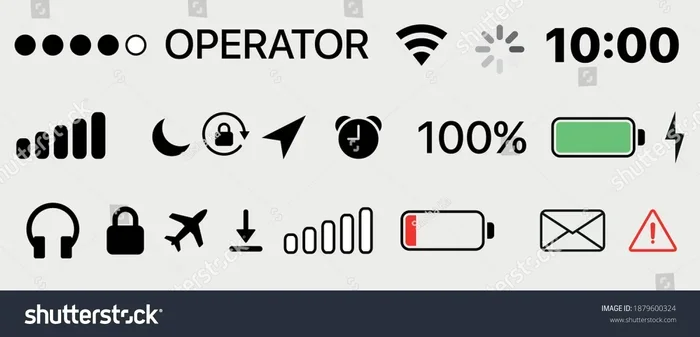
The status bar sits at the very top of your phone screen. It is the thin strip that runs across the display. This area holds some of the most important smartphone symbols you will see. Let us look at what each one does.
Time and Date Display
On almost every phone, the time appears in the upper right corner. The date often sits just beside it. This seems obvious, but it is one of the most looked-at icons. You glance at it dozens of times a day. On some phones, the date changes to show the day of the week too. This helps you stay oriented without opening anything.
Battery Icon
The battery icon is one of the most recognized mobile phone icons. It shows how much charge your phone has left. A full battery looks like a solid rectangle. As the charge drops, the fill level decreases. When it gets low, the icon often turns red or yellow. Some phones show a percentage number next to the battery symbol. You can turn this feature on in your settings if it is not already visible.
Signal Strength Indicators
Those little bars next to the battery tell you about your cellular signal. More bars mean a stronger connection. Fewer bars mean your phone is struggling to reach a tower. On iPhones, the signal bars sit on the left side of the status bar. On many Android phones, the placement is similar. If you see no bars at all, you may be in a dead zone or your phone is in airplane mode.
Common Notification Icons You See Daily
Notification icons appear when something needs your attention. They show up in the status bar and sometimes in the notification shade. Understanding them helps you stay on top of your day.
Message and Chat Icons
When you get a text message, a small speech bubble icon often appears. On most phones, this shows up in the upper left or right corner. You might also see a number badge on your messaging app. That number tells you how many unread messages you have. Some phones use a dot instead of a number. Either way, it means you have something waiting for you.
App Update and Alert Icons
App stores send notification icons when updates are ready. A small arrow or exclamation mark may appear. These icons remind you to keep your apps fresh. Updated apps run smoother and fix bugs. Ignoring them too long can slow your phone down. It is a good habit to check for updates once a week.
Calendar and Reminder Icons
A small calendar symbol means you have an upcoming event. Reminder icons often look like a bell or a flag. These phone notification icons help you manage your schedule without constantly checking your calendar app. You can tap on them to see the full details.
Connectivity Icons Explained
Connectivity icons tell you how your phone talks to the outside world. They cover WiFi, Bluetooth, mobile data, and more. Let us break each one down.
WiFi Symbol
The WiFi icon looks like a fan or a curved arc shape. It appears when your phone is connected to a wireless network. A filled-in arc means you are connected. An empty or half-filled arc means WiFi is turned on but not connected. You can find this icon on both Android phone icons and iPhone status bars. When you see it, you know you are online through WiFi.
Mobile Data Icons
Mobile data icons show your connection to your cell provider’s network. The letters LTE, 4G, 5G, or H+ often appear next to the signal bars. These letters tell you your data speed. 5G is the fastest. 4G and LTE are also very fast. H+ is slower but still works for browsing. If you see no letters, your phone may be on 3G or edge, which is much slower.
Bluetooth Icon
The Bluetooth symbol looks like a stylized letter B with wings. It appears when Bluetooth is turned on. A filled icon means it is connected to a device like headphones or a smartwatch. An empty icon means Bluetooth is on but not paired. Many people turn Bluetooth off when not using it to save battery. This is a smart habit that extends your phone’s charge.
Airplane Mode Icon
Airplane mode is represented by a small airplane symbol. When you see it, your phone has disabled all wireless connections. This is useful on flights and in certain other situations. You can turn it off quickly by swiping down from the top of your screen. Once airplane mode is off, your signal and WiFi icons return.
Battery and Power Icons
Your phone gives you several clues about its power status. These cell phone icons go beyond the basic battery gauge.
Charging Indicators
When your phone is plugged in, a small lightning bolt or charging symbol appears inside the battery icon. On most phones, this is a quick and clear visual cue. If you see the bolt but the battery level is not increasing, your charger may not be working properly. Try a different cable or wall adapter.
Battery Saver Mode
Battery saver mode is a helpful feature. When it is active, a small leaf or battery icon with a plus sign may appear. This mode reduces background activity and lowers screen brightness. It helps your phone last longer when you are away from a charger. You can turn battery saver on or off in your settings.
Overheating Warning
If your phone gets too hot, a thermometer or temperature warning icon may pop up. This is your phone telling you to cool down. Remove the case, close heavy apps, and move away from direct sunlight. Overheating can damage your phone over time, so take these warnings seriously.
Security and Privacy Icons
Your phone also uses icons to keep you safe. These symbols show when your data is protected or when something needs your attention.
Lock and Privacy Icons
A small lock icon means your connection is secure. This often appears in your browser when you visit an HTTPS website. It tells you your data is encrypted. You should always look for this icon before entering personal information online. If you see a warning instead of a lock, be cautious.
Location Services Icon
A small arrow or pin icon tells you an app is using your location. On iPhones, a hollow arrow means an app used your location recently. A solid purple arrow means an app is using your location right now. On Android phones, the location icon looks similar. You can control these permissions in your privacy settings. It is wise to review them regularly.
VPN Icon
A key or lock icon with “VPN” sometimes appears at the top of your screen. This means your phone is connected to a Virtual Private Network. A VPN hides your IP address and encrypts your data. It adds a layer of privacy when you use public WiFi. If you do not recognize this icon, check your VPN settings.
What to Do When an Icon Looks Confusing
Sometimes you will see an icon you do not recognize. This can be frustrating, but there are simple steps you can take.
Swipe Down to Check
Swiping down from the top of your screen opens your notification panel. This shows you more details about what the icon means. You can also swipe down twice to see quick settings. This gives you access to WiFi, Bluetooth, airplane mode, and more.
Check Your Phone Manual or Settings
Every phone comes with a user guide. You can also search your settings app for help. Many phones have a built-in search bar in settings. Type in the icon name or the symbol you see. The phone will guide you to the right place.
Search Online for Help
If you still cannot figure it out, a quick online search often helps. Type the icon description into a search engine. You will likely find an answer within seconds. Tech websites and forums are full of helpful guides. Do not guess when the answer is just a search away.
Compare With Your Phone Model
Different phones use slightly different icons. An icon on a Samsung may look different from the same icon on an iPhone. Also, older phones may show icons differently than newer ones. Knowing your specific model helps you find the right guide. You can check your model number in your phone settings under “About Phone.”
Understanding your phone icons becomes easier with practice. After a few days of paying attention, you will recognize most of them without thinking. It is like learning a new language. At first, it feels overwhelming. But soon, it becomes second nature.
Some people also like to compare how their phone icons work with other devices. For example, if you have ever wondered what does the RAM do in a laptop, you are already curious about how technology works behind the screen. Similarly, if you have ever noticed a red light on a camera and thought if a camera is red does that mean it is on, you are asking the same kind of question. These small curiosities build your tech knowledge over time.
Another great habit is learning how to check your phone’s specs. If you want to know about memory and performance, searching how do I check the RAM on my laptop can give you insight into how your device manages resources. The same curiosity that drives you to understand icons also helps you troubleshoot bigger issues later.
Conclusion
Now you know what do the icons on a cell phone mean. From the status bar at the top to the notification symbols that flash throughout your day, these tiny images carry big meaning. They tell you about your battery, your signal, your connections, and your security. Taking a few minutes to learn them pays off every single day. You will waste less time guessing and more time using your phone the way it was meant to be used.
Keep this guide bookmarked for reference. The next time you see an icon you do not recognize, you will know exactly what to do. Your phone is a powerful tool, and understanding its language is the first step to using it with confidence. Stay curious, stay connected, and enjoy your phone experience.
Frequently Asked Questions
What do the icons at the top of my phone screen mean?
The icons at the top of your screen, called the status bar, show real-time information like battery level, signal strength, WiFi connection, and notifications. Each small symbol represents a specific function on your phone.
Why do some icons disappear and reappear on my phone?
Icons appear only when their related feature is active. For example, the Bluetooth icon shows up when Bluetooth is turned on or connected. The WiFi icon appears only when you are linked to a network. This is normal behavior.
What does the little arrow icon mean on my phone?
A small arrow usually indicates that an app is using your location. On iPhones, a hollow arrow means recent location use, while a solid arrow means active location tracking right now.
How can I see all my notification icons at once?
Swipe down from the top of your screen to open the notification shade. This pulls down a panel that shows all your recent notifications and quick settings icons in one place.
Are Android and iPhone icons the same?
Many icons look similar across both platforms, but there are small differences in design and placement. The battery, signal, and WiFi icons are generally consistent, while some notification symbols vary by manufacturer and operating system version.
What should I do if I see a strange icon I do not recognize?
Swipe down from the top of your screen to check the notification panel for details. You can also search your phone settings or look up the icon online. Most strange icons are harmless and relate to a background app or a new feature.