What Is the File Extension for a Shortcut
What Is The File Extension For A Shortcut? On Windows, the standard extension is .lnk for local files and .url for web links. Mac computers use .webloc files to serve the same purpose. These tiny pointer files contain a target path, an icon, and optional arguments. Understanding these extensions helps you organize your desktop, fix broken links, and create shortcuts the right way.
Have you ever wondered what makes a shortcut file different from a regular program? What Is The File Extension For A Shortcut? It is a small but essential detail that helps your computer understand the file type. Shortcuts are everywhere on our desktops and taskbars. They save us from digging through folders every time we need a favorite app. But behind that little arrow icon lies a specific file extension that tells the system exactly how to handle it. In this article, we will break down everything you need to know about shortcut file extensions. You will learn the common extensions, how to identify them, and how to create or fix them.
Shortcuts are not the actual programs. They are just pointers that tell your operating system where to find the real file. When you double-click a shortcut, the system reads the extension and launches the target application or webpage. If the extension is missing or corrupted, the shortcut stops working. That is why knowing the correct file extension matters. Whether you are a casual user or a power user, this guide will give you clear answers. We will cover Windows, macOS, and even some lesser-known extensions. Let us dive in and make shortcut files simple.
## What Is the File Extension for a Shortcut?
A shortcut file extension is a suffix added to the file name that tells the operating system what kind of file it is. For Windows, the most common extension is .lnk. This stands for “link” and is used for shortcuts to local files, folders, or applications. When you save a shortcut to your desktop, Windows automatically adds the .lnk extension behind the scenes. You usually do not see it because Windows hides known file extensions by default.
The .url extension serves a different purpose. It is specifically for internet shortcuts. When you save a webpage shortcut to your desktop, Windows creates a .url file. This file contains the web address and may also store the favicon as the icon. On macOS, the equivalent is the .webloc file. It is a plain text file that holds a URL and an optional icon. All of these extensions act as tiny maps that guide your computer to the right destination.
### The .lnk Format in Detail
The .lnk file is a binary file format used by Windows. It stores much more than just a path. A typical .lnk file includes the target path, the working directory, command-line arguments, and the shortcut icon location. This rich data is why shortcuts can look exactly like the original program. When you right-click a shortcut and select Properties, you see all of this information in the Shortcut tab. The file size of a .lnk file is usually very small, often just a few kilobytes.
The .lnk extension is not registered to any single application. Instead, Windows handles it through the ShellExecute function. This means any program can create a .lnk file, but only Windows Explorer knows how to open it as a shortcut. If you rename a .lnk file to .txt, it will no longer act as a shortcut. The extension is the key that unlocks the shortcut behavior.
### The .url Format Explained
The .url extension is a text-based format. You can open a .url file in Notepad and see its contents. A typical .url file looks like this:
[InternetShortcut]
URL=https://www.example.com
That is all it takes. The file starts with the header [InternetShortcut] and then lists the URL. The .url extension is recognized by Internet Explorer and Microsoft Edge, but it also works with most modern browsers. When you double-click a .url file, the default browser opens the specified webpage. Because it is plain text, you can easily edit the URL by right-clicking the file and choosing Edit.
### The .webloc Extension for macOS
Mac users will encounter the .webloc extension. This format is an XML plist file that stores a URL. When you drag a web address from Safari to your desktop, macOS creates a .webloc file. It looks like a regular shortcut icon and opens the webpage when clicked. The .webloc format is simple and works seamlessly with the Apple ecosystem. It is the macOS answer to the Windows .url file.
## The Most Common Shortcut File Extensions
Not all shortcut files are the same. Different operating systems and use cases lead to different extensions. Understanding the full list helps you avoid confusion. Below is a quick comparison of the most common shortcut extensions.
| Extension | Full Name | Operating System | Purpose |
|———–|———–|——————|———|
| .lnk | Windows Shell Link | Windows | Shortcut to a local file, folder, or app |
| .url | Internet Shortcut | Windows | Shortcut to a web address |
| .webloc | Web Location | macOS | Shortcut to a web address |
| .desktop | Desktop Entry | Linux | Shortcut or launcher for applications |
| .appref-ms | App Reference | Windows | ClickOnce application shortcut |
Each extension has a specific role. The .lnk file is the workhorse of the Windows desktop. The .url file handles web links. The .desktop file is common on Linux systems and is used for application launchers. The .appref-ms extension appears when you install applications using Microsoft ClickOnce. It is a special kind of shortcut that points to a web-based deployment.
### Quick Tips for Identifying Extensions
– Always enable “File name extensions” in File Explorer to see the full extension.
– A .lnk file will never open in a text editor because it is binary.
– A .url file can be opened in Notepad to view the web address.
– The small arrow overlay is the universal visual clue for a shortcut on Windows.
– On macOS, the .webloc file icon often looks like a small globe.
## How to Identify a Shortcut File at a Glance
You do not need to open every file to know if it is a shortcut. There are several visual and technical cues that give it away. The most obvious sign is the small arrow badge in the bottom-left corner of the icon. This overlay is added by Windows to distinguish shortcuts from original files. If you see that arrow, you are looking at a shortcut file.
Another way to identify a shortcut is to check the file properties. Right-click the file and select Properties. If the General tab shows a “Shortcut” file type, you have a .lnk or .url file. The Target field will reveal where the shortcut points. You can also look at the file size. A genuine shortcut is typically under 5 KB. If a file claims to be a shortcut but is several megabytes, it is likely the real program file, not a shortcut.
### Using File Explorer to Reveal Extensions
Windows hides known file extensions by default. This means you might see “MyShortcut” without the .lnk part. To see the full name, open File Explorer, go to the View tab, and check the “File name extensions” box. Now every file will show its true extension. This simple trick prevents confusion and helps you spot fake shortcuts. Malicious actors sometimes rename executable files to look like shortcuts. Seeing the real extension keeps you safe.
### The Role of the Icon Overlay
The arrow overlay is not just a visual aid. It is a system-level indicator that tells Windows this file is a pointer, not the actual data. You can customize or remove this overlay, but it is not recommended. The overlay helps you quickly scan your desktop and distinguish shortcuts from original files. If you ever remove the arrow, you might accidentally double-click a shortcut thinking it is the original program. The overlay is a small but important part of the shortcut experience.
## Creating Shortcuts the Right Way
Creating a shortcut is straightforward, but doing it correctly ensures the .lnk or .url file works perfectly. The method differs slightly between Windows and macOS, but the core idea is the same. You are telling the system to create a pointer to a target.
### Creating a Windows Shortcut
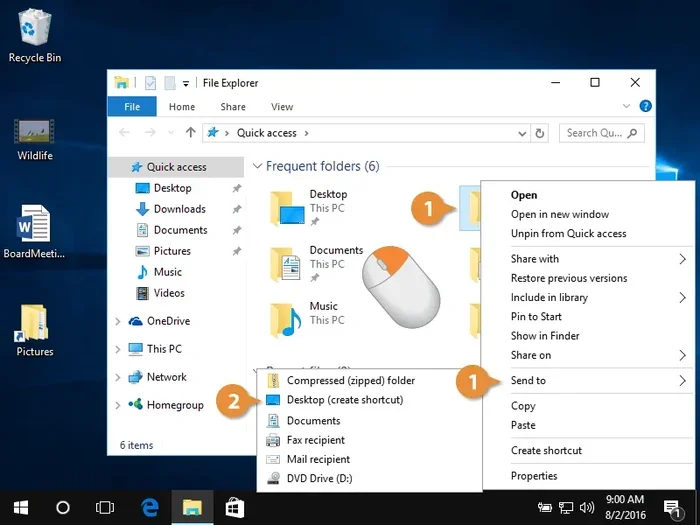
To create a .lnk shortcut on Windows, follow these steps:
1. Right-click on an empty area of your desktop.
2. Select New and then Shortcut.
3. In the location field, type the path to the target file or browse for it.
4. Click Next and give the shortcut a name.
5. Click Finish.
Windows will instantly create a .lnk file with the arrow overlay. You can also create a shortcut by holding the Alt key and dragging a file to the desktop. This method copies the file as a shortcut rather than moving the original. For web shortcuts, open your browser, navigate to the site, and drag the padlock icon next to the address bar to your desktop. Windows will create a .url file.
### Creating a macOS Webloc Shortcut
On a Mac, creating a .webloc file is just as easy. Open Safari and go to the webpage you want to save. Click the share icon in the address bar and choose “Add to Desktop.” Alternatively, you can drag the URL from the address bar directly to the desktop. macOS will create a .webloc file that opens the page when double-clicked. You can also create .webloc files manually by saving a simple text file with the correct XML structure and renaming the extension.
### Common Mistakes When Creating Shortcuts
– Always use the right-click method to create shortcuts, not copy and paste. Copying a shortcut file creates a duplicate shortcut, which can sometimes break the target link.
– Do not move the original target file after creating a shortcut. The shortcut will point to the old location and show an error.
– Avoid renaming the .lnk extension to something else. The system will no longer recognize it as a shortcut.
– When creating a .url file manually, ensure the URL is complete and includes the https:// prefix.
## Fixing Broken Shortcut Links
A broken shortcut is frustrating. You double-click it and get an error message saying the target cannot be found. This happens when the original file is moved, renamed, or deleted. The good news is that fixing a broken shortcut is often quick and easy.
### Diagnosing the Problem
The first step is to check the shortcut target. Right-click the broken shortcut and select Properties. Look at the Target field. If the path is missing or points to a non-existent location, you know the problem. The Target field should show the full path to the executable or file. If the path ends with a question mark or shows a red X, the target is definitely gone.
Sometimes the issue is not the target but the working directory. The Working Directory field in the shortcut properties should point to the folder containing the target file. If that folder no longer exists, the shortcut may fail even if the target file is still present. Checking both fields gives you a complete picture of what is wrong.
### How to Repair a Shortcut
If the target file still exists somewhere on your computer, you can fix the shortcut by updating the path. In the Properties window, click the Target field and then click Browse. Navigate to the current location of the file and select it. Click OK and then Apply. The shortcut should now work again.
If the target file is completely gone, you will need to recreate the shortcut. Uninstalling and reinstalling the application is one way to generate a fresh shortcut. Alternatively, you can create a new shortcut manually using the steps in the previous section. Always keep your shortcuts organized in a dedicated folder so they are easy to find and fix.
### Key Takeaways for Shortcut Maintenance
– Check the Target path first when a shortcut stops working.
– Update the Working Directory if the target folder has moved.
– Recreate the shortcut if the original file is permanently deleted.
– Use the Search function in File Explorer to locate missing target files quickly.
– Avoid moving program files after creating shortcuts to them.
## Related Tech Tips
While you are exploring shortcut files, you might also want to learn about other laptop features that affect your daily workflow. If you are using a laptop and notice slowdowns when many shortcuts are open, understanding what the RAM on a laptop does can help you optimize performance. RAM handles all active processes, including the many small pointer files your desktop manages.
Your mouse on a laptop is the primary tool for right-clicking, dragging, and creating shortcuts with ease. A responsive trackpad or external mouse makes shortcut management much smoother. Finally, if you are considering a new device, it is wise to check when the best time to purchase a laptop so you can get a machine that handles shortcuts and all your tasks without lag.
## Conclusion
What Is The File Extension For A Shortcut? On Windows, it is .lnk for local items and .url for web links. Mac users rely on .webloc files. These tiny extensions carry a lot of power. They tell your computer exactly where to go and how to present the shortcut. By understanding these extensions, you can troubleshoot broken links, create shortcuts correctly, and keep your desktop organized.
Shortcuts are a fundamental part of how we interact with our computers. They save time, reduce clutter, and make frequently used files just a click away. Now that you know the ins and outs of shortcut file extensions, you can manage them with confidence. Take a few minutes today to check your desktop shortcuts. Fix the broken ones, create new ones for your favorite tools, and enjoy a smoother workflow.
Key Takeaways
- .lnk is the default Windows extension for local shortcut files.
- .url files are used exclusively for internet shortcuts and web addresses.
- .webloc is the macOS equivalent that stores a link to a website.
- Shortcut files always display a small arrow overlay icon by default.
- You can create a shortcut with a simple right-click in File Explorer.
- Broken shortcuts usually show a missing icon or an error message when opened.
- Checking the shortcut target path is the first step to fixing any issue.
Frequently Asked Questions
What is the default file extension for a Windows shortcut?
The default extension for a Windows shortcut is .lnk. This extension is used for shortcuts that point to local files, folders, or applications. You usually do not see it because Windows hides known file extensions by default.
Can a shortcut file have a different extension than .lnk?
Yes. For internet shortcuts, Windows uses the .url extension. Microsoft ClickOnce applications use .appref-ms. On macOS, the equivalent is .webloc. Each extension serves a specific purpose and is recognized by the operating system.
How do I see the file extension of a shortcut?
Open File Explorer, go to the View tab, and check the “File name extensions” option. This will reveal the full extension of every file, including shortcuts. You can also right-click the shortcut, select Properties, and look at the file type listed in the General tab.
What happens if I delete a .lnk file?
Deleting a .lnk file only removes the shortcut. The original target file remains untouched. You will no longer have quick access to that file from the desktop or taskbar, but the program itself is still installed on your computer.
Why does my shortcut show a missing icon?
A missing or broken icon usually means the target file has been moved or deleted. The shortcut still exists, but it cannot find the original file to pull the icon from. You can fix this by updating the target path in the shortcut Properties window.
Is it safe to edit a .url file in Notepad?
Yes. .url files are plain text files. You can safely open them in Notepad and edit the URL. Just make sure you save the file with the correct .url extension and keep the [InternetShortcut] header intact. This is a quick way to update a web shortcut without recreating it.