What Is Winword
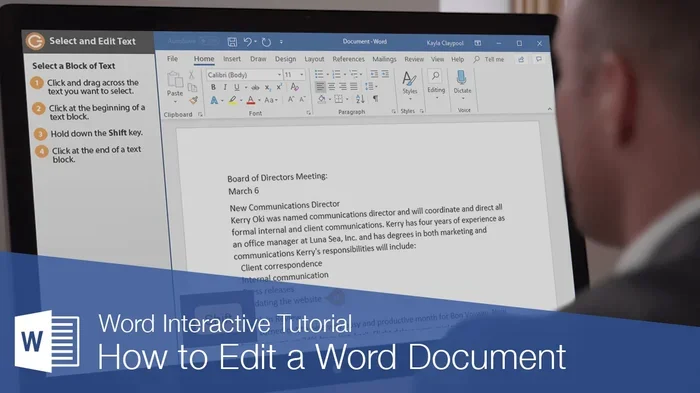
Winword is the executable file for Microsoft Word, the world’s most widely used word processing software. It lets you create, edit, format, and share documents with powerful tools for text, tables, and images. Whether you are a student, professional, or casual user, Winword gives you everything you need to write polished documents quickly and easily.
You have probably seen the name Winword before, even if you did not know exactly what it meant. Maybe you have spotted a process running in your taskbar named winword.exe and wondered what it was. Or perhaps someone told you to open Winword to work on a document. Either way, you are in the right place. This guide breaks down everything you need to know about Winword in simple, clear language.
Winword is the executable file that runs Microsoft Word. Microsoft Word is a word processor developed by Microsoft. It is part of the Microsoft Office suite and also ships with Microsoft 365. Word processing means creating, editing, formatting, and printing text documents. Think of letters, reports, resumes, essays, and more. Winword is the engine behind all of that. When you double-click a Word document on your computer, Winword launches and opens your file. It is one of the most trusted tools for document creation on the planet.
Key Takeaways
- Winword is the core executable behind Microsoft Word, powering document creation and editing for millions of users worldwide.
- It offers rich formatting tools including fonts, styles, templates, spell check, and grammar correction.
- Winword supports multiple file formats such as .docx, .doc, .pdf, and .rtf for easy sharing and compatibility.
- Collaboration features like track changes and real-time co-authoring make it ideal for team projects.
- It is part of Microsoft 365, which means cloud storage and cross-device syncing are built in.
- Winword works on Windows, Mac, and the web, giving you flexibility in how and where you work.
📑 Table of Contents
What Exactly Is Winword?
At its core, Winword is a program file. On Windows computers, it lives as winword.exe in the Microsoft Office installation folder. When you open Microsoft Word, you are technically launching Winword. It handles everything from loading your document to rendering text, images, and tables on screen. Without Winword, Microsoft Word simply would not run.
The name Winword is short for Windows Word. Microsoft uses this naming convention for many of its Office applications. For example, Excel runs through excel.exe, and PowerPoint uses powerpnt.exe. So Winword follows the same pattern. It is simply the technical name for the Word application on Windows operating systems.
How Winword Differs from Microsoft Word
Here is a simple way to think about it. Microsoft Word is the product you buy or subscribe to. Winword is the actual program file that makes it work. You interact with Microsoft Word every day through its user interface. But behind the scenes, Winword is doing all the heavy lifting. It processes your keystrokes, saves your files, and renders the formatting you see on screen.
Key Features of Winword
Winword comes packed with features that make writing and editing documents a breeze. Let us walk through the most important ones.
Text Formatting Tools
Winword gives you full control over how your text looks. You can change fonts, sizes, colors, and styles with just a few clicks. Want to make a heading bold? Done. Need to italicize a title? Easy. You can also adjust line spacing, set margins, and align text left, right, center, or justified. These formatting tools help you create documents that look professional and polished.
Spell Check and Grammar Tools
One of the standout features of Winword is its built-in spell checker. As you type, Winword underlines misspelled words in red. Grammar issues show up in blue. You can right-click any underlined word to see suggestions and fix mistakes instantly. The grammar tool has become even smarter over the years, catching complex errors like passive voice and unclear sentence structure.
Templates and Styles
Winword offers hundreds of ready-made templates. Need a resume? There is a template for that. Writing a letter? There is one too. Templates save you time because they come pre-formatted with fonts, colors, and layouts already set. You just fill in your own content. Styles take this a step further. They let you apply consistent formatting across an entire document with a single click.
Tables, Charts, and Images
You are not limited to plain text in Winword. You can insert tables to organize data, charts to visualize numbers, and images to bring your documents to life. Drag and drop a picture right into your page. Create a spreadsheet-style table in seconds. These features make Winword far more than a simple text editor.
Mail Merge
Mail merge is a powerful tool inside Winword that many people overlook. It lets you create one document and personalize it for hundreds of recipients. For example, you can write one letter template and merge it with a contact list to produce hundreds of unique letters, each addressed to a different person. It is a huge time saver for businesses and organizations.
File Formats Supported by Winword
Winword supports a wide range of file formats. Understanding these formats helps you share documents with others and keep your files organized.
- .docx – The default format for modern Microsoft Word documents. It uses XML-based compression, making files smaller and more reliable.
- .doc – The older binary format used by earlier versions of Word. Still widely supported but being phased out.
- .pdf – Portable Document Format. Winword can save documents as PDFs, preserving your formatting across different devices.
- .rtf – Rich Text Format. A universal format that works across different word processors and operating systems.
- .txt – Plain text format. Strips away all formatting and keeps only your raw text.
- .odt – Open Document Text. Used by free alternatives like LibreOffice. Winword can open and save in this format too.
Knowing which format to use matters. If you are sharing a document with someone who uses Google Docs or Apple Pages, saving as .rtf or .pdf ensures they can open it without any issues. For everyday use, .docx is the go-to choice.
How Winword Fits Into Microsoft 365
Winword is a key part of the Microsoft 365 ecosystem. Microsoft 365 is a subscription service that gives you access to Word, Excel, PowerPoint, Outlook, and more. It also includes cloud storage through OneDrive. This means you can save your documents online and access them from any device.
One of the biggest advantages of using Winword through Microsoft 365 is real-time collaboration. Multiple people can work on the same document at the same time. You can see their cursors, track their changes, and leave comments. This makes Winword an excellent tool for team projects, group assignments, and business workflows.
Microsoft 365 also keeps your Winword app up to date automatically. You always get the latest features, security patches, and performance improvements without lifting a finger. This is a huge benefit compared to older one-time purchase versions of Microsoft Office.
For those who prefer working in a browser, Microsoft Word Online offers a streamlined version of the app. It is a SaaS-based word processor that runs entirely in the cloud. You can access it from any device with an internet connection and a web browser. While it has fewer features than the desktop version, it handles the basics beautifully.
Common Uses for Winword
Winword is incredibly versatile. People use it for all kinds of tasks every single day. Here are some of the most common use cases:
- Writing resumes and cover letters – Templates make it easy to create professional-looking applications.
- Drafting business reports – Tables, charts, and formatting tools help you present data clearly.
- Creating academic papers – Citation tools, styles, and spell check support students and researchers.
- Writing personal letters and notes – Quick and simple for everyday communication.
- Building newsletters and flyers – Images, columns, and text boxes give you design flexibility.
- Managing mailing lists – Mail merge turns a simple document into a batch of personalized communications.
No matter what you need to write, Winword has the tools to get the job done. Its flexibility is one of the main reasons it has remained the dominant word processor for decades.
Tips for Getting the Most Out of Winword
Want to work faster and smarter in Winword? Here are some practical tips that will level up your workflow.
Use Keyboard Shortcuts
Keyboard shortcuts save you tons of time. Here are a few essentials:
- Ctrl + B – Bold selected text
- Ctrl + I – Italicize selected text
- Ctrl + U – Underline selected text
- Ctrl + S – Save your document
- Ctrl + Z – Undo your last action
- Ctrl + Shift + N – Apply Normal style
Learning even a few of these shortcuts can make a noticeable difference in your speed. Once they become second nature, you will wonder how you ever worked without them.
Enable AutoSave
If you use Winword with Microsoft 365, turn on AutoSave. It automatically saves your work to OneDrive every few seconds. This means you never lose your progress, even if your computer crashes or the power goes out. It is one of the simplest yet most valuable features available.
Explore the Ribbon Interface
The ribbon is the toolbar at the top of the Winword window. It is organized into tabs like Home, Insert, Design, Layout, References, and Review. Each tab contains groups of related tools. Take a few minutes to browse through each tab. You will discover features you did not know existed. The ribbon has been designed to make powerful tools easy to find and use.
Use Styles for Consistency
If you are working on a long document, styles are your best friend. Instead of manually formatting every heading, you can apply the Heading 1 or Heading 2 style. This keeps your document consistent and makes it easy to generate a table of contents. Styles also make it simple to change the look of your entire document with just one adjustment.
Common Mistakes People Make with Winword
Even experienced users sometimes run into trouble with Winword. Here are a few common mistakes and how to avoid them.
- Not saving frequently enough – Always use AutoSave or get in the habit of pressing Ctrl + S every few minutes.
- Ignoring formatting inconsistencies – Mixing different fonts and sizes makes documents look unprofessional. Use styles to keep things uniform.
- Sharing .doc files instead of .docx – The older .doc format has limitations. Use .docx for better compatibility and smaller file sizes.
- Forgetting to check compatibility – If someone uses a different word processor, test your document in that app before sending it. Saving as .pdf is often the safest bet.
- Overcomplicating layouts – Keep your documents clean and simple. Too many columns, images, or fonts can make a document hard to read.
Avoiding these mistakes will help you create cleaner, more professional documents with less frustration.
Winword on Different Devices
Winword is not limited to just one device or platform. Microsoft has made it available across multiple environments so you can work wherever you are.
On Windows PCs, Winword runs as a full desktop application with all features enabled. On Mac computers, Microsoft Word works similarly, though the interface has slight differences to match macOS design guidelines. Both versions use the same .docx format, so your documents look the same regardless of which platform you use.
For mobile users, Microsoft Word is available as a free app on iOS and Android devices. You can edit documents on your phone or tablet. The mobile app is more limited than the desktop version, but it handles basic editing, formatting, and reviewing tasks well.
And then there is Word Online, the browser-based version. It is perfect for quick edits or for working on a computer that does not have Microsoft Office installed. You can access Word Online from any modern browser, making it one of the most convenient ways to work with your documents on the go.
Final Thoughts on Winword
Winword is more than just a program file. It is the backbone of one of the most essential productivity tools in the world. Whether you are writing a quick note, crafting a detailed report, or collaborating with a team on a shared document, Winword delivers the features and reliability you need. Its deep formatting capabilities, broad file format support, and seamless integration with Microsoft 365 make it a standout choice for users of all skill levels.
If you have ever wondered what that winword.exe process is on your computer, now you know. It is Microsoft Word, ready and waiting to help you create something great. The next time you open a Word document, take a moment to appreciate everything Winword does behind the scenes to make your work easier.
For those interested in broader technology topics, check out our guide on What Is Project Management to see how document tools like Winword fit into larger workflows. Also, if you are curious about cloud-based alternatives, our article on What Is Webflow explores another powerful platform in the tech space.
Frequently Asked Questions
Is Winword the same as Microsoft Word?
Not exactly. Microsoft Word is the product you use, while Winword is the executable file that runs the application on Windows. When you open Word, you are launching Winword behind the scenes.
Can I use Winword on a Mac?
The Winword executable is designed for Windows. On a Mac, Microsoft Word runs through a different process. However, the features and functionality are essentially the same across both platforms.
Do I need to pay for Winword?
Winword comes with Microsoft Office or Microsoft 365, which require a license or subscription. You can also use Word Online for free through a web browser, though it has fewer features than the desktop version.
What file format should I save my documents in?
The .docx format is the best choice for most users. It is the modern standard for Word documents and offers excellent compatibility and compression. Use .pdf when you want to share a read-only version of your document.
Can I recover an unsaved Winword document?
Yes. Winword has an auto-recovery feature that saves temporary copies of your work at regular intervals. You can find these recovery files by going to File > Info > Manage Document > Recover Unsaved Documents.
Is Winword safe to use?
Absolutely. Winword is a legitimate Microsoft product and is completely safe. Like any software, make sure you keep it updated to benefit from the latest security patches and improvements.
=== CONCLUSION ===
Winword is the engine that powers Microsoft Word, and it plays a vital role in how millions of people create and edit documents every day. From its powerful formatting tools to its collaboration features and broad file format support, Winword remains an essential tool for work, school, and personal use. Understanding what Winword is and how it works helps you use it more effectively and get the most out of your Microsoft Office experience. Start applying the tips and insights from this guide today, and you will notice a real difference in your productivity and document quality.