What Is the Difference Between Iso Exe Versions of a Windows Upgrade
The ISO and EXE versions of a Windows upgrade serve different purposes for different users. An ISO file is a complete disk image containing all installation files, while an EXE file is a smaller executable that downloads what it needs during setup. Choosing the right format depends on your upgrade method, storage space, and internet connection.
This is a comprehensive guide about What Is The Difference Between Iso Exe Versions Of A Windows Upgrade.
Key Takeaways
- ISO files are complete disk images: They contain every file needed for a Windows upgrade or clean install.
- EXE files are self-extracting installers: They download additional components during the setup process.
- ISO files are better for creating bootable USB drives: You can use tools like Rufus or the Media Creation Tool with an ISO.
- EXE files are simpler for in-place upgrades: They guide you through the process with minimal user input.
- File size differs significantly: ISO files are larger because they include everything upfront.
- Both methods deliver the same Windows version: The end result is identical regardless of format.
- Your choice depends on your situation: Consider storage, internet speed, and whether you need a clean install.
[FEATURED_IMAGE_PLACEHOLDER]
What Is the Difference Between ISO and EXE Versions of a Windows Upgrade
When you go to upgrade your Windows operating system, you might notice two download options: an ISO file and an EXE file. What is the difference between ISO EXE versions of a Windows upgrade? It comes down to how the files are packaged and how they deliver the installation files to your computer.
Both formats give you access to the same Windows version. But the way they work behind the scenes is quite different. If you have ever stood at the download page wondering which one to pick, you are not alone. This guide breaks it all down in simple terms.
An ISO file is essentially a snapshot of a complete DVD or disc. It holds every single file that would be on that disc. An EXE file, on the other hand, is a small program that sets up the installation for you. It downloads the rest of the files while it runs.
Understanding this difference matters because it affects how you upgrade, how much space you need, and what tools you use. Let us dive deeper into each format so you can make the right choice.
What Is an ISO File for Windows Upgrade
An ISO file is a disk image. Think of it like a perfect copy of a DVD or USB drive, saved as a single file on your hard drive. When you download a Windows ISO, you get every installation file bundled together in one package.
How ISO Files Work
When you mount or extract an ISO file, it behaves exactly like a physical disc. Your computer reads all the files inside just as it would from a DVD. This is why ISO files are the go-to choice for creating bootable USB drives.
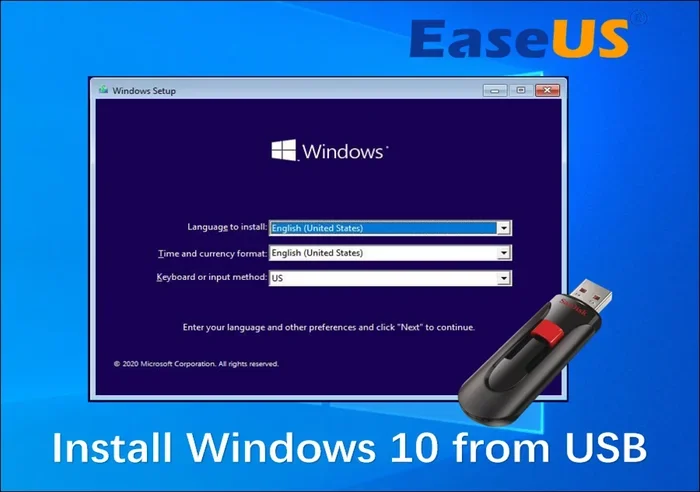
You can use free tools like Rufus or the Microsoft Media Creation Tool to burn an ISO file onto a USB stick. Once that USB is ready, you can boot your computer from it and start the installation process fresh.
When to Use an ISO File
ISO files shine in several situations:
- Clean installs: If you want to wipe your system and start fresh, an ISO gives you full control.
- Multiple computers: One ISO file can be used to upgrade or install Windows on many machines.
- Creating bootable media: You need an ISO to make a bootable USB or DVD.
- Offline installations: Once the ISO is downloaded, you do not need the internet during setup.
The downside is size. A Windows ISO file can be 4 to 6 gigabytes or more. You need enough free storage space on your hard drive to hold it. If your laptop has a small SSD, this could be a concern.
What Is an EXE File for Windows Upgrade
An EXE file is a Windows executable installer. It is a small program that, when you run it, handles the upgrade process for you. Instead of containing every file inside itself, the EXE downloads what it needs during the installation.
How EXE Files Work
When you run the EXE file, it connects to Microsoft servers and pulls down the necessary files. It then guides you through the upgrade steps. You click through a few screens, and it does the rest.
This format is especially convenient if you have a stable internet connection and enough temporary disk space during the download. The EXE file itself is small, often under 100 megabytes, but it will need several gigabytes of free space while it downloads the rest.
When to Use an EXE File
EXE files work best in these scenarios:
- In-place upgrades: You want to keep your files, apps, and settings while moving to a new Windows version.
- Simple setup: You do not want to deal with creating bootable media or managing extra files.
- Quick upgrades: You just want the process to be as hands-off as possible.
- Limited storage: You do not want to save a large ISO file permanently on your drive.
The trade-off is that you need a reliable internet connection throughout the process. If your connection drops, the installation could fail. Also, the EXE method gives you less control over exactly which files are installed.
ISO vs EXE: Side-by-Side Comparison
To make the choice clearer, here is a direct comparison of the two formats.
| Feature | ISO File | EXE File |
|---|---|---|
| File Size | Large (4-6 GB or more) | Small (under 100 MB) |
| Contains All Files | Yes | No (downloads during setup) |
| Internet Required | No (after download) | Yes (during installation) |
| Bootable USB Creation | Yes | No |
| Clean Install | Yes | Limited |
| In-Place Upgrade | Yes | Yes |
| Offline Use | Yes | No |
| Ease of Use | Moderate | Easy |
| Storage Needed | High (full ISO size) | Moderate (temp space for downloads) |
| Control Over Installation | Full | Limited |
As you can see, both formats have strengths. Your pick depends on what you are trying to accomplish and what resources you have available.
System Requirements for Windows Upgrades
Before you download either format, make sure your computer meets the minimum system requirements. These requirements are the same regardless of whether you use an ISO or EXE file.
Here are the key things to check:
- Processor: 1 GHz or faster with support for PAE, NX, and SSE2.
- RAM: At least 4 GB for 64-bit Windows. If you are unsure about your current RAM, you can check it easily in your system settings.
- Storage: At least 64 GB of free space for a clean install. For an in-place upgrade, you may need less, but more is always better.
- Graphics: A DirectX 9 or later compatible graphics card with a WDDM 1.0 driver.
- Display: 800 x 600 resolution or higher.
If you are upgrading a laptop, also consider whether your hardware drivers are compatible with the new Windows version. Older laptops sometimes need updated drivers after a major upgrade. You can check your laptop manufacturer’s website for the latest support information.
How to Choose the Right Format for You
Still not sure which one to pick? Here is a simple way to think about it.
If you want a clean install or you need to set up Windows on multiple computers, go with the ISO file. It gives you full control and works offline. You can also reuse the ISO file whenever you need it.
If you just want to upgrade your current installation and keep everything as it is, the EXE file is the simpler path. It handles the details for you and does not require you to manage extra files or create bootable media.
One thing to keep in mind: if you plan to upgrade your laptop hardware along with the operating system, you might want to look into what RAM is good for a laptop before you start. Having enough memory makes a big difference in how smoothly the new Windows version runs.
Common Mistakes to Avoid
Here are some pitfalls that people often run into when working with ISO and EXE files:
- Using a fake download source: Always download Windows upgrade files from the official Microsoft website. Third-party sites can bundle malware with the files.
- Not checking the file hash: Microsoft provides checksums for their download files. Verifying the hash ensures the file was not corrupted or tampered with.
- Ignoring storage space: Even if you choose the small EXE file, it still needs several gigabytes of temporary space during installation.
- Skipping backups: Whether you use ISO or EXE, always back up your important files before upgrading. An operating system upgrade can sometimes cause unexpected issues.
- Using the wrong USB drive: If creating a bootable USB from an ISO, use a drive with at least 8 GB of space and no important data, since the process will erase everything on it.
Avoiding these mistakes saves you time, frustration, and potential data loss.
Expert Tips for a Smooth Windows Upgrade
Here are some insider tips that make the upgrade process much smoother:
- Prepare your system first. Run Windows Update several times before starting the upgrade. This ensures your current installation is fully patched.
- Disconnect unnecessary peripherals. Remove extra USB devices, external hard drives, and printers before you begin. This reduces the chance of driver conflicts.
- Check your internet speed. If you are using the EXE method, a slow connection can make the download phase take hours. Make sure you have a stable connection.
- Use the Media Creation Tool. Microsoft’s official Media Creation Tool can create both ISO files and bootable USB drives. It is the safest and easiest way to get your installation media ready.
- Keep your product key handy. If you are doing a clean install, you will need your Windows product key. You can find it in your Microsoft account or on the sticker of your laptop.
Following these tips helps ensure your upgrade goes smoothly from start to finish.
Frequently Asked Questions
Can I use an EXE file to create a bootable USB drive?
No, EXE files are not designed for creating bootable media. You need an ISO file for that purpose. The EXE file is specifically an installer that runs directly on your existing Windows installation.
Is the final Windows version the same regardless of which format I choose?
Yes, absolutely. Whether you use an ISO or an EXE file, you end up with the same Windows operating system. The only difference is how the files are delivered to your computer.
Can I convert an EXE file to an ISO file?
Not directly. The EXE file does not contain the full installation files the way an ISO does. If you need an ISO, you should download it separately from the Microsoft website.
Do I need a product key for either format?
For in-place upgrades, Windows usually detects your existing license automatically. For clean installs, you will need to enter your product key during the setup process.
Which format is better for a slow internet connection?
The ISO file is better for slow connections because you download everything upfront. With an EXE file, you need a stable connection throughout the entire installation since it downloads files during setup.
Can I use either format to upgrade from Windows 10 to Windows 11?
Yes, both ISO and EXE files work for upgrading from Windows 10 to Windows 11, as long as your computer meets the Windows 11 system requirements. The EXE file is the easiest option for most users doing an in-place upgrade.
Final Thoughts
The difference between ISO and EXE versions of a Windows upgrade comes down to convenience versus control. The ISO file gives you a complete package with full control over your installation. The EXE file keeps things simple by handling the download and setup for you.
If you are comfortable with creating bootable media or doing a clean install, the ISO route gives you flexibility. If you just want a straightforward upgrade without the extra steps, the EXE file is your best bet.
Either way, you are getting the same quality Windows experience. The key is picking the format that matches your needs, your technical comfort level, and your current setup. Once you make that choice, the rest is just a few clicks away.
Frequently Asked Questions
What is What Is The Difference Between Iso Exe Versions Of A Windows Upgrade?
What Is The Difference Between Iso Exe Versions Of A Windows Upgrade is an important topic with many practical applications.