Do Turn Headphones Into a Computer Headset the Right Way

Turning your headphones into a computer headset is easier than you think. You just need the right adapter, a microphone, and a few simple steps. This guide shows you exactly how to turn headphones into a computer headset for gaming, calls, and everyday use. Save money and get great sound without buying a new headset.
Have you ever wondered if you can turn headphones into a computer headset without spending a fortune? The answer is a definite yes. Whether you have a great pair of gaming headphones or a simple set of earbuds, you can convert them into a full headset with a microphone. This guide walks you through every step in plain language. You will learn what tools you need, how to set things up, and how to avoid common mistakes. By the end, you will be ready to enjoy hands-free calling and immersive gaming audio.
The process is simpler than most people assume. You do not need to be a tech expert. A few affordable accessories and about ten minutes of your time is all it takes. Many people already own headphones that work perfectly for this conversion. Instead of buying a new computer headset, why not reuse what you have? Let us dive in and show you how.
Key Takeaways
- Simple Process: Converting headphones into a headset requires just a few basic tools and adapters.
- Cost Savings: You can repurpose existing headphones instead of buying a new headset.
- Multiple Methods: There are several ways to add a microphone, including USB adapters and splitter cables.
- Compatibility Matters: Check your PC’s audio ports before choosing your conversion method.
- Sound Quality: With the right setup, you can get excellent audio for gaming and calls.
📑 Table of Contents
- Why Turn Headphones Into a Computer Headset
- What You Need to Turn Headphones Into a Headset
- Step-by-Step Guide to Converting Headphones
- Best Headphone Models for Conversion
- Common Problems and How to Fix Them
- Tips for Getting the Best Sound Quality
- Quick Tips for a Smooth Setup
- Common Mistakes to Avoid
- Expert Insights on Headphone Conversions
- Final Thoughts
Why Turn Headphones Into a Computer Headset
There are many good reasons to convert your headphones. First, it saves you money. Quality headsets can cost anywhere from fifty to two hundred dollars. If you already own a pair of good headphones for computer gaming, you do not need to replace them. Second, it gives you flexibility. You can switch between music listening and calls without carrying two separate devices. Third, it reduces electronic waste. Repurposing what you already own is better for the planet.
Many people also find that their existing headphones sound better than budget headsets. A good pair of headphones often has superior drivers and build quality. By adding a microphone, you get the best of both worlds. You get premium audio and a functional microphone for work or gaming. The best headphones for computer gaming are often designed with comfort and sound quality in mind, making them ideal candidates for conversion.
When a Headset Conversion Makes Sense
A conversion makes sense in several situations. Maybe your headset microphone broke but the headphones still work great. Perhaps you bought headphones for music and now need them for video calls. Or you might want a lightweight setup without the bulk of a full headset. Whatever your reason, converting headphones into a computer headset is a practical solution. It works for remote workers, gamers, students, and anyone who spends time on their computer.
What You Need to Turn Headphones Into a Headset
Before you start, gather the right tools. Having everything ready makes the process smooth and fast. Here is what you will need:
- A pair of headphones: Any headphones with a 3.5mm audio jack will work. This includes over-ear, on-ear, and in-ear models.
- A microphone: You can use a standalone microphone or one that comes with an adapter.
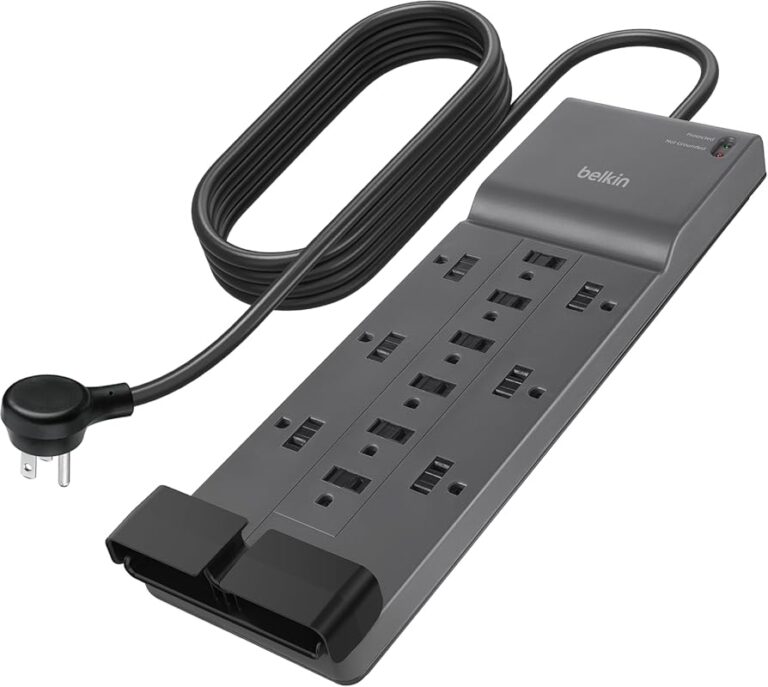
- An audio splitter: This splits one audio jack into separate microphone and headphone inputs.
- A USB sound card or adapter: This is optional but helpful for PCs without a combined audio jack.
- Cable ties or clips: These help manage wires and keep your setup tidy.
Understanding Your PC’s Audio Ports
Modern computers come with different audio configurations. Some laptops have a single combined jack that handles both audio output and microphone input. Others have separate ports for green (audio out) and pink (microphone in). Desktop PCs often have separate ports on the back of the tower. Before buying any adapter, check what ports your computer has. This determines which conversion method will work best for you.
If your PC has a single combo jack, a simple TRRS splitter will do the job. If you have separate ports, you will need a microphone cable that plugs into the pink port. For USB-only setups, a USB sound adapter is your best bet. Each method is straightforward and takes only a few minutes to set up.
Step-by-Step Guide to Converting Headphones
Now let us walk through the actual process. Follow these steps carefully for the best results.
Step 1: Check Your Headphone Jack Type
Look at the plug on your headphones. Most standard headphones have a TRS plug, which has two rings on the connector. A TRRS plug has three rings and supports microphone input. If your headphones have a TRS plug, you will need an adapter or splitter to add microphone functionality. If they already have a TRRS plug, you are one step ahead.
Step 2: Connect the Audio Splitter
Plug the audio splitter into your computer’s audio port. Then connect your headphones to the splitter’s headphone output. The splitter will have a separate port for the microphone. If you are using a USB sound card, plug it into a USB port first, then connect your headphones to the card’s audio output.
Step 3: Connect the Microphone
Plug your microphone into the splitter’s microphone port. If you are using a USB microphone, simply plug it into a free USB port. Windows and most operating systems will automatically recognize USB microphones. For 3.5mm microphones, make sure the plug is fully inserted into the correct port.
Step 4: Test Your Setup
Open your computer’s sound settings and test both the microphone and speakers. Speak into the microphone and check the input level. Play some music to test the audio output. Adjust the volume levels for both input and output until everything sounds right. This step is important because it ensures you get clear audio in both directions.
Best Headphone Models for Conversion
Not all headphones are equally suited for conversion. Some models work better because of their build quality, driver size, and comfort. Here are a few popular options that make excellent converted headsets.
| Headphone Model | Type | Jack Type | Best For |
|---|---|---|---|
| Oneodio A70 | Over-ear | TRS (3.5mm) | Gaming and music |
| Supereq S1 | Over-ear | TRRS (3.5mm) | Bluetooth convenience |
| Oneodio A11 | Over-ear | TRS (3.5mm) | Budget-friendly gaming |
| Oneodio Monitor 60 | Over-ear | TRS (3.5mm) | Studio-quality audio |
The Oneodio A70 headphones are a popular choice for conversion. They have large 50mm drivers that deliver rich, detailed sound. Their over-ear design is comfortable for long sessions. Since they use a standard 3.5mm TRS plug, all you need is a simple splitter to add a microphone. These headphones are an excellent starting point for anyone looking to turn headphones into a computer headset without a big investment.
The Supereq S1 Bluetooth headphones offer wireless convenience. They connect via Bluetooth to your computer, which is great for a clean desk setup. However, for microphone use, you will still need a wired connection or a Bluetooth microphone. The Oneodio A11 Bluetooth headphones are another solid option that balances wireless freedom with the ability to use a wired microphone when needed. For those who want studio-level accuracy, the Oneodio Monitor 60 headphones deliver flat, detailed sound that is perfect for both music and voice calls.
Common Problems and How to Fix Them
Even with a simple setup, you might run into a few issues. Here are the most common problems and their solutions.
No Sound from Headphones
If you cannot hear anything, first check that the headphones are plugged into the correct port. The green port on a desktop PC is for audio output. Make sure the plug is fully seated. On laptops, check your sound settings to ensure the correct output device is selected. Sometimes Windows switches the audio output to a different device by accident.
Microphone Not Working
A non-working microphone is a common issue. Start by checking that the microphone is plugged into the pink port or the correct splitter port. Go to your sound settings and make sure the microphone is not muted. You may also need to adjust the input level. Right-click the speaker icon in your taskbar, open sound settings, and test your microphone there.
Static or Crackling Noise
Static noise usually comes from a loose connection. Unplug and replug all cables firmly. If you are using a USB adapter, try a different USB port. Avoid using extension cables if possible, as they can degrade the signal. If the problem persists, your adapter might be faulty. Try a different adapter to rule out hardware issues.
Tips for Getting the Best Sound Quality
Once your converted headset is working, you can improve the experience with a few simple tips. First, keep your cables away from power cables. This reduces electromagnetic interference that causes buzzing or static. Second, use a high-quality audio splitter. Cheap splitters can degrade sound quality and introduce noise. Third, update your audio drivers regularly. Updated drivers improve compatibility and performance.
For gaming, consider using a USB sound card instead of the built-in audio. USB sound cards provide cleaner audio and better microphone clarity. They also bypass your motherboard’s built-in audio, which can be noisy. Position your microphone about two inches from your mouth for the clearest voice pickup. Use a pop filter if you do a lot of voice calls or streaming.
Another tip is to use an inline volume control on your microphone cable. This lets you adjust the input level without opening your sound settings. It is a small addition that makes a big difference in day-to-day use. With these tips, your converted headset will sound and feel like a purpose-built solution.
Quick Tips for a Smooth Setup
- Always test your microphone and speakers before an important call or gaming session.
- Label your cables so you can easily identify the audio and microphone connections.
- Keep a spare splitter and adapter on hand in case one stops working.
- Clean your audio ports regularly with compressed air to prevent dust buildup.
- Use a cable management clip to keep wires neat and out of your way.
Common Mistakes to Avoid
One of the biggest mistakes is using the wrong type of splitter. A stereo splitter splits audio into two outputs but does not add microphone support. You need a TRRS splitter or a dedicated microphone adapter. Another mistake is ignoring driver updates. Outdated audio drivers can cause compatibility issues and poor sound quality. Finally, some people force plugs into ports that do not match. Always check the port type before inserting any cable. Forcing a plug can damage both the cable and the port.
Avoid using cheap, unbranded adapters. They may seem convenient but often produce poor audio quality and break quickly. Investing in a reliable adapter from a trusted brand pays off in the long run. Also, do not overlook the importance of microphone positioning. Even the best setup sounds bad if the microphone is too far away or pointed in the wrong direction.
Expert Insights on Headphone Conversions
Many audio engineers recommend using headphones with at least 32-ohm impedance for the best results. Lower impedance headphones work well for casual use, but higher impedance models deliver richer detail when paired with a good adapter. If you are serious about audio quality, consider headphones with a balanced sound profile. These tend to handle both music and voice with equal clarity.
When choosing a microphone, a condenser microphone generally picks up clearer voice than a dynamic one at close range. For gaming and calls, a cardioid condenser microphone is ideal because it focuses on sound from the front and rejects background noise. Pair this with quality headphones, and you have a setup that rivals many dedicated headsets at a fraction of the cost.
Final Thoughts
Turning your headphones into a computer headset is a smart, simple, and budget-friendly choice. You do not need expensive equipment or technical skills. With the right adapter, a microphone, and a few minutes of setup time, you can enjoy a fully functional headset for gaming, work, and everyday use. The process works with virtually any pair of headphones that have a standard 3.5mm jack. Whether you use Oneodio A70 headphones, Supereq S1 Bluetooth headphones, or any other model, the conversion process is the same.
Remember to test your setup thoroughly and avoid common mistakes like using the wrong splitter or ignoring driver updates. With the tips in this guide, you will get clear audio and reliable microphone performance every time. So go ahead, give your headphones a second life as a computer headset. You will be glad you did.
Frequently Asked Questions
Can any headphones be turned into a computer headset?
Most headphones with a 3.5mm audio jack can be converted. You just need the right adapter or splitter to add microphone support. Headphones with a TRRS plug already support microphone input and need less equipment.
Do I need a special microphone to convert my headphones?
Not necessarily. You can use a standalone microphone, a headset microphone, or even your smartphone’s microphone with the right adapter. A simple USB microphone works great and plugs directly into any USB port.
Will converting headphones affect sound quality?
No, not if you use quality adapters. Cheap adapters may introduce slight noise, but a good splitter or USB sound card preserves your headphones’ original sound quality. In many cases, the sound stays exactly the same.
Can I use Bluetooth headphones as a computer headset?
Yes, but with a caveat. Bluetooth headphones can output audio to your computer, but most Bluetooth connections do not support microphone input. You may need a Bluetooth transmitter with a built-in microphone or a wired connection for the mic.
How do I set up the microphone on Windows after converting my headphones?
Go to Settings > System > Sound > Input. Select your microphone from the list and adjust the input level. Speak into the microphone to test the level and make sure it is picking up your voice clearly.
Is it cheaper to convert headphones than buy a new headset?
Absolutely. A quality audio splitter costs around ten to fifteen dollars. A USB sound card runs about fifteen to twenty-five dollars. This is far cheaper than buying a new headset, especially if your current headphones are already high quality.
=== META TITLE ===
How to Turn Headphones Into a Computer Headset Guide
=== URL SLUG ===
/turn-headphones-into-computer-headset
=== SEO TITLE ===
Do Turn Headphones Into a Computer Headset the Right Way