Do Windows Product Key Computer Questions Answered
A Windows product key is the unique code that unlocks and activates your computer operating system. Whether you are setting up a new PC or reinstalling Windows, knowing how to find and use your product key is essential. This guide covers everything from locating your key to fixing common activation errors. We also explore the different types of keys and share practical tips to keep your license safe and valid.
A Windows product key computer setup can feel confusing, especially if you have never done it before. You might wonder where to find the key, what type of key you need, or why activation keeps failing. This guide breaks it all down in plain language. You will learn exactly what a product key does and how to use it correctly. By the end, you will feel confident handling any Windows activation task.
Your product key is the gateway to a fully working computer. Without it, you may see watermarks on your screen or lose access to certain features. Understanding how activation works saves you time and frustration. Let us dive into the details step by step.
## What Is a Windows Product Key?
A Windows product key is a unique combination of letters and numbers that Microsoft uses to verify your copy of Windows. Think of it like a password that proves your software is real and properly purchased. Every genuine copy of Windows needs one to unlock full functionality.
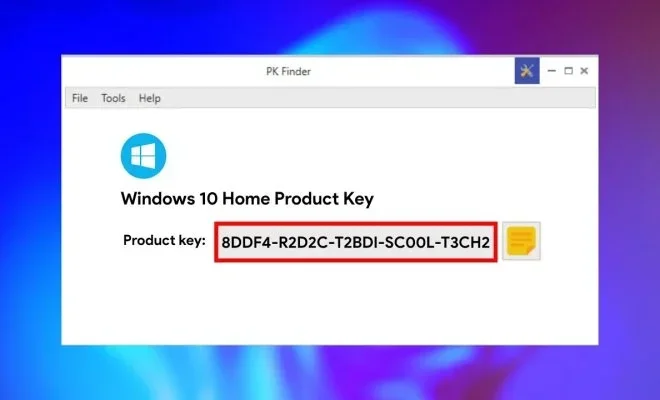
The key typically looks like this: XXXXX-XXXXX-XXXXX-XXXXX-XXXXX. It contains 25 characters split into five groups of five. Each key is tied to a specific Windows edition, such as Home, Pro, or Enterprise.
### Why Does Your Computer Need a Product Key?
Your computer needs a product key to access the full Windows experience. Without activation, you get limited features and persistent reminders to activate. The system also blocks some personalization options like changing your wallpaper.
Activation also ensures you receive important security updates. Microsoft checks the key against its database to confirm it is valid. This process helps protect your computer from counterfeit software.
## How to Find Your Windows Product Key
Finding your Windows product key is easier than most people think. There are several ways to locate it depending on your situation. Below are the most common methods that work on most computers.
### Check Windows Settings
The easiest way is through your PC settings. Open the Start menu and go to Settings. Then click on System and scroll down to Activation. Your product ID or digital license will appear right there.
This method works best if you already activated Windows once. If you never activated, you may see a message asking you to enter a key instead.
### Look for a Sticker on Your Device
Many computers come with a sticker on the bottom or inside the battery compartment. This sticker shows your original product key. Laptops from brands like Dell and HP often use this method.
However, be careful with old stickers. They can fade or peel off over time. If the sticker is unreadable, try one of the other methods below.
### Check Your Email or Purchase Receipt
If you bought Windows online, your product key was likely sent to your email. Search your inbox for “Windows product key” or “Microsoft order confirmation.” The key is usually listed in the order details.
Retail purchases from stores also include the key on a card or in the packaging. Keep these documents in a safe place for future reference.
### Use Command Prompt
For advanced users, Command Prompt can retrieve your key. Open Command Prompt as an administrator and type the following command:
wmic path softwarelicensingservice get OA3xOriginalProductKey
This command works on newer devices with UEFI firmware. It pulls the embedded key directly from your motherboard. It is a handy trick if you cannot find the key anywhere else.
## Types of Windows Product Keys
Not all product keys are the same. Microsoft uses different types depending on how you purchased Windows. Understanding these types helps you troubleshoot activation issues.
### OEM Keys
OEM stands for Original Equipment Manufacturer. These keys are pre-installed on computers by the manufacturer. They are tied to the hardware of that specific device.
You cannot transfer an OEM key to another computer. If you replace your motherboard or build a new PC, the OEM key will not work. This is the most common type found on pre-built desktops and laptops.
### Retail Keys
Retail keys are the most flexible option. You can buy them from any retailer or Microsoft’s website. They can be transferred to a new computer if you deactivate the old one first.
Retail keys also let you upgrade to a higher Windows edition. For example, you can use a retail Home key to upgrade to Windows Pro. This is a great benefit for users who want more features.
### Volume License Keys
Volume License Keys are used by businesses and schools. They allow multiple computers to be activated under one agreement. These keys are managed through a server called Key Management Service (KMS).
Individual users rarely encounter volume keys. But if you work in an office or school, your IT team likely handles activation through this method.
## Common Windows Activation Problems
Even with the right key, activation problems can happen. Here are the most common issues and how to fix them.
### “Windows Is Not Genuine” Error
This error appears when Windows cannot confirm your key is valid. It often happens after a major hardware change or system update. The good news is it is usually easy to fix.
First, restart your computer and try activating again. If that does not work, go to Settings and click Troubleshoot. Windows will attempt to resolve the issue automatically.
Sometimes this error occurs because the key was entered incorrectly. Double-check that you typed the key exactly as shown. Pay attention to similar-looking characters like the number 0 and the letter O.
### Activation After Reinstalling Windows
Reinstalling Windows is one of the most common reasons for activation problems. When you clean install Windows, the system does not always recognize your previous license. However, your digital license is usually still linked to your hardware.
Sign in with your Microsoft account and go to Activation settings. Click Troubleshoot and select “I recently changed hardware on this device.” This should reconnect your license to the new installation.
### Slow Computer After Activation Attempt
Some users notice their computer running slow after attempting to activate Windows. This can happen if the activation process triggers background checks or if the system is not genuine.
If your computer is sluggish after activation attempts, try running a system diagnostic. You may also want to check your RAM and storage usage. For tips on fixing a slow computer, check out our guide on how to fix computer running slow and freezing.
## How to Activate Windows on a New Computer
Activating Windows on a new computer is a straightforward process. Follow these steps to get your system up and running quickly.
- Open Settings by clicking the Start menu and selecting the gear icon.
- Go to System and then click on Activation in the left sidebar.
- Click Change Product Key if you have a physical key to enter.
- Type your 25-character key carefully, making sure there are no spaces or typos.
- Follow the on-screen prompts to complete the activation process.
If you are using a digital license, the activation should happen automatically once you sign in with your Microsoft account. No manual key entry is needed in most cases.
### Tips for Keeping Your Product Key Safe
Your product key is valuable. Losing it can mean paying for a new license. Here are some simple tips to keep it secure.
- Store your key in a password manager like Bitwarden or LastPass for safekeeping.
- Take a photo of sticker keys on laptops and store the image in a secure cloud folder.
- Never share your key online or on forums. Sharing can lead to blacklisting by Microsoft.
- Back up your license file by saving the confirmation email or receipt in multiple locations.
- Link your license to a Microsoft account so it is easier to recover if you ever need to reinstall.
## Windows Product Keys and Computer Hardware
Your product key is closely linked to your computer hardware. Understanding this relationship helps you avoid activation surprises.
### How Hardware Changes Affect Activation
Microsoft tracks certain hardware components to validate your license. If you replace your motherboard or hard drive, Windows may ask you to reactivate. This is normal and usually resolved by signing into your Microsoft account.
For users upgrading RAM or storage, activation is rarely affected. But if you are building a custom PC, keep in mind that OEM keys from old components will not transfer. You will need a new retail key for a fresh build.
### Chromebooks vs. Windows PCs
Some users wonder if Chromebooks use Windows product keys. The answer is no. Chromebooks run ChromeOS and do not require Windows activation. If you are deciding between a Chromebook and a Windows laptop, it helps to understand the differences in storage and operating systems. For example, check out our article on whether Chromebooks have SSD storage to compare hardware options.
### RAM and Windows Activation
Your computer RAM does not directly affect Windows activation. However, the amount of RAM can influence which Windows edition you should use. For instance, Windows 11 on a laptop with 8GB RAM runs smoothly for most tasks. If you are wondering about RAM requirements, our article on how much RAM you need in a laptop provides detailed guidance.
## Expert Tips for Windows Product Key Management
Managing your Windows product key does not have to be complicated. Here are some expert tips that save time and prevent headaches.
Always use genuine Windows copies. Counterfeit keys may seem tempting because they are cheap, but they often get blocked by Microsoft updates. You could lose access to your system entirely.
Keep your Windows version updated. Microsoft regularly releases updates that improve security and performance. An outdated system is more vulnerable to activation issues.
Use the Microsoft Activation Troubleshooter. This free tool resolves most activation problems in minutes. It is available on the Microsoft website and works with both retail and OEM keys.
Know your Windows edition. Windows Home and Pro use different keys. Make sure you are using the correct key for your edition. Using the wrong key will result in an activation failure.
Document every purchase. Keep a simple spreadsheet of all your software licenses. Include the product key, purchase date, and edition. This makes future troubleshooting much easier.
## Conclusion
Understanding your Windows product key computer setup is one of the most useful skills you can have. It saves you money, prevents frustration, and keeps your system running smoothly. From finding your key to fixing activation errors, the process is simpler than it looks.
Always keep your product key safe and accessible. Use the right type of key for your needs, and never hesitate to use Microsoft’s official tools for troubleshooting. With the knowledge in this guide, you are well equipped to handle any Windows activation challenge.
Take a few minutes today to locate and back up your product key. It is a small step that can save you a lot of trouble down the road. Your future self will thank you.
Key Takeaways
- A Windows product key is a 25-character code that proves your copy of Windows is genuine and legally licensed.
- You can find your product key in Settings, on a sticker on your device, or in your email confirmation from Microsoft.
- OEM, Retail, and Volume License keys are the three main types, and each works differently for activation.
- Common activation errors like “Windows is not genuine” can usually be fixed with a few simple steps.
- Never share your product key publicly to avoid unauthorized use and potential license violations.
- Reinstalling Windows does not delete your license as long as you use the same Microsoft account or key.
- Windows 11 devices with 8GB RAM often come with digital licenses tied to your hardware profile.
Frequently Asked Questions
Can I use the same Windows product key on two computers?
It depends on the type of key you have. Retail keys can be transferred to a new computer after deactivating the old one. OEM keys are permanently tied to the original device and cannot be moved.
What happens if I enter the wrong Windows product key?
Windows will display an error message saying the key is invalid. You can simply re-enter the correct key without any harm to your system. Make sure to type it carefully, paying attention to similar characters like 0 and O.
Do I need a product key to use Windows?
You can use Windows without a product key, but you will see activation reminders and lose access to personalization features. Your system will still receive most security updates, but it is best to activate as soon as possible.
Can I find my Windows product key on the Microsoft website?
If you purchased Windows through Microsoft and linked it to your account, you can find your digital license by signing into your Microsoft account. Go to the Services and Subscriptions page to view your active licenses.
What is the difference between a product key and a digital license?
A product key is a 25-character code you enter manually. A digital license is automatically linked to your hardware or Microsoft account. Both serve the same purpose of proving your Windows copy is genuine.
Is it safe to buy Windows product keys from third-party sellers?
It can be risky. Third-party keys may be unauthorized or already used, leading to deactivation later. Always purchase keys directly from Microsoft or authorized retailers to ensure your license is valid and safe.