Music Wont Stop Playing On My Computer And I Dont Know Where
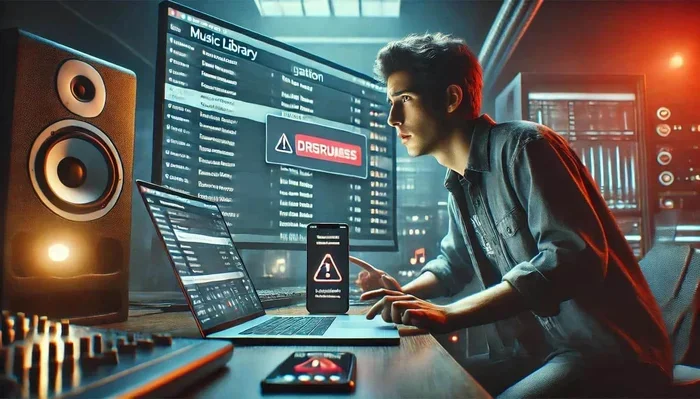
Music that won’t stop playing on your computer can be frustrating and confusing. This guide helps you find where the sound is coming from and shows you how to shut it off fast. You will learn simple fixes for apps, browser tabs, system settings, and hidden background processes that cause endless audio loops.
You are sitting at your desk working on something important. Suddenly, you hear music. But you did not open any music app. You did not click on any playlist. And the sound just keeps going and going. This is a problem many PC users run into, and it can be really annoying.
The worst part is not knowing where the sound is coming from. You look at your taskbar. You check your open apps. But there is no clear answer. Sometimes the music comes from a browser tab you forgot about. Other times it is a background app running silently. In some cases, it is even a system setting that got stuck.
This article will walk you through every possible cause and fix. You will learn how to track down the source of the music, stop it quickly, and prevent it from happening again. Whether the sound is coming from a web browser, a game, or something you cannot even see, we have you covered.
Key Takeaways
- Check your browser tabs first: A single open tab can keep playing music even after you close the window.
- Use Task Manager to find hidden audio sources: Background apps often play sound without showing a visible window.
- Adjust system sound settings: Your PC’s volume mixer can help you isolate and mute the culprit app.
- Update or reinstall audio drivers: Outdated drivers can cause random music loops and phantom sounds.
- Check your mouse and keyboard software: Peripheral software can trigger unexpected audio events on your system.
- Scan for malware: Some malicious software uses your speakers to play sounds or ads.
- Restart audio services: Restarting Windows Audio services can reset stuck playback loops.
📑 Table of Contents
- Why Does Music Keep Playing on My Computer?
- How to Find Where the Music Is Coming From
- Quick Fixes to Stop the Music
- How to Prevent Music from Playing Again
- When to Seek Professional Help
- Common Mistakes People Make When Fixing This Problem
- Expert Insight: Understanding How PC Audio Works
- Key Takeaways
Why Does Music Keep Playing on My Computer?
Before you can fix the problem, you need to understand what is causing it. There are several common reasons why music wont stop playing on my computer. Each one has a different fix, so let us break them down.
Browser Tabs Playing Audio
This is the most common reason. You might have a video, a song, or a webpage with auto-play audio left open in a tab. Even if you minimized the browser, the tab keeps running. Some websites use autoplay features that start playing sound the moment you open them. If you have multiple tabs open, it is easy to forget which one is making noise.
Background Apps and Services
Many apps run in the background even after you close their windows. Music apps, streaming services, and notification sounds can all keep playing. Some apps are designed to run quietly in the system tray. They do not always show up on your taskbar, which makes them hard to find. If an app gets stuck, it might loop a sound over and over.
System Sounds and Notifications
Windows and other operating systems have built-in sound schemes. These play for events like receiving a message, plugging in a device, or completing a task. Sometimes these sounds get stuck or repeat due to a glitch. A notification sound might feel like music if it plays on a loop.
Stuck Media Keys
Your keyboard has media keys for play, pause, and volume. If one of these keys gets stuck or is pressed accidentally, it can trigger playback. Some laptops have sensitive keys that register presses even when you are typing normally. This can cause music to start or keep playing without you realizing it.
How to Find Where the Music Is Coming From
Now that you know the possible causes, let us find the actual source. Tracking down the origin of the sound is the first step to fixing it.
Use the Volume Mixer
The Windows Volume Mixer is one of the best tools for this. Right-click the speaker icon in your taskbar and select Open Volume Mixer. You will see a list of all apps that are currently making sound. Look for any app that has its volume bar moving or active. This tells you exactly which program is producing the music.
Check Your Task Manager
Press Ctrl plus Shift plus Esc to open Task Manager. Look through the list of running processes. Sort by CPU or memory usage to find apps that might be active in the background. If you see a media player, browser, or streaming app using resources, that is likely your source. You can right-click and end the task to stop the sound.
Look at Your System Tray
The system tray is the small area near the clock in the bottom right corner of your screen. Click the up arrow to show hidden icons. Look for any app that might be running a media player or notification service. Some apps like Spotify, Discord, or Teams can play sound even when you are not actively using them.
Check Your Mouse Software
Sometimes the source of the music is tied to your mouse or keyboard software. If you use Logitech, Razer, or another brand with custom software, these programs can trigger sounds or media events. You can check by opening your mouse software or searching for where is my mouse on my laptop to see if peripheral software is causing the issue.
Quick Fixes to Stop the Music
Once you have found the source, you need to stop the sound. Here are the fastest and most effective fixes you can try right now.
Close the App or Tab
If you found the source in your browser, simply close that tab. If the music stops, you have your answer. If it keeps playing, try closing the entire browser and reopening it. This clears any stuck audio processes.
Mute the App in the Volume Mixer
Open the Volume Mixer again and drag the volume slider down to zero for the app that is playing music. This mutes just that app without affecting other sounds on your PC. It is a quick and clean fix.
End the Background Process
In Task Manager, right-click the app or process that is producing the sound and select End Task. This forces the app to close and usually stops the music immediately. Be careful not to end system processes you are not sure about.
Restart Windows Audio
Sometimes the audio service itself gets stuck. Press the Windows key plus R, type services.msc, and press Enter. Find Windows Audio in the list, right-click it, and select Restart. This resets your entire audio system and can stop phantom music loops.
Check Your Mouse and Keyboard Settings
If you suspect your mouse or keyboard is triggering the sound, open your peripheral software and check the assigned keys. You might also want to look into why is my mouse not working on laptop if you notice other strange behavior from your mouse alongside the audio issue. Disabling custom media key functions can help stop unintended playback.
How to Prevent Music from Playing Again
Stopping the music once is good. Preventing it from happening again is even better. Here are some steps you can take to keep your computer audio under control.
Disable Autoplay in Your Browser
Most modern browsers have an autoplay setting. In Chrome, go to Settings, then Privacy and Security, then Site Settings, and find Autoplay. Set it to block autoplay. This stops websites from playing music or video without your permission.
Manage Startup Programs
Some apps start automatically when you turn on your computer. These can include music players, streaming apps, or notification services that play sound. Open Task Manager, go to the Startup tab, and disable any apps you do not need running in the background.
Keep Your Drivers Updated
Outdated audio drivers can cause all kinds of sound problems, including random music loops. Go to your device manager, find your sound card, and check for driver updates. You can also visit your PC manufacturer’s website for the latest audio drivers.
Run a Malware Scan
In rare cases, unwanted music or sounds come from malware or adware. These programs can hijack your audio system. Run a full system scan with your antivirus software to make sure your PC is clean. If you do not have antivirus, consider installing a trusted free option.
Check Your System Sound Settings
Go to Settings, then System, then Sound. Look at the sound scheme and make sure it is set to a default option. Sometimes custom sound schemes can cause unexpected audio behavior. You can also turn off sounds for specific events to reduce unwanted noise.
When to Seek Professional Help
Most of the time, the fixes above will solve the problem. But there are situations where you might need more help. If the music keeps coming back no matter what you do, there could be a deeper issue. Hardware problems with your sound card can cause persistent audio loops. Software conflicts between apps can also create stubborn sound issues. If you have tried everything and the problem continues, it might be time to consult a professional technician.
You should also check if your system resources are being overwhelmed. If your PC is running slowly alongside the audio issue, you might want to look at how much RAM your system is using. Learning how do i check ram on my laptop can help you determine if your computer is struggling with resources, which can sometimes cause audio glitches and stuck playback loops.
Common Mistakes People Make When Fixing This Problem
There are a few mistakes that make this problem harder to solve. Avoid these pitfalls to save time and frustration.
- Closing the browser without checking tabs: You might close the wrong tab and still have music playing from another one.
- Ignoring background apps: Just because you cannot see the app does not mean it is not running. Always check the system tray and Task Manager.
- Restarting without checking the cause: A restart might stop the sound temporarily, but it will not fix the root cause. The music will come back.
- Updating the wrong drivers: Installing the wrong audio driver can make sound problems worse. Always get drivers from your manufacturer’s official site.
- Not checking peripheral software: Mouse and keyboard software can trigger media events. Always check these settings if you use custom peripherals.
Expert Insight: Understanding How PC Audio Works
Your computer uses an audio stack to process and play sound. This stack includes hardware drivers, the operating system audio service, and individual app audio channels. When one part of this stack gets stuck, it can cause sounds to loop or play unexpectedly. Understanding this helps you know why restarting the Windows Audio service or updating drivers often fixes the problem. It also explains why multiple apps can fight over audio output, causing sounds to come from unexpected places.
The volume mixer works by assigning each app its own audio channel. When an app plays sound, it uses its channel. If an app crashes while its channel is still active, the sound can keep playing on a loop. This is why ending the app process in Task Manager is often the fastest fix.
Key Takeaways
- Always start with the Volume Mixer: It is the fastest way to identify which app is making sound.
- Check browser tabs before anything else: Autoplay tabs are the number one cause of mystery music on PCs.
- Use Task Manager to catch hidden apps: Background processes are often the sneaky source of stuck audio.
- Restart Windows Audio if nothing else works: This resets the entire audio system and clears most loops.
- Prevent future issues with browser autoplay settings: Blocking autoplay stops the problem before it starts.
- Keep drivers and software updated: Outdated software is a common trigger for audio glitches and phantom sounds.
Frequently Asked Questions
Why does music keep playing on my computer even when I close the app?
The app might still be running in the background. Check your system tray and Task Manager for any open processes. Some apps continue to play audio even after you close their main window. Ending the process in Task Manager usually stops the sound completely.
How do I find which app is playing sound on Windows?
Right-click the speaker icon in your taskbar and open the Volume Mixer. You will see all active apps with their volume bars. The app with a moving or active bar is the one producing the sound. You can mute that specific app from the mixer.
Can a stuck keyboard key cause music to play on my computer?
Yes, it can. If your media keys are stuck or pressed accidentally, they can trigger music playback. Check your keyboard for any keys that feel physically stuck. You can also disable media key functions in your keyboard settings or peripheral software.
Is it safe to end audio processes in Task Manager?
Yes, it is generally safe to end app processes like media players or browser tabs. However, avoid ending system processes like Windows Audio or Audio Endpoint Builder. Ending system processes can cause audio driver issues that require a restart to fix.
What should I do if the music keeps coming back after I stop it?
This usually means the root cause is still present. Check for startup programs that relaunch the app, malware that triggers audio, or a stuck peripheral key. Updating your audio drivers and running a malware scan can help resolve recurring audio problems.
Can malware cause music to play on my computer?
Yes, some malware or adware can hijack your audio system to play sounds, ads, or alerts. If you notice other strange behavior like pop-ups or slow performance alongside the audio issue, run a full antivirus scan immediately to check for malicious software.
=== CONCLUSION ===
Music that wont stop playing on my computer is a frustrating problem, but it is almost always fixable. Start by checking your browser tabs, then move to the Volume Mixer and Task Manager. These tools will help you find the source quickly. Once you identify the culprit, closing the app, muting it, or restarting the audio service usually solves the problem. Take steps to prevent it from happening again by managing startup programs, disabling autoplay, and keeping your drivers updated. With the tips in this guide, you will be able to take back control of your computer audio in just a few minutes.