My Computer Has Slow Response When Typing and How to Fix It

My computer has slow response when typing is a frustrating problem that can stem from software conflicts, insufficient RAM, high CPU usage, or outdated drivers. This guide walks you through the most common causes and practical fixes, so you can type smoothly again without delay or lag.
Have you ever noticed a delay between pressing a key and seeing the letter appear on screen? It is one of those annoying problems that makes simple tasks feel like a chore. When my computer has slow response when typing, every email, chat message, and document feels like a battle against your own machine.
This issue is more common than you might think. People experience it on old laptops, brand-new desktops, and everything in between. The good news is that the fix is often simpler than you expect. Let us break down exactly why this happens and how you can solve it step by step.
Typing lag can ruin your workflow and test your patience. Whether you are writing an important report or just chatting with friends, a slow typing response breaks your focus and slows you down. Understanding the root cause is the first step toward a smooth, responsive typing experience again.
Key Takeaways
- Slow typing response is often caused by background processes eating up system resources on your PC.
- Upgrading your RAM can dramatically reduce input lag and improve overall system responsiveness.
- Outdated drivers and software conflicts are common hidden culprits behind keyboard delay.
- Simple tweaks like disabling startup programs can bring almost instant relief to a sluggish computer.
- Malware and virus scans should never be overlooked when diagnosing slow PC performance.
- Hardware bottlenecks like aging hard drives can cause persistent typing lag that software fixes alone cannot solve.
- Regular maintenance keeps your system running fast and prevents typing responsiveness issues from returning.
📑 Table of Contents
Why Does Your Computer Lag When Typing?
Your computer processes every keystroke you make. It sends the signal from your keyboard through the operating system, checks for software conflicts, and then displays the character on screen. When any part of that chain slows down, you feel the lag. The keyboard delay can range from a tiny fraction of a second to a full second or more.
Several factors can interrupt this process. Sometimes it is a software issue. Other times, your hardware simply cannot keep up with what you are asking it to do. Let us look at the most common reasons your PC might be struggling with input lag.
Background Processes Eating Up Resources
Every program running on your computer uses system resources like CPU power and memory. When too many programs run at the same time, your system gets stretched thin. Typing commands get pushed to the back of the line, and you experience a noticeable delay.
This is especially true if you have many browser tabs open or heavy applications running in the background. Even programs you forgot you opened can silently drain your system resources and cause typing latency. Checking your task manager is always a smart first step.
Insufficient RAM and Memory Constraints
Random Access Memory, or RAM, plays a huge role in how fast your computer responds. If your system does not have enough memory, it has to work much harder to keep up. When you type, the operating system needs free memory to process each keystroke quickly.
Low RAM is one of the top reasons people ask, why does my computer have slow response when typing. If you want to check your current memory, you can find out how much RAM your laptop has in just a few clicks. Knowing your baseline helps you decide if an upgrade is needed.
Common Causes of Slow Typing Response
Not all typing lag comes from the same source. Different problems need different solutions. Here are the most frequent causes we see in our troubleshooting work.
High CPU Usage
Your processor is the brain of your computer. When CPU usage spikes to near 100 percent, everything slows down. Typing, clicking, and even scrolling can become delayed. You might also notice your computer fan keep running at full speed because the processor is working overtime.
Sometimes a single program is hogging all the CPU power. Other times, multiple small programs combine to create a traffic jam. Either way, the result is the same: your input lag increases and your typing feels sluggish.
Outdated or Corrupted Drivers
Your keyboard needs a driver to communicate with your computer. If that driver is outdated or corrupted, the connection breaks down. You might experience random delays, missed keystrokes, or inconsistent response times.
Updating your drivers is one of the easiest fixes you can try. Windows Update handles most driver updates automatically, but sometimes you need to visit the manufacturer’s website directly. A fresh driver installation can do wonders for keyboard responsiveness.
Software Conflicts
Sometimes two programs simply do not get along. Antivirus software, background sync tools, and even keyboard customization apps can interfere with normal input processing. These software conflicts create invisible bottlenecks that slow down your typing.
If you recently installed new software and noticed the lag start around the same time, that is a strong clue. Try disabling or uninstalling the new program and see if your typing speed improves.
Malware and Virus Infections
Malicious software runs hidden processes on your computer. These processes consume system resources and can seriously impact performance. A virus might be secretly using your CPU and memory, which leads to lag in every operation, including typing.
Running a full system scan with a trusted antivirus tool is essential. Even if you think your computer is clean, a second opinion scan can catch threats that your primary tool missed. Keeping your security software updated helps prevent future infections too.
How to Fix Slow Typing on Your Computer
Now that you know the common causes, let us dive into the fixes. These steps are ordered from the simplest solutions to the more involved ones. Start at the top and work your way down.
Step 1: Close Unnecessary Background Programs
Open your Task Manager by pressing Ctrl + Shift + Esc. Look at the list of running programs and sort by CPU or memory usage. Close anything you do not need right now. You will be surprised how much this simple step can improve your computer performance.
Right-click on programs you rarely use and select “End Task.” Be careful not to close system processes you do not recognize. Stick to familiar apps like web browsers, media players, and cloud sync tools.
Step 2: Disable Startup Programs
Many programs launch automatically when you turn on your PC. Over time, this list grows and eats into your startup performance. Disabling unnecessary startup apps frees up system resources from the moment you log in.
In Task Manager, go to the Startup tab. Right-click on programs you do not need immediately and click “Disable.” You can always re-enable them later if needed. This single change often reduces input lag significantly.
Step 3: Update Your Operating System and Drivers
Windows updates include performance improvements and bug fixes that directly address system slowdown issues. Go to Settings, then Update & Security, and check for updates. Install everything that is available and restart your computer.
Do not forget your keyboard driver specifically. Visit your keyboard or laptop manufacturer’s support page and download the latest driver. A simple driver update can eliminate keyboard delay that has been bothering you for weeks.
Step 4: Run a Full Malware Scan
Use your built-in Windows Defender or a trusted third-party antivirus to run a complete system scan. This checks every file on your hard drive for threats. If anything malicious is found, follow the removal steps provided by your security software.
After removing any threats, restart your computer and test your typing speed. You should notice an improvement if malware was the cause. Schedule regular scans to keep your system clean and responsive.
Step 5: Check Your Disk Health
An aging or failing hard drive can cause all kinds of performance problems, including typing lag. Windows has a built-in tool called Check Disk that scans for errors. Open Command Prompt as Administrator and type chkdsk /f to run it.
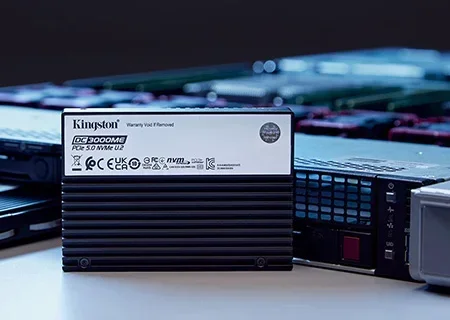
If your computer still uses a traditional hard disk drive (HDD), consider upgrading to a solid-state drive (SSD). The speed difference is dramatic and can breathe new life into an older machine. An SSD upgrade is one of the best investments you can make for overall PC performance.
Hardware Upgrades That Help With Typing Lag
Sometimes software fixes are not enough. Your hardware might simply be the bottleneck. Upgrading certain components can transform how your computer handles everyday tasks like typing.
Upgrade Your RAM
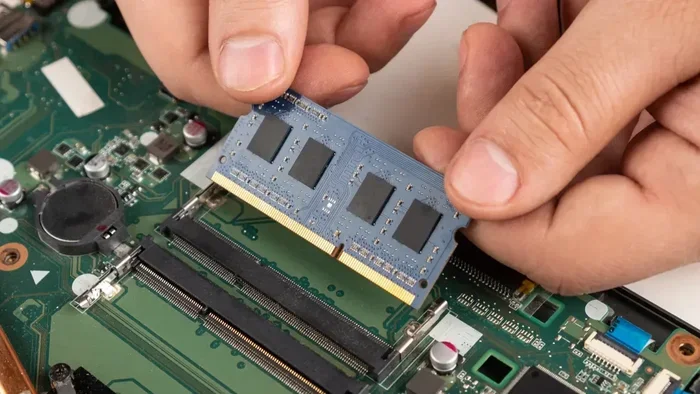
Adding more memory is one of the most effective ways to reduce typing latency. More RAM means your computer can handle more tasks simultaneously without slowing down. If you are still running 4 GB or less, an upgrade will feel like a revelation.
Before buying new memory, check what type is compatible with your system. You can learn how to check RAM compatibility and make sure you get the right modules. Proper installation is straightforward and can be done at home with basic tools.
Many people ask, can I increase RAM on my laptop? The answer depends on your model. Some laptops have soldered memory that cannot be upgraded. Others have accessible slots that make upgrades easy. Check your laptop specifications before purchasing new RAM.
Consider an SSD if You Still Use an HDD
A traditional hard drive uses spinning disks to read and write data. This mechanical process is slow compared to a solid-state drive, which has no moving parts. Switching to an SSD reduces load times and improves overall system responsiveness.
When your disk read/write speeds improve, every operation feels faster, including typing. The processing delay caused by a slow hard drive affects more than just file transfers. It impacts how quickly your system can register and display each keystroke.
Check for Overheating Issues
When your computer overheats, it slows down to protect itself. This thermal throttling affects every component, including the processor that handles your keystrokes. If your computer fan keep running constantly, your system might be struggling with heat.
Clean the vents and fans with compressed air. Make sure your laptop is on a hard surface, not a bed or couch. Elevated temperatures lead to hardware bottleneck situations that directly impact your typing experience.
Software Tweaks for Better Responsiveness
Beyond hardware upgrades, several software adjustments can sharpen your system’s reaction time. These tweaks are free and take only a few minutes to apply.
Adjust Visual Effects for Best Performance
Windows comes with fancy animations and visual effects that look great but consume system resources. Switching to a simpler appearance can free up processing power for actual work. Go to System Properties, click Advanced, and choose “Adjust for best performance.”
This change alone can make a noticeable difference on older computers. Your typing response time improves because the system prioritizes input processing over eye candy. It is a quick win that costs nothing.
Turn Off Keyboard Filtering and Accessibility Features
Windows includes accessibility features like Filter Keys and Sticky Keys. While helpful for some users, these features can introduce unintended delays for others. If you do not need them, turn them off in the Accessibility settings.
Go to Settings, then Ease of Access, then Keyboard. Toggle off Filter Keys and Sticky Keys if they are enabled. This simple change removes artificial delays and lets your keystrokes register instantly.
Reset or Reinstall Your Operating System
If nothing else works, a fresh Windows installation can solve deep-rooted performance issues. Over time, software builds up, registry entries clutter, and system files become corrupted. A clean install wipes the slate clean.
Make sure to back up all your important files before doing this. A reset can take a few hours, but it often resolves stubborn system slowdown problems that no other fix can touch. It is the nuclear option, but it works.
When to Seek Professional Help
Most typing lag issues respond well to the fixes above. But sometimes the problem runs deeper than what you can solve at home. If you have tried everything and still experience slow response when typing, it might be time to consult a professional.
Persistent high CPU temperatures, failing hard drives, or motherboard issues require expert diagnosis. A technician can run specialized tests and identify problems that are not visible from the surface. Do not hesitate to seek help if your computer shows signs of serious hardware failure.
Also, if your computer is several years old and multiple components are failing, it might be more cost-effective to invest in a new machine. Sometimes a fresh start is the best solution for long-term PC performance.
Preventing Typing Lag in the Future
The best fix is prevention. A few simple habits can keep your computer running smoothly and your typing responsive for years to come.
- Restart your computer regularly. This clears temporary files and refreshes system resources.
- Keep your software updated. Updates patch performance bugs and security vulnerabilities.
- Uninstall programs you no longer use. Fewer programs mean fewer background processes competing for resources.
- Run regular malware scans. Prevention is always better than cure when it comes to security threats.
- Monitor your temperatures. Keep your computer cool to prevent thermal throttling and processing delay.
- Schedule disk cleanup monthly. Removing temporary files frees up space and keeps your system running efficiently.
Taking these small steps seriously saves you from the frustration of dealing with a sluggish computer. A well-maintained PC responds instantly to every keystroke, and you can focus on what actually matters.
Conclusion
Dealing with my computer has slow response when typing does not have to be a permanent frustration. Most causes are fixable with simple steps that anyone can do. From closing background programs to upgrading your RAM, the solutions are within reach.
Start with the basics and work your way up. Identify what is draining your system resources, update your drivers and software, and consider hardware upgrades if needed. A little maintenance goes a long way toward keeping your typing smooth and responsive.
Your computer should work for you, not against you. Apply the fixes in this guide, and you will be back to typing without any lag or delay in no time.
Frequently Asked Questions
Why does my computer lag when I type?
Typing lag usually happens when your system resources are tied up by background programs, outdated drivers, or insufficient RAM. High CPU usage and malware can also cause delays between pressing a key and seeing the character on screen.
How do I fix slow typing response on Windows?
Start by closing unnecessary background programs and disabling startup apps. Update your operating system and keyboard drivers, run a malware scan, and adjust your visual effects for best performance. These steps resolve most typing lag issues quickly.
Can low RAM cause typing delays?
Absolutely. When your computer runs low on memory, it struggles to process multiple tasks at once. Typing commands get delayed because the system has to manage limited resources carefully. Upgrading your RAM often eliminates this problem entirely.
Is typing lag a sign of a failing hard drive?
It can be. An aging or failing hard drive slows down every operation on your computer, including keystroke processing. If you also notice slow file access and frequent freezes, your hard drive might be failing and should be checked right away.
How much RAM do I need to avoid typing lag?
For smooth everyday use, 8 GB of RAM is the recommended minimum. If you multitask heavily or use demanding applications, 16 GB or more provides even better responsiveness and prevents input lag during typing.
Should I upgrade my CPU if typing is slow?
CPU upgrades help if your processor is consistently running at near 100 percent usage. However, typing lag is more commonly caused by RAM limitations or software issues. Before upgrading your CPU, try the simpler fixes like closing background apps and updating drivers first.