The Best Record Livestream Video Computer for Beginners

Choosing the right computer to record livestream video doesn’t have to be overwhelming. This guide breaks down everything beginners need to know about record livestream video computer setups, from CPU and RAM to streaming software and monitors. You’ll learn how to pick a streaming PC that fits your budget and goals.
Starting your journey into livestream video recording can feel exciting and a little scary at the same time. You might wonder, “Do I really need a powerful computer just to stream?” The answer is yes and no. The right record livestream video computer depends on what you plan to stream, how often you want to go live, and what quality you expect. This guide walks you through everything you need to know as a beginner.
Whether you want to live broadcast gameplay, host webinars, or create content for social media, your computer is the backbone of your entire streaming setup. Getting the specs right from the start saves you money, frustration, and time. Let’s dive into what makes a great streaming computer for beginners.
Key Takeaways
- Right CPU matters most: A multi-core processor like Intel i7 or AMD Ryzen 7 handles livestream encoding without lag.
- RAM and storage speed up your stream: At least 16GB of RAM and an SSD keep your video recording PC running smoothly.
- Software choice is flexible: Free tools like OBS Studio let beginners start live broadcast recording right away.
- A good monitor helps your workflow: Color-accurate displays make editing and reviewing your streaming content much easier.
- You don’t need a gaming rig: A mid-range streaming setup can deliver broadcast-quality results on a budget.
📑 Table of Contents
- Why Your Computer Matters for Livestream Recording
- Best CPU for Recording Livestream Video
- How Much RAM Do You Need?
- Storage: SSD vs HDD for Livestream Recording
- Best Monitors for Reviewing Your Livestream
- Streaming Software and Setup for Beginners
- Common Mistakes Beginners Make with Livestream Recording
- Final Thoughts on Choosing Your Record Livestream Video Computer
Why Your Computer Matters for Livestream Recording
When you record a livestream, your computer does a lot of heavy lifting. It runs the streaming software, captures your webcam or screen, encodes the video in real time, and sends it to platforms like YouTube or Twitch. A weak machine will struggle with dropped frames, laggy audio, and poor video quality. A well-built video recording PC handles all of this with ease.
Think of it this way. Your computer acts like both the camera crew and the broadcast station at the same time. If one part of the system slows down, the whole live broadcast suffers. That’s why choosing the right components matters so much.
What Happens During a Livestream
During a livestream, your computer performs several tasks simultaneously. It captures video from your screen or camera, compresses the footage into a streamable format, and uploads it to the internet in real time. This process is called encoding, and it requires serious processing power.
If your streaming computer can’t keep up, you’ll notice choppy video, delayed audio, or crashes mid-broadcast. That’s the last thing any beginner wants. Understanding this helps you appreciate why each component in your setup plays a vital role.
Best CPU for Recording Livestream Video
The processor, or CPU, is the brain of your record livestream video computer. It handles encoding, which is the process of compressing your video into a format suitable for streaming. A strong CPU ensures smooth performance even when you’re running multiple programs at once.
For beginners, an Intel Core i7 or AMD Ryzen 7 processor strikes the perfect balance between power and price. These chips offer multiple cores that handle encoding tasks efficiently. If you’re on a tighter budget, an Intel Core i5 or AMD Ryzen 5 can still deliver solid results for basic streaming.
CPU Recommendations by Budget
- Budget option: Intel Core i5 or AMD Ryzen 5 — great for entry-level live broadcast recording.
- Mid-range option: Intel Core i7 or AMD Ryzen 7 — ideal for smooth multi-tasking during streams.
- High-end option: Intel Core i9 or AMD Ryzen 9 — best for professional-grade streaming content production.
When picking a CPU, look for at least 6 cores and 12 threads. This gives your computer enough power to encode video without slowing down other applications. Many beginners overlook this, and then their streams stutter when they open a chat window or browser.
How Much RAM Do You Need?
Random Access Memory, or RAM, determines how many tasks your computer can handle at the same time. For record livestream video work, you need enough RAM to run your streaming software, browser, chat window, and any other programs you use while broadcasting.
Most experts recommend at least 16GB of RAM for a beginner streaming setup. This amount gives you comfortable headroom for multitasking. If you plan to edit videos after streaming, 32GB is even better. Having enough RAM prevents slowdowns and keeps your video production workflow smooth.
Some people ask, “Can I get by with 8GB?” The short answer is yes, but only for very basic streams. With 8GB, you’ll likely experience performance issues when running multiple apps. Upgrading your RAM is one of the easiest and most affordable ways to boost your streaming computer performance.
Want to learn more about how RAM affects your video work? Check out our guide on whether 12GB RAM is enough for video editing to understand how memory impacts your workflow.
Storage: SSD vs HDD for Livestream Recording
Storage might not be the first thing you think about when building a record livestream video computer, but it matters more than you’d expect. Your storage drive holds your recorded videos, streaming software, and temporary files during broadcasts.
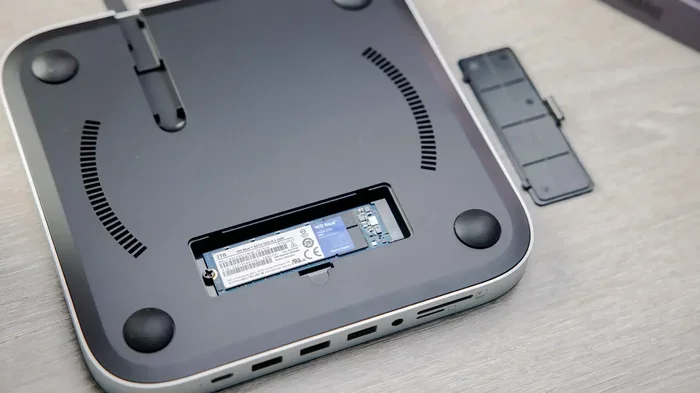
A Solid State Drive, or SSD, is the clear winner for streaming setups. SSDs load programs faster, transfer files quicker, and reduce lag during live recording. A Hard Disk Drive, or HDD, is slower and can cause bottlenecks when you’re trying to save large video files while streaming.
For the best results, use an SSD for your operating system and streaming software. You can add an HDD later for storing finished video files and archives. This combo gives you speed and plenty of space without breaking the bank.
Quick Storage Tips for Beginners
- Choose at least a 500GB SSD for your main drive.
- Use a 1TB or larger HDD for storing recorded streams and video projects.
- Keep your streaming software installed on the SSD for fastest performance.
- Consider external drives for backing up your streaming content.
Best Monitors for Reviewing Your Livestream
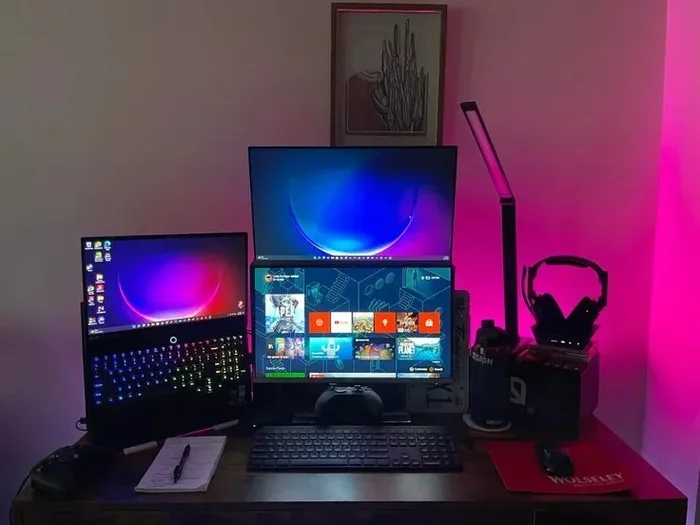
While your computer does the heavy processing, your monitor is what you look at during every stream. A good display helps you monitor your stream quality, check your chat, and review your recorded footage. For beginners, a reliable monitor makes a huge difference in your overall experience.
You don’t need an expensive professional display to get started. A 24-inch to 27-inch monitor with good color accuracy works perfectly for most livestream video recording setups. Look for IPS panel technology, which offers wide viewing angles and true-to-life colors.
If you plan to do any video editing alongside streaming, color accuracy becomes even more important. Monitors designed for video editing work deliver better color reproduction, which helps you review your recorded streams more accurately.
For more options, check out our article on the best computer monitors for video editing to find displays that suit both streaming and editing needs.
Monitor Features to Look For
- Resolution: Full HD (1080p) is the sweet spot for most beginners.
- Panel type: IPS panels provide the best color accuracy.
- Size: 24 to 27 inches offers a comfortable viewing area.
- Refresh rate: 60Hz is sufficient for streaming and recording.
Streaming Software and Setup for Beginners
Once your video recording PC is ready, you need the right software to go live. Streaming software connects your computer to platforms like Twitch, YouTube, and Facebook Live. It captures your screen, camera, and microphone, then sends everything to your audience in real time.
The most popular free option is OBS Studio. It’s open-source, beginner-friendly, and packed with features. You can add overlays, switch between scenes, and adjust your video bitrate all within one interface. Many professional streamers still use OBS because it’s reliable and customizable.
Another great option is Streamlabs Desktop, which builds on OBS with a more polished interface and built-in alerts. Both are excellent choices for beginners starting their live broadcast journey.
Setting Up Your First Stream
Setting up your first stream is simpler than you might think. Here’s a basic step-by-step process to get started:
- Download and install OBS Studio or Streamlabs Desktop.
- Connect your webcam and microphone to your computer.
- Add your video and audio sources in the software.
- Configure your stream key from your chosen platform.
- Do a test recording to check quality and performance.
- Go live and start broadcasting to your audience.
Before you go live for real, always do a test stream. Record a short clip and review it for quality, audio sync, and frame rate. This simple habit saves you from embarrassing technical issues during an actual broadcast.
If you want to improve your recorded videos after streaming, free editing software can help. Visit our guide on the best free video editing software for PC to find tools that work well with your streaming setup.
Common Mistakes Beginners Make with Livestream Recording
Every beginner makes mistakes when starting out with livestream video recording. The good news is that most of these errors are easy to avoid. Learning from others’ mistakes saves you time and frustration.
One of the biggest mistakes is underestimating how much processing power you need. Many beginners buy a budget computer and then wonder why their stream looks choppy. Another common error is skipping the SSD. A slow hard drive creates bottlenecks that hurt your stream quality.
Some people also forget to close unnecessary programs before streaming. Every open app uses your CPU and RAM, which leaves fewer resources for your streaming computer to do its job. Keep your setup clean and focused for the best results.
Quick Tips to Avoid Problems
- Close all unnecessary applications before going live.
- Update your graphics drivers regularly.
- Use a wired internet connection for stable streaming.
- Check your stream quality with a private test broadcast.
- Keep your computer well-ventilated to prevent overheating.
Final Thoughts on Choosing Your Record Livestream Video Computer
Building or choosing the right record livestream video computer as a beginner doesn’t have to be complicated. Focus on getting a solid CPU, enough RAM, fast storage, and a decent monitor. These four components form the foundation of any great streaming setup.
Start with a budget-friendly setup and upgrade over time as you grow. The beauty of video recording PC building is that you can always add more power later. What matters most is getting started and learning as you go.
Remember, every successful streamer started exactly where you are now. With the right computer for livestreaming, a bit of practice, and consistent effort, you’ll be creating quality live broadcast content in no time. Don’t wait for the perfect setup. Build what you can, improve as you go, and enjoy the journey of creating streaming content that connects with people.
Ready to take the next step? Explore our picks for the best laptop computer for video editing if you prefer a portable streaming setup you can take anywhere.
Frequently Asked Questions
What is the best computer for recording livestreams as a beginner?
A mid-range PC with an Intel i5 or AMD Ryzen 5 processor, 16GB of RAM, and an SSD provides an excellent starting point for beginners. This setup handles most streaming tasks smoothly without overspending. You can always upgrade components as your skills and audience grow.
Do I need a gaming computer to record livestreams?
No, you don’t need a full gaming rig to start recording livestreams. A standard streaming computer with a decent multi-core CPU and 16GB of RAM works well for most beginner streams. Gaming computers offer extra power that helps if you plan to game and stream simultaneously, but they’re not required for basic live broadcast recording.
How much does a good livestream recording computer cost?
A solid beginner video recording PC can be built for around $600 to $900. This budget covers a capable processor, sufficient RAM, an SSD, and a basic monitor. If you’re looking for a pre-built option, prices may be slightly higher but still reasonable for a quality streaming setup.
Can I use a laptop for livestream recording?
Yes, many beginners successfully use laptops for livestream video recording. Look for a laptop with at least an Intel i5 or AMD Ryzen 5 processor, 16GB of RAM, and a dedicated GPU if possible. For more guidance, check out our article on the best laptop for video editing to find models that work well for streaming too.
What software is best for beginners who want to record livestreams?
OBS Studio is the top choice for beginners because it’s free, open-source, and beginner-friendly. Streamlabs Desktop offers a more polished interface with built-in features like alerts and overlays. Both programs work great with any standard record livestream video computer and support all major streaming platforms.
How can I improve my livestream recording quality on a budget?
Start by ensuring your computer has enough RAM and uses an SSD for fast performance. A decent webcam, a USB microphone, and good lighting can dramatically improve your stream quality without spending a fortune. Focus on one upgrade at a time to build a strong streaming setup gradually.