Parts Of The Computer Their Functions You Should Know

Understanding the parts of a computer and their functions is essential for anyone who uses a PC. This guide breaks down every major component, from the motherboard to the power supply, so you can understand how your machine works. Whether you are a beginner or looking to refresh your knowledge, you will find clear and simple explanations inside.
Key Takeaways
- The motherboard is the backbone that connects all parts of a computer together.
- The CPU acts as the brain, processing every task you perform.
- RAM provides short-term memory for active tasks and programs.
- Storage drives like SSDs and HDDs save your files and data permanently.
- The GPU handles visuals, making it vital for gaming and design work.
- The power supply converts wall outlet power into usable energy for all components.
- Cooling systems keep your computer from overheating during heavy use.
📑 Table of Contents
- Parts Of The Computer Their Functions: A Complete Guide
- The Motherboard: The Heart of Your Computer
- The CPU: The Brain of the Computer
- RAM: Your Computer’s Short-Term Memory
- Storage: Where Your Data Lives
- The GPU: Graphics Processing Power
- The Power Supply: Keeping Everything Running
- Cooling Systems: Keeping Your PC from Overheating
- Input and Output Devices
- The Expansion Card and Ports
- Software vs Hardware
- How All the Parts Work Together
- Conclusion
Parts Of The Computer Their Functions: A Complete Guide
Every computer is made up of many different parts. Each part has a specific job. Some parts handle thinking. Others handle storing data. And some parts keep everything running smoothly. If you have ever wondered what is inside your computer, you are in the right place. This guide will walk you through every major component and explain what it does. You do not need to be a tech expert to understand it. We will keep things simple and clear. Let us dive right in.
Knowing the parts of the computer and their functions helps you in many ways. It helps you troubleshoot problems. It helps you make smart buying decisions. And it helps you understand how your machine performs daily tasks. Whether you use a desktop or a laptop, the core components work the same way. Let us break them down one by one.
The Motherboard: The Heart of Your Computer
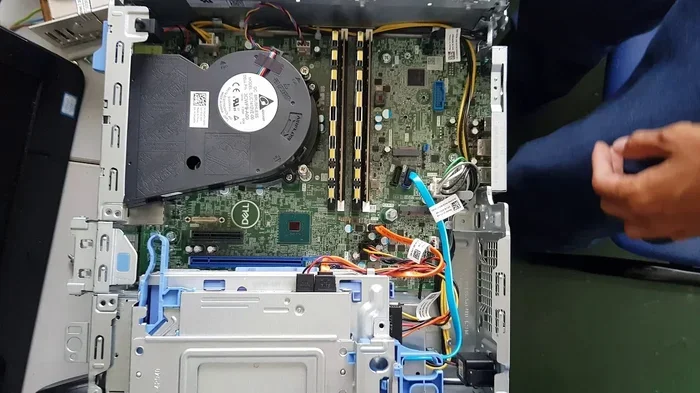
The motherboard is the main circuit board inside your computer. It connects every single part together. Without it, nothing else can work. Think of it as the highway system for your PC. All data travels through the motherboard to reach its destination.
What Does the Motherboard Do?
The motherboard provides the connections that let parts talk to each other. It holds the CPU, RAM, and storage drives in place. It also has slots for expansion cards. These cards add extra features to your system. For example, you might add a better graphics card for gaming.
The motherboard also has something called a chipset. The chipset controls how data moves between parts. It decides how fast information can travel. A good chipset means better overall performance. That is why the motherboard matters so much.
Key Parts Found on a Motherboard
- CPU Socket — Where the processor plugs in.
- RAM Slots — Where memory modules go.
- PCIe Slots — For expansion cards like GPUs.
- SATA Ports — Connect storage drives.
- USB Headers — Connect front panel ports.
- BIOS Chip — Stores startup instructions.
The CPU: The Brain of the Computer
The Central Processing Unit, or CPU, is the most important part of your computer. It handles every calculation and instruction. When you open a program, the CPU processes it. When you type on your keyboard, the CPU responds. It does this billions of times per second.
How the CPU Works
The CPU takes in data, processes it, and sends out results. It follows instructions from your software. The speed of the CPU is measured in gigahertz, or GHz. A higher GHz means faster processing. But it is not the only thing that matters. The number of cores also plays a big role.
Most modern CPUs have multiple cores. Each core can handle its own task. This means your computer can do several things at once. For example, you can browse the web while a video plays in the background. The CPU makes this multitasking possible.
Popular CPU Brands
- Intel — Known for strong single-core performance.
- AMD — Often offers more cores at a lower price.
Both brands make excellent processors. Your choice depends on your needs and budget.
RAM: Your Computer’s Short-Term Memory
RAM stands for Random Access Memory. It is the short-term memory of your computer. When you open a program, it loads into RAM. When you close it, the data disappears from RAM. This is different from permanent storage, which keeps your files saved.
What does RAM do? It gives your CPU fast access to the data it needs right now. Without enough RAM, your computer slows down. Programs take longer to open. And you might experience lag when multitasking.
How Much RAM Do You Need?
For basic tasks like browsing and word processing, 8GB of RAM is usually enough. For gaming or video editing, 16GB or more is better. If you are curious about what what is the ram of a laptop or how to find it, checking your system settings is the easiest way.
RAM comes in different speeds too. Faster RAM can improve performance in some tasks. But the amount of RAM usually matters more than the speed. If you want to check the ram of your laptop, you can use built-in tools on Windows or macOS.
Types of RAM
- DDR4 — The current standard for most PCs.
- DDR5 — The newer, faster standard for modern systems.
DDR5 is faster but also more expensive. Most users will find DDR4 perfectly fine for everyday use.
Storage: Where Your Data Lives
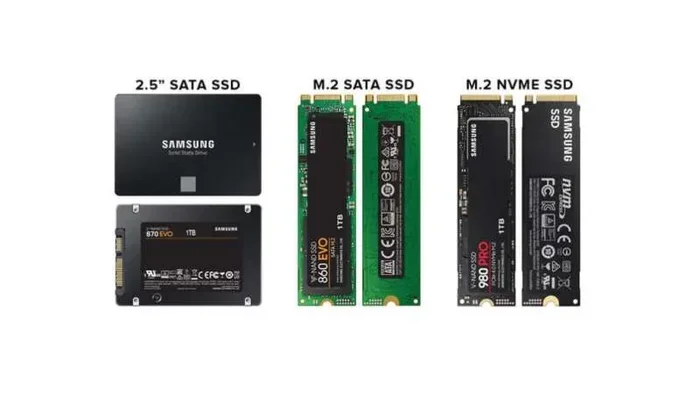
Storage is where all your files are kept. Documents, photos, videos, and programs are stored here. Unlike RAM, storage keeps your data even when the computer is turned off. There are two main types of storage you should know about.
HDD vs SSD
| Feature | HDD | SSD |
|---|---|---|
| Speed | Slower | Much faster |
| Price | Cheaper per GB | More expensive per GB |
| Durability | Has moving parts | No moving parts |
| Noise | Can be noisy | Silent |
| Best For | Bulk storage | Operating system and fast apps |
HDDs use spinning disks to read and write data. SSDs use flash memory. This makes SSDs much faster and more reliable. Most modern computers use SSDs as the main drive. You can always add an HDD for extra storage space.
The GPU: Graphics Processing Power
The Graphics Processing Unit, or GPU, handles everything you see on screen. It renders images, videos, and animations. A good GPU makes games look smooth and beautiful. It also speeds up tasks like video editing and 3D modeling.
Integrated vs Dedicated GPUs
Many computers come with an integrated GPU. This means the graphics processing is built into the CPU. It works fine for everyday tasks. But for heavy gaming or creative work, a dedicated GPU is much better.
A dedicated GPU has its own memory and cooling system. It takes the load off the CPU. This means smoother performance in demanding tasks. Popular GPU brands include NVIDIA and AMD.
The Power Supply: Keeping Everything Running
The power supply unit, or PSU, converts electricity from your wall outlet into power your computer can use. Every part of your computer needs power. The PSU delivers it safely and steadily.
Why PSU Quality Matters
A bad power supply can damage your components. It might not provide stable voltage. This can lead to random shutdowns or even hardware failure. Always choose a reliable PSU from a trusted brand.
PSUs are measured in watts. A basic system might need 400 watts. A gaming PC with a powerful GPU might need 750 watts or more. Make sure your PSU has enough wattage for all your parts.
Cooling Systems: Keeping Your PC from Overheating
All computer parts generate heat. Too much heat can damage them. Cooling systems keep temperatures under control. There are two main types of cooling you should know about.
Air Cooling
Air cooling uses fans and heat sinks. The heat sink sits on top of the CPU. It draws heat away from the processor. The fan then blows that heat out of the case. This is the most common cooling method.
Liquid Cooling
Liquid cooling uses a liquid coolant to absorb heat. It is more expensive but also more effective. It is popular among gamers and overclockers. Liquid cooling runs quieter than air cooling too.
No matter which type you use, cooling is essential. An overheating computer will slow down or shut off. Good airflow inside the case also helps a lot.
Input and Output Devices
Input devices let you send data to the computer. Output devices let the computer send data back to you. Both types are essential for using a PC.
Common Input Devices
- Keyboard — Lets you type and enter commands.
- Mouse — Lets you point, click, and navigate.
- Microphone — Captures audio input.
- Webcam — Captures video input.
Common Output Devices
- Monitor — Displays visual output.
- Speakers — Produce audio output.
- Printer — Produces printed output.
These devices connect to the computer through ports. USB ports are the most common today. They connect keyboards, mice, external drives, and more. Understanding how input and output devices work helps you set up your system properly.
The Expansion Card and Ports
Expansion cards add extra features to your computer. They plug into slots on the motherboard. Common expansion cards include sound cards and network cards. Most motherboards now have these built in. But you can still add dedicated cards for better performance.
Ports are the connection points on your computer. They let you plug in external devices. USB ports are the most widely used. Other common ports include HDMI, DisplayPort, and audio jacks. Each port serves a specific purpose. Knowing what each port does helps you connect the right devices.
Software vs Hardware
It is important to understand the difference between software and hardware. Hardware is the physical parts you can touch. The CPU, RAM, and motherboard are all hardware. Software is the set of instructions that tell the hardware what to do. Your operating system, apps, and games are all software.
Both hardware and software work together. Without software, hardware is useless. Without hardware, software has nothing to run on. Understanding this relationship helps you appreciate how your computer works as a complete system.
How All the Parts Work Together
Every part of your computer plays a role. The CPU processes data. The RAM holds active data. The storage keeps your files safe. The GPU renders visuals. The PSU provides power. And the motherboard ties it all together.
When you open a game, for example, the CPU loads the game data from storage into RAM. The GPU renders the graphics. The PSU supplies power to all parts. The cooling system keeps temperatures in check. All of this happens in milliseconds. It is truly amazing how fast and coordinated everything is.
If you ever want to upgrade the RAM of a laptop or learn more about specific parts, understanding their functions gives you the confidence to do it yourself. Knowledge about your computer’s components also helps you choose the right parts when building or buying a new system.
Taking care of each part extends the life of your computer. Regular cleaning prevents dust buildup. Updating software keeps everything running smoothly. And monitoring temperatures helps prevent overheating. Simple maintenance goes a long way.
Now you have a solid understanding of parts of the computer and their functions. You know what each component does. You understand how they work together. And you are better equipped to make smart decisions about your PC. Keep this knowledge handy. It will serve you well for years to come.
Conclusion
Learning about the parts of a computer and what they do is incredibly valuable. The motherboard connects everything. The CPU processes every task. RAM provides fast short-term memory. Storage keeps your files safe. The GPU delivers stunning visuals. The power supply keeps everything energized. And the cooling system protects your hardware.
Each part matters. None of them work alone. Together, they create the powerful machine you use every day. Whether you are a casual user or a power user, understanding these components helps you get more out of your computer. Take the time to learn your system. It is one of the best investments you can make.
Frequently Asked Questions
What are the main parts of a computer?
The main parts include the motherboard, CPU, RAM, storage drive, GPU, power supply, and cooling system. Each part has a specific job that keeps the computer running properly.
How do I check the RAM in my laptop?
You can check your RAM by opening the Task Manager on Windows or the About This Mac section on macOS. You can also refer to guides on how to check the RAM of a laptop for detailed steps.
Can I upgrade the RAM on my laptop?
Yes, many laptops allow RAM upgrades. However, some modern laptops have soldered RAM that cannot be changed. Check your specific model to see what is possible.
What is the difference between an SSD and an HDD?
An SSD uses flash memory and is much faster than an HDD. An HDD uses spinning disks and offers more storage for less money. Most users benefit from having an SSD as their main drive.
Do I need a dedicated GPU for everyday use?
No, most everyday tasks do not require a dedicated GPU. Integrated graphics built into the CPU are enough for browsing, office work, and watching videos. A dedicated GPU is best for gaming and creative work.
Why does my computer overheat?
Computers overheat when cooling systems are not working well. Dust buildup, dried thermal paste, or faulty fans can all cause overheating. Regular cleaning and maintenance help prevent this problem.
=== INTERNAL LINKS ===
Understanding what is the ram of a laptop is a great starting point for anyone new to PC hardware. If you want to learn more about checking your system, you can also read our guide on how to check the ram of a laptop. For those considering an upgrade, check out whether you can increase the ram of my laptop and discover the benefits of what does the ram do in a laptop to make informed decisions about your system’s memory.