Change Region or Country in Windows 11 Complete Guide
Changing the region or country in Windows 11 is simple and can fix wrong date formats, currency, and language settings. This guide walks you through every method step by step, from the Settings app to the Control Panel. You will also learn how to change the display language and time zone without reinstalling Windows.
This is a comprehensive guide about Change Region Or Country In Windows 11.
Key Takeaways
- Multiple Methods Available: You can change region through Settings, Control Panel, or PowerShell depending on your needs.
- Quick and Reversible: The process takes only a few minutes and you can switch back anytime.
- Affects More Than Location: Changing region also updates currency, date format, and keyboard layout.
- No Reinstall Needed: You do not need to format your PC or reinstall Windows 11.
- Microsoft Store Access: Switching regions can unlock apps and content not available in your current store.
- Works on All Editions: These steps work on Windows 11 Home, Pro, and Education editions.
[FEATURED_IMAGE_PLACEHOLDER]
Have you ever set up a new laptop and found that the date format looks wrong, the currency shows the wrong symbol, or the Windows 11 region does not match where you actually live? You are not alone. Many people buy laptops from other countries or move to a new place and need to update their system settings. The good news is that you can change region or country in Windows 11 in just a few minutes.
This complete guide covers every method you can use. Whether you want to adjust the regional format, switch the display language, or simply fix a wrong location setting, we have you covered. We will also share tips to avoid common mistakes and answer the most frequently asked questions.
By the end of this article, you will know exactly how to update your Windows 11 country settings and make your PC feel like it belongs to you. No technical expertise is needed. Just follow along step by step.
Why Changing Region in Windows 11 Matters
Your region setting controls a lot more than just where your PC thinks you are. It affects the way dates, times, numbers, and currencies appear across your system. When the region is wrong, even simple tasks can become confusing.
Here are some real-world examples of what happens when your Windows 11 regional format is incorrect:
- Date format: The US uses MM/DD/YYYY while many European countries use DD/MM/YYYY. A wrong region can mix these up.
- Currency symbol: Your prices might show dollars instead of euros or pounds if the region is set incorrectly.
- Keyboard layout: Some countries use different keyboard arrangements. Changing region can fix typing issues.
- Microsoft Store content: Apps, games, and movies available in one country may not appear in another.
- Time zone: Wrong region often means wrong time zone, which messes up calendar events and reminders.
Changing your Windows 11 location settings also helps when you travel or when you buy a second-hand laptop from another country. It is one of the first things you should check after setting up a new device.
Method 1: Change Region Through Settings App
The Settings app is the easiest and most common way to change country in Windows 11. This method works for most users and takes less than two minutes.
Step-by-Step Instructions
- Click the Start menu and select Settings. You can also press Windows key + I to open it quickly.
- Click on Time & Language in the left sidebar.
- Select Language & Region from the menu.
- Look for the Region dropdown under the Regional format section.
- Click the dropdown and select your country or region from the list.
- Windows will apply the changes immediately. You may need to restart some apps to see the full effect.
That is it. Your Windows 11 region settings are now updated. You should see the date format, currency, and other regional details change right away.
Quick Tip: If your country does not appear in the list, try typing its name in the search box at the top of the dropdown. Windows 11 often has more options than what is visible at first glance.
Method 2: Use the Control Panel for Advanced Region Changes
The Control Panel offers more detailed options than the Settings app. Use this method if you need finer control over your Windows 11 display language and regional settings.
How to Access the Control Panel
- Press Windows key + R to open the Run dialog.
- Type control and press Enter.
- Click on Clock and Region (or Region on some views).
- Select the Region tab.
From here, you can change the country in the Format dropdown. You can also click Additional settings to customize the date, time, number, and currency formats individually.
This method is especially helpful when you need to change the Windows 11 regional settings for a specific app or when the Settings app does not give you enough options.
Method 3: Change Region Using PowerShell
For advanced users, PowerShell provides a powerful way to change region settings. This method is useful when you need to script changes or apply them across multiple devices.
PowerShell Commands to Change Region
Open PowerShell as Administrator and use the following commands to update your Windows 11 country settings:
- Run Set-WinHomeLocation to change the geographic location.
- Use Set-WinSystemLocale to change the system locale.
- Apply Set-Culture to update the culture and regional format.
Always restart your PC after making changes through PowerShell. This ensures that all system services pick up the new region and language Windows 11 configuration.
Common Mistakes: Do not skip restarting your PC after using PowerShell. Some users apply the commands and expect changes to take effect immediately, but a restart is often required for the new Windows 11 location settings to fully apply.
How Changing Region Affects Your System
When you change the region in Windows 11, several things happen across your system. Understanding these effects helps you prepare for any adjustments you may need to make afterward.
Display Language and Keyboard
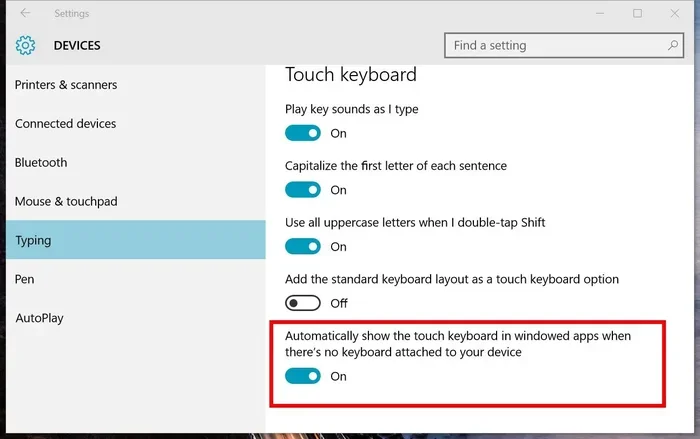
Changing the region often brings in a new Windows 11 display language option. You may see new keyboard layouts appear in your language bar. If you prefer to keep your current keyboard layout, you can always switch it back in the Settings app under Time & Language > Typing.
Microsoft Store and Apps
Your Microsoft Store region changes when you switch countries. This means:
- Different apps may become available or unavailable.
- Prices for paid apps and games may display in a new currency.
- Some content like movies and TV shows may change based on licensing agreements.
If you rely on the Microsoft Store for apps, check that the apps you need are still available after changing your Windows 11 store region.
Date, Time, and Number Formats
The most visible change is in how dates, times, and numbers appear. For example:
- In the US, the date is written as 12/31/2024.
- In the UK, the same date appears as 31/12/2024.
- In Germany, the number 1,5 (one point five) becomes 1,5 with a comma as the decimal separator.
These changes are automatic and reflect the Windows 11 regional format of your selected country.
Troubleshooting Common Issues
Sometimes changing the region does not work as expected. Here are the most common problems and how to fix them.
Region Option Is Greyed Out
If the region dropdown is greyed out or you cannot select your country, try these fixes:
- Make sure you are signed in with an Administrator account.
- Check if your PC is managed by a work or school organization. In that case, contact your IT admin.
- Restart your PC and try again.
Changes Not Reflecting in All Apps
Some apps may not update immediately after you change the region. This is normal. Close and reopen the apps, or restart your PC to force them to reload the new Windows 11 country settings.
Wrong Time Zone After Region Change
If your time zone does not update automatically, go to Settings > Time & Language > Date & Time and toggle off Set time zone automatically. Then select the correct time zone manually.
Can You Change Region Without Affecting Your Data?
Yes, absolutely. Changing the region in Windows 11 is a safe setting adjustment. It does not delete any files, apps, or personal data. Your documents, photos, and downloaded content all remain untouched.
Think of it like changing the language on your phone. It changes how things look and behave, but it does not remove anything. The same applies to your Windows 11 regional settings. You can switch back and forth as many times as you need.
One thing to keep in mind is that changing the region may affect the language of some system menus and notifications. If you prefer to keep everything in English, you can set the display language separately in Settings > Time & Language > Language & Region. This lets you keep the display language while using a different Windows 11 location settings format.
Expert Tips for Managing Region Settings
Here are some expert insights to help you get the most out of your Windows 11 region and country settings:
- Sync with your VPN: If you use a VPN to access content from another country, set your Windows region to match. This avoids conflicts between your virtual location and system settings.
- Check the currency in Microsoft Outlook: If you use Outlook for work, make sure the region matches your workplace settings to avoid confusion in email signatures and calendar invites.
- Update after major moves: If you relocate to another country, update your region as one of the first things you do. This ensures all your apps, store, and system formats work correctly from day one.
- Use the regional format for spreadsheets: If you work with Excel or Google Sheets, matching your Windows region to your spreadsheet format prevents date and number parsing errors.
These small adjustments save a lot of headaches, especially when working across borders or collaborating with teams in different countries.
Frequently Asked Questions
Can I change the region in Windows 11 without losing my apps?
Yes, changing the region does not remove or affect any installed apps. All your applications, files, and personal data stay exactly the same. The only change is how dates, currencies, and formats appear in your system.
How do I revert back to my original region?
Simply follow the same steps in the Settings app and select your original country from the region dropdown. The change takes effect immediately, and you can switch back anytime you want.
Why can’t I find my country in the region list?
Make sure you are running the latest version of Windows 11. Microsoft adds new countries and regions with major updates. You can also type your country name in the search box within the dropdown to find it faster.
Does changing region affect my Microsoft account?
No, your Microsoft account settings remain unchanged. However, your Microsoft Store region will update to match your new Windows 11 region setting, which may affect the content you can access.
Can I have different regions for different user accounts?
Yes, each user account on a Windows 11 PC can have its own region setting. This is helpful in households where family members are from different countries or prefer different formats.
Will changing the region slow down my laptop?
No, changing the region has no impact on performance. It is purely a settings adjustment that controls how information is displayed. If your laptop is slow, the issue lies elsewhere, such as with RAM or storage. You might want to check if your laptop meets the requirements for smooth performance, such as having at least 8GB RAM for Windows 11 or upgrading your 16GB RAM Windows 11 laptop for better multitasking.
Conclusion
Changing the region or country in Windows 11 is a straightforward process that anyone can do. Whether you use the Settings app, the Control Panel, or PowerShell, the steps are clear and the changes take effect quickly. You now know how to fix wrong date formats, update currency symbols, and even access content from different Microsoft Store regions.
Remember that this change is completely safe and reversible. You will not lose any data or apps. It is one of the simplest yet most impactful adjustments you can make to personalize your Windows 11 experience.
If you found this guide helpful, bookmark it for future reference. And if you are troubleshooting other Windows 11 issues, check out our article on mouse speed not changing in Windows 11 for another common settings problem that is easy to fix. Also, make sure your laptop is running smoothly with enough memory by reading our guide on Windows 11 with 16GB RAM for tips on optimizing your system.
Now go ahead and update your Windows 11 country settings to match where you are. Your PC will thank you for it.
Frequently Asked Questions
What is Change Region Or Country In Windows 11?
Change Region Or Country In Windows 11 is an important topic with many practical applications.