How To Fix A Broken Mouse Scroll Wheel Quickly And Easily
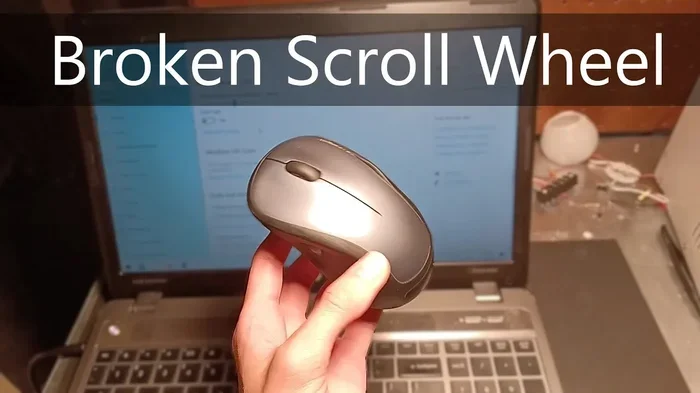
A broken mouse scroll wheel can frustrate anyone who relies on their computer daily. This guide walks you through simple fixes like cleaning, driver updates, and hardware repairs to get your scroll wheel working again. Whether your mouse is wireless or wired, we have practical solutions that take minutes to try.
A broken mouse scroll wheel can bring your entire workflow to a grinding halt. You try to scroll through a webpage, a document, or a spreadsheet, and nothing happens. It is one of those small frustrations that makes you wonder how you ever lived without a working scroll wheel.
The good news is that fixing a broken mouse scroll wheel is often simpler than you think. In most cases, the problem stems from dust buildup, outdated drivers, or minor hardware glitches. You do not need to be a tech expert to solve it. This guide will walk you through every fix step by step, from the easiest cleaning tricks to more advanced repairs.
Whether you use a laptop mouse or a standalone desktop mouse, the solutions here apply to you. We will cover wireless and wired options, Windows and Mac systems, and everything in between. By the end, you will know exactly what to do to get your scroll wheel working again.
Key Takeaways
- Dirt and dust are the most common causes of scroll wheel problems and can often be fixed with simple cleaning.
- Updating or reinstalling mouse drivers can resolve software-related scroll issues quickly.
- Resetting your mouse settings in Windows or Mac often fixes unresponsive scroll wheels.
- Physical damage may require replacement parts or a new mouse altogether.
- Regular maintenance prevents future scroll wheel problems and extends your mouse lifespan.
- Wireless and wired mice share many of the same fixes, making troubleshooting universal.
- Knowing when to seek professional help saves time and money on irreparable damage.
📑 Table of Contents
Why Does A Mouse Scroll Wheel Stop Working?
Before jumping into fixes, it helps to understand what went wrong. A scroll wheel not working usually has one of a few common causes. Knowing the root problem helps you pick the right solution fast.
Dust and Debris Buildup
The most frequent culprit is dirt. Over time, dust, crumbs, and tiny particles get trapped around the scroll wheel. This gunk prevents the wheel from rotating freely or blocks the sensor inside. Even a small speck of dust can cause big scrolling problems.
Driver or Software Issues
Sometimes the problem is not physical at all. Your operating system uses mouse drivers to communicate with your hardware. If these drivers become outdated, corrupted, or conflicting, your mouse wheel not scrolling could be a software issue. This happens often after system updates or when you connect a new mouse.
Physical Damage or Wear
Mice take a beating over time. The scroll wheel mechanism contains a small encoder wheel that can wear out. If you have dropped your mouse or used it heavily for years, the internal parts may simply be worn down. This type of damage needs either repair or replacement.
Wrong Settings or Configuration
Occasionally, the scroll settings themselves get changed accidentally. Maybe a program altered your mouse configuration, or a game changed the scroll speed. These settings can make it seem like your scroll wheel is broken when it is really just misconfigured.
How To Clean A Stuck Mouse Scroll Wheel
Cleaning is the first and most important step. In many cases, a simple cleaning session brings your scroll wheel back to life. Here is exactly how to do it.
What You Need
- A can of compressed air
- A cotton swab or soft brush
- Isopropyl alcohol (70% or higher)
- A toothpick or thin plastic tool
- A clean, dry cloth
Step-by-Step Cleaning Process
- Unplug or turn off your mouse. If it is wireless, turn it off or remove the batteries. You do not want any accidental clicks while cleaning.
- Blow out loose debris. Use the compressed air to blast dust out from around the scroll wheel. Hold the can upright and use short bursts.
- Dip a cotton swab in isopropyl alcohol. Gently rub around the base of the scroll wheel. The alcohol dissolves grime and evaporates quickly without leaving residue.
- Use a toothpick for stubborn gunk. Carefully scrape away any hardened dirt around the wheel. Be gentle to avoid damaging the sensor.
- Let it dry completely. Wait at least five minutes before reconnecting your mouse. Moisture can cause short circuits.
After cleaning, test your scroll wheel right away. Many people are surprised how well this simple fix works. Regular cleaning every few months prevents future buildup and keeps your mouse scrolling smoothly.
Fix Mouse Scroll Wheel Problems With Software Solutions
If cleaning did not help, the issue may be software-related. Do not worry. Software fixes are often quick and do not require any special tools.
Update Your Mouse Drivers
Outdated drivers are a leading cause of mouse scroll wheel not working on Windows. Here is how to update them:
- Right-click the Start button and select Device Manager.
- Expand the Mouse and other pointing devices section.
- Right-click your mouse and select Update driver.
- Choose Search automatically for drivers.
- Follow the on-screen instructions to complete the update.
After updating, restart your computer and test the scroll wheel. This fix resolves the problem more often than you might expect.
Reset Mouse Settings in Windows
Sometimes your scroll settings get tweaked without you noticing. Resetting them can fix the issue:
- Open Settings and go to Bluetooth and Devices.
- Click on Mouse in the left sidebar.
- Scroll down to the Scroll wheel section.
- Make sure the lines to scroll are set to a reasonable number (like 3 or 5).
- Check that the scroll direction is set to the way you prefer.
On a Mac, go to System Settings, then Mouse, and adjust the scroll speed there. Sometimes simply changing and then reverting a setting can reset the scroll function.
Reinstall the Mouse Driver
If updating does not work, try removing the driver entirely and letting Windows reinstall it fresh:
- Open Device Manager again.
- Right-click your mouse and select Uninstall device.
- Disconnect your mouse from the USB port.
- Restart your computer.
- Reconnect the mouse and let Windows reinstall the driver automatically.
This process clears out any corrupted driver files that might be causing your scroll wheel problems.
How To Fix Physical Scroll Wheel Damage
When the problem is hardware-related, the fixes get a bit more hands-on. But do not panic. You have several options depending on the severity of the damage.
Loose or Wobbly Scroll Wheel
If your scroll wheel feels loose or wobbly, the tension spring inside may have popped out. This is a common issue with older mice. Here is what you can try:
- Flip the mouse over and remove the bottom screws carefully.
- Lift off the top shell gently.
- Look for a small spring near the scroll wheel mechanism.
- If the spring is out of place, use tweezers to put it back.
- Reassemble the mouse and test the wheel.
This fix requires patience and a steady hand. If you feel uncomfortable opening your mouse, skip to the next section.
Replacing the Scroll Wheel Mechanism
For more serious physical damage, you may need to replace the scroll wheel assembly. Here is how:
- Search online for your mouse model number plus “scroll wheel replacement.”
- Order the replacement part from the manufacturer or a third-party supplier.
- Watch a teardown video for your specific mouse model on YouTube.
- Carefully disassemble the mouse following the video guide.
- Remove the old scroll wheel mechanism and install the new one.
- Reassemble and test thoroughly.
Replacement parts are usually inexpensive, often under fifteen dollars. This fix can extend the life of a good mouse by years.
When To Replace the Entire Mouse
Sometimes, the damage is too extensive to justify a repair. If your mouse is old, the scroll wheel mechanism is fused beyond repair, or the cost of parts exceeds a new mouse, it is time to move on. A new mouse with a smooth scroll wheel will feel like a refresh for your entire setup.
If you are shopping for a new mouse, consider reading our guide on how to use a mouse with your laptop for tips on choosing the right one.
Prevent Future Scroll Wheel Problems
Prevention is always better than repair. A few simple habits can keep your scroll wheel working perfectly for years to come.
Keep Your Mouse Clean
Make it a habit to wipe down your mouse every week or two. A quick pass with a dry cloth removes surface dust before it builds up. For deeper cleaning, follow the steps in the cleaning section above once a month.
Use Your Mouse on a Clean Surface
Dusty or dirty surfaces feed debris into your mouse. Try to use your mouse on a clean mouse pad or desk. Avoid using it on carpet or rough surfaces where fibers can get pulled inside the device.
Handle With Care
Avoid dropping your mouse or pressing the scroll wheel too hard. The mechanism inside is delicate and can be damaged by rough handling. When transporting your mouse, store it in a padded case or bag.
Keep Drivers Updated
Periodically check for driver updates, especially after major system updates. Updated drivers ensure smooth communication between your mouse and your computer, preventing many software-related scroll issues.
When To Seek Professional Help
Most scroll wheel problems can be fixed at home. But there are times when professional help makes sense. If you have tried all the fixes above and your scroll wheel still does not work, it may be time to consult an expert. Here are some signs you need professional help:
- The mouse has internal water damage or corrosion.
- The scroll wheel mechanism is completely shattered.
- Your mouse is still under warranty and you do not want to void it.
- You are uncomfortable opening and repairing electronic devices.
- The problem persists across multiple computers, suggesting a deeper hardware fault.
Many electronics repair shops can fix a broken mouse scroll wheel for a reasonable fee. It is often cheaper than buying a brand-new mouse, especially if yours is a high-end model.
For more troubleshooting tips on mouse-related issues, check out our article on how to fix your mouse on your laptop for additional guidance.
Final Thoughts
A broken mouse scroll wheel does not have to be a permanent problem. Most of the time, a simple cleaning session or a driver update is all it takes to get things working again. Even physical damage can often be repaired with a replacement part and a little patience.
The key is to start with the simplest fix and work your way up. Clean the wheel first, then check your software settings, and finally look at hardware repairs. This approach saves you time and effort.
Remember that regular maintenance goes a long way. A clean mouse on a clean surface, handled with care, will serve you well for years. Your scroll wheel is a small part of your computer setup, but it makes a huge difference in how smoothly you work and browse every day.
Take action today. Pick one of the fixes above and try it now. You might be surprised at how quickly your scroll wheel comes back to life. And once it is working again, you will wonder why you did not fix it sooner.
Frequently Asked Questions
Why is my mouse scroll wheel not working at all?
The most common reason is dust and debris buildup around the scroll wheel. Dirt can block the sensor or prevent the wheel from moving freely. Try cleaning the wheel first with compressed air and isopropyl alcohol before moving on to software fixes.
Can a broken mouse scroll wheel be repaired?
Yes, in most cases. Simple cleaning and driver updates often fix the problem. For physical damage, you can replace the scroll wheel mechanism itself or the entire mouse if the damage is severe. Many repair shops can also handle the fix for you.
How do I know if the scroll wheel problem is hardware or software?
Try connecting your mouse to a different computer. If the scroll wheel still does not work, it is likely a hardware issue. If it works fine on another computer, the problem is probably with your original computer’s drivers or settings. You can also try resetting your mouse settings to rule out software causes.
What is the best way to clean a mouse scroll wheel?
Use compressed air to blow out loose dust, then rub around the wheel with a cotton swab dipped in isopropyl alcohol. A toothpick can help remove stubborn gunk. Always let the mouse dry completely before using it again. Regular cleaning prevents buildup and keeps scrolling smooth.
How much does it cost to replace a mouse scroll wheel?
Replacement parts typically cost between five and fifteen dollars online. If you prefer professional repair, expect to pay twenty to forty dollars depending on the mouse model and your location. In many cases, buying a new mouse is more cost-effective than paying for repairs.
Does mouse scroll wheel damage void the warranty?
It depends on the manufacturer and the type of damage. If the damage is from normal wear and tear, it is usually covered. However, physical damage from drops or liquid spills may not be covered. Check your warranty terms or contact the manufacturer before attempting any repairs yourself.