How To Fix A Broken Mouse Right Click Once And For All
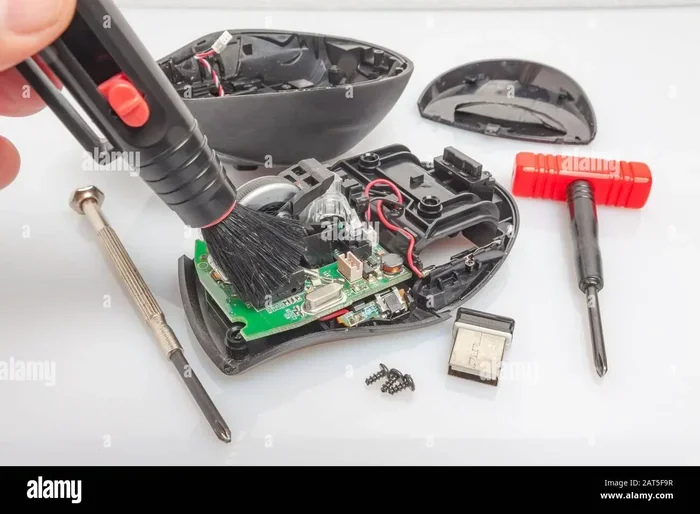
A broken mouse right click can stop your workflow dead in its tracks. Whether your right click on laptop is unresponsive, stuck, or causing errors, this guide walks you through every fix you need. We cover software settings, driver issues, hardware problems, and simple tricks that actually work. You will learn how to fix right click on both Windows and Mac systems with easy-to-follow steps.
Nothing is more frustrating than a broken mouse right click. You are working on something important, you right-click to open a menu, and nothing happens. Your cursor sits there like it forgot what to do. This problem can happen on any computer, whether you use a desktop setup or a laptop without mouse. The good news is that most right-click issues are easy to fix. You do not need to be a tech expert. In this guide, we will walk you through every possible solution step by step.
We have tested these methods on different systems and mouse types. From wireless mice to built-in trackpads, we cover them all. You will learn how to diagnose the problem, apply quick fixes, and prevent the issue from coming back. Let us get your right click working again.
Key Takeaways
- Restart and update your mouse driver: A simple driver refresh often resolves right-click failures instantly.
- Check your mouse hardware: Physical damage or debris under the button is a common cause of right-click problems.
- Adjust your settings: Windows and Mac both have settings that can accidentally disable or change right-click behavior.
- Try alternative methods: Keyboard shortcuts and trackpad gestures can help you right-click while you troubleshoot.
- Reset your mouse configuration: A full reset can clear corrupted settings that break the right-click function.
- Know when to replace: If hardware is truly damaged, no software fix will solve the problem.
📑 Table of Contents
- Why Your Mouse Right Click Might Be Broken
- Quick Fixes To Try First
- How To Fix Mouse Right Click Software Problems
- How To Fix Hardware Problems With Your Mouse
- Alternative Ways To Right Click When Your Mouse Is Broken
- How To Prevent Right-Click Problems In The Future
- Expert Insights On Mouse Right-Click Repairs
- Conclusion
Why Your Mouse Right Click Might Be Broken
Before you start fixing anything, it helps to understand what went wrong. A right click not working can come from several different causes. Some are software-related, and some are physical. Let us break them down.
Software Issues That Cause Right-Click Failures
Sometimes the problem is not your mouse at all. It is your computer’s software. Windows and macOS both have settings that control how the right click works. If these settings get changed by accident or by a software update, your right click can stop functioning.
Driver problems are another big culprit. Your mouse needs a driver to talk to your computer. If that driver is outdated, corrupted, or missing, the right-click function will fail. This is one of the most common reasons people search for how to fix a broken mouse right click. The good part? Driver fixes are quick and usually free.
Corrupted system files can also interfere with mouse functions. Windows updates sometimes cause conflicts with existing drivers. A bad update might change how your system handles input devices. If your right click stopped working right after an update, this could be the reason.
Hardware Problems You Can See and Feel
Physical damage is the other main cause. If you have dropped your mouse or spilled something on it, the right-click button might be physically broken. Over time, the mechanical parts inside a mouse wear out. The rubber dome underneath the button loses its spring, and the click becomes weak or non-existent.
Dirt and debris are sneaky culprits too. Crumbs, dust, and tiny particles can get trapped under the mouse button. They press against the sensor constantly, making the right click feel stuck or unresponsive. This happens a lot with laptops where the trackpad collects grime over time.
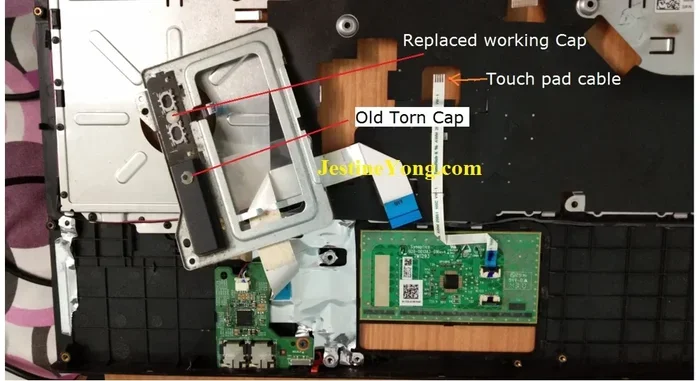
If you are dealing with a laptop trackpad right click issue, the problem might be a worn-out trackpad surface. Laptop trackpads have a limited lifespan for the click mechanism. After years of use, the clicking layer wears thin and stops registering presses properly.
Quick Fixes To Try First
Before you dive into advanced troubleshooting, try these quick solutions. Many people fix their right-click problem in under five minutes with these simple steps.
Restart Your Computer
This sounds too simple, but it works more often than you think. A restart clears temporary glitches and resets your input drivers. Turn your computer off completely, wait ten seconds, and turn it back on. Test your right click immediately after it boots up.
Check the Physical Button
Look closely at the right-click button on your mouse. Is it stuck down? Does it feel different from the left button? Gently press around the edges of the button. Sometimes debris gets lodged right at the edge and prevents full movement. A quick blow of compressed air can dislodge particles that are causing the issue.
Try a Different USB Port
If you use a wired mouse, plug it into a different USB port. A faulty port can cause intermittent problems with mouse buttons. If you use a wireless mouse, try replacing the batteries. Low power can cause erratic behavior, including a non-functional right click.
How To Fix Mouse Right Click Software Problems
Software fixes are the most common solutions for broken mouse right click issues. These steps address the settings and drivers that control how your mouse works.
Update or Reinstall Your Mouse Driver
Your mouse driver is the software that lets your computer understand what your mouse is doing. If it is outdated or damaged, your right click will not work correctly.
Here is how to update your driver on Windows:
- Right-click the Start button and select Device Manager.
- Expand the “Mice and other pointing devices” section.
- Right-click your mouse device and select Update Driver.
- Choose “Search automatically for drivers.”
- Follow the on-screen prompts and restart your computer.
If updating does not help, try uninstalling the driver. Go back to Device Manager, right-click your mouse, and select Uninstall Device. Restart your computer, and Windows will automatically reinstall a fresh driver. This simple reset fixes many right-click problems.
Adjust Your Mouse Settings
Windows has built-in mouse settings that control button behavior. Sometimes these settings get changed and disable the right click. Here is how to check them:
- Open Control Panel and go to Mouse.
- Click on the Buttons tab.
- Make sure “Right-click” is set to the primary button under your preference.
- Check that the button swap option is not enabled unless you want it.
- Click Apply and test your right click.
On a Mac, go to System Preferences, then Mouse settings. Check the “Secondary Click” option. Make sure it is enabled and set to your preferred corner or side of the mouse.
Run the Windows Troubleshooter
Windows has a built-in troubleshooter for mouse and pointer devices. It can automatically detect and fix common problems. To run it, go to Settings, then Update and Security, then Troubleshoot. Select “Mouse and Pointer Devices” and click Run the Troubleshooter. Follow the prompts and apply any fixes it suggests.
How To Fix Hardware Problems With Your Mouse
If software fixes did not work, the problem is likely physical. Hardware issues require different solutions depending on the type of mouse you have.
Clean Your Mouse Thoroughly
Dirt and grime are the enemies of smooth mouse function. Over time, oils from your fingers and dust from your environment build up around the buttons. This buildup can prevent the right-click mechanism from working properly.
Here is how to clean your mouse effectively:
- Turn off the mouse or disconnect it from your computer.
- Use a can of compressed air to blow out any debris around the buttons.
- Dampen a cotton swab with isopropyl alcohol and gently clean around the right-click button.
- Let the mouse dry completely before reconnecting it.
- Test the right click to see if it responds better.
For laptop trackpads, use a slightly damp microfiber cloth to wipe the surface gently. Avoid using excess liquid, as moisture can damage internal components.
Test Your Mouse on Another Computer
This is a simple diagnostic trick that tells you where the problem lies. Plug your mouse into a different computer or laptop. If the right click works there, the problem is with your original computer’s settings or drivers. If the right click still does not work, your mouse hardware is likely damaged.
You can also test a different mouse on your computer. If another mouse works fine, then your original mouse needs repair or replacement. This quick test saves you a lot of guessing.
When To Replace Your Mouse
Sometimes the honest answer is that your mouse needs to be replaced. If the internal mechanism is broken, no software fix will bring it back. Mechanical wear and tear is normal, especially for mice that have been used heavily for several years.
Look for these signs that your mouse is beyond repair:
- The right-click button feels mushy or has no spring return.
- The button clicks but does not register as a right click.
- There is visible physical damage to the mouse housing.
- The mouse works on another computer but still fails on yours.
- You have tried all software fixes and the problem persists.
When you replace your mouse, consider getting one with a good warranty. A quality mouse can last for years and save you from repeat frustration. If you are shopping for a new mouse, check out our guide on how to use a mouse on a laptop to find the best options for your setup.
Alternative Ways To Right Click When Your Mouse Is Broken
While you are fixing the problem, you still need to get work done. Here are some alternative ways to access right-click functions without a working mouse button.
Use Keyboard Shortcuts
Most applications have keyboard alternatives for right-click menus. In Windows, you can press Shift and F10 together to open the context menu. This works in File Explorer, on the desktop, and in many applications. It is not as fast as a right click, but it gets the job done.
On a Mac, press Control and click (or tap the trackpad) to open the context menu. This is a built-in shortcut that works everywhere on macOS.
Use Your Trackpad
If you are using a laptop and your external mouse is broken, use the trackpad instead. Most laptop trackpads support right-click gestures. You can tap with two fingers, or click in the bottom-right corner of the trackpad. If your trackpad right click is also not working, check out our guide on how to fix your laptop mouse pad for detailed solutions.
Use On-Screen Controls
Many applications have menu bars and buttons that provide the same functions as right-click menus. Right-clicking usually opens a context menu with options like Copy, Paste, Delete, and Properties. You can often find these same options in the top menu bar of your application.
How To Prevent Right-Click Problems In The Future
Prevention is always better than cure. A few simple habits can keep your mouse right click working smoothly for years.
- Keep your mouse clean: Wipe it down weekly with a dry or slightly damp cloth. Prevent dust buildup around the buttons.
- Handle with care: Avoid dropping your mouse or pressing the buttons too hard. Gentle use extends the lifespan of the internal mechanism.
- Update drivers regularly: Check for driver updates once a month. Outdated drivers can cause all sorts of input problems.
- Use a mouse pad: A clean mouse pad reduces dust and debris that can get inside your mouse. It also provides a smooth surface that reduces wear on the sensor.
- Replace batteries on time: If you use a wireless mouse, change batteries before they die completely. Low power can cause erratic behavior.
- Store properly: When not in use, keep your mouse in a protective case or drawer. This prevents dust accumulation and physical damage.
Expert Insights On Mouse Right-Click Repairs
Tech professionals often see the same right-click problems over and over. Here are some expert tips that can save you time and frustration.
Do not ignore driver conflicts. If you recently installed new software or updated your operating system, the new software might be conflicting with your mouse driver. Roll back your driver to a previous version if the problem started after an update. You can do this in Device Manager by selecting Properties, then Driver, then Roll Back Driver.
Check for Windows updates. Sometimes Microsoft releases patches specifically for input device issues. Keeping your system updated can prevent and fix right-click problems automatically. Go to Settings, then Update and Security, then Windows Update, and check for updates.
Consider your mouse age. Most computer mice last between one and three years with regular use. If your mouse is older than that, hardware failure becomes increasingly likely. Investing in a new mouse is often more cost-effective than trying to repair an old one.
Do not forget about your warranty. If your mouse is still under warranty, contact the manufacturer before attempting any repairs. Opening the mouse yourself will void most warranties, and you might be able to get a free replacement.
For more troubleshooting tips on mouse-related issues, check out our article on how to reset the mouse on a laptop for additional guidance on restoring your mouse to working order.
Conclusion
A broken mouse right click is a frustrating problem, but it is almost always fixable. Start with the quick software fixes, then move on to hardware checks if needed. Most of the time, updating a driver, cleaning the mouse, or adjusting settings solves the problem completely. If your mouse is physically damaged, replacing it is the best long-term solution.
Remember to use the alternative methods while you troubleshoot. Keyboard shortcuts and trackpad gestures keep you productive even when your mouse is not working perfectly. Keep your mouse clean and your drivers updated to prevent future problems.
Now that you know how to fix a broken mouse right click, you can tackle the problem with confidence. Try these steps in order, and your right-click menu should be back to normal in no time.
Frequently Asked Questions
Why did my mouse right click suddenly stop working?
Sudden right-click failure is usually caused by a driver issue, a software conflict, or a physical obstruction. Check your mouse driver first, then clean the button area to remove any debris. If the problem started after a Windows update, rolling back the driver or running the troubleshooter often fixes it.
Can I fix a broken mouse right click without replacing the mouse?
Yes, in most cases. Software fixes like driver updates and setting adjustments resolve the issue more often than people realize. Even hardware problems like stuck buttons can sometimes be fixed by cleaning the mouse thoroughly. Only replace the mouse if the internal mechanism is physically broken.
How do I right click on a laptop if my mouse is broken?
You can use keyboard shortcuts like Shift plus F10 on Windows, or Control plus click on a Mac. Your laptop trackpad also supports right-click gestures like two-finger tapping or clicking the bottom-right corner. If your trackpad is also not working, you can try connecting a USB mouse or checking out how to right click on a laptop without a mouse using on-screen tools.
Is it safe to open my mouse and clean it myself?
Yes, for most standard mice it is safe. Just make sure to disconnect the mouse first and avoid using excess liquid. Use compressed air and a dry cotton swab for cleaning. If your mouse is still under warranty, contact the manufacturer instead of opening it yourself to avoid voiding the warranty.
What should I do if the right click works but the right-click menu does not open?
This is a software issue, not a hardware one. Check your mouse settings in Control Panel or System Preferences to make sure right-click is enabled. Update your mouse driver and run the Windows troubleshooter. If the problem persists, a system restore to a point before the issue started can often fix it.
How often should I replace my computer mouse?
A good quality mouse typically lasts one to three years with regular use. If you notice the right click becoming unreliable or physically mushy, it is time to consider a replacement. Keeping your mouse clean and using it gently can extend its lifespan significantly.