How To Fix A Stuck Scroll Wheel On Your Wireless Mouse
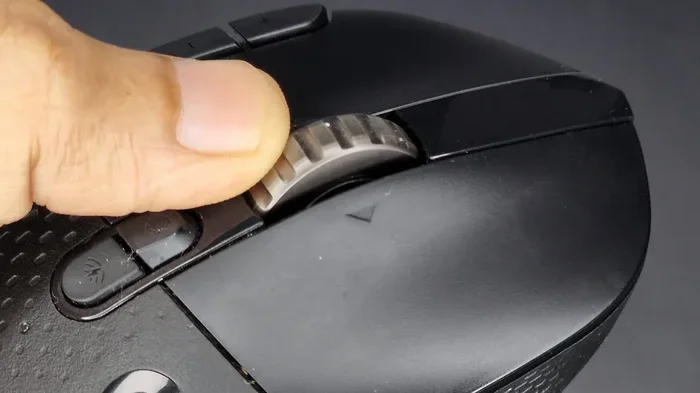
A stuck scroll wheel on your wireless mouse can slow you down fast. This guide walks you through every fix, from simple cleaning to driver updates and hardware swaps. You will learn how to fix scroll wheel on wireless mouse problems in minutes without spending a dime.
A stuck scroll wheel on your wireless mouse is one of the most annoying problems you can face. You try to scroll through a page and nothing happens. Or worse the wheel scrolls on its own without you touching it. Either way it makes using your computer a frustrating experience.
The good news is that fixing a stuck scroll wheel on wireless mouse is usually simple. Most of the time the problem comes from dust buildup or a minor software glitch. You do not need to be a tech expert to solve it. In this guide we will walk you through every fix step by step.
We will cover cleaning methods software solutions and hardware repairs. By the end you will know exactly how to fix scroll wheel on wireless mouse issues for good. Let us get started.
Key Takeaways
- Dust and debris are the most common cause of a stuck scroll wheel on wireless mice.
- Cleaning the scroll wheel with compressed air and isopropyl alcohol solves most issues quickly.
- Updating or reinstalling mouse drivers can fix software-related scroll wheel problems.
- Replacing the scroll wheel is a last resort when hardware damage is severe.
- Regular maintenance keeps your wireless mouse working smoothly for years.
📑 Table of Contents
Why Your Wireless Mouse Scroll Wheel Gets Stuck
Before you jump into fixes it helps to understand what causes the problem. A wireless mouse scroll wheel has a small rotating mechanism underneath. Over time dust crumbs and hair can get trapped inside. This gunk blocks the wheel from moving freely.
Another common cause is a worn-out spring inside the scroll wheel mechanism. The spring pushes the wheel back to its center position. When it weakens the wheel feels stiff or sticks in one direction. Sometimes the problem is software-related. A bad driver update or incorrect settings can make the scroll wheel act up.
Dust and Debris Buildup
Dust is the number one enemy of your mouse scroll wheel. Every time you use your mouse tiny particles settle around the wheel. After weeks or months this buildup creates a thick layer of grime. The wheel can no longer rotate smoothly.
This is especially true if you eat snacks near your computer. Crumbs can fall into the mouse and get stuck around the scroll wheel. Pet hair makes the problem even worse. If you notice your wireless mouse scroll wheel is jerky or unresponsive dirt is likely the culprit.
Worn-Out Internal Parts
Every mouse has a limited lifespan. The scroll wheel mechanism uses tiny plastic parts that wear down over time. The rubber band or spring inside can stretch or break. When this happens the wheel may feel loose or stick to one side.
If your mouse is more than two years old internal wear could be the reason. You might also hear clicking sounds when you scroll. These sounds mean the internal parts are grinding against each other. At this point you may need to consider a replacement.
Software and Driver Issues
Not all scroll wheel problems come from physical damage. Sometimes the issue lives inside your computer. A corrupted mouse driver can make the scroll wheel stop working. Windows updates sometimes change driver settings without telling you.
If you recently updated your operating system the mouse scroll not working problem might be related. Software conflicts can also cause issues. For example a new program might override your mouse settings. Checking your device manager is a great first step.
How To Clean Your Scroll Wheel Step by Step
Cleaning is the first and most important fix for a stuck scroll wheel. Most of the time this simple step solves the entire problem. You do not need any special tools either. A few household items are all you need.
What You Will Need
- Compressed air can or a small hand pump blower
- Isopropyl alcohol (70% or higher)
- Cotton swabs (thin tip works best)
- A toothpick or thin plastic pick
- Soft lint-free cloth
Step 1: Turn Off and Unplug the Mouse
Before you start cleaning make sure your wireless mouse is turned off. If it has a power switch flip it to the off position. For Bluetooth mice disconnect them from your computer. This prevents any accidental clicks while you work.
If your mouse has a USB receiver unplug it from the port. You want the mouse completely disconnected during cleaning. This also keeps your computer safe from any moisture you might use.
Step 2: Blow Out Loose Dust
Hold the mouse upside down so the scroll wheel faces you. Use your compressed air can to blow around the wheel. Hold the can upright and use short bursts. Do not tilt the can or you will get liquid propellant on the mouse.
Move the air nozzle around the entire wheel. You will see dust and debris fly out. Do this for about 15 to 20 seconds. This removes the loose particles that are causing the most friction.
Step 3: Scrub Around the Wheel
Dip a cotton swab in a small amount of isopropyl alcohol. Gently rub around the base of the scroll wheel. The alcohol dissolves sticky grime that compressed air cannot remove. Be careful not to push debris further into the mouse.
Use a toothpick to gently scrape away any stubborn buildup. Work slowly and do not force anything. The goal is to loosen the dirt not damage the mechanism. If you are dealing with a mouse wheel not scrolling issue this step usually does the trick.
Step 4: Wipe and Dry
After scrubbing use a dry cotton swab to wipe away any remaining alcohol. Let the mouse air dry for at least 10 minutes. Make sure no moisture remains before you turn it back on. Once dry reconnect your mouse and test the scroll wheel.
You should notice a big improvement right away. The wheel should move smoothly without sticking. If it still feels stiff you may need to repeat the cleaning process. Sometimes heavy buildup requires two or three cleaning sessions.
Software and Driver Fixes For Scroll Wheel Issues
If cleaning does not solve the problem the issue might be software-related. Do not worry this is still an easy fix. Most scroll wheel problems come from outdated or corrupted drivers. A few quick steps can get everything working again.
Update Your Mouse Driver
Your computer uses drivers to communicate with your wireless mouse. When a driver becomes outdated the scroll function may stop working. Updating the driver is simple and free.
- Right-click the Start button on your Windows desktop
- Select Device Manager from the menu
- Expand the Mice and other pointing devices section
- Right-click your wireless mouse and select Update driver
- Choose Search automatically for drivers
- Follow the on-screen instructions to complete the update
After updating restart your computer. Test the scroll wheel to see if the problem is fixed. This method works for most software-related wireless mouse scroll wheel issues.
Reinstall the Mouse Driver
If updating does not work try reinstalling the driver completely. This removes any corrupted files and installs a fresh copy.
- Open Device Manager again
- Right-click your wireless mouse
- Select Uninstall device
- Confirm the uninstall
- Restart your computer
- Windows will automatically reinstall the driver
This method is especially helpful if you recently installed a Windows update that broke your mouse settings. Many users report that reinstalling the driver fixed their mouse scroll not working problem instantly.
Check Your Mouse Settings
Sometimes the scroll wheel issue comes from incorrect settings. Windows lets you customize how fast and how far the wheel scrolls. If these settings are off the wheel may feel unresponsive.
- Open Settings from the Start menu
- Go to Bluetooth and devices
- Click on your mouse in the device list
- Scroll down to find the Scroll settings
- Adjust the lines per scroll to your preference
You can also check your mouse manufacturer’s software. Logitech Microsoft and other brands have their own control panels. These apps let you fine-tune scroll speed and behavior.
Run the Hardware Troubleshooter
Windows has a built-in troubleshooter for mouse and pointing devices. This tool automatically detects and fixes common problems.
- Open Settings and go to System
- Click on Troubleshoot then Other troubleshooters
- Find Hardware and Devices and click Run
- Follow the prompts and let Windows scan for issues
The troubleshooter may find a problem you did not notice. It can also reset mouse settings to their defaults. This is a quick and easy way to fix wireless mouse not working scroll issues.
Hardware Problems: When The Scroll Wheel Needs Replacement
Sometimes the scroll wheel problem is physical and cannot be fixed with cleaning or software. If the internal mechanism is broken you will need to replace the part or the entire mouse. This section helps you decide what to do.
Signs Your Scroll Wheel Is Damaged Beyond Repair
- The wheel feels completely loose and wobbly
- You hear grinding or clicking sounds when scrolling
- The wheel does not return to the center position
- Scrolling works in only one direction
- The wheel physically moves but does not register input
If you notice any of these signs the internal parts are likely broken. At this point cleaning and software fixes will not help. You need to either repair or replace the mouse.
How To Replace a Scroll Wheel
Replacing a scroll wheel is possible if you are comfortable with small electronics. You will need a screwdriver and a replacement wheel. Replacement parts are available online for most popular mouse models.
- Unscrew the bottom panel of your mouse
- Locate the scroll wheel assembly
- Carefully disconnect the ribbon cable
- Remove the old wheel and install the new one
- Reconnect the cable and screw the panel back on
This repair requires patience and a steady hand. If you are not comfortable doing this yourself consider taking the mouse to a repair shop. Many electronics repair stores offer affordable scroll wheel replacements.
When To Just Buy A New Mouse
Sometimes the cost and effort of repair do not make sense. If your mouse is older than three years it might be time for a new one. New wireless mice are affordable and offer much better performance than older models.
Before buying a new mouse check if your current one is still under warranty. Many brands offer one to two year warranties. You might be able to get a free replacement. This saves you money and hassle.
Preventing Scroll Wheel Problems In The Future
The best way to deal with a stuck scroll wheel is to prevent the problem in the first place. A few simple habits can keep your wireless mouse working perfectly for years.
Keep Your Mouse Clean
Make it a habit to clean your mouse every few weeks. A quick wipe with a dry cloth removes surface dust. Use compressed air once a month to blow out debris from the scroll wheel area.
Keep your mouse off the floor when not in use. Floors collect dust and pet hair that can easily get into your mouse. A clean mouse pad also helps reduce dust buildup.
Use Your Mouse on the Right Surface
Using your mouse on rough or uneven surfaces causes extra wear. A smooth mouse pad protects the sensor and the scroll wheel mechanism. Avoid using your mouse directly on textured desks or fabric surfaces.
If you work in a dusty environment consider using a mouse cover when not in use. This simple accessory keeps dust and debris away from your mouse.
Handle Your Mouse Gently
Pressing too hard on the scroll wheel can damage the internal spring over time. Let the wheel move freely without forcing it. If you feel resistance stop and check for debris.
Do not drop your wireless mouse. Even a short fall can damage the scroll mechanism. Use a protective case if you carry your mouse around frequently.
Quick Tips And Common Mistakes To Avoid
Quick Tips For A Working Scroll Wheel
- Clean your scroll wheel weekly with compressed air
- Update your mouse drivers every few months
- Use a smooth mouse pad to reduce wear
- Avoid eating near your mouse to prevent crumbs
- Check your scroll settings if the wheel feels too fast or slow
Common Mistakes People Make
One of the biggest mistakes is using water to clean your mouse. Water can seep inside and damage the electronics. Always use isopropyl alcohol instead. Another mistake is ignoring the problem. A stuck scroll wheel will only get worse over time. Address it early before it becomes a bigger issue.
Some people try to force a stuck wheel by pressing hard on it. This can break the internal spring and make the problem worse. Be gentle and patient with your cleaning. If the wheel does not move easily stop and try a different approach.
Conclusion
Fixing a stuck scroll wheel on your wireless mouse is easier than most people think. In most cases a simple cleaning session solves the entire problem. If cleaning does not work updating your drivers or checking your settings usually does the trick. Only in rare cases do you need to replace the hardware.
The key is to act quickly when you notice the problem. The longer you wait the more damage dust and debris can cause. Regular maintenance keeps your wireless mouse scroll wheel working smoothly for years.
Now that you know how to fix scroll wheel on wireless mouse problems you can tackle any issue with confidence. Try the cleaning method first. Then move to software fixes if needed. Your mouse will feel like new again in no time.
Take a few minutes today to clean and check your mouse. Your future self will thank you every time you scroll through a webpage without any problems. A little prevention goes a long way in keeping your wireless mouse in top shape.
Frequently Asked Questions
Why is my wireless mouse scroll wheel not working?
The most common reason is dust and debris buildup around the scroll wheel. Cleaning the wheel with compressed air and isopropyl alcohol usually fixes the problem. If cleaning does not work the issue might be a corrupted driver or a damaged internal spring.
Can I fix a stuck scroll wheel without opening the mouse?
Yes in most cases you can fix the problem without opening the mouse. Cleaning around the wheel with compressed air and a cotton swab dipped in isopropyl alcohol often does the trick. Software fixes like updating drivers can also resolve the issue without any disassembly.
How do I know if my scroll wheel needs replacement?
If the wheel feels completely loose makes grinding noises or does not return to center it likely needs replacement. If cleaning and driver updates do not help the internal mechanism is probably damaged beyond repair.
Is it safe to use isopropyl alcohol to clean my mouse?
Yes isopropyl alcohol is safe and effective for cleaning electronics. It evaporates quickly and does not leave moisture behind. Just make sure the mouse is turned off and let it dry completely before reconnecting it.
How often should I clean my wireless mouse scroll wheel?
You should clean your scroll wheel at least once a month. If you eat near your computer or have pets you may need to clean it more often. Regular cleaning prevents buildup and keeps the scroll wheel working smoothly.
What should I do if the scroll wheel scrolls on its own?
Auto-scrolling is usually caused by a software issue or a stuck sensor. Try updating your mouse drivers first. If that does not work uninstall and reinstall the driver. You can also check your scroll settings in Windows to make sure nothing is set to auto-scroll.