How To Fix Scroll Wheel Jumping And Restore Smooth Scrolling
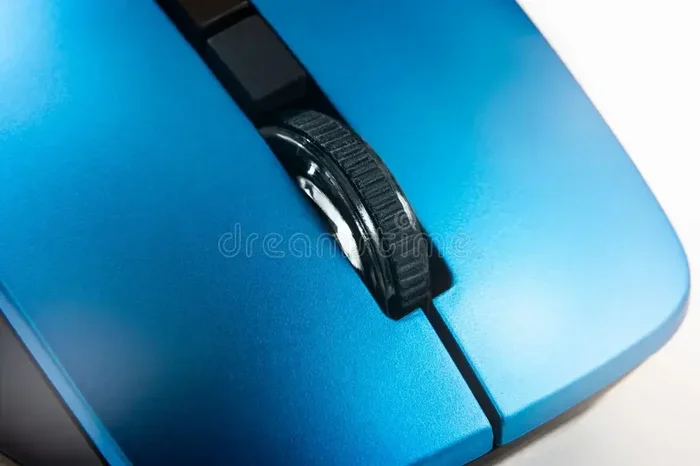
Scroll wheel jumping is a frustrating problem that disrupts your workflow and makes navigating documents or web pages a hassle. This guide walks you through every possible cause and fix for scroll wheel jumping, from simple driver updates to advanced registry tweaks. You will learn how to adjust mouse settings, clean your physical scroll wheel, and update or reinstall your pointing device drivers. By the end, you will have a clear action plan to bring back smooth, predictable scrolling on any device.
There is nothing more annoying than when your scroll wheel jumping turns a simple task into a frustrating experience. You are reading an article, browsing a webpage, or scrolling through a spreadsheet, and suddenly your mouse jumps several lines at once. Or worse, it stops scrolling entirely and then rockets forward unexpectedly.
This problem affects all kinds of mice and laptops. Whether you use a desktop mouse, a laptop touchpad, or a fix touch mouse on laptop setup, scroll wheel jumping can ruin your productivity. The good news is that this issue is almost always fixable without spending a dime.
In this guide, we will cover every common cause of scroll wheel jumping and give you step-by-step solutions. You will learn how to fix scroll wheel jumping through software settings, driver updates, physical cleaning, and even registry tweaks. Let us get your scrolling smooth again.
Key Takeaways
- Driver issues are the #1 cause: Outdated or corrupted mouse drivers often trigger scroll wheel jumping.
- Simple settings can fix the problem: Adjusting scroll speed and mouse acceleration in Windows often resolves minor jumping.
- Physical dirt matters: Dust and debris inside the scroll wheel can cause intermittent jumping behavior.
- Registry edits offer a deep fix: Tweaking Windows registry values for scroll behavior can solve stubborn issues.
- Hardware failure is possible: If software fixes fail, the scroll wheel sensor or mouse itself may need replacement.
- Laptops need extra attention: Touchpad and touch mouse settings can also cause scroll wheel jumping on laptops.
- Prevention is simple: Regular cleaning and driver updates keep your scrolling smooth long term.
📑 Table of Contents
Understanding Scroll Wheel Jumping
Before you jump into fixes, it helps to understand what is actually happening. Scroll wheel jumping means your mouse scroll wheel moves the page by an unexpected or inconsistent amount. Sometimes it skips lines. Sometimes it scrolls too far at once. Other times, it scrolls in the wrong direction.
This behavior is different from a scroll wheel that is physically broken. A broken scroll wheel might not scroll at all. Jumping, on the other hand, means the scroll wheel works but behaves erratically. The root cause is usually a software or settings issue, not a hardware defect.
Several things can trigger scroll wheel jumping:
- Outdated or corrupted mouse drivers
- Incorrect scroll speed settings in Windows
- Mouse acceleration being turned on
- Dust or debris trapped inside the scroll wheel
- Conflicting software or background processes
- Registry values that control scroll behavior
- Touchpad or touch mouse interference on laptops
Each of these causes has a specific fix. We will go through them all below, starting with the easiest solutions and working toward more advanced ones.
Common Causes of Scroll Wheel Jumping
Outdated or Corrupted Drivers
The most common reason for scroll wheel jumping is a problem with your mouse driver. Windows uses generic drivers by default, but they do not always work well with every mouse model. When a driver becomes outdated or corrupted, it can send wrong signals to your computer, causing the scroll wheel to behave unpredictably.
Even if you have the latest Windows updates installed, your mouse driver might still be outdated. Manufacturers like Logitech, Microsoft, and Razer frequently release driver updates that fix scrolling bugs. If you have not updated your mouse driver recently, this should be your first stop.
Incorrect Scroll Speed Settings
Windows lets you control how fast your scroll wheel moves when you rotate it. If this setting is too high, even a small turn of the wheel causes the page to jump far down. If it is too low, you need to spin the wheel many times to move through a document.
The scroll speed setting can also interact with other mouse settings in confusing ways. For example, if your scroll speed is set very high and mouse acceleration is also on, you will get unpredictable jumping behavior. Adjusting these settings together often solves the problem.
Mouse Acceleration Interference
Mouse acceleration changes the distance your cursor moves based on how fast you move your mouse. While this feature helps some people, it can cause problems with scrolling. When acceleration is enabled, the scroll wheel may respond differently depending on how quickly you turn it.
This inconsistency is one of the sneaky causes of scroll wheel jumping. Many users do not even realize mouse acceleration is turned on because Windows hides this setting by default. Turning it off is a simple fix that can make a big difference.
Dirt and Debris Inside the Scroll Wheel
It sounds simple, but physical dirt inside your scroll wheel is a surprisingly common cause of jumping. Over time, dust, crumbs, and tiny particles build up around the scroll wheel mechanism. This buildup interferes with the sensor inside the wheel, causing it to send multiple signals for a single turn.
If your scroll wheel feels gritty or sticky, dirt is likely the culprit. Cleaning the wheel is a quick fix that costs nothing and often solves the problem immediately. We will cover how to do this in the fixes section below.
Conflicting Software
Some software programs can interfere with your mouse scroll behavior. This is especially true for programs that customize mouse settings, such as gaming software, virtual desktop tools, or accessibility utilities. When these programs run in the background, they can override Windows scroll settings and cause jumping.
If you recently installed new software and noticed scroll wheel jumping started around the same time, there is a good chance the new software is the cause. Disabling or uninstalling it can restore normal scrolling.
How to Fix Scroll Wheel Jumping: Step-by-Step Solutions
Fix 1: Update Your Mouse Driver
The first and most important step is to update your mouse driver. Here is how to do it:
- Right-click the Start button and select Device Manager.
- Expand the Mice and other pointing devices section.
- Right-click your mouse device and select Update driver.
- Choose Search automatically for drivers.
- Follow the on-screen instructions to complete the update.
- Restart your computer and test your scroll wheel.
If Windows does not find a new driver, visit your mouse manufacturer’s website and download the latest driver manually. Brands like Logitech, Razer, and Microsoft all offer free driver downloads on their support pages.
For laptop users, you may also want to check your touchpad driver. A fix touchpad mouse on laptop guide can help you address touchpad-related scrolling issues at the same time.
Fix 2: Adjust Scroll Speed in Windows Settings
Changing your scroll speed is one of the simplest fixes for scroll wheel jumping. Here is what to do:
- Open Settings and go to Bluetooth and Devices.
- Click on Mouse in the left sidebar.
- Under Scroll, find the Lines to scroll at a time setting.
- Set this value to 3 or 4 for a balanced scrolling experience.
- Test your scroll wheel to see if jumping improves.
If you are using a laptop, you might also see an option to adjust the scroll speed for the touchpad. Lower values give you more control and reduce jumping. Higher values let you scroll through long documents faster but increase the chance of overshooting.
You can also adjust mouse settings through the Control Panel for more detailed options. Go to Control Panel, select Mouse, and click the Wheel tab. Here you can set the number of lines to scroll per notch and even change how many screens the wheel scrolls at a time.
Fix 3: Turn Off Mouse Acceleration
Disabling mouse acceleration can stop scroll wheel jumping caused by inconsistent cursor behavior. Here is how:
- Open the Control Panel and select Mouse.
- Go to the Pointer Options tab.
- Uncheck Enhance pointer precision.
- Click Apply and then OK.
- Restart your computer and test scrolling.
Turning off mouse acceleration makes your cursor movement more predictable. This is especially helpful for users who do precise work like graphic design or spreadsheet editing. Many gamers also prefer to disable acceleration for more consistent aiming.
If you use your mouse for how to mouse scroll on a laptop tasks frequently, disabling acceleration can improve your overall scrolling experience significantly.
Fix 4: Clean Your Scroll Wheel
Physical cleaning is a fix that many people overlook. Here is how to clean your scroll wheel properly:
- Turn off your computer and unplug your mouse.
- Use a can of compressed air to blow dust out from around the scroll wheel.
- Dampen a cotton swab with isopropyl alcohol and gently clean the wheel sides.
- Rotate the wheel back and forth while cleaning to dislodge trapped debris.
- Let the wheel dry completely before plugging your mouse back in.
For laptops with built-in touchpads, you can use the same cleaning method on the scroll area. Be gentle and avoid using too much liquid. A fix your mouse on laptop cleaning routine done regularly can prevent dirt buildup that causes scroll wheel jumping.
After cleaning, test your scroll wheel right away. You should notice an immediate improvement if dirt was the cause. Some users are surprised how much difference a simple cleaning makes.
Fix 5: Check for Conflicting Software
If you have mouse customization software installed, it might be causing scroll wheel jumping. Here is how to check:
- Open Task Manager by pressing Ctrl + Shift + Esc.
- Look for mouse or input-related software in the Background processes tab.
- Right-click the software and select End task.
- Test your scroll wheel to see if jumping stops.
Common culprits include Logitech G Hub, Razer Synapse, Corsair iCUE, and X-Mouse Button Control. If disabling these programs fixes your scrolling, you may need to reinstall them or adjust their scroll settings within the software itself.
For laptop users, background touchpad drivers can also interfere with scrolling. Sometimes a simple restart after closing these programs is enough to restore smooth scrolling.
Advanced Fixes for Stubborn Scroll Wheel Jumping
Edit Windows Registry Scroll Settings
If the basic fixes above did not work, you can try editing the Windows registry. The registry contains deep settings that control how your mouse scroll wheel behaves. Changing these values can fix persistent scroll wheel jumping that no other method can solve.
Here is how to do it safely:
- Press Windows key + R to open the Run dialog.
- Type regedit and press Enter.
- Navigate to HKEY_CURRENT_USER\Control Panel\Desktop.
- Look for a value called WheelScrollLines.
- Double-click it and set the value to 3.
- Restart your computer and test your scroll wheel.
Be careful when editing the registry. Only change values you are sure about, and consider backing up your registry before making any changes. If you are not comfortable with this process, skip this step and try other solutions first.
Reinstall the Mouse Driver Completely
Sometimes simply updating the driver is not enough. You may need to completely remove and reinstall the mouse driver for a clean slate:
- Open Device Manager.
- Expand Mice and other pointing devices.
- Right-click your mouse and select Uninstall device.
- Check the box that says Delete the driver software for this device.
- Restart your computer.
- Windows will automatically reinstall the driver on startup.
This process clears out any corrupted driver files that might be causing scroll wheel jumping. After the reinstall, check your scroll settings and test the wheel thoroughly.
Test with a Different Mouse
If none of the software fixes work, it is time to test your hardware. Plug in a different mouse and see if the scrolling problem persists. If the new mouse scrolls smoothly, your original mouse likely has a hardware defect.
For laptop users, try connecting an external mouse and compare the scrolling behavior. If the external mouse works fine but the touchpad does not, the issue is specific to your touchpad. You can then focus on touchpad-specific fixes like updating the touchpad driver or adjusting touchpad settings.
Some laptops have a dedicated touchpad toggle key that can accidentally get pressed, disabling or resetting touchpad settings. Check your laptop keyboard for a function key that controls the touchpad and make sure it is not causing the issue.
Preventing Scroll Wheel Jumping in the Future
Once you have fixed scroll wheel jumping, you want to keep it from coming back. Here are some simple habits that help:
- Keep your drivers updated: Check for mouse driver updates once a month. Most manufacturers release updates that fix bugs and improve performance.
- Clean your mouse regularly: A quick cleaning session every few weeks prevents dust buildup that causes jumping.
- Avoid conflicting software: Only install mouse customization software you actually need. Too many programs controlling your mouse can create conflicts.
- Use a mouse pad: A clean, smooth mouse pad reduces wear on your mouse sensor and keeps scrolling consistent.
- Restart your computer regularly: Regular restarts clear out temporary glitches that can affect mouse behavior.
These small habits take minimal effort but can save you hours of frustration over time. Consistent maintenance keeps your scrolling smooth and your mouse working reliably.
When to Replace Your Mouse
Sometimes the best fix is to accept that your mouse has reached the end of its life. If you have tried every software fix, cleaned the scroll wheel thoroughly, and tested with a different mouse, but your original mouse still jumps, it is time for a replacement.
Modern mice are affordable and reliable. A basic optical mouse costs around $15 to $25 and will last for years. If you need a mouse for specific tasks like gaming or graphic design, there are excellent options at every price point.
Before buying a new mouse, make sure the problem is not with your computer itself. Try the new mouse on a different computer. If it works fine elsewhere, your original mouse is definitely the problem. If the new mouse also jumps on your computer, the issue might be with your USB port, motherboard, or operating system.
Final Thoughts
Fixing scroll wheel jumping does not have to be complicated. Most of the time, a simple driver update or settings adjustment is all it takes. Start with the easiest fixes and work your way toward more advanced solutions. Clean your scroll wheel regularly, keep your drivers up to date, and pay attention to software that might be interfering with your mouse settings.
Remember that every computer setup is different. What works for one person might not work for another. The key is to try each solution patiently and test your scroll wheel after every change. With the steps in this guide, you should be able to restore smooth, predictable scrolling and get back to your work without frustration.
Do not let a jumping scroll wheel slow you down any longer. Pick a fix from this guide, try it today, and enjoy the satisfaction of smooth, effortless scrolling again.
Frequently Asked Questions
Why does my scroll wheel jump randomly?
Random scroll wheel jumping is usually caused by outdated mouse drivers, dust inside the scroll wheel, or incorrect scroll speed settings in Windows. Start by updating your driver and cleaning the wheel. If the problem continues, check your scroll speed and mouse acceleration settings.
Can a dirty scroll wheel cause jumping?
Yes, dirt and debris inside the scroll wheel mechanism can interfere with the sensor and cause jumping. Cleaning the wheel with compressed air and isopropyl alcohol often fixes this problem immediately. Regular cleaning prevents buildup from causing future issues.
How do I stop my laptop scroll wheel from jumping?
On laptops, scroll wheel jumping can come from touchpad settings, touch mouse interference, or outdated pointing device drivers. Update your touchpad driver, adjust scroll speed settings, and check for conflicting software. You can also refer to a guide on fix touchpad mouse on laptop for device-specific help.
Is scroll wheel jumping a sign of a broken mouse?
Not always. Most cases of scroll wheel jumping are caused by software or settings issues, not hardware damage. Try updating drivers, adjusting settings, and cleaning the wheel first. If none of these fixes work, then a hardware defect becomes more likely.
What scroll speed setting is best to prevent jumping?
A setting of 3 to 5 lines per scroll notch works well for most users. This gives you smooth, controlled scrolling without large jumps. You can find this setting in Windows Mouse settings under the Scroll section. Adjust it to your comfort and test your wheel afterward.
Will updating Windows fix scroll wheel jumping?
Yes, Windows updates often include driver updates and bug fixes for mouse scrolling behavior. Make sure your system is fully updated before trying other fixes. If updating Windows does not help, manually updating your mouse driver through Device Manager is the next step.