Hp Zbook Power G11 Ram Ssd Upgrade Step By Step Guide
This guide walks you through every step to upgrade the RAM and SSD in your HP Zbook Power G11. You will learn what parts you need, how to open your laptop safely, and how to install new memory and storage like a pro. Whether you want more speed, extra storage, or better multitasking, this HP Zbook Power G11 RAM SSD upgrade guide covers it all. Follow along and give your workstation a fresh boost.
If you own an HP Zbook Power G11 and feel like it is slowing down, you are not alone. Over time, laptops get bogged down by heavy tasks, large files, and outdated hardware. The good news is that upgrading the RAM and SSD on this machine can make it feel like new again. This HP Zbook Power G11 Ram Ssd Upgrade guide breaks everything down into simple, easy-to-follow steps.
You do not need to be a tech expert to pull this off. With the right parts, a few basic tools, and a little patience, you can boost your laptop’s memory and storage in under an hour. Many professionals choose to upgrade laptop RAM and SSD themselves because it saves money and gives them full control over the parts they use. This guide will show you exactly how to do it.
We will cover everything from checking compatibility to installing your new components. You will also learn tips to avoid common mistakes and get the best performance out of your HP Zbook workstation. Let us dive in and get started.
Key Takeaways
- Know your limits: Check the maximum RAM and SSD your HP Zbook Power G11 supports before buying parts.
- Grab the right tools: A small Phillips screwdriver and an anti-static wrist strap are all you need.
- Back up first: Always save your data before opening the laptop or replacing the SSD.
- Follow each step carefully: Rushing can damage components or void your warranty.
- Test after upgrading: Verify your new RAM and SSD are recognized before closing everything up.
📑 Table of Contents
- Why Upgrade RAM and SSD on HP Zbook Power G11?
- What You Need Before Starting
- Step-by-Step HP Zbook Power G11 RAM SSD Upgrade Guide
- Verifying Your HP Zbook Power G11 Upgrade
- Common Mistakes to Avoid During HP Zbook Power G11 RAM SSD Upgrade
- Expert Tips for Maximizing Performance After Upgrade
- How Much Does the HP Zbook Power G11 RAM SSD Upgrade Cost?
- When to Consider Professional Help
- Conclusion
Why Upgrade RAM and SSD on HP Zbook Power G11?
The HP Zbook Power G11 is a powerful mobile workstation designed for demanding tasks. It handles video editing, 3D rendering, software development, and heavy multitasking with ease. However, the base configuration may not be enough for everyone. Over time, your workflow grows and your machine starts to struggle.
Upgrading your laptop memory and SSD storage brings several real benefits:
- Faster boot times: A new solid-state drive loads Windows and your apps in seconds.
- Smoother multitasking: More RAM means you can run many programs at once without lag.
- Better file handling: A larger storage drive lets you keep all your projects, media, and files on your laptop.
- Longer lifespan: Upgrading now can keep your laptop useful for years instead of replacing it.
- Cost savings: Upgrading parts costs far less than buying a brand new workstation.
When you upgrade the RAM and SSD on your HP Zbook, you are essentially giving it a new lease on life. The difference in day-to-day use is dramatic. Applications open faster, files transfer quickly, and your system stays responsive even under heavy workloads.
What You Need Before Starting
Before you crack open your laptop, there are a few things you should prepare. Skipping this step can lead to delays or even damage to your machine. Here is a simple checklist to get ready.
Check Compatibility
The first thing to do is confirm what your HP Zbook Power G11 supports. Not all RAM modules or SSDs will work with every model. Check HP’s official specs page or your laptop manual for the maximum RAM capacity and supported SSD form factor.
The HP Zbook Power G11 typically supports DDR5 memory and M.2 NVMe SSDs. Make sure the RAM speed and SSD interface match what your laptop expects. Buying the wrong parts is the most common mistake people make.
Gather Your Tools
You do not need a lot of tools for this job. Here is what you will need:
- A small Phillips-head screwdriver
- An anti-static wrist strap (optional but recommended)
- A soft, clean workspace
- A microfiber cloth
- Your new RAM and SSD modules
Having everything ready before you start keeps the process smooth and stress-free. You do not want to pause halfway through just because you cannot find a screwdriver.
Back Up Your Data
This is the most important step. Before you remove or replace any component, back up all your important files. If you are replacing the existing SSD, you will lose everything on it unless you clone it first. Use an external drive or cloud storage to save your data safely.
If you plan to keep your old drive as a secondary storage option, you can clone it using free software like Macrium Reflect or Clonezilla. This way, your entire system, including Windows and all your apps, moves to the new drive seamlessly.
Step-by-Step HP Zbook Power G11 RAM SSD Upgrade Guide
Now comes the fun part. This step-by-step guide walks you through the entire process of upgrading both the RAM and SSD on your HP Zbook Power G11. Take your time and follow each step carefully.
Step 1: Power Down and Unplug
Start by shutting down your laptop completely. Do not just put it to sleep. Turn it off, unplug the power adapter, and disconnect any external devices like USB drives, monitors, or docking stations. If your laptop has a battery that can be removed, take it out. This ensures your safety and protects the components from static electricity.
Step 2: Open the Back Panel
Flip your HP Zbook Power G11 over and locate the screws holding the bottom panel in place. Use your Phillips screwdriver to remove them carefully. Keep the screws in a safe spot because you will need them again.
Once all screws are out, gently pry the bottom panel open using a plastic spudger or your fingernail. Avoid using metal tools here, as they can scratch the chassis or damage internal components. The panel should pop off with gentle pressure.
Step 3: Upgrade the RAM
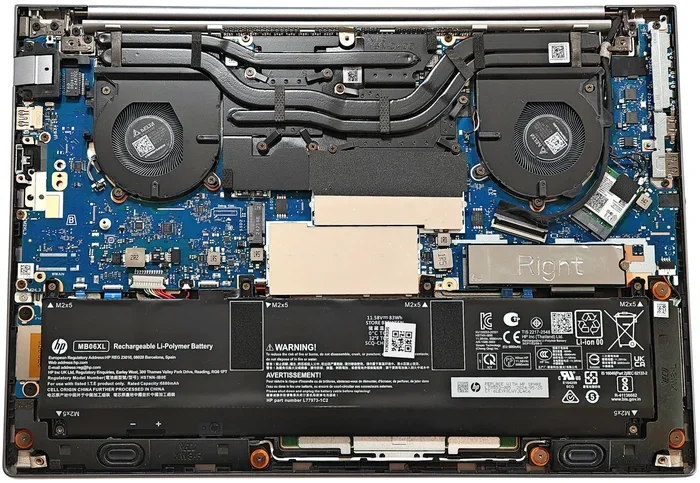
With the back panel removed, you can see the internal components. The RAM modules are usually easy to locate. They sit in slots that are clipped in place.
To remove the old RAM, push the metal clips on each side outward. The module will pop up at an angle. Gently pull it out. To install the new laptop memory, align the notch on the RAM stick with the slot and press it down firmly until the clips click into place.
If you are adding more RAM, make sure you match the speed and type of your existing modules. Mixing different RAM types can cause stability issues. For the best results, install matched pairs of RAM sticks.
If you are unsure about which RAM to buy, check out our Upgrade Ram On Hp Laptop guide for helpful tips on choosing the right memory.
Step 4: Replace the SSD
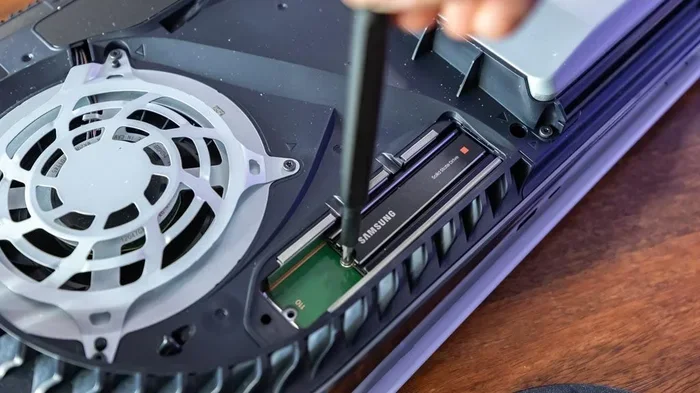
The SSD on the HP Zbook Power G11 is usually held in place by a single screw. Locate the M.2 NVMe drive, remove the screw, and slide the old SSD out at a slight angle. To install your new solid-state drive, insert it at the same angle and press it gently until it seats firmly. Replace the screw to secure it in place.
If you are upgrading from a smaller SSD to a larger one, you may want to clone your old drive before installing the new one. This saves you the hassle of reinstalling Windows and all your applications.
For more detailed help with the entire process, you can also visit our How To Upgrade Ram On A Hp Laptop page for additional guidance.
Step 5: Reassemble and Power On
Once both the RAM and SSD are installed, it is time to put everything back together. Place the bottom panel back on and press it firmly until it clicks. Replace all the screws and tighten them snugly, but do not overtighten.
Plug in your power adapter and turn on the laptop. The first boot might take a little longer than usual as Windows initializes the new hardware. Once you are at the desktop, check that everything is working correctly.
Verifying Your HP Zbook Power G11 Upgrade
After you finish the HP Zbook Power G11 Ram Ssd Upgrade, you should verify that everything is recognized and working properly. This only takes a couple of minutes and gives you peace of mind.
First, right-click on the Start menu and select Task Manager. Go to the Performance tab and click on Memory. You should see your new total RAM amount listed there. If it matches what you installed, the memory is working correctly.
Next, open File Explorer and check your drives. Your new SSD should appear with the full capacity you purchased. If it does not show up, you may need to initialize or format it through Disk Management.
You can also run a quick speed test using a free tool like CrystalDiskMark. This will show you the read and write speeds of your new drive and confirm that it is performing as expected.
For those looking to maximize their setup, consider pairing your upgraded machine with a high-performance configuration like an Hp Laptop 16Gb Ram 1Tb Ssd setup for even better multitasking and storage.
Common Mistakes to Avoid During HP Zbook Power G11 RAM SSD Upgrade
Even with a good guide, mistakes can happen. Here are some common errors to watch out for when performing your laptop RAM and SSD upgrade:
- Skipping the compatibility check: Buying RAM or SSD that does not fit your model is a waste of money. Always double-check the specs.
- Forgetting to ground yourself: Static electricity can damage sensitive components. Wear an anti-static wrist strap or touch a metal surface before handling parts.
- Overtightening screws: This can strip the threads or crack the motherboard. Tighten screws just until they are snug.
- Not backing up data: If you are replacing your SSD, you will lose all data on it unless you clone it first.
- Rushing the process: Take your time. Hurrying leads to mistakes and can damage your laptop.
- Ignoring BIOS updates: After a hardware upgrade, check if there is a BIOS update available for your HP Zbook. This can improve stability and performance.
Avoiding these mistakes will make your upgrade smooth and successful. If you run into any issues, do not panic. Double-check each step and make sure all connections are secure.
Expert Tips for Maximizing Performance After Upgrade
Once your HP Zbook Power G11 is back together and running with new RAM and SSD, there are a few extra steps you can take to squeeze out every bit of performance.
Enable XMP Profiles in BIOS
If your new RAM supports XMP (Extreme Memory Profile), go into your BIOS settings and enable it. This allows your memory to run at its rated speed instead of the default slower speed. The performance boost is noticeable, especially in demanding applications.
Optimize Windows for Your New SSD
Make sure TRIM is enabled for your new SSD. This helps maintain its speed over time. You can check this by opening Command Prompt as administrator and typing fsutil behavior query DisableDeleteNotify. If the result is 0, TRIM is already enabled.
Keep Your Drivers Updated
After a hardware upgrade, visit HP’s support website and download the latest drivers for your HP Zbook Power G11. Updated drivers ensure that your new components work harmoniously with the rest of your system. This is especially important for chipset and storage drivers.
Consider a Fresh Windows Installation
If you cloned your old drive, you might be carrying over old clutter and bloatware. A clean install of Windows on your new SSD can make a huge difference. It gives you a fresh start and ensures your system runs at peak efficiency.
How Much Does the HP Zbook Power G11 RAM SSD Upgrade Cost?
The cost of upgrading your HP Zbook Power G11 depends on the parts you choose. RAM prices have come down significantly in recent years. A 32GB DDR5 kit typically costs between $80 and $150, depending on the speed and brand.
For SSD storage, prices vary based on capacity. A 1TB NVMe M.2 SSD usually ranges from $60 to $100, while a 2TB drive can cost between $120 and $200. Overall, a full upgrade with both new RAM and SSD can be done for $150 to $300 in most cases.
Compare this to the cost of a new workstation, which can easily exceed $2000. Upgrading the RAM and SSD on your HP Zbook is one of the best value moves you can make. It delivers noticeable performance gains at a fraction of the cost of a replacement machine.
When to Consider Professional Help
Most users can complete this upgrade without any issues. However, if you are not comfortable opening your laptop or handling internal components, it is perfectly fine to seek professional help. Many computer repair shops offer RAM and SSD upgrade services for a reasonable fee.
Additionally, if your HP Zbook is still under warranty, opening it yourself might void the coverage. In this case, contact HP support or an authorized service center to perform the upgrade for you. It is always better to be safe than sorry when it comes to warranty protection.
If you are looking for general guidance on HP laptop upgrades, our Ram Upgrade For Hp Laptop article offers additional insights to help you make informed decisions.
Conclusion
The HP Zbook Power G11 Ram Ssd Upgrade is one of the most impactful improvements you can make to your workstation. It is affordable, straightforward, and delivers immediate results. Whether you need more memory for heavy applications or faster storage for large files, upgrading your RAM and SSD is the answer.
Follow the steps in this guide carefully, avoid common mistakes, and take your time. In less than an hour, you can transform your HP Zbook Power G11 into a faster, more capable machine. The performance boost will be noticeable from the very first boot.
Do not let a slow laptop hold you back any longer. Gather your tools, pick your parts, and give your HP Zbook Power G11 the upgrade it deserves. Your future self will thank you every time you open an application or boot up your system in seconds flat.
Frequently Asked Questions
What is the maximum RAM supported by the HP Zbook Power G11?
The HP Zbook Power G11 typically supports up to 64GB of DDR5 RAM, depending on the specific configuration. Always check HP’s official specifications for your exact model number to confirm compatibility before purchasing new memory modules.
Can I upgrade the SSD on my HP Zbook Power G11 myself?
Yes, upgrading the SSD on the HP Zbook Power G11 is a straightforward process that most users can complete in about 15 minutes. You just need to remove the bottom panel, unscrew the existing drive, and insert the new M.2 NVMe SSD in its place.
Do I need any special tools for the HP Zbook Power G11 RAM SSD upgrade?
You only need a small Phillips-head screwdriver and a clean, static-free workspace. An anti-static wrist strap is optional but recommended to protect sensitive components from electrostatic discharge during the upgrade process.
Will upgrading RAM void my HP Zbook warranty?
Upgrading RAM and SSD on the HP Zbook Power G11 generally does not void the warranty, as these are user-replaceable components. However, if your laptop is still under warranty, it is best to check HP’s terms or contact their support team to confirm before opening the device.
How long does the HP Zbook Power G11 RAM SSD upgrade take?
Most users complete the entire upgrade process in 30 to 60 minutes. This includes removing the old components, installing the new RAM and SSD, reassembling the laptop, and verifying that everything works correctly after the first boot.
Should I clone my old SSD or do a fresh Windows install?
Cloning your old SSD saves time by transferring everything, including Windows and apps, to the new drive. However, a fresh Windows install provides a cleaner, faster system with no old clutter or bloatware. Choose based on your comfort level and how much time you want to spend.