Ram Upgrade for Hp Laptop
A ram upgrade for hp laptop is one of the easiest and most affordable ways to make your computer faster. This guide covers everything you need, from checking compatibility to installing the new memory. You’ll learn how much RAM you need and how to do it yourself.
Key Takeaways
- Check Compatibility First: Always verify your HP laptop model’s maximum RAM capacity and type before buying.
- Easy DIY Process: Most RAM upgrades require just a screwdriver and basic steps anyone can follow.
- Right Type Matters: DDR4 is common, but some older models use DDR3L or DDR3.
- Speed and Capacity: Choosing the right RAM speed and size impacts your multitasking and gaming performance.
- Dual-Channel Benefits: Matching RAM sticks in pairs can significantly improve memory performance.
- Warranty Awareness: Some RAM upgrades may affect your warranty, so check HP’s policy first.
📑 Table of Contents
- Why a RAM Upgrade for HP Laptop Can Change Everything
- Understanding RAM and Why It Matters
- Checking Compatibility Before Your RAM Upgrade for HP Laptop
- Choosing the Right RAM for Your HP Laptop
- Step-by-Step Guide: How to Upgrade RAM in HP Laptop
- Common Mistakes to Avoid During RAM Upgrade
- Tips for Maximizing Your HP Laptop’s Performance After RAM Upgrade
- When Should You Upgrade Your HP Laptop RAM?
- Cost of RAM Upgrade for HP Laptop
- Warranty Concerns and Professional Help
- Conclusion
Why a RAM Upgrade for HP Laptop Can Change Everything
Is your HP laptop running slow? Do apps take forever to load? You are not alone. Many HP laptop owners face this problem. The good news is that a RAM upgrade for HP laptop can fix it. RAM (Random Access Memory) is your laptop’s short-term memory. It handles everything you do at the moment. More RAM means more tasks running smoothly at the same time.
Upgrading your RAM is like giving your laptop a bigger workspace. Instead of cramming files into a tiny desk, you get a wide table. Everything feels snappier. Your browser tabs open faster. Programs launch quickly. And your system does not freeze when you multitask. The best part? It is a budget-friendly fix. You do not need to buy a new laptop. Just add more memory and enjoy the speed boost.
In this guide, we will walk you through every step. You will learn how to check compatibility, choose the right RAM, and install it yourself. Let us get started.
Understanding RAM and Why It Matters
What Is RAM Exactly?
RAM is your laptop’s working memory. When you open a program, your laptop loads it into RAM. The CPU can then access it very quickly. Without enough RAM, your laptop stores data on the hard drive instead. This is much slower. That is why low RAM causes lag, freezes, and frustration.
Think of RAM like a desk. The bigger the desk, the more papers you can spread out. A small desk means you have to stack and unstack things constantly. A bigger desk lets everything sit ready for you. Your HP laptop works the same way.
How RAM Affects Laptop Performance
Here is how RAM impacts your daily use:
- Multitasking: More RAM lets you run many apps at once without slowdown.
- Gaming: Modern games need at least 8 GB, and 16 GB is even better.
- Browsing: Heavy Chrome users eat up RAM fast. More memory means smoother browsing.
- Video Editing: Editing software demands high RAM for smooth previews and exports.
- Productivity: Office apps run better with sufficient memory for quick file access.
Checking Compatibility Before Your RAM Upgrade for HP Laptop
Find Your HP Laptop Model
Before buying any memory, you need to know your exact HP laptop model. Look at the bottom of your laptop for a sticker. Or go to Settings and check your system info. Write down the model number, like HP Pavilion 15-eg0023nr. This number is crucial. It tells you exactly what type of RAM your laptop supports.
Check Maximum RAM Capacity
Every HP laptop has a maximum RAM limit. Some models support up to 8 GB. Others handle 16 GB or even 32 GB. You can find this information on HP’s official support page. Just search your model number and look at the specifications. Do not buy RAM that exceeds this limit. It will simply not work.
Identify the RAM Type
HP laptops use different types of RAM. The most common ones are:
- DDR4: Standard in most modern HP laptops. Fast and energy-efficient.
- DDR3L: Found in some older models. Low voltage version of DDR3.
- DDR3: Used in older HP laptops from a few years ago.
You must match the type exactly. DDR4 RAM will not fit in a DDR3 slot. They are physically different. Using the wrong type can damage your laptop. Always double-check before purchasing. You can also use a tool like Crucial’s System Scanner to find the right match automatically.
Check RAM Speed
RAM also comes with different speeds. Speed is measured in MHz. Common speeds include 2400 MHz, 2666 MHz, and 3200 MHz for DDR4. Your laptop’s motherboard supports a specific maximum speed. Installing faster RAM is usually fine, but it will run at the supported speed. Check your HP manual for the recommended speed. This ensures optimal performance.
Choosing the Right RAM for Your HP Laptop
How Much RAM Do You Need?
The right amount depends on what you do. Here is a simple breakdown:
| Usage Type | Recommended RAM |
|---|---|
| Basic browsing and office work | 8 GB |
| Multitasking and moderate gaming | 16 GB |
| Heavy gaming and video editing | 32 GB |
| Professional workloads | 32 GB or more |
For most users, 16 GB is the sweet spot. It handles everyday tasks and demanding apps with ease. If you only browse the web and use Microsoft Office, 8 GB works fine. Power users should consider 32 GB for the best experience with heavy software.
Single Stick vs. Dual Channel
Many HP laptops have two RAM slots. Using two matching sticks (dual-channel) is better than one large stick. Dual-channel memory offers faster data transfer. It improves performance in games and demanding tasks. For example, two 8 GB sticks often outperform one 16 GB stick. This is because they work together in parallel. Always check if your HP laptop supports dual-channel mode.
Brand Recommendations
You do not need to spend a fortune on RAM. Here are some reliable brands for HP laptop RAM upgrade:
- Crucial: Great quality and compatibility. Often comes with a lifetime warranty.
- Kingston: A trusted name in memory. Reliable and affordable.
- Samsung: High-quality DDR4 memory. Excellent performance.
- SK Hynix: Solid performance and good value for money.
Always buy from reputable sellers. Avoid counterfeit memory. Check seller ratings and return policies before you order.
Step-by-Step Guide: How to Upgrade RAM in HP Laptop
What You Will Need
Gather these items before you start:
- A small Phillips screwdriver
- Your new RAM module
- An anti-static wrist strap (optional but recommended)
- A clean, flat workspace
- Your HP laptop’s manual (helpful for reference)
Step 1: Power Down and Disconnect
Turn off your HP laptop completely. Unplug the power adapter. Remove any connected peripherals like a mouse or USB drive. Place the laptop on a flat surface. If you have an anti-static strap, put it on. This prevents static electricity from damaging your components.
Step 2: Remove the Bottom Cover
Flip your laptop over. Look for the screws on the bottom panel. Different HP models use different screw sizes. Keep them organized. Use your screwdriver to remove them. Some laptops have a release latch instead. Push it gently to pop off the back cover. Use plastic tools if needed to avoid scratches. Carefully lift off the bottom panel.
Step 3: Locate the RAM Slots
You should see the RAM slots now. They are long, narrow slots on the motherboard. Some HP laptops have RAM covered by a metal shield. If so, remove the small screws holding it in place. Do not force anything. If you feel stuck, consult your laptop’s manual or search for a video guide specific to your model.
Step 4: Remove the Existing RAM (If Upgrading)
If you are replacing old RAM, gently push the clips on both sides of the RAM stick outward. The stick will pop up at an angle. Pull it out carefully. Set it aside. If your laptop has empty slots, skip this step.
Step 5: Install the New RAM
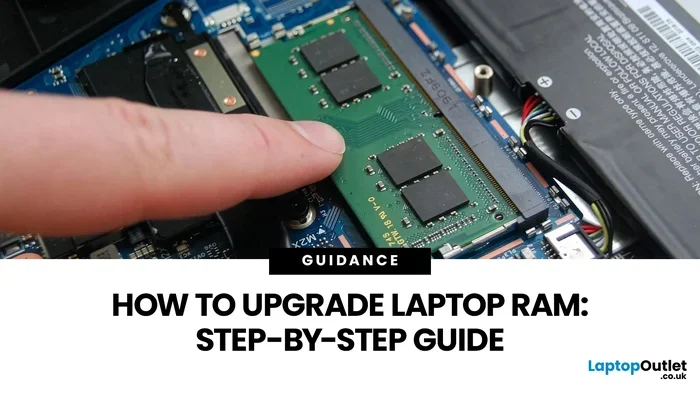
Take your new RAM module. Line up the notch on the bottom with the slot. It only fits one way, so do not force it. Slide it in at a 30-degree angle. Push it down gently until it sits flat. The clips on both sides should snap into place automatically. They will hold the RAM firmly. Make sure it is secure.
Step 6: Reassemble and Test
Put the bottom cover back on. Screw it in place. Connect the power adapter. Turn on your HP laptop. Right-click on the taskbar and select Task Manager. Go to the Performance tab. Check the Memory section. It should show your new total RAM. If it does, congratulations. Your RAM upgrade for HP laptop is successful. If not, try reseating the RAM. Make sure the clips are locked properly.
Common Mistakes to Avoid During RAM Upgrade
Buying the Wrong RAM Type
This is the most common mistake. Always verify DDR type, speed, and size before buying. DDR3 will not work in a DDR4 slot. Mixing RAM types can cause errors or damage. Take five extra minutes to research. It will save you a lot of headaches.
Ignoring the Maximum Capacity
Adding more RAM than your laptop supports does nothing. The extra memory will not be recognized. Always check the maximum supported capacity. This information is available in HP’s official documentation for every model.
Skipping the Anti-Static Precaution
Static electricity can fry your laptop’s components. Always ground yourself before handling RAM. Use an anti-static wrist strap. Or touch a metal surface to discharge static. This tiny step protects expensive parts from damage.
Forcing the RAM Into the Slot
RAM modules fit into slots in only one direction. If it does not slide in easily, stop. Check the alignment. The notch must match the ridge in the slot. Forcing it can break the RAM or the slot. Be patient and gentle.
Not Testing Before Closing Up
Some people install RAM and immediately close the laptop. This is risky. Always boot up and check the system first. Verify the new RAM is recognized in Task Manager or System Information. If there is a problem, opening the laptop again is much easier before everything is sealed shut.
Tips for Maximizing Your HP Laptop’s Performance After RAM Upgrade
Keep Your Drivers Updated
New RAM works best with updated drivers. Visit HP’s support page for your model. Download and install the latest BIOS and chipset drivers. These updates often improve memory management and overall stability.
Optimize Your Startup Programs
Even with more RAM, too many startup programs slow things down. Open Task Manager and go to the Startup tab. Disable programs you do not need at startup. This frees up resources for the apps you actually use. It makes your laptop feel even faster after the upgrade.
Consider a Storage Upgrade Too
If your laptop still feels slow after a HP laptop memory upgrade, consider upgrading to an SSD. Hard drives are much slower than solid-state drives. An SSD reduces boot times and app loading dramatically. Combining more RAM with an SSD creates a huge performance boost. It is one of the best upgrades you can make.
Use Windows Memory Diagnostic Tool
After installing new RAM, run the Windows Memory Diagnostic tool. Search for it in the Start menu. Run the test to ensure your new memory is working correctly. It checks for errors and helps confirm everything is stable. This is a quick and smart step to take.
Monitor Your RAM Usage
Open Task Manager regularly and watch your memory usage. If you consistently use over 80 percent, consider adding more RAM. If usage stays around 50 to 60 percent, your upgrade is working perfectly. Monitoring helps you understand your needs and plan future upgrades.
When Should You Upgrade Your HP Laptop RAM?
Signs You Need More RAM
Watch for these clear signs that your HP laptop needs a memory boost:
- Your laptop takes a long time to open programs.
- You hear the hard drive working constantly.
- Multiple browser tabs cause system freezes.
- Apps crash frequently without clear reason.
- Task Manager shows memory usage near 100 percent.
- Your system feels sluggish even after restarting.
If you notice two or more of these symptoms, a RAM upgrade is likely the solution. It is a much cheaper alternative to buying a new laptop. The speed improvement is immediately noticeable.
When Upgrading RAM Is Not Enough
Sometimes a RAM upgrade alone will not fix everything. If your laptop is very old, the processor might be the bottleneck. A slow hard drive can also limit performance. In these cases, consider a full system upgrade or a new laptop. But for most users, adding RAM makes a significant difference. It is often the single most impactful upgrade you can make.
Cost of RAM Upgrade for HP Laptop
How much does a RAM upgrade for HP laptop cost? It depends on the type and capacity. Here is a general price guide:
- 8 GB DDR4: Around $25 to $40 for one stick.
- 16 GB DDR4: Around $40 to $70 for one stick.
- 32 GB DDR4: Around $80 to $120 for one stick.
These are approximate prices. Costs vary by brand and retailer. Shopping during sales can help you save money. Remember, you might need two sticks for dual-channel. Budget for the total amount you need. It is still far less expensive than a new laptop.
Warranty Concerns and Professional Help
Does RAM Upgrade Affect Warranty?
In most cases, upgrading RAM does not void your HP warranty. HP generally allows users to add their own memory. However, some models may have restrictions. Check HP’s warranty terms for your specific model. If you are unsure, contact HP support before proceeding. They can confirm whether the upgrade is allowed.
When to Seek Professional Help
If you feel uncomfortable opening your laptop, that is okay. Not everyone is handy with internal hardware. You can take your laptop to a certified repair shop. The cost of professional installation is usually reasonable. It is a good option if you want peace of mind. A technician will handle everything correctly and safely.
Conclusion
A RAM upgrade for HP laptop is a smart, affordable, and effective upgrade. It breathes new life into a slow laptop. You get better multitasking, faster app loading, and smoother performance overall. The process is straightforward. You can do it yourself with basic tools and a little patience. Always check compatibility first. Choose the right type, speed, and capacity. Then follow the installation steps carefully.
Do not let a sluggish laptop slow you down. Take action today. A simple memory upgrade can transform your daily computing experience. Your future self will thank you for the extra speed and efficiency. Enjoy the boost and make the most of your upgraded HP laptop.
Frequently Asked Questions
Can I upgrade RAM in my HP laptop myself?
Yes, most HP laptops allow easy DIY RAM upgrades. You just need a small screwdriver and the correct RAM module. Follow a step-by-step guide for your specific model. The process usually takes about 15 minutes. If you are unsure, a repair shop can do it affordably.
What type of RAM does my HP laptop need?
The type depends on your laptop model. Most modern HP laptops use DDR4 RAM. Older models may use DDR3L or DDR3. Check your laptop’s model number on the bottom sticker. Then look up the specifications on HP’s official support page. You can also use Crucial’s scanner tool for automatic detection.
How much RAM should I upgrade to?
For everyday tasks like browsing and office work, 8 GB is sufficient. For gaming and multitasking, 16 GB is recommended. Heavy users doing video editing should go for 32 GB. Check your laptop’s maximum supported capacity before buying. You can find this in your HP model’s technical specifications.
Will upgrading RAM speed up my HP laptop?
Yes, if your laptop is slow due to low memory, a RAM upgrade will speed it up noticeably. You will notice faster app launches and smoother multitasking. However, if the processor or hard drive is the bottleneck, RAM alone may not solve everything. Combining RAM with an SSD upgrade gives the best results.
Can I mix different RAM brands in my HP laptop?
Technically, you can mix brands, but it is not recommended. Matching sticks from the same brand and model ensure the best compatibility. Different RAM may work but can cause instability or errors. For dual-channel benefits, use two identical sticks. Always check HP’s compatibility list for confirmed modules.
Is it worth upgrading from 4GB to 16GB RAM on an HP laptop?
Absolutely. Upgrading from 4 GB to 16 GB makes a dramatic difference. 4 GB is too low for modern Windows and browsers. The jump to 16 GB provides a much smoother experience. You will see major improvements in speed and responsiveness. It is one of the most worthwhile upgrades you can make.