How To Check Ram Ssd Specs And Improve Your System
Knowing how to check RAM SSD specs helps you understand your system’s true power. You will learn quick ways to view your memory and storage on Windows and Mac. We also share easy tips to improve your PC speed without spending a lot.
Your computer feels slow. Apps take forever to open. Files load at a crawl. You wonder what is going wrong. The answer might be hiding in your RAM SSD specs. Knowing your system’s memory and storage details is the first step to fixing performance problems. This guide walks you through every method to check those specs and then shows you how to use that information to speed things up.
Whether you use a laptop or a desktop PC, checking your hardware takes just a few minutes. You do not need to be a tech expert. The tools are already built into your system. And the best part? Most of them are completely free. By the end of this article, you will know exactly what your system has and what you can do to make it faster.
Key Takeaways
- Check RAM and SSD specs easily: Use built-in Windows tools, Task Manager, or third-party apps to view your system details.
- Know your current specs: Understanding your RAM size and SSD type helps you decide if an upgrade is needed.
- Upgrade with confidence: Learn what specs matter most before buying new memory or storage.
- Free tools work great: You do not need expensive software to find your hardware information.
- Small changes, big results: Simple tweaks like clearing cache and updating drivers can improve your system fast.
📑 Table of Contents
- Why Checking Your RAM and SSD Specs Matters
- How to Check RAM Specs on Windows
- How to Check SSD Specs on Windows
- How to Check RAM and SSD Specs on Mac
- Understanding What Your Specs Mean
- How to Improve Your System Using Your Specs
- Common Mistakes People Make When Checking Specs
- When to Consider a Full System Upgrade
- Final Thoughts
Why Checking Your RAM and SSD Specs Matters
Your PC has two main parts that affect speed. The first is RAM, or random access memory. This is your system’s short-term memory. It handles everything you do right now. The second is your SSD, or solid state drive. This is where all your files, apps, and the operating system live.
When either of these parts is too slow or too small, your whole system suffers. You might experience lag, freezing, or long load times. Checking your specs tells you exactly what you are working with. It helps you figure out if your hardware is the problem or if something else is going on.
Think of it like checking the engine in a car. You need to know what you have before you can fix it. The same idea applies here. Once you know your RAM and SSD specifications, you can make smart decisions about upgrades or optimizations.
How to Check RAM Specs on Windows
Windows makes it easy to view your RAM details. You have several built-in options. Each one gives you slightly different information. Here are the best methods.
Method 1: Use Task Manager
Task Manager is the quickest way to check your RAM. Follow these simple steps.
- Press Ctrl + Shift + Esc on your keyboard.
- Click on the “Performance” tab at the top.
- Select “Memory” from the left side menu.
- Look at the top right corner. You will see your total RAM amount.
Task Manager also shows your RAM speed and how many slots you are using. This is helpful when you want to add more memory later. For example, if you see you have 8 GB of RAM and 2 slots used, you know you have room to expand.
Method 2: Use System Information
This method gives you more detailed specs. Here is how to do it.
- Press the Windows key and type “System Information.”
- Open the app from the search results.
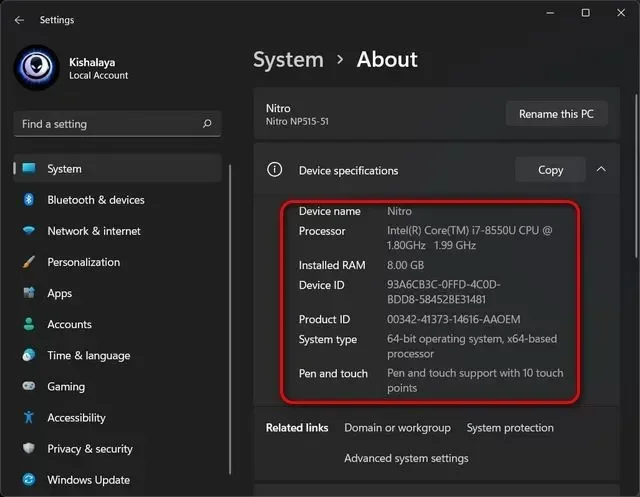
- Look for “Installed Physical Memory (RAM)” in the list.
You will see your total RAM and also the available RAM. This tells you how much is being used by your system at startup.
Method 3: Use Command Prompt
For those who like a more technical approach, the command prompt works well.
- Press Windows key + R to open the Run dialog.
- Type cmd and press Enter.
- Type wmic memorychip get capacity, speed and press Enter.
This shows you the exact capacity and speed of each RAM stick in your system. It is a great way to see what you are really working with.
How to Check SSD Specs on Windows
Checking your SSD specs is just as simple. Your SSD type, capacity, and read/write speeds all matter for performance. Here are the best ways to find this information.
Method 1: Check Through File Explorer
This is the simplest method. Open File Explorer and go to “This PC.” You will see your drives listed. Right-click on your main drive and select “Properties.” The window shows your total capacity and the type of drive you have.
However, this method does not tell you the SSD model or speed. For that, you need a deeper tool.
Method 2: Use Task Manager Performance Tab
Open Task Manager again and click on the “Performance” tab. Select “Disk” from the left menu. You will see your drive name, type, and read/write speeds.
This is useful for checking if your SSD is performing as it should. If your read speeds are very low, your drive might be failing or slowing down.
Method 3: Use Device Manager
Device Manager gives you more detailed hardware info. Follow these steps.
- Right-click the Start button and select “Device Manager.”
- Expand the “Disk drives” section.
- Click on your SSD to see its model name and details.
You can then search online for your SSD model to find its full specifications, including read and write speeds.
How to Check RAM and SSD Specs on Mac
If you use a Mac, the process is a bit different but still easy. Apple makes it simple to find your hardware details.
Checking RAM on Mac
Click the Apple logo in the top left corner. Select “About This Mac.” A window pops up showing your Mac model, processor, memory, and serial number. The memory section shows your total RAM amount.
For more detailed RAM info, click “System Report” and then select “Memory” from the left sidebar. You will see each RAM slot, its size, speed, and type.
Checking SSD on Mac
Go back to “About This Mac” and click “System Report.” Then select “SATA/SATA Express” or “NVMe” from the left menu. This shows your SSD model, capacity, and connection type.
You can also use a free app called “DriveDx” to get more detailed SSD health and performance data. It is a great tool if you want to monitor your drive over time.
Understanding What Your Specs Mean
Once you find your specs, what do they actually mean? Let us break it down.
RAM Size
RAM size is measured in gigabytes (GB). Most modern laptops come with 8 GB, 16 GB, or 32 GB of RAM. Here is what each amount means for everyday use.
- 8 GB: Good for basic tasks like web browsing, email, and office work.
- 16 GB: Great for multitasking, light photo editing, and casual gaming.
- 32 GB: Best for heavy workloads like video editing, programming, and running virtual machines.
If you find your RAM is too low, upgrading is one of the easiest ways to boost speed. Many laptops allow you to add more memory. Check your laptop model to see if it has an open slot or if the RAM is soldered to the motherboard.
SSD Type and Capacity
SSDs come in different types. The most common are SATA SSDs and NVMe SSDs. NVMe drives are much faster than SATA drives. They use a direct connection to the motherboard, which allows for higher read and write speeds.
SSD capacity is also measured in gigabytes or terabytes. A 256 GB SSD works fine for basic use. A 512 GB or 1 TB SSD gives you much more room for files and apps. If your SSD is almost full, your system will slow down. Keeping at least 15-20% of your drive free helps maintain good speed.
RAM Speed and Dual Channel
RAM speed is measured in megahertz (MHz). Higher MHz means faster data transfer. Most modern systems use DDR4 RAM running at 3200 MHz or higher. Newer systems use DDR5, which is even faster.
Dual channel mode is another important concept. When you have two RAM sticks of the same size, they work together to double the data bandwidth. This can improve performance in many tasks. Check your specs to see if your system is running in dual channel mode.
How to Improve Your System Using Your Specs
Now that you know how to check your specs, let us talk about how to use that information to improve your system. The goal is to make your PC faster and more responsive.
Upgrade Your RAM
If your Task Manager shows you are using 80% or more of your RAM regularly, it is time to add more memory. Upgrading RAM is one of the most cost-effective ways to improve performance.
Before you buy, check what type of RAM your system supports. Look at your motherboard manual or use a tool like Crucial’s System Scanner. Make sure the new RAM matches your existing RAM in speed and type for the best results.
For most users, going from 8 GB to 16 GB makes a huge difference. If you work with large files or run many apps at once, consider 32 GB or more. A laptop with 16GB RAM and 1TB SSD is a great balance of memory and storage for most people.
Upgrade Your SSD
If you are still using an HDD or an older SATA SSD, upgrading to a newer NVMe SSD can transform your system. Boot times drop dramatically. Apps open faster. File transfers happen in seconds instead of minutes.
When choosing a new SSD, look at the read and write speeds. A good NVMe SSD will have read speeds of 3,500 MB/s or higher. The Samsung 980 Pro and WD Black SN850 are popular choices that deliver excellent performance.
Also consider the storage capacity. If you work with large files or have a big game library, a 1 TB SSD gives you plenty of room. Check out options for a laptop with SSD and 16GB RAM to find a system that balances both components well.
Free Software to Optimize Your System
You do not always need to buy new hardware. Sometimes simple software tweaks can make a big difference.
- Disk Cleanup: Windows has a built-in tool that removes temporary files and frees up space on your SSD.
- Disable Startup Programs: Many apps start automatically when you boot your PC. Turn off the ones you do not need. This saves RAM and speeds up boot time.
- Update Your Drivers: Old drivers can cause slow performance. Check for updates for your SSD and chipset drivers regularly.
- Enable TRIM: TRIM helps your SSD maintain its speed over time. Make sure it is enabled in your system settings.
These small steps add up over time. They keep your system running smoothly without any extra cost.
Monitor Your System Regularly
Once you know your specs, make it a habit to check them periodically. Use tools like Task Manager or third-party apps to monitor your RAM and SSD usage. This helps you catch problems early before they become serious.
For example, if your SSD health starts to decline, you will see warning signs like slow read speeds or frequent errors. Catching these early gives you time to back up your data and replace the drive.
Common Mistakes People Make When Checking Specs
Many people make avoidable mistakes when checking their hardware specs. Here are the most common ones and how to avoid them.
- Relying only on one tool: Different tools show different levels of detail. Use at least two methods to get the full picture.
- Ignoring RAM speed: It is not just about size. RAM speed affects how fast your system processes data. Always check both.
- Not checking SSD health: A full or failing SSD can slow your whole system down. Monitor your drive health regularly.
- Confusing storage with memory: SSD is storage. RAM is memory. They are different components that serve different purposes.
- Skipping driver updates: Outdated drivers can cause your SSD or RAM to underperform. Keep everything up to date.
Avoiding these mistakes saves you time and frustration. It also ensures you get accurate information about your system.
When to Consider a Full System Upgrade
Sometimes checking your specs reveals that your system needs more than just a small tweak. If your RAM is soldered and cannot be upgraded, or if your motherboard does not support newer SSD types, you might need to consider a full system upgrade.
Look for a laptop i7 16gb ram 512gb ssd if you want a balanced system that handles most tasks with ease. For heavier workloads, consider a laptop i7 13th generation 16gb ram 1tb ssd which offers the latest processor technology with plenty of memory and storage.
Do your research before buying. Check reviews, compare specs, and make sure the new system fits your needs and budget. A well-chosen upgrade can last you for years.
Final Thoughts
Checking your RAM SSD specs is the foundation of understanding your system. It takes just a few minutes and requires no special skills. Once you know what you have, you can make smart decisions about upgrades and optimizations.
Start with the built-in Windows tools. They give you everything you need for most situations. Then use that information to decide if you need more RAM, a faster SSD, or both. Small upgrades can make a huge difference in daily performance.
Remember to maintain your system regularly. Clear temporary files, update drivers, and monitor your drive health. These habits keep your PC running fast for years. You do not need to be a tech expert to get great results. You just need to know what to look for and how to act on it.
Take action today. Check your specs, identify your bottlenecks, and make the changes that will bring your system back to life. Your faster PC is just a few minutes away.
Frequently Asked Questions
How do I check my RAM specs on Windows 11?
Open Task Manager by pressing Ctrl + Shift + Esc. Click on the “Performance” tab and select “Memory.” You will see your total RAM, speed, and how many slots are in use. For more details, search for “System Information” in the Start menu.
What is the difference between RAM and SSD?
RAM is your system’s short-term memory. It handles active tasks while your computer is running. An SSD is your long-term storage. It holds your files, apps, and operating system even when the PC is off. Both are important but serve different roles in your system.
Can I check my SSD speed without installing software?
Yes. Open Task Manager and go to the Performance tab. Click on “Disk” to see your read and write speeds. For more detailed speed tests, you can use the free Windows built-in tool called “fsutil” or check your drive properties in File Explorer.
How much RAM do I need for everyday tasks?
8 GB is enough for basic tasks like browsing and office work. 16 GB is ideal for multitasking, light editing, and most users. 32 GB or more is best for heavy workloads like video editing or programming. Check your current usage in Task Manager to see if you need more.
Is it easy to upgrade RAM and SSD on a laptop?
It depends on your laptop model. Many laptops have accessible RAM slots and SSD bays. Check your laptop manual or search online for your specific model. Some modern laptops have soldered RAM and non-upgradeable SSDs, so always verify before purchasing.
What should I do if my SSD is almost full?
A full SSD slows down your system. Start by using Windows Disk Cleanup to remove temporary files. Move large files to an external drive or cloud storage. Uninstall apps you no longer use. Keeping at least 15-20% of your SSD free helps maintain good performance.