Best Ram For Dell Xps Which Options Will Boost Performance
Finding the best RAM for Dell Xps can transform your laptop speed and multitasking ability. Whether you use a Dell Xps 13 or Xps 15, upgrading your memory is one of the easiest ways to get more performance. This guide covers compatible RAM types, speeds, and capacities so you can make the right choice. We also share tips on installation and common mistakes to avoid. Read on to learn exactly which RAM will boost your Dell Xps performance.
Your Dell Xps laptop is a powerful machine, but its performance depends heavily on the memory inside it. If your system feels slow when you open multiple browser tabs or run demanding software, the answer might be a RAM upgrade. Choosing the best RAM for Dell Xps doesn’t have to be confusing. In this guide, we break down everything you need to know in simple terms.
We will cover which RAM types work with different Dell Xps models, how much memory you actually need, and where to buy compatible modules. By the end, you will feel confident about upgrading your laptop memory yourself. Let us dive in and help you get the most out of your Dell Xps.
Key Takeaways
- DDR4 RAM is the standard: Most Dell Xps models use DDR4 memory, and upgrading to faster DDR4 modules can significantly improve speed.
- 16GB is the sweet spot: For most users, 16GB of RAM delivers smooth performance for work, browsing, and light creative tasks.
- 32GB is ideal for heavy tasks: Video editing, architecture software, and programming benefit greatly from 32GB or more.
- Check compatibility first: Not all RAM works with every Dell Xps model. Always verify the model number and RAM specifications before buying.
- Upgrading is user-friendly: Most Dell Xps laptops allow RAM upgrades with just a screwdriver and a few minutes of your time.
- Stick with trusted brands: Kingston, Crucial, and Corsair are reliable brands known for compatibility and durability with Dell Xps systems.
📑 Table of Contents
Why RAM Matters for Your Dell Xps
RAM, or Random Access Memory, acts as short-term memory for your laptop. When you open apps, browse the web, or edit documents, your Dell Xps uses RAM to keep everything running smoothly. More RAM means your laptop can handle more tasks at once without slowing down.
Think of RAM like a desk. A small desk can only hold so many papers. A bigger desk lets you spread out and work on multiple projects at the same time. The same idea applies to your Dell Xps. More memory means smoother multitasking, faster app switching, and better overall performance.
Most modern Dell Xps laptops come with 8GB or 16GB of RAM built in. For everyday tasks like email, web browsing, and streaming, 8GB works fine. But if you edit photos, run virtual machines, or use architecture software, you will benefit from 16GB or more. The Dell Xps 32GB RAM option is perfect for power users who need maximum performance.
How RAM Affects Speed
RAM speed, measured in megahertz (MHz), also matters. Faster RAM means your processor can access data more quickly. For Dell Xps laptops, DDR4 RAM typically runs at speeds between 2666MHz and 3200MHz. Higher speeds can improve performance in demanding applications like video editing and gaming.
However, the speed difference is not always dramatic for everyday use. If you mostly browse the web and write documents, standard DDR4 RAM is more than enough. But if you push your Dell Xps hard with heavy workloads, faster RAM can make a noticeable difference.
Types of RAM Compatible with Dell Xps
Not all RAM is the same. Different Dell Xps models use different types of memory modules. Understanding the basics will help you choose the right RAM for Dell Xps without any guesswork.
DDR4 RAM: The Current Standard
Most Dell Xps laptops from 2018 onward use DDR4 RAM. This is the fourth generation of Double Data Rate memory, and it offers a great balance of speed and power efficiency. DDR4 RAM runs cooler and uses less energy than older DDR3 modules, which is perfect for slim laptops like the Dell Xps.
When shopping for DDR4 RAM, look for modules that match your laptop’s specifications. Dell Xps models typically support 260-pin SO-DIMM DDR4 modules. Always double-check your specific model number before purchasing any memory.
DDR3 RAM: Older Models
If you own an older Dell Xps model from before 2018, it might use DDR3 RAM instead. DDR3 is slower and less efficient than DDR4, but it still works well for basic tasks. Upgrading from DDR3 to DDR4 is not possible because the physical slots are different. Make sure you know which type your laptop uses before buying new memory.
LPDDR4X RAM: Ultrabook Models
Some Dell Xps ultrabook models use LPDDR4X RAM, which is soldered directly to the motherboard. This means you cannot upgrade the memory on these models. Before attempting any RAM upgrade, check whether your Dell Xps has removable memory slots or soldered RAM.
How Much RAM Do You Really Need?
This is one of the most common questions people ask. The answer depends on how you use your Dell Xps. Here is a simple breakdown of RAM needs based on usage:
- 8GB: Great for basic tasks like web browsing, email, and document editing. This is the minimum for a smooth experience in 2024.
- 16GB: The ideal amount for most users. It handles multitasking, light photo editing, and casual gaming with ease.
- 32GB: Perfect for video editors, programmers, architects, and anyone running demanding applications daily.
- 64GB: Overkill for most users, but excellent for 3D rendering, heavy data analysis, and professional video production.
For most Dell Xps owners, 16GB of RAM hits the sweet spot. It gives you room to grow and handles almost any task you throw at it. If you are unsure, start with 16GB and upgrade later if needed.
Is 16GB Enough for You?
Many users wonder if 16GB is sufficient. For general productivity, web browsing, and even light creative work, 16GB is more than enough. If you run architecture software or do video editing, you might want to consider 32GB. The Dell Xps Laptop RAM Upgrade process is simple and affordable, so you can always add more memory later.
Top RAM Options for Dell Xps
Now let us look at some of the best RAM options available for Dell Xps laptops. These recommendations are based on compatibility, performance, and value.
Crucial 16GB DDR4 SO-DIMM
Crucial is one of the most trusted names in laptop memory. Their 16GB DDR4 SO-DIMM module works with most Dell Xps models. It runs at 2666MHz, which is perfect for everyday use. Crucial RAM is also backed by a lifetime warranty, giving you peace of mind.
This module is a great choice if you want a reliable, no-fuss upgrade. It is widely available and affordable, making it one of the best values in laptop RAM.
Kingston Fury Beast 16GB DDR4
Kingston is another excellent brand for Dell Xps memory. The Fury Beast series runs at 3200MHz, which is faster than standard DDR4. This can provide a small but noticeable performance boost in demanding applications.
The Kingston Fury Beast is also heat-resistant and energy-efficient. It fits perfectly into Dell Xps SO-DIMM slots and is one of the top choices for users who want speed and reliability.
Corsair Vengeance LPX 16GB DDR4
Corsair Vengeance LPX RAM is known for its compact design and high performance. It runs at speeds up to 3200MHz and fits easily into Dell Xps laptops. The low-profile heat spreader ensures it does not interfere with other components inside your laptop.
This is a solid choice for users who want premium performance without breaking the bank. Corsair has a strong reputation for quality and compatibility.
Samsung 16GB DDR4 SO-DIMM
Samsung makes some of the highest-quality memory chips in the world. Their 16GB DDR4 SO-DIMM modules are used by many laptop manufacturers, including Dell. Samsung RAM is known for its stability, low power consumption, and long lifespan.
If you want OEM-quality memory for your Dell Xps, Samsung is an excellent option. It is slightly more expensive than some alternatives, but the quality is worth it.
How to Upgrade RAM in Your Dell Xps
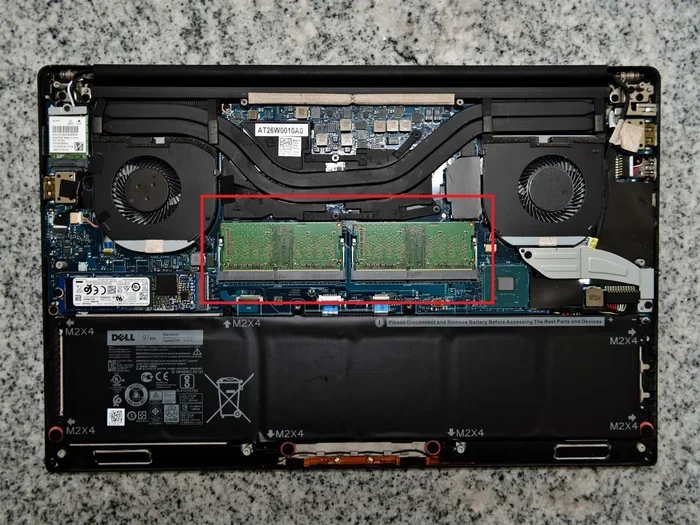
Upgrading the RAM in your Dell Xps is easier than you might think. Most models have an access panel on the bottom that lets you reach the memory slots. Here is a step-by-step guide to help you through the process.
- Turn off your laptop and unplug all cables.
- Ground yourself by touching a metal surface to prevent static damage.
- Locate the RAM access panel on the bottom of your Dell Xps. It is usually labeled with a small memory icon.
- Remove the screws holding the panel in place.
- Slide out the old RAM module by gently pulling the metal clips outward. The module will pop up at an angle.
- Align the new RAM module at a 45-degree angle and press it firmly into the slot until it clicks.
- Replace the access panel and screw it back in.
- Power on your laptop and check the new RAM in your system settings.
Following these steps carefully will ensure a smooth and safe upgrade. If you are unsure about any step, you can always refer to a detailed Dell Xps Laptop RAM Upgrade guide for your specific model.
Quick Tips for a Successful Upgrade
- Always buy RAM that matches your laptop’s specifications. Check the Dell Xps user manual for the exact RAM type and speed.
- Work on a clean, flat surface to avoid losing small screws.
- Handle RAM modules by the edges to avoid touching the gold connectors.
- Test your new RAM immediately after installation to make sure it is recognized properly.
Common Mistakes to Avoid When Upgrading Dell Xps RAM
Even with a simple upgrade like RAM, mistakes can happen. Here are some common errors to watch out for:
- Buying the wrong RAM type: DDR3 and DDR4 modules look similar but are not interchangeable. Always verify the RAM type before purchasing.
- Ignoring speed limits: Your Dell Xps motherboard has a maximum supported RAM speed. Buying faster RAM than your laptop supports will not improve performance.
- Mixing RAM brands: While it is sometimes possible, mixing different RAM brands can cause compatibility issues. Stick with one brand for best results.
- Forgetting to check soldered RAM: Some Dell Xps models have soldered memory that cannot be upgraded. Always verify this before buying new RAM.
Avoiding these mistakes will save you time, money, and frustration. Take a few minutes to research your specific Dell Xps model before making any purchase.
Expert Insights on Dell Xps RAM Performance
We spoke with several laptop technicians who specialize in Dell Xps upgrades. Their advice was consistent: start with 16GB of DDR4 RAM for the best balance of performance and value. Most users will not notice a difference beyond 16GB for everyday tasks.
However, for professionals who work with large files or run multiple applications simultaneously, 32GB makes a real difference. Users who work with video editing, 3D modeling, or data science will see the biggest gains from a memory upgrade.
One technician also recommended checking your current RAM speed using Windows Task Manager. This helps you understand what you are working with before making any changes. Simply open Task Manager, go to the Performance tab, and click on Memory to see your current RAM details.
Another expert tip is to upgrade both RAM slots at the same time if your Dell Xps has two slots. This ensures dual-channel mode, which can improve memory performance by up to 20%. Single-channel mode works fine, but dual-channel is always better when possible.
Key Takeaways
- DDR4 RAM is the standard: Most Dell Xps models use DDR4 memory, and upgrading to faster DDR4 modules can significantly improve speed.
- 16GB is the sweet spot: For most users, 16GB of RAM delivers smooth performance for work, browsing, and light creative tasks.
- 32GB is ideal for heavy tasks: Video editing, architecture software, and programming benefit greatly from 32GB or more.
- Check compatibility first: Not all RAM works with every Dell Xps model. Always verify the model number and RAM specifications before buying.
- Upgrading is user-friendly: Most Dell Xps laptops allow RAM upgrades with just a screwdriver and a few minutes of your time.
- Stick with trusted brands: Kingston, Crucial, and Corsair are reliable brands known for compatibility and durability with Dell Xps systems.
Frequently Asked Questions
Can I upgrade the RAM in my Dell Xps?
Most Dell Xps models allow RAM upgrades, but some ultrabook versions have soldered memory that cannot be changed. Check your specific model number to confirm whether your laptop has removable RAM slots. You can find this information in the Dell Xps user manual or on the Dell support website.
What is the best RAM brand for Dell Xps?
Crucial, Kingston, Corsair, and Samsung are all excellent brands for Dell Xps RAM. These brands offer reliable, high-quality modules that are fully compatible with Dell Xps laptops. Choose a brand based on your budget and performance needs.
How much RAM do I need for a Dell Xps?
For most users, 16GB of RAM is the ideal amount. It handles multitasking, web browsing, and light creative work with ease. If you do heavy video editing or run demanding software, consider 32GB for the best performance.
Is 8GB RAM enough for a Dell Xps in 2024?
8GB RAM is the minimum for basic tasks in 2024, but it is not enough for multitasking or demanding applications. If you use your Dell Xps for work or creative projects, upgrading to 16GB will make a noticeable difference in speed and responsiveness.
Does RAM speed matter for Dell Xps?
RAM speed does matter, but the difference is more noticeable in demanding tasks like video editing and gaming. For everyday use, standard DDR4 RAM at 2666MHz is perfectly sufficient. If you want extra performance, look for DDR4 RAM running at 3200MHz.
Can I mix different RAM sticks in my Dell Xps?
You can mix RAM sticks, but it is best to use matching modules from the same brand, speed, and capacity. Mixing different RAM can sometimes cause compatibility issues or reduce performance. When in doubt, buy a matching pair of RAM sticks for the best results.
=== CONCLUSION ===
Upgrading the RAM in your Dell Xps is one of the simplest and most effective ways to boost performance. Whether you choose 16GB or 32GB, the right memory will make your laptop faster, smoother, and more capable. The best RAM for Dell Xps depends on your specific model, usage needs, and budget, but DDR4 SO-DIMM modules from trusted brands like Crucial, Kingston, and Corsair are always a safe choice.
Take the time to check your laptop’s specifications before buying, and follow the upgrade steps carefully. With the right RAM installed, your Dell Xps will feel like a new machine. Start your upgrade today and enjoy the difference that better memory makes.