What Is An Ssd And How It Can Transform Your Computer
An SSD, or solid state drive, is a modern storage device that uses flash memory to store data—no moving parts involved. Unlike traditional hard drives, SSDs deliver blazing-fast read and write speeds, dramatically shorter boot times, and a noticeably smoother computing experience. This guide covers everything from how SSDs work to why upgrading to one is the best investment you can make for your PC.
If your computer feels slow, takes forever to start up, or struggles to open apps, the answer might be simpler than you think. The problem could be your storage drive. And the fix? Switching to a solid state drive. An SSD is one of the most effective upgrades you can make to any computer. It changes everything about how your system feels and performs.
In this guide, we will walk you through exactly what an SSD is, how it works, and why it can completely transform your computing experience. Whether you are a casual user, a gamer, or someone who works with large files, understanding storage technology is essential. Let us dive in.
Key Takeaways
- What an SSD is: A solid state drive stores data using flash memory chips instead of spinning disks, making it faster and more durable.
- Speed transformation: SSDs offer read and write speeds that far exceed traditional hard drives, cutting boot and load times significantly.
- Types matter: SATA SSDs and NVMe SSDs differ in speed and form factor, so choosing the right one depends on your needs.
- Real-world benefits: Faster file transfers, improved gaming performance, and better system responsiveness are just a few advantages.
- Upgrade-friendly: Installing an SSD is straightforward and one of the most impactful upgrades you can do for an older computer.
- Durability: With no moving parts, SSDs are more resistant to physical damage and last longer than traditional drives.
📑 Table of Contents
What Is An Ssd And Why Does It Matter?
A solid state drive is a type of storage device that saves your data using flash memory chips. There are no moving parts inside. This is a huge difference from a traditional hard disk drive, or HDD, which relies on spinning metal disks and a mechanical arm to read and write data.
Think of it this way. An HDD is like a record player. It has a spinning platter and a needle that moves to find the right track. An SSD is more like a USB flash drive. It stores data electronically and can access it almost instantly. This fundamental difference is what makes SSD performance so much better.
How Does an SSD Store Data?
Inside an SSD, there are tiny memory chips called NAND flash cells. These cells hold electrical charges that represent your data. Even when you turn off your computer, the charges stay in place. This is called non-volatile storage. Your files, photos, and programs remain safe until you delete them.
The controller chip inside the SSD manages all of this. It decides where to store data, how fast to read it, and how to keep the drive healthy. Good controllers are a big reason why some SSDs perform better than others.
SSD vs HDD: The Key Differences
To truly understand what an SSD brings to the table, it helps to compare it directly with a traditional hard drive. Here are the main differences:
- Speed: SSDs are dramatically faster. They can read data in microseconds, while HDDs take milliseconds. That is thousands of times faster.
- Durability: No moving parts means SSDs are far less likely to break from drops or bumps.
- Power Use: SSDs use less energy, which can improve laptop battery life.
- Noise: SSDs are completely silent. HDDs spin and click, which can be distracting.
- Price: HDDs are still cheaper per gigabyte, but SSD prices have dropped a lot over the years.
The storage speed advantage of SSDs is the single biggest reason most people upgrade. Boot times, app launches, and file transfers all feel snappier and more responsive.
Types of SSDs You Should Know About
Not all SSDs are the same. There are a few different types, and they vary in speed, size, and connection type. Understanding these differences helps you pick the right one for your needs.
SATA SSDs
A SATA SSD connects to your motherboard using the same SATA interface that traditional hard drives use. These are the most common and widely available SSDs. They offer a big speed boost over HDDs but are limited by the SATA connection itself.
Typical SATA SSDs reach read speeds of around 550 MB per second. That is already much faster than any HDD. If you have an older computer that only supports SATA, this is still an excellent upgrade path.
NVMe SSDs
NVMe stands for Non-Volatile Memory Express. These SSDs connect directly to the motherboard through a PCIe slot, bypassing the SATA bottleneck. The result is much higher speeds. Top NVMe drives can hit speeds of 7,000 MB per second or more.
If you want the fastest storage possible, an NVMe SSD is the way to go. NVMe SSD technology has become the standard for new PCs and laptops. The speed difference is noticeable the moment you turn on your computer.
Curious how much faster NVMe really is compared to older SSDs? Check out our detailed breakdown of how much faster NVMe is than SATA SSDs to understand the real-world speed gap.
M.2 SSDs
M.2 is a form factor, not a speed standard. M.2 drives are small, flat sticks that plug directly into the motherboard. They can use either SATA or NVMe protocols. When shopping for an SSD, always check whether an M.2 drive is SATA or NVMe, because the performance difference is huge.
How an SSD Transforms Your Computer
Upgrading to a solid state drive is one of those rare upgrades where you can genuinely feel the difference immediately. Here is exactly how an SSD upgrade transforms your daily computing.
Faster Boot Times
One of the most noticeable changes is how quickly your computer starts. A Windows PC with an HDD might take two or three minutes to boot up. With an SSD, that time drops to 15 to 30 seconds in many cases. You go from waiting around to being productive almost instantly.
Quicker App and Game Loading
Applications open faster, games load quicker, and large files transfer in a fraction of the time. If you have ever stared at a loading screen wondering when it would finish, an SSD changes that experience completely.
Gamers especially benefit from faster storage. Does an SSD actually improve your frames per second? It can, especially when your game needs to stream assets from the drive. Learn more about whether an SSD improves FPS in our dedicated guide.
Better Multitasking
When you switch between multiple apps, an SSD handles the workload with ease. Your system feels more responsive and less sluggish. This is because the storage read speed of an SSD allows your computer to access data from multiple sources at once without bottlenecks.
Improved File Transfer Speeds
Copying large files, moving folders, or backing up data all happen much faster on an SSD. What used to take several minutes on an HDD might take seconds on a modern NVMe drive. This is a big deal for anyone who works with video, photography, or large datasets.
Is an SSD Good for Gaming?
Gaming is one of the areas where an SSD makes the biggest difference. Modern games are huge, often exceeding 50 or even 100 gigabytes. Loading all that data from a slow HDD creates long wait times and stuttering during gameplay.
An SSD reduces texture pop-in, shortens loading screens, and makes open-world games feel smoother. Many newer games actually require an SSD to run properly. If you are building or upgrading a gaming PC, fast storage should be a top priority.
Wondering if a 1TB NVMe SSD is enough for gaming? We cover that in detail in our article on whether a 1TB NVMe SSD is good for gaming.
Recommended Storage Setup for Gamers
Here is a practical setup many gamers use:
- Primary Drive (SSD): Install your operating system and the games you play most often on a fast NVMe SSD.
- Secondary Drive (HDD or larger SSD): Store less frequently played games and media files on a larger drive.
- Hybrid Approach: This gives you the speed of an SSD for your active games and the capacity of a larger drive for everything else.
The biggest NVMe SSD options on the market today offer up to 8TB of storage, which is more than enough for even the most demanding game libraries. You can explore the largest available options in our guide on the biggest NVMe SSDs available.
How to Choose the Right SSD for Your Needs
Not every SSD is the right fit for every user. Your choice depends on what you do with your computer, your budget, and your system’s compatibility.
Consider Your Use Case
Think about what you do most. If you mainly browse the web, write documents, and stream videos, even a basic SATA SSD will feel like a massive upgrade. If you edit video, run virtual machines, or play the latest games, you will want the speed of an NVMe drive.
Check Your Budget
SSD prices have come down a lot. A 1TB SATA SSD is very affordable and provides plenty of space for most users. NVMe drives cost a bit more but deliver significantly faster speeds. Set a budget and pick the best drive within that range.
Verify Compatibility
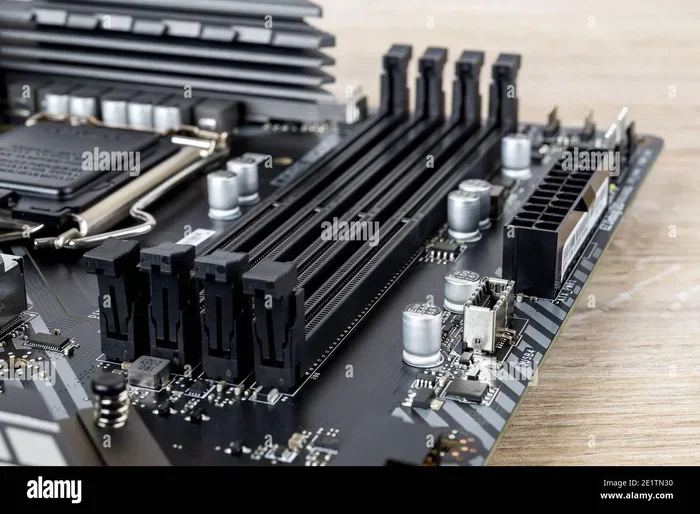
Before buying, check what your computer supports. Does your motherboard have an M.2 slot? Does it support NVMe? If you are upgrading a laptop, make sure it has a slot available. Some older systems may only support SATA connections.
Capacity Matters
Storage needs vary widely. Here is a quick guide:
- 250GB: Enough for an operating system and a few essential apps. Good for budget builds.
- 500GB: A solid sweet spot for most users. Handles the OS, apps, and a moderate game library.
- 1TB: Plenty of space for power users, gamers, and content creators.
- 2TB and above: Ideal for professionals who work with large files or have extensive game libraries.
How to Install an SSD in Your Computer
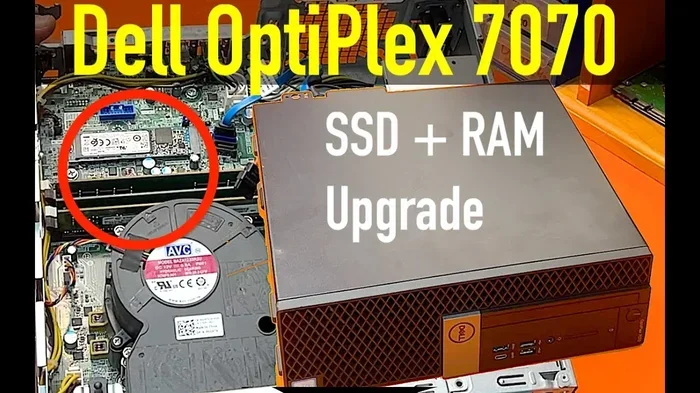
Installing an SSD is one of the easiest upgrades you can do yourself. You do not need to be a tech expert. Here is a quick overview of the process.
What You Will Need
- A screwdriver (usually Phillips head)
- Your new SSD
- A USB-to-SATA adapter or cloning software (if you want to transfer your existing system)
Installation Steps
- Turn off your computer and unplug it from power.
- Open the case or access panel.
- Locate an available M.2 slot or SATA port on your motherboard.
- Carefully insert the SSD at the correct angle and press it down firmly.
- Secure it with a screw if needed.
- Close the case and power on your computer.
- Go into your BIOS or UEFI settings to make sure the drive is detected.
- Install your operating system or clone your existing drive.
If you want a step-by-step walkthrough with detailed instructions, we have a complete guide on how to install an NVMe SSD that walks you through the entire process.
Common Installation Mistakes to Avoid
- Forgetting to check BIOS settings after installation.
- Using the wrong M.2 slot (some slots only support SATA, not NVMe).
- Not enabling AHCI mode in BIOS for optimal performance.
- Skipping the firmware update for your new SSD.
Expert Insights: Why SSDs Are the Future of Storage
The trend in computing is clear. SSDs are replacing HDDs as the default storage in almost all new computers. Manufacturers are phasing out traditional drives in favor of flash storage. This shift is driven by the undeniable performance advantages of SSDs.
As NAND flash technology continues to improve, SSDs are getting faster, more reliable, and more affordable every year. What was once a premium upgrade is now a standard component in virtually every modern PC and laptop.
If you are still running a computer with a traditional hard drive, upgrading to an SSD is the single best thing you can do to breathe new life into your system. The improvement in system responsiveness and overall speed is immediately noticeable. It is not an exaggeration to say that an SSD can make an old computer feel brand new.
Conclusion
An SSD is far more than just a storage device. It is the engine that powers your computer’s speed and responsiveness. From near-instant boot times to smoother gaming and faster file transfers, the benefits of solid state storage touch every aspect of your computing experience.
Whether you choose a SATA SSD or a high-speed NVMe drive, the upgrade is well worth the investment. Your computer will feel faster, quieter, and more reliable. If you have been putting off a storage upgrade, now is the perfect time. Your future self will thank you every time you turn on your machine.
Take the leap. Upgrade to an SSD and experience the difference for yourself. Your computer has been waiting for this.
Frequently Asked Questions
What is the main difference between an SSD and an HDD?
An SSD uses flash memory with no moving parts, while an HDD uses spinning disks and a mechanical arm. This makes SSDs much faster, more durable, and quieter than traditional hard drives. The speed difference is the most noticeable improvement when upgrading.
How much faster is an SSD compared to a hard drive?
SSDs can be 5 to 10 times faster than HDDs in real-world use. Boot times drop from several minutes to under 30 seconds, and file transfers happen in a fraction of the time. The exact speed depends on the type of SSD and your system setup.
Can I install an SSD alongside my existing hard drive?
Yes, absolutely. Many computers have room for both an SSD and an HDD. You can use the SSD for your operating system and frequently used programs, while the HDD handles bulk storage. This is one of the most popular upgrade setups.
Do SSDs wear out over time?
SSD cells have a limited number of write cycles, but modern SSDs are built to last many years under normal use. Most consumer SSDs have a rated lifespan of 5 to 10 years or more. For most users, the drive will outlast the computer it is installed in.
Is an NVMe SSD worth the extra cost over a SATA SSD?
For most users, yes. NVMe SSDs offer significantly faster speeds, especially for large file transfers and demanding applications. However, if you only do basic tasks like browsing and document editing, a SATA SSD may be sufficient and more budget-friendly.
Will upgrading to an SSD improve my gaming experience?
Yes, it can. While an SSD does not directly increase your graphics performance, it reduces game loading times, minimizes texture pop-in, and can improve frame rates in games that stream assets from storage. It is one of the most impactful upgrades a gamer can make.
=== END ===